Microsoft Lists is a Microsoft 365 application for creating and managing structured lists of information. It is designed to help individuals and teams track tasks, issues, assets, contacts, inventory, and any other data that benefits from a row-and-column structure with forms, views, and notifications built in.
If that description sounds familiar, it is because Microsoft Lists is built directly on SharePoint lists. The two share the same underlying data platform. Microsoft Lists is essentially a dedicated app interface for the same list technology that has been part of SharePoint for years, made more accessible and surfaced more prominently in the Microsoft 365 experience.
This guide explains what Microsoft Lists is, how it works, how it relates to SharePoint, and what it can and cannot do on its own.
What Microsoft Lists Is
Microsoft Lists launched in 2020 as a standalone app within Microsoft 365. It is accessible from the Microsoft 365 app launcher, from within Microsoft Teams via the Lists app, and from the Lists home page at lists.microsoft.com.
The core concept is a list: a structured collection of items organized into rows and columns. Each item in a list is a record. Each column holds a specific type of data: text, numbers, dates, choices, people, yes/no values, links, or calculated values.
Lists can be created from scratch, from one of several built-in templates, or by importing data from an Excel spreadsheet. The built-in templates cover common tracking needs including issue tracking, asset management, employee onboarding, event itineraries, travel requests, and content scheduling.
Each list has multiple views. The default grid view looks like a spreadsheet. A gallery view displays items as cards. A calendar view displays items by date. A Gantt-style view shows items on a timeline. Users switch between views without changing the underlying data.
Microsoft Lists and SharePoint: What Is the Relationship?
Microsoft Lists and SharePoint lists are the same thing at the data level. Every list created in Microsoft Lists is stored in SharePoint. Specifically:
- Lists created in the Microsoft Lists app and saved to "My Lists" are stored in the user's OneDrive SharePoint site.
- Lists created in Microsoft Lists and saved to a team are stored in the SharePoint site connected to that team.
- Lists created directly in a SharePoint site appear in Microsoft Lists when the user navigates to that site.
The difference is the interface and the entry point, not the underlying data. SharePoint surfaces lists as part of a broader site experience, alongside document libraries, pages, and site navigation. Microsoft Lists surfaces lists as the primary focus, without the surrounding SharePoint site context.
For practical purposes, this means that anything built or configured on a SharePoint list, including forms, views, automation, permissions, and third-party add-ins, is also available on a Microsoft Lists list, because they are the same object.
What Microsoft Lists Can Do
Structured data tracking. Lists hold structured records with typed columns, required columns, column validation, and default values. This makes them suitable for intake tracking, issue logs, asset registers, and any other scenario where consistent data entry matters.
Multiple views. Each list supports multiple views. Views can be filtered, sorted, and grouped by any column. Different users or teams can work from the same list data through different views without interfering with each other.
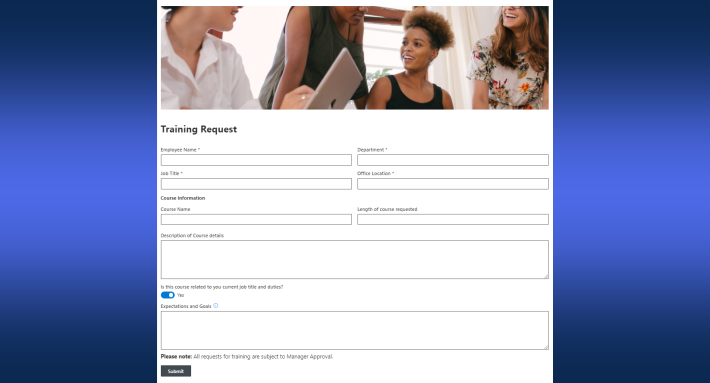
Forms. Each list has a form for creating and editing items. The default form is generated automatically from the list's columns. It is functional but basic — a single-column layout with no conditional logic, grouping, or styling.
Notifications and rules. Microsoft Lists supports simple rules: if-then conditions that send an email when a column value changes. For example, notify the assigned person when the Status column changes to "In Progress." These rules are limited to email notifications and do not support Teams delivery, conditional branching, or multi-step logic.
Integration with Teams. Lists can be added as a tab in any Teams channel. Team members can view, create, and edit list items directly within Teams without navigating to SharePoint or the Lists app.
Integration with Power Automate. For automation beyond simple rules, Microsoft Lists connects to Power Automate. A Power Automate flow can trigger from list events and perform actions in other Microsoft 365 services or third-party platforms.
Comments. Each list item supports a comment thread, allowing team members to discuss a specific record in context without using email.
What Microsoft Lists Cannot Do on Its Own
The native Microsoft Lists experience covers basic tracking scenarios well. For more demanding use cases, it reaches its limits quickly.
Form customization. The default list form is a single-column layout with no support for sections, tabs, conditional visibility, column-level permissions, or styling. If a business process requires that certain columns appear only for certain users, or that the form changes based on what the submitter has entered, the native form cannot do this.
Complex automation. The built-in rules are limited to simple notifications. Multi-step logic, approval workflows, scheduled actions, and data operations across lists require Power Automate, which introduces additional licensing and technical complexity.
Print and export. Microsoft Lists has no built-in mechanism for generating a formatted document from a list item. Producing a print-ready summary, a PDF, or a Word document from a list record requires a third-party tool or a custom Power Automate flow.
Dashboards and rollups. There is no native way to aggregate data from multiple lists into a summary dashboard or cross-list report within Microsoft Lists.
Microsoft Lists vs. SharePoint Lists: Which to Use
Because Microsoft Lists and SharePoint lists are the same underlying technology, the question is not which to use but which interface to use.
Use the Microsoft Lists app when the list is the primary focus and users need quick access from the app launcher or Teams without navigating a SharePoint site. It is well suited for personal tracking lists, team task trackers, and issue logs that exist independently of a broader site.
Use SharePoint directly when the list is part of a larger site context: a department portal, a process hub, or an intranet. When the list needs to sit alongside document libraries, news pages, and other site content, the SharePoint site is the right container.
For anything more complex than a basic tracker, the form customization, automation, and reporting capabilities need to be extended. The most practical way to do this is with a tool that works directly on top of the SharePoint list that Microsoft Lists is built on.
Extending Microsoft Lists with Ultimate Forms
Because Microsoft Lists data lives in SharePoint, tools that extend SharePoint lists also extend Microsoft Lists. Ultimate Forms by Infowise adds the capabilities that Microsoft Lists does not provide natively, without requiring Power Automate or any external service.
Form design. Ultimate Forms replaces the default list form with a configurable designer. Columns can be organized into sections and tabs, made conditionally visible based on the values of other columns, restricted by the submitter's role or group membership, and styled to match the organization's visual standards.
Automation. The Actions module handles multi-step logic that goes beyond the native rules: updating columns, creating related items, routing approvals, and sending structured notifications with item data included. The Alerts module adds conditional notifications and date-based reminders.
Print and export. The Print and Export module generates formatted Word documents, PDFs, and HTML summaries directly from list items. Templates are configured once and reused across any item in the list.
Item IDs. The Item ID module assigns sequential, human-readable identifiers to list items, giving every record a stable reference number that travels with it through forms, notifications, and approvals.
Because all of this runs inside the SharePoint tenant, the data never leaves Microsoft 365. No external vendor relationship is introduced, and no new storage system is added. The same list that Microsoft Lists displays is the list that Ultimate Forms enhances.
Summary
Microsoft Lists is a dedicated app experience built on SharePoint list technology. It makes structured tracking more accessible and more prominent in the Microsoft 365 environment, particularly for teams working in Teams. For basic tracking needs, it covers the essentials.
For organizations that need customized forms, conditional logic, automation beyond simple notifications, or formatted document output, the native experience needs to be extended. Because Microsoft Lists is SharePoint, tools that extend SharePoint lists extend Microsoft Lists as well.
If your organization uses Microsoft Lists and wants to build more capable processes on top of it, Ultimate Forms provides those capabilities without code and without data leaving the Microsoft tenant. Learn more at infowisesolutions.com.
Related reading:
- What Is SharePoint? A Complete Guide
- SharePoint vs OneDrive: What's the Difference?
- SharePoint Workflows: A Complete Guide
Frequently asked questions
Add your comment