Put your lists to work: one new item in a SharePoint list can trigger an entire working environment into existence. In Ultimate Forms, a single project entry can create a review task, set its permissions, register the project in your line-of-business database, provision a project site from a template, seed that site with a task, write the new site's link back onto the project, and email the creator that everything succeeded, seven automated operations, zero code, each one a configured action. This walkthrough builds the whole chain step by step. For the full catalog of what actions can do, start with the automation guide.
The one-entry environment
Most SharePoint automation needs sound small when spoken: "when a project is added, set things up." The setup, written out, is never small. Somebody creates the review task and remembers the due date. Somebody grants the reviewer access. Somebody registers the project in the ERP. Somebody requests the project site, waits, then pastes its link back into the list. Each step is minutes, the chain is days of elapsed time, and every manual hop is a chance to skip, mistype, or forget.
The traditional SharePoint answers were workflows or custom event receivers, both of which turn a one-sentence requirement into a development project: analysis, coding, testing, deployment. Actions answer at the requirement's own size. Each step becomes one action of the right type, from the 24 available, configured in the browser through the list's Design button, with the item's own values flowing into every setting. The chain below is the classic demonstration, and every piece of it transfers to onboarding, contracts, orders, or any process where one record should unfold into many.
The scenario
Entering a project name into the Projects list triggers, in the same second: a review task due in 30 days, permissions on that task, a stored-procedure call registering the project in the LOB application, a new project site from a preset template, a starter task inside the new site, the site's link written back to the project entry, and a confirmation email to the creator.
Step 1: the lists
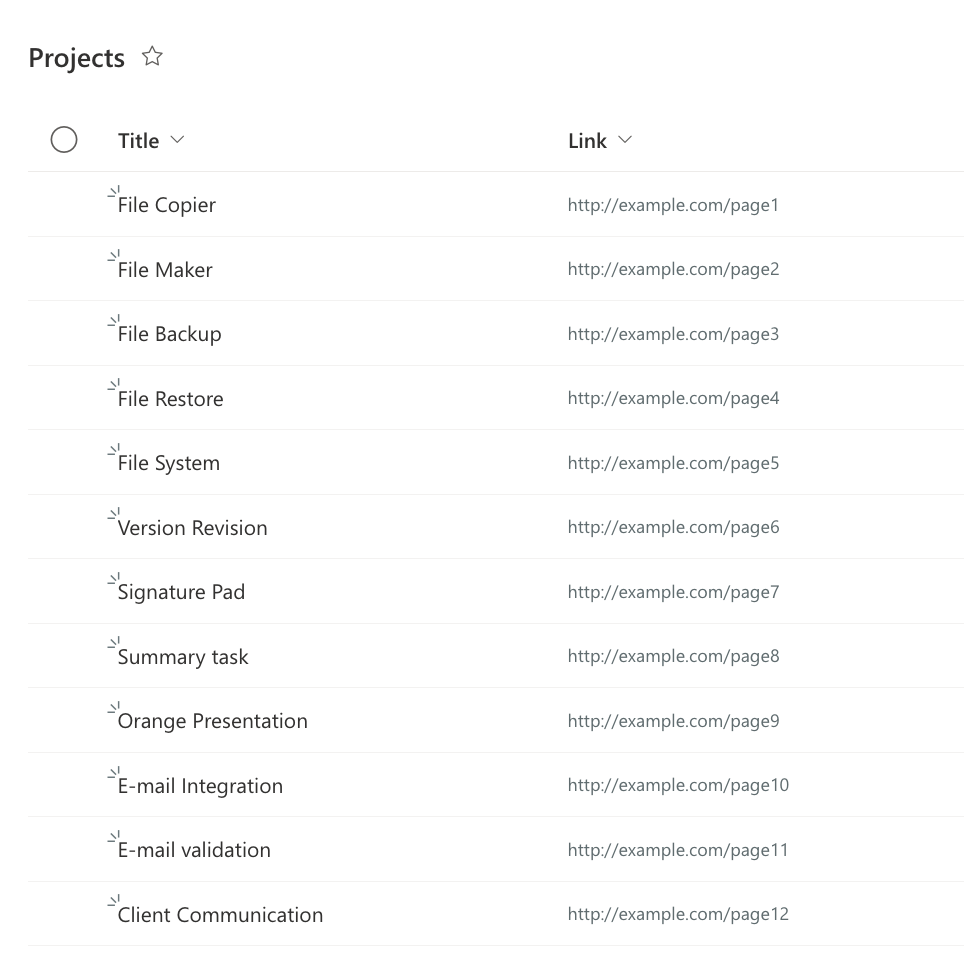
The structure takes four pieces: a Project Center site (a blank site works), a Projects list from the Custom list template, a Review Tasks list from the Tasks template carrying a lookup column to Projects named Project, and a Hyperlink column on Projects to hold each project site's link:
Step 2: the review task
Open the Projects list, then Design, Actions, Add new action, and the first action takes shape. Choose the Create List Item type, name it for its business meaning, "Create review task," and add a description for future maintainers. Under events, select Item is added and deselect Item is modified, so the task is created once, at project birth, not on every edit:
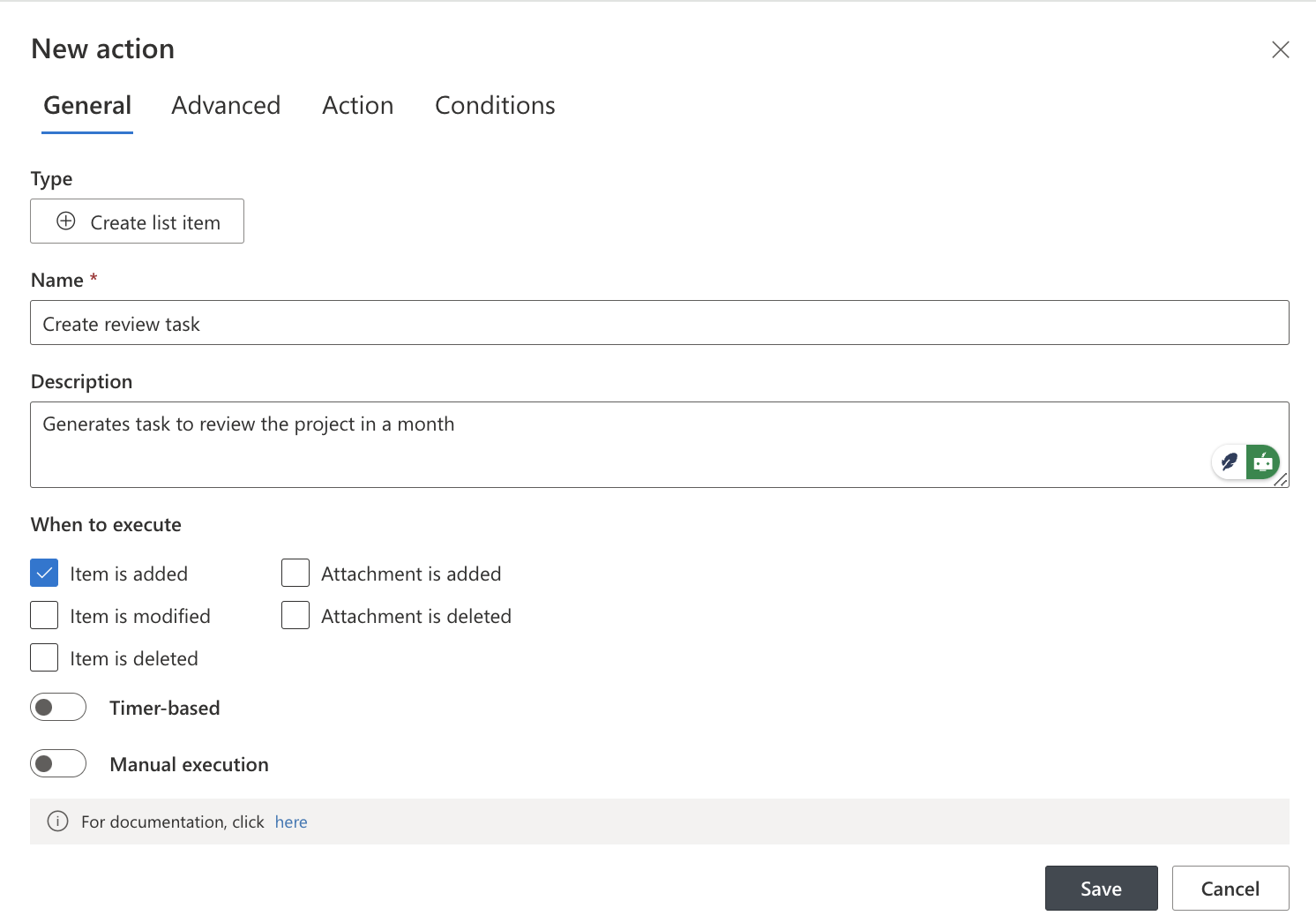
In the action settings, point at the Current Site and the Review Tasks list, and map the values. Task Name: Review for [Title], square brackets pulling the current item's values, with the value picker available instead of typing. Project: [ID], feeding the lookup. Due Date: [Today]+30, the same date arithmetic that drives validations. Assigned To: the reviewer. No conditions are needed here, the task should always be created, but any action can carry them when it should run in some cases only:

Step 3: the permissions
A Manage Permissions action secures the new task. Action type: Add Users. Affected items: Project = [Title], which selects exactly the review task belonging to this project. Pick the user and the permission level, and save:
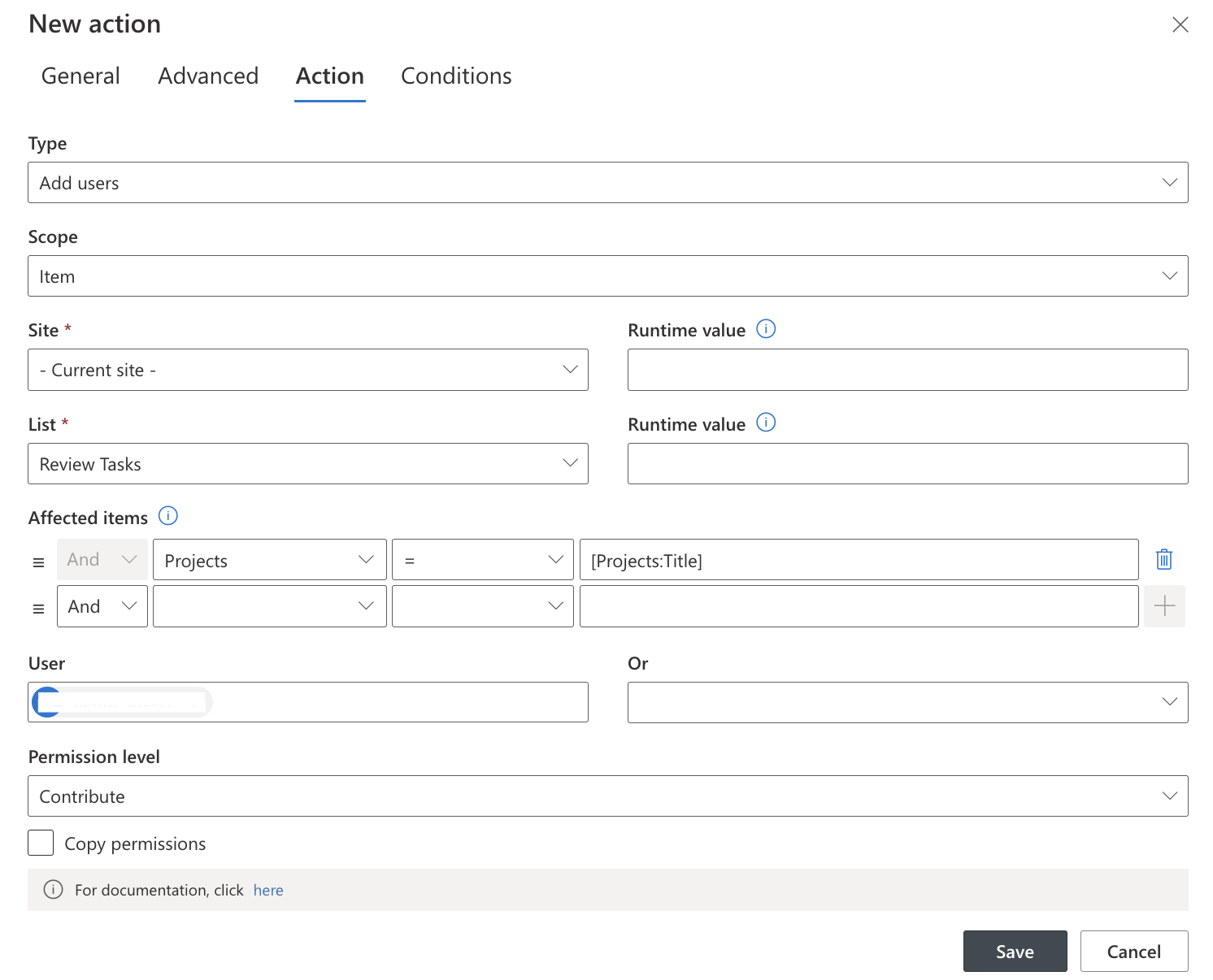
This is the pattern worth noticing: an action on one list reaching into another, selecting items by a column match, and adjusting security with no administrator involved.
Step 4: the database registration
A Run DB Stored Procedure action tells the line-of-business application about the project. Select the MS SQL provider (Oracle and others work the same way), enter the connection string, click Connect to populate the stored procedure list, choose the procedure, and map its parameters from the item's column values, text, and functions:
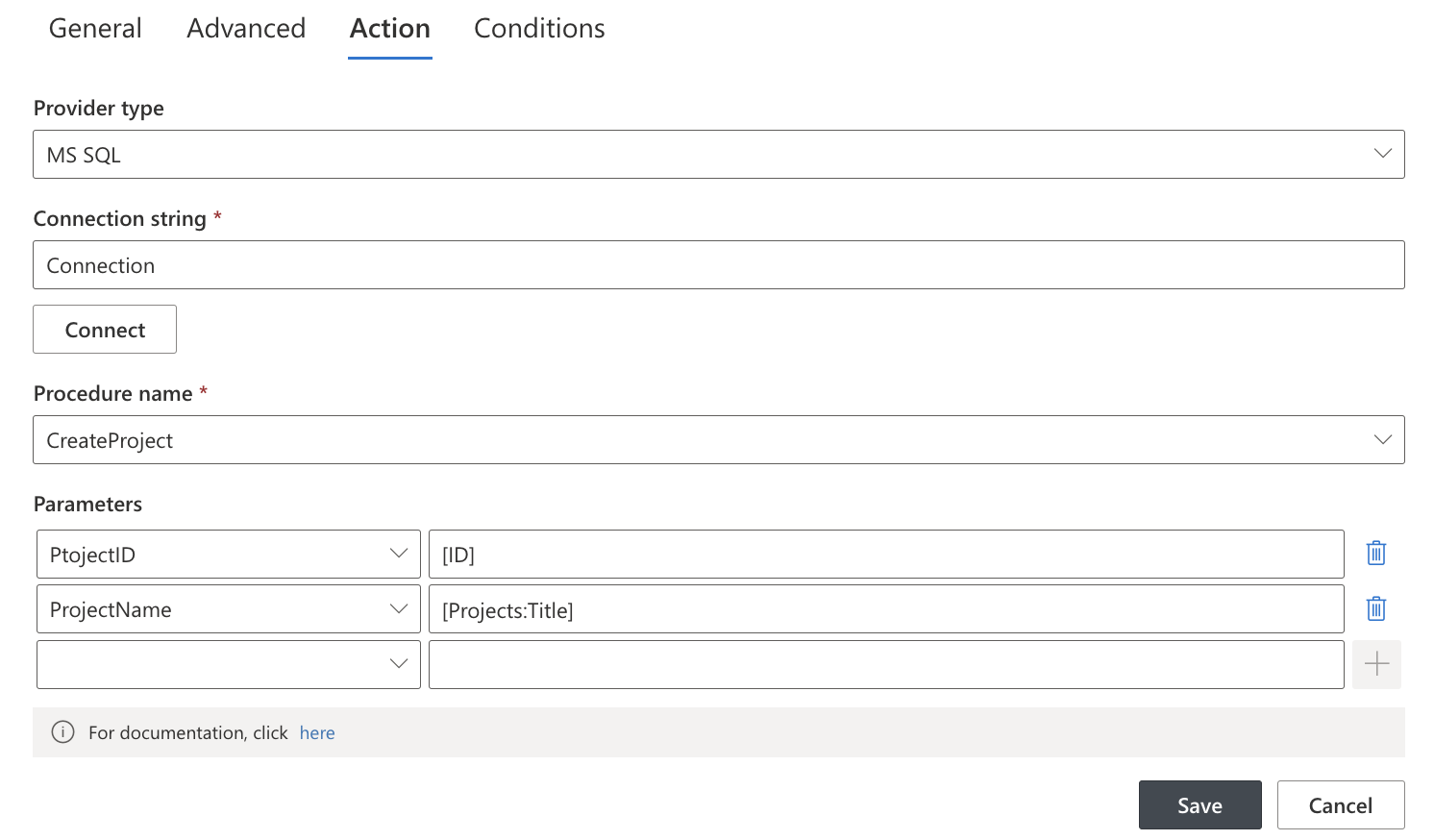
One action, and SharePoint speaks to the ERP. Web service calls work identically for applications fronted by APIs, and the broader integration options have their own guide.
Step 5: the project site
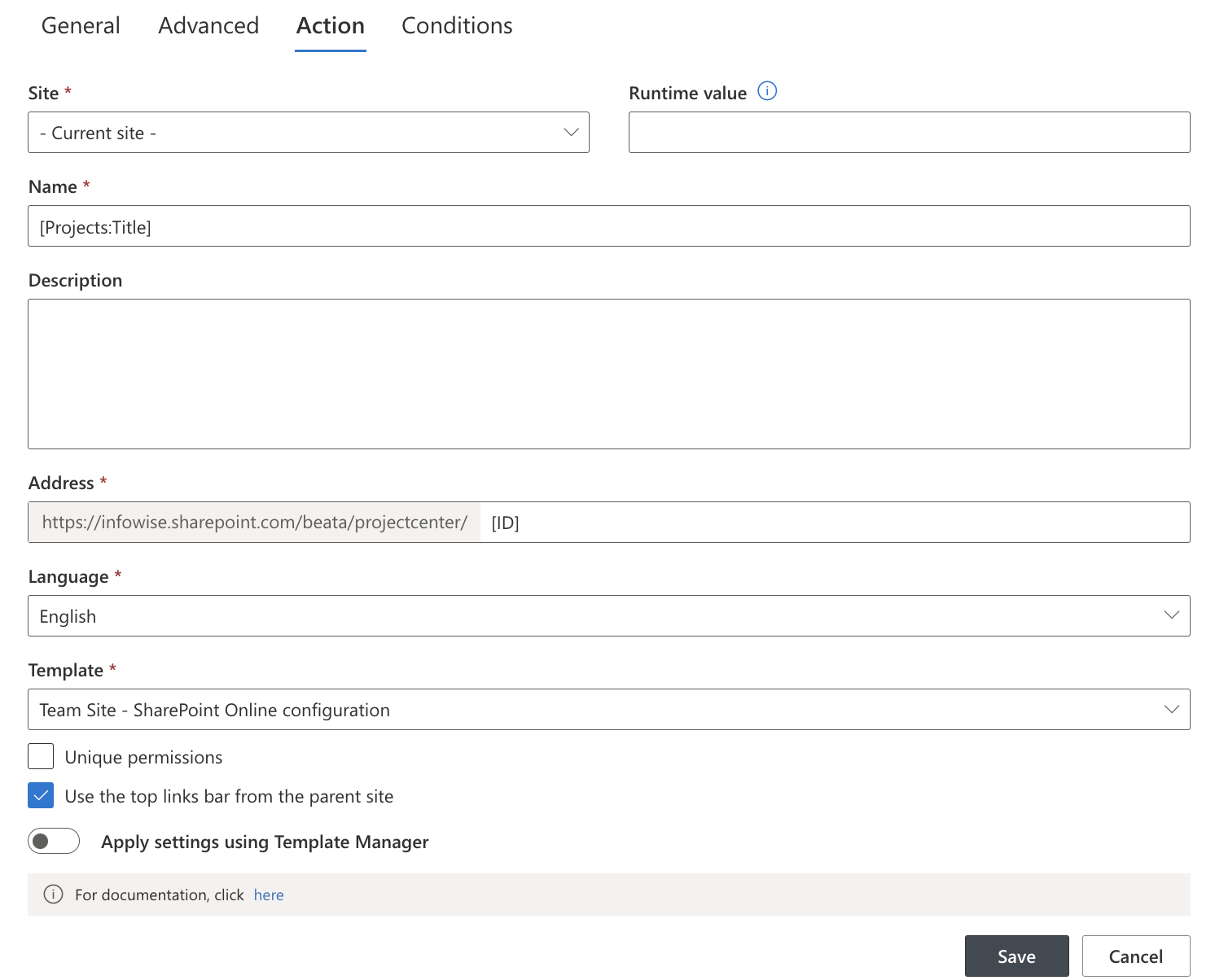
A Create Site action provisions the environment. Title: [Title], naming the site after the project. URL: [ID], guaranteeing uniqueness. Template: your preset project template, so every project site is born complete and consistent:
Step 6: the task inside the new site
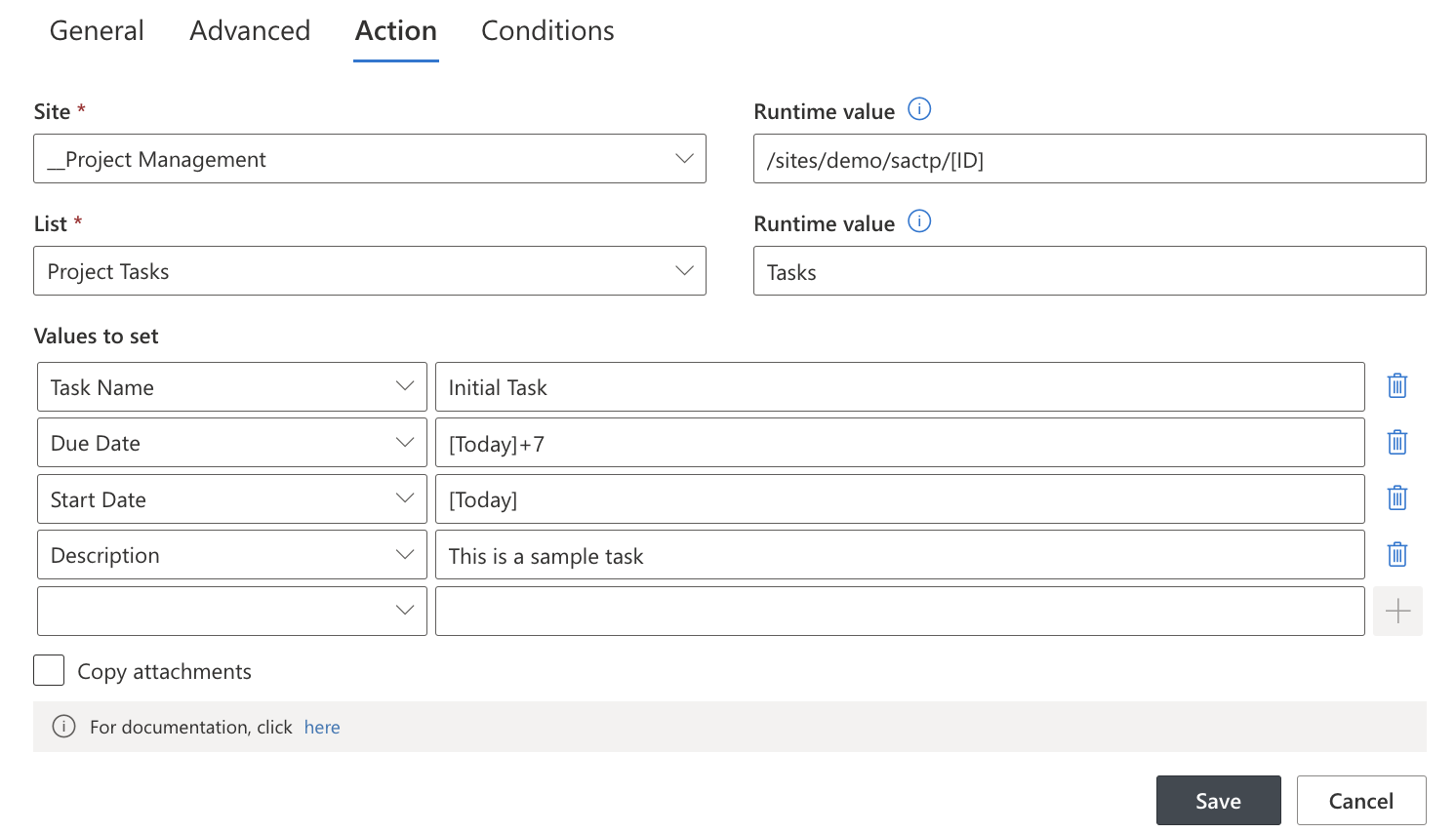
Seeding the just-created site takes one technique worth learning: run-time values. The site does not exist at design time, so configure the action against any existing site built from the same template, then supply run-time values for the site URL, using the same [ID] token the Create Site action used, and for the list name (Tasks). At execution, the action resolves the tokens and writes into the newborn site. Whenever a run-time site URL is set, the list name must be set as a run-time value too:
Steps 7 and 8: the link back, and the confirmation
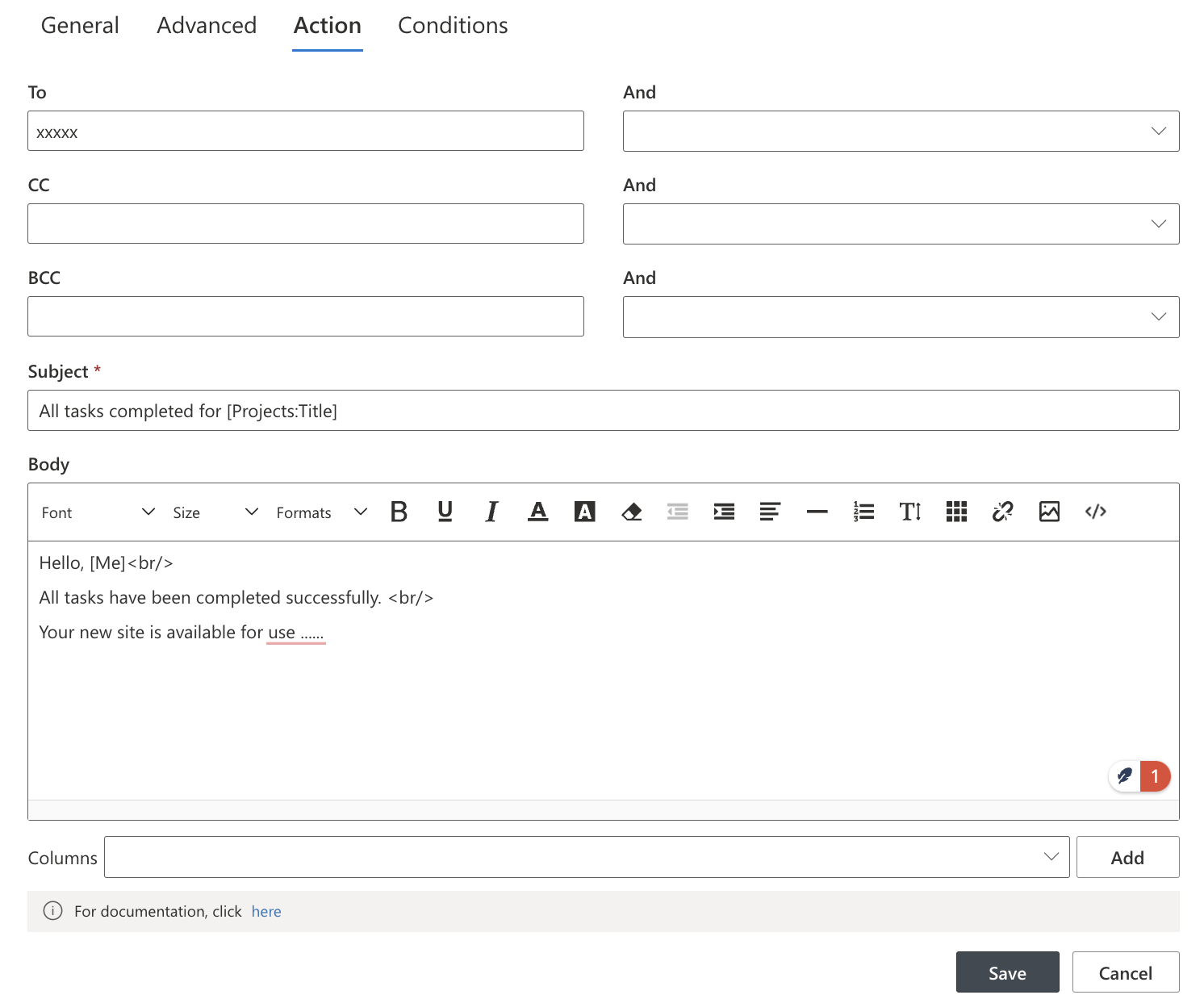
An Update List Item action closes the loop: Current Site, Current List, the Link column set to the new site's URL with the [ID] token, and item selection ID = [ID] to target the project entry itself. Then a Send Email action tells the creator it all worked: To: Created By, with the subject and body drawing on column values, the same craft the alert articles teach, applied to a one-off notification.
Create a project, and the environment assembles itself: task, permissions, database record, site, starter task, link, confirmation. No coding, as promised.
Taking the chain further
Three refinements turn the demonstration into production machinery. Wrap the seven actions in an action group, so they run as one named, ordered unit instead of seven parallel triggers, easier to read, easier to reason about, and able to loop when the work repeats across ranges. Check Action History after the first live runs, every execution is logged with its outcome, so "did the ERP get the project?" is a lookup. And when operations like this should also be available on demand, re-run the registration, rebuild a site, the same actions attach to command bar buttons, with visibility rules deciding who sees them and when.
The deeper lesson of the walkthrough is the shape of the thinking. Write the process as sentences, "when a project is created, a task is created, permissions are set, the ERP is told...", and each sentence is one action of one type. Lists stop being passive storage and become the trigger surface of the business: the entry is the event, and the event does the work.
Frequently asked questions
Add your comment