Every smart SharePoint form is built from the same five elements: containers that arrange the layout, permission rules that show and hide, dynamic rules that fill values in, validation rules that guard the data, and tabs that keep it all compact. Learn these five on one simple form and you can build nearly anything in Form Designer. This guide walks each element through a support ticket example, from blank canvas to a form that reacts as users type. It is the on-ramp; the ten must-have features map the full capability set, and the rules pillar goes deep on the logic.
Why the form is where solutions start
In any SharePoint business solution, the form is what users meet first, and it decides the quality of everything downstream. A clear, well-designed form leads users through data entry, leaves no room for confusion, and ensures complete, correct information arrives on the first attempt. A confusing one generates bad data and support calls in equal measure.
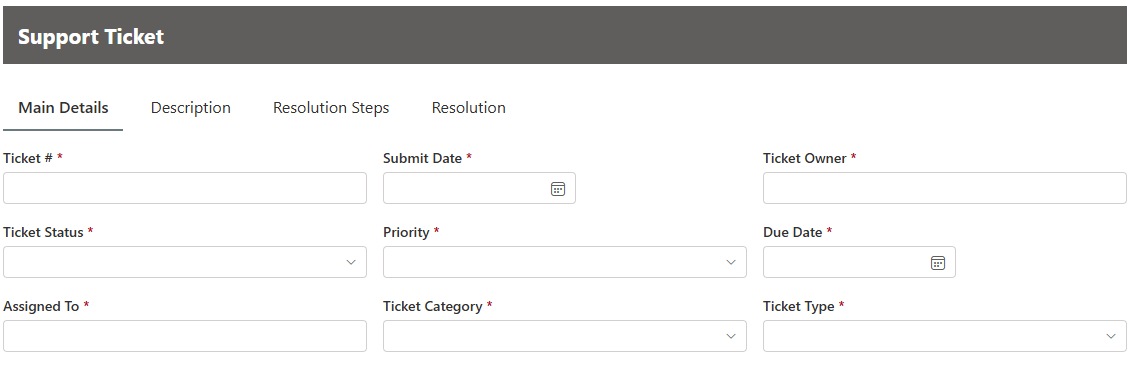
Form Designer in Ultimate Forms exists for exactly this, and the example throughout is deliberately ordinary: a support ticket system, the kind of list nearly every team runs:
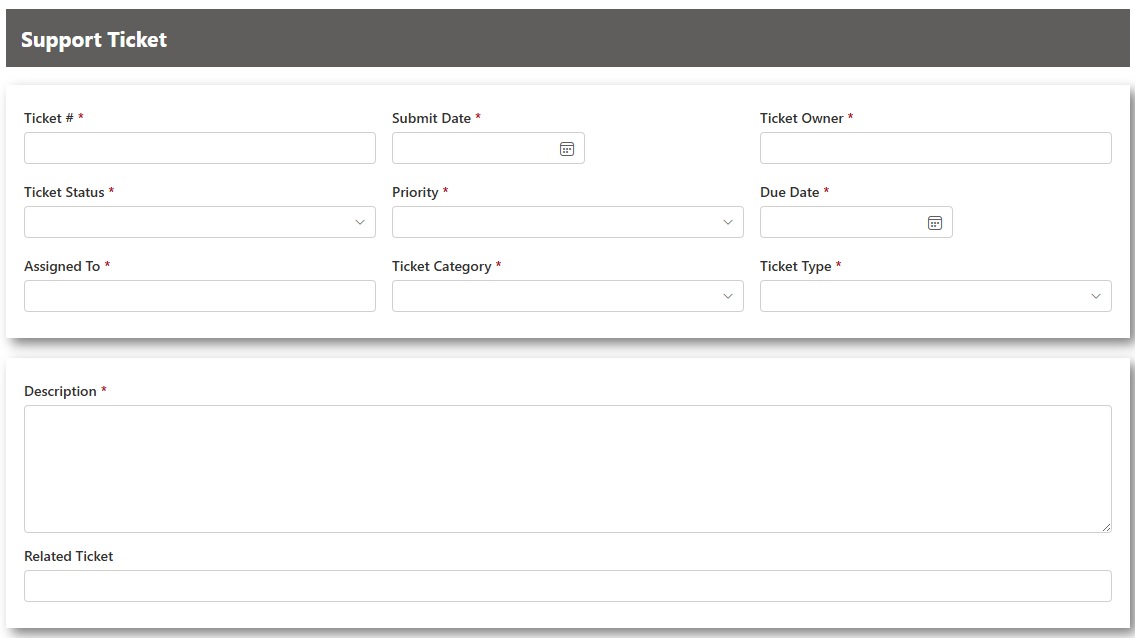
Styling, themes, colors, and branding, is its own topic, covered in how to style SharePoint forms. Today is about structure and behavior: where elements sit, when they appear, and what they do.
The container: the first element to master
Containers are the layout workhorse, and the first control a new builder should understand:
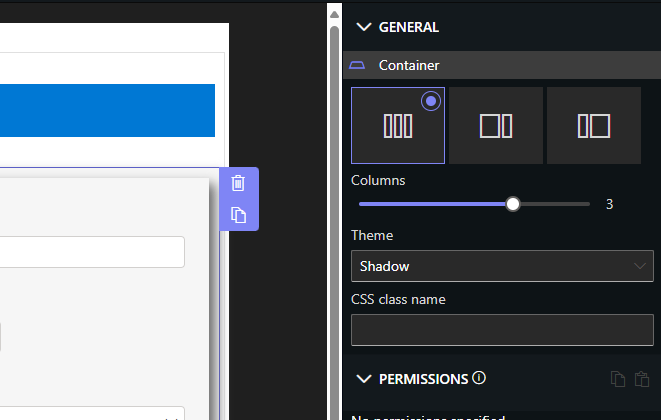
A container does three jobs at once. It arranges the elements placed inside it. It lets permission rules apply to a whole group of columns together. And it carries styles and themes when you want visual grouping. Master it, and the rest of the designer makes sense.
The arranging is the clever part: there is no rigid grid. You choose how many layout columns the container has, one to four across, or the 33/66 and 66/33 splits, and drag elements in, including other containers. Everything lays itself out and stays responsive without further work: three elements across on a desktop stack vertically on a phone, with no separate mobile layout to maintain, which is how every form stays mobile-ready by default.
Nesting is how real layouts emerge. Here, two columns sit side by side with a third below at full width: an outer one-column container holding an inner two-column container plus the Closing Comments column:
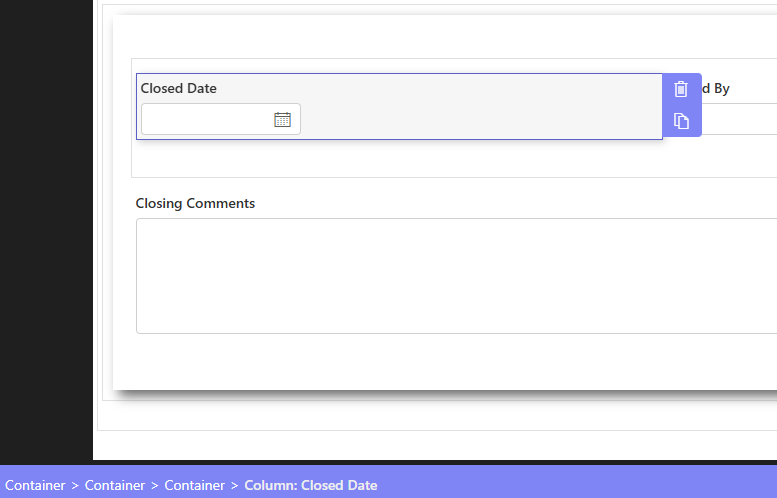
That is the entire technique. Sketch the layout, express it as containers inside containers, and let the responsiveness take care of itself. Multi-column layouts takes this further when you need it.
Permission rules: the form that shows only what's relevant
Permission rules make elements hidden or visible, and columns read-only or writeable, based on conditions. Applied to a container or tab, the rule cascades down to everything inside, unless overridden at a lower level, so one rule can govern a whole section while exceptions stay precise.
The support ticket uses the classic pattern: resolution details should exist only for resolved tickets. One Write rule on the closing section, conditioned on Status equals Resolved:
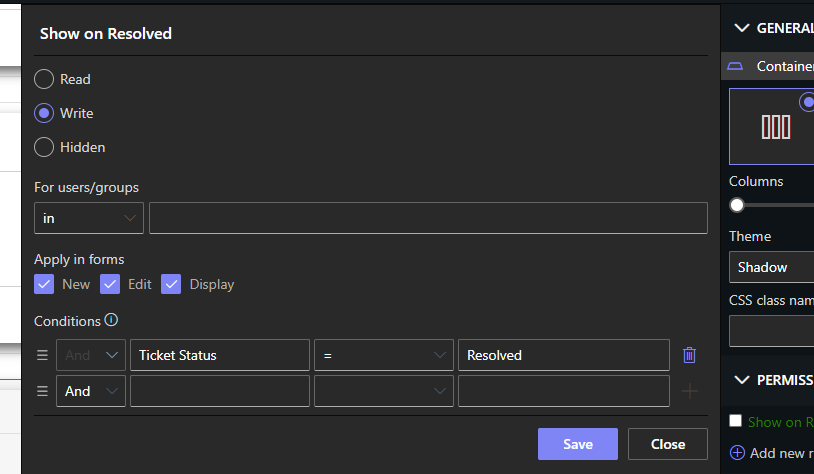
Create a ticket, and the section is nowhere to be seen. Change the Status to Resolved, and it appears instantly, no save required, the form reacts as you work:
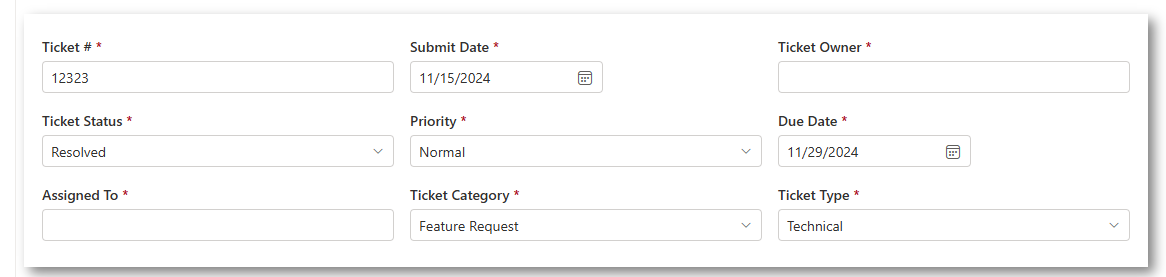
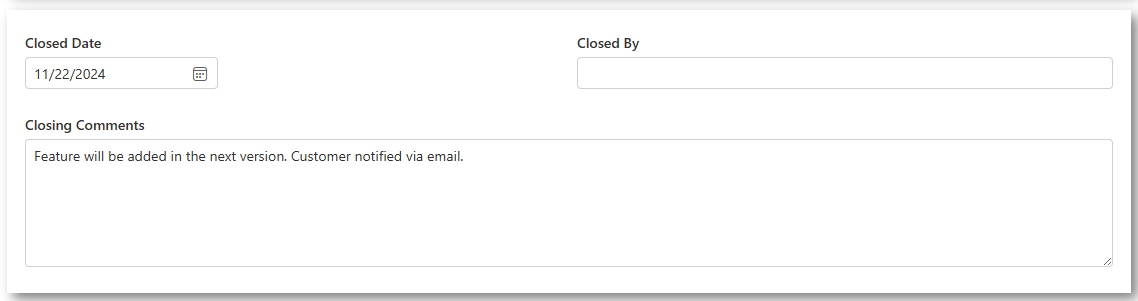
One nuance saves beginners real confusion: you did not need a second rule to hide the section. A Write rule implies Hidden for everyone the rule does not cover; anything not addressed by any rule is hidden automatically (unless there are no rules at all). Write the rule for who should see, and the hiding takes care of itself. When you outgrow this, the same machinery scales to role-based tab permissions and data-driven permissions.
Dynamic rules: values that fill themselves
Dynamic rules write column values automatically in response to what users do. The ticket example: when Status changes to Resolved, Closed Date fills with today's date, no typing, no forgetting:
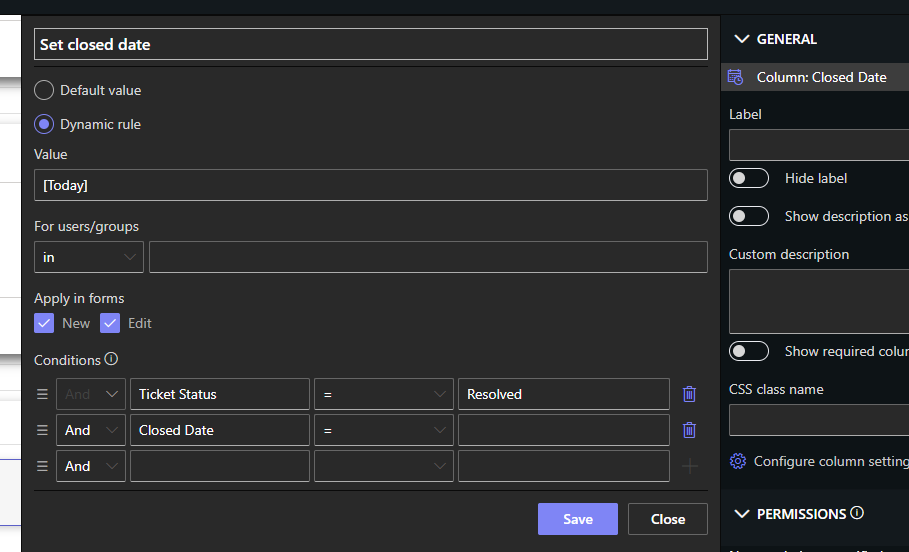
The habit to notice: combine the dynamic rule with a permission rule making Closed Date read-only, and the automatically assigned value is also a protected one. Users see the date; only the rule writes it. This pairing, auto-fill plus lock, is the beginner version of the self-stamping decision dates that formal processes rely on.
Validation rules: errors caught while they're cheap
Validation guards the save. The ticket's rule: Closed Date can never be earlier than Submit Date, with an error message you write yourself, and which can be localized per the user's preferred language:
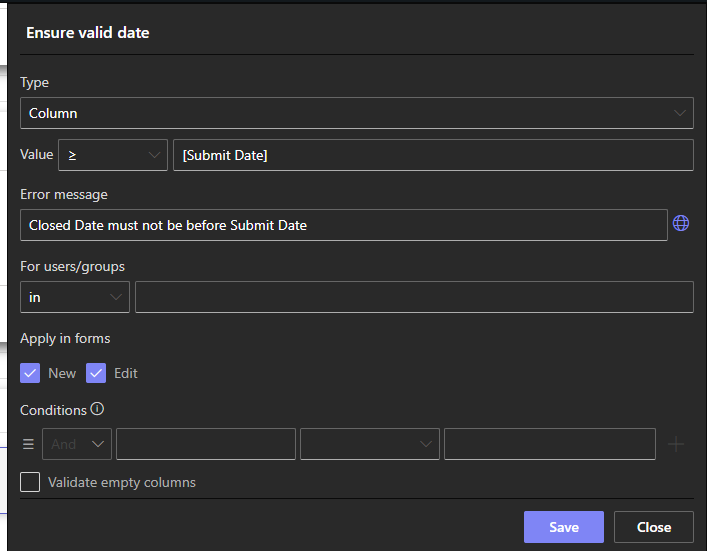
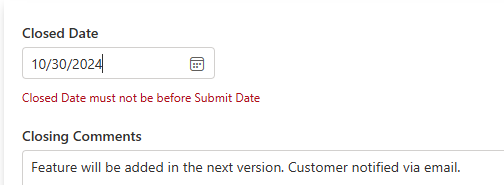
The error appears directly under the offending column, at the exact moment the user can still fix it:
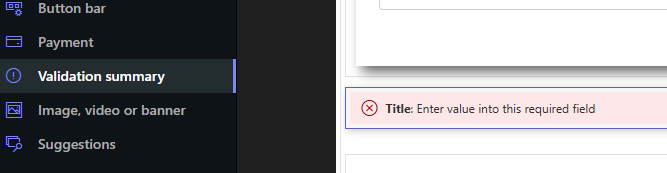
For large forms, add a Validation Summary control: it collects every validation error from the controls in its container, or the whole form when placed outside any container, so users see all problems in one place instead of hunting through a long page:
And this is how it looks like on the live form:
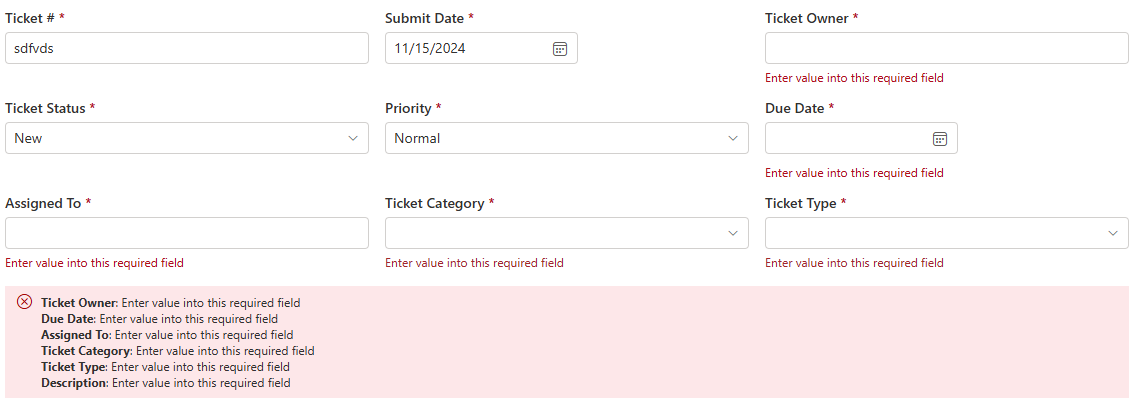
Rules comparing columns to each other, as here, are where validation earns its keep; the rules pillar catalogs the patterns, and date validations covers the date family in depth.
The Button Bar: the control that manages itself
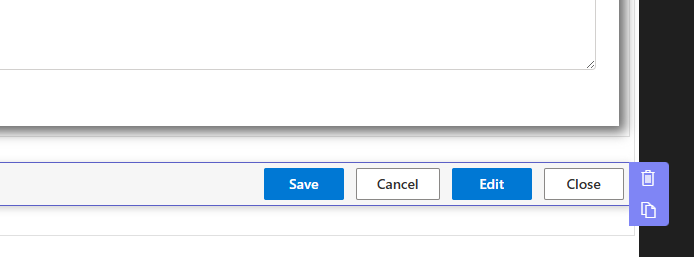
The Button Bar holds the form's buttons and positions them where you want, and it carries one piece of built-in intelligence: it shows the right buttons per form type with no rules from you. The Edit form gets Save and Cancel; the Display form gets Edit and Close, automatically:
On the live New form, only Save and Cancel buttons are visible, no rules required:
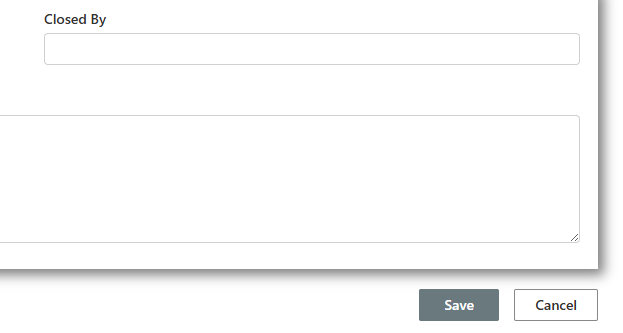
When you later add custom action buttons, this is where they live.
Tabs and accordion: compactness as a feature
Instead of stacking containers down the page, tabs and accordions group controls so only one group shows at a time, keeping long forms compact and navigable. Each tab takes its own permission rules, exactly like containers, which is how staged processes use tabs as stages. Mix freely: some controls on the page, others inside tabs, whatever the form's shape wants. The styling options for tabs and accordions close the look.
The practice path
Learn the five elements in the order presented, on a throwaway list: a container with a two-column split; a Write rule that reveals a section on a status change; a dynamic rule stamping a date; a validation comparing two dates; a tab holding the rarely used columns. An hour, start to finish, and the result is the complete working vocabulary of Form Designer.
From there, everything else is combination. Repeating sections, approvals, signatures, and external publishing, the ten must-have features, all sit on the same five foundations you just practiced, and the rules pillar turns the rule types into a full design language. The first form is the hardest; the fifth takes twenty minutes.
Frequently asked questions
Add your comment