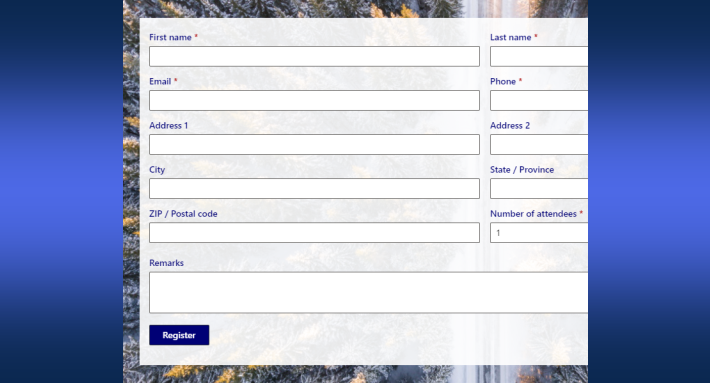
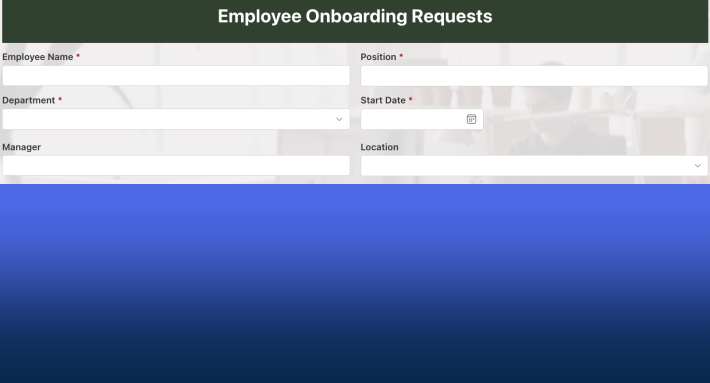
SharePoint forms can show each user only their part: tab and column permission rules in Ultimate Forms display different sections to requesters, approvers, and admins on the same underlying item.
Designing effective forms in SharePoint is about more than collecting information. It is also about presenting the right information to the right users at the right time. Many business processes require forms that evolve as the process progresses. Some information is relevant only at certain stages. Some sections should be visible only to specific roles. Other areas may depend on conditions such as status, category, or department.
If everything appears on the form at once, the experience becomes confusing. Users may see columns that are not relevant to them. Sensitive information may be visible to users who should not have access. Large forms become harder to navigate and slower to complete.
Infowise Ultimate Forms provides a simple and effective way to solve this problem through tab permissions in Modern Forms. By organizing columns into tabs and controlling when those tabs appear, administrators can create forms that are cleaner, more secure, and easier to manage.
This approach improves both usability and security while keeping configuration fast and straightforward.
Why Form Structure Matters
Many SharePoint solutions start simple but grow over time. Additional columns are added, approval stages expand, and more departments become involved.
For example, a request form might eventually include columns such as:
-
Request details
-
Budget information
-
Manager comments
-
Finance review
-
Administrative processing
-
Audit notes
If all of these columns appear at once, the form quickly becomes overwhelming.
Users must scroll through information that may not apply to them. They may accidentally modify values that should remain untouched. Sensitive information may become visible too early in the process.
Tabs help solve the organization problem by grouping related columns together. Tab permissions take this one step further by controlling when those tabs appear and who can see them.
Simpler Forms Through Conditional Tabs
One of the most valuable uses of tab permissions is improving form simplicity.
Instead of presenting every column immediately, the form can reveal additional sections only when they are needed.
For example, certain tabs can appear only when:
-
The item reaches a specific stage
-
A status column changes
-
A particular category is selected
-
A request exceeds a certain value
-
A department is involved
This allows the form to adapt dynamically as the process progresses.
Users see only what they need to complete their part of the process. The form remains clean and easy to understand.
Faster Configuration Compared to Column-Level Rules
Without tab permissions, administrators often rely on column-level rules to hide or show individual columns. This can quickly become complicated.
Imagine a tab that contains fifteen columns related to finance review. If each column requires a separate rule, the configuration becomes time-consuming and difficult to maintain.
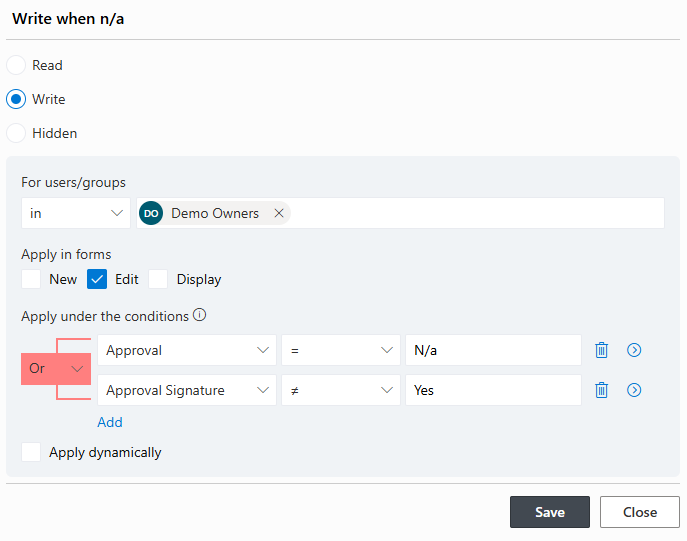
With tab permissions, those fifteen columns can be placed inside a single tab and controlled with one rule.
This approach provides several advantages:
-
Faster setup
-
Fewer configuration steps
-
Easier troubleshooting
-
Simpler long-term maintenance
Administrators spend less time managing rules and more time delivering solutions.
Real World Scenario: Purchase Request Process
Consider a purchase request process.
The SharePoint list might contain columns such as:
-
Requester
-
Department
-
Item description
-
Estimated cost
-
Manager comments
-
Finance approval notes
-
Procurement details
These columns can be organized into tabs such as:
-
Request Information
-
Manager Review
-
Finance Approval
-
Procurement Processing
When the employee creates the request, only the Request Information tab is visible.
Once the request is submitted and reaches manager review, the Manager Review tab appears.
After the manager approves, the Finance Approval tab becomes visible for the finance team.
Finally, procurement staff see the Procurement Processing tab.
This structure keeps the form simple for every user while maintaining a single unified form design.
Real World Scenario: HR Employee Lifecycle Forms
Human resources departments often manage complex forms with sensitive information.
An employee lifecycle form may include tabs such as:
-
Employee information
-
Performance review
-
Salary adjustments
-
HR administrative notes
Different roles require different access.
Using tab permissions:
-
Employees see only their personal information tab.
-
Managers see the performance review tab.
-
HR administrators see salary adjustment and internal notes.
This approach protects confidential information while keeping all columns organized in one form.
Real World Scenario: Project Intake and Approval
Project intake processes often involve multiple evaluation stages.
The form may contain columns related to:
-
Project proposal details
-
Budget estimates
-
Technical feasibility
-
Executive approval
Using tab permissions, the form can evolve during the process.
When the project is first submitted, only proposal columns appear.
After initial review, a new tab containing budget evaluation columns becomes visible.
Later, executive approval columns appear for leadership.
This staged approach ensures that users see only the sections relevant to the current phase of the process.
Improving Security with Tab Permissions
While simplicity is a major advantage, tab permissions also provide important security benefits.
Certain columns may contain information that should only be visible to specific roles. Examples include:
-
Salary data
-
Vendor contract terms
-
Financial approval notes
-
Internal audit findings
By placing these columns inside restricted tabs, administrators can control access easily.
Permissions can be based on:
-
Specific users
-
SharePoint groups
-
Item creators
-
Column values
-
Process stages
Because the rules apply to the entire tab, administrators do not need to secure each column individually.
This simplifies the security model while protecting sensitive information.
Conditional Visibility Based on Business Logic
Tab permissions can also respond to business conditions.
For example:
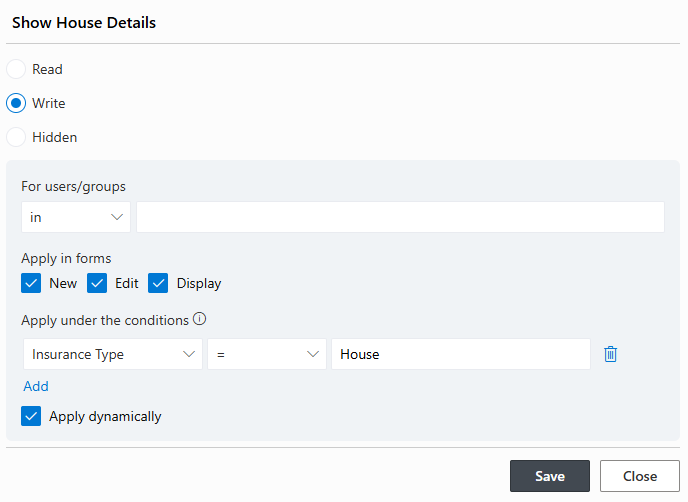
A support request form may include a troubleshooting tab that appears only when the issue type is Technical.
A procurement form may reveal a Finance Review tab only when the estimated cost exceeds a defined threshold.
A compliance form may show an Audit tab only when a risk level column is marked as High.
These dynamic behaviors keep the form focused and relevant.
Users are not distracted by sections that do not apply to their situation.
A Better User Experience
Clear, focused forms improve the experience for everyone involved.
When users open a form and see only the tabs that apply to them, they can:
-
Understand the process more easily
-
Complete tasks faster
-
Avoid mistakes
-
Focus on the information that matters
This is particularly important in organizations where many users interact with forms but may not have technical backgrounds.
Cleaner forms lead to higher adoption and fewer support requests.
Simplifying Maintenance as Processes Evolve
Business processes rarely remain static. New steps are added, policies change, and departments evolve.
Forms that rely heavily on individual column rules can become difficult to maintain over time.
Tab permissions create a modular structure.
If a new process stage is introduced, administrators can simply add a new tab containing the required columns and define when it should appear.
Existing rules remain untouched.
This flexibility makes it easier to adapt forms as organizational needs change.
Combining Tabs with Other Ultimate Forms Capabilities
Tab permissions become even more powerful when combined with other Ultimate Forms features.
For example:
-
Approval processes can control when certain tabs appear.
-
Status columns can trigger new sections to become visible.
-
Dynamic rules can change tab visibility based on user selections.
Together, these capabilities allow administrators to create forms that respond intelligently to the workflow.
The result is a structured solution that feels natural to users.
Built for Speed and Simplicity
One of the key advantages of Ultimate Forms is the speed at which solutions can be implemented.
Tab permissions follow the same philosophy.
Administrators simply:
-
Organize columns into tabs.
-
Define visibility conditions or security rules.
-
Publish the form.
There is no need for custom development or complicated workflow logic.
Even complex forms can be configured quickly.
Supporting Large Enterprise Forms
Large enterprise solutions often include dozens of columns across multiple departments.
Examples include:
-
Compliance reporting systems
-
Procurement management platforms
-
Project governance tools
-
Case management solutions
Tab permissions help keep these large forms manageable.
Each department interacts with its own section while the full record remains stored in a single SharePoint item.
This keeps data centralized while maintaining a clean interface.
Conclusion
Tab permissions in Ultimate Forms Modern Forms provide a powerful way to simplify SharePoint forms while maintaining strong control over information visibility.
By organizing columns into tabs and controlling when those tabs appear, administrators can create forms that adapt to different users, stages, and conditions. The result is a cleaner user experience, stronger protection of sensitive data, and significantly faster configuration.
Instead of managing dozens of individual column rules, administrators define visibility at the tab level. This approach reduces complexity, speeds up implementation, and makes forms easier to maintain as business processes evolve.
For organizations building structured solutions in SharePoint, tab permissions offer a practical way to combine usability, flexibility, and security in one streamlined design.
Add your comment