Adding Custom Buttons to SharePoint Forms
Basic SharePoint forms only allow users to update data and save. There are no buttons to do anything else. With Infowise Ultimate Forms there are so many more possibilities. You can trigger just about anything by adding buttons to your form and configuring a related process. Adding buttons is easy. Drag a button to the canvas in Form Designer and pick from 11 different button types:
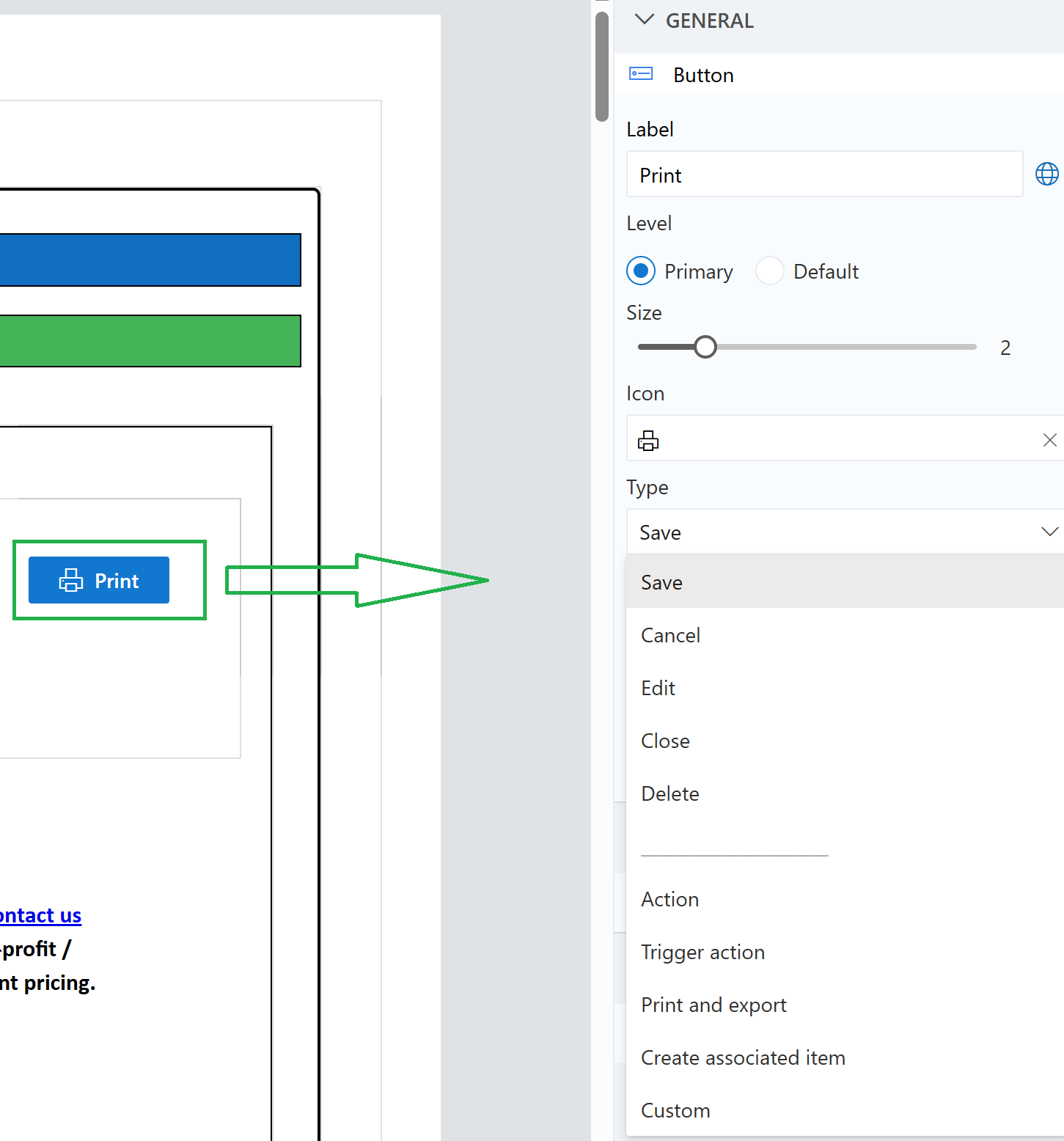
Let's take a look at seven interesting use cases that you can start adding to your forms today.
Print to PDF

Out of the box SharePoint is severely lacking when it comes to PDF output. On the other hand Ultimate Forms includes Word Document based Print Templates that allow PDF output. Setting up a button in your form to produce PDF Output is easy. Begin by creating your print template to match your form fields. Next create a Print List Items action using Ultimate Forms. This can be used to trigger the PDF output either to email or to a SharePoint library. Once your action is created, you can create a button in your SharePoint form and connect to your action using the Trigger action button type. Now when users click the button, the PDF is auto generated!
AI Summary
AI has become indispensable in our work. You can further integrate these capabilities using Ultimate Forms. Ultimate Forms includes 3 baked in AI features that can be utilized in any SharePoint form AI Analyze, AI Answer and AI Rewrite. Using these functions, it is possible to take the content of any form field and use that to query AI for more information. Use the Action button type to update a corresponding output field with the AI results. There are limitless possibilities on how this can be used. By seamlessly integrating this function directly in your form, you can create a more efficient and streamlined process.
Advanced Mode
In many web interfaces it is common to have the option to toggle to an Advanced Mode which includes more settings. You can set up your forms to use this same type of design. Create a button that uses the Action button type to update your own "Yes/No" field which tracks whether the form is in Advanced Mode. Use permissions rules on your fields to show or hide accoding to the form mode. Now, by default you can show the form in a default mode, but only show additional advanced mode fields if the button is clicked.
Start Workflow

Forms and workflow are an essential core concept of web based solutions. Workflows are triggered by events, most often as a result of form updates. In some cases, it is most effective to allow users to explicity trigger a workflow. Whether this is related to Ultimate Forms Actions or Power Automate Flows, it is possible to let a user click a button to trigger the workflow. In Ultimate Forms, the Trigger Action option is easy to use. Any action defined for the list can be configured to be started by a button in the form. Power Automate flows can be triggered based on changes to a column that you define. You can for example create a "Yes/No" column to act as a listener to trigger the Flow. The Flow can be set to execute only when this column changes to "Yes". Your button can use the Action type and set that value to Yes.
Send Email Reminder
Usually email reminders are fully automated, but there are times when it is useful to give your team members a "poke" by simply clicking a button. Using the Send email action and connecting with a Trigger action button in the form allows users to immediately trigger an email reminder anytime they want directly from the form. Custom configure the content and recipients to fit the use case in the form. In fact you could have many types of email reminders all triggered from different buttons in the form. You can also log email event directly in the log so that you can see when emails were triggered.
Request Updates

When working with sophisticated forms and processes, it involves collaboration with a team. Frequently, more information is needed from other team members. Use a special button in the form to explicitly request information from other team members and have that tracked in the form. This increases accountability and transparency and improves results. Emails are easy to ignore, but when the requests are tracked and visible to all team members, you will see better results.
Escalate
When there is a critical issue and a call for immediate action there needs to be a swift and effective escalation path. Forms ties to critical processes should include an Escalate button that can handle form updates and trigger notitications for immediate action. Critical issues can incomporate a form section for escalation. What better way to being the process by including an Escalate button which changes the Status, triggers emails and opens up an Escalation section on the form.
Summary
Custom buttons can completely transform the way users interact with SharePoint forms. Instead of relying only on basic Save and Submit actions, you can turn forms into interactive workspaces where users can trigger workflows, generate documents, send reminders, request updates, and even interact with AI directly from the form. This reduces steps, saves time, and creates a more streamlined user experience.
With Infowise Ultimate Forms, adding buttons is simple, but the possibilities are powerful. A single click can generate a PDF, escalate a critical issue, launch an approval process, or reveal advanced options. Buttons can also improve accountability and collaboration by making important actions visible and repeatable instead of relying on scattered emails or manual follow-up.
Users expect software to help them take action quickly and efficiently. By thinking creatively about how buttons can be used in your SharePoint forms, you can build smarter, faster, and more effective solutions. Start experimenting with custom buttons today and discover how much more your forms can do.
Add your comment