Mobile-First SharePoint Forms: Designing for How People Actually Work
For years, organizations have built SharePoint forms assuming users would be sitting at a desk, on a large screen, with time to spare. That assumption no longer holds true. Today, many of the most important business processes happen on phones and tablets or on factory floors, job sites, warehouses, lobbies, hallways, and customer-facing locations.
If your SharePoint forms are difficult to use on a mobile device, they are no longer serving the people who rely on them most.
True mobile support isn't just about whether a form technically opens on a phone. It's about usability, speed, clarity, trust, and flexibility. Infowise Ultimate Forms was designed with these realities in mind, enabling organizations to build SharePoint forms that are not only mobile-friendly, but mobile-ready by default.
Automatic Mobile Layout Without Redesign
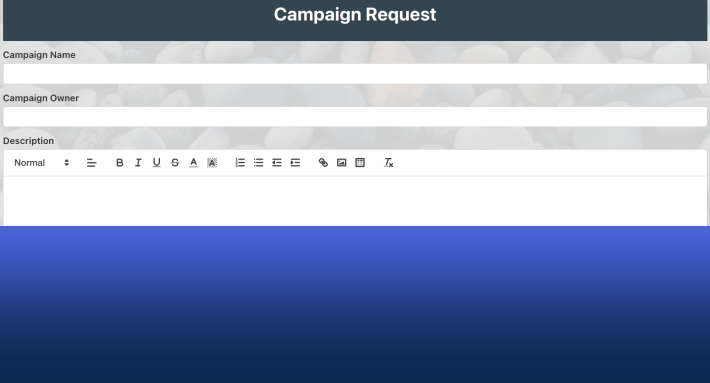
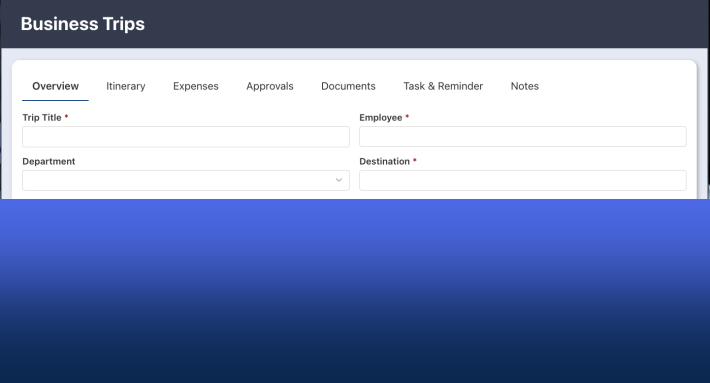
One of the biggest challenges with mobile forms is layout. Forms that look reasonable on a desktop screen often become cluttered, cramped, and frustrating on a phone. Fields appear too small, columns break awkwardly, and users are forced to zoom, scroll, and hunt for what they need.
Ultimate Forms eliminates this problem automatically.
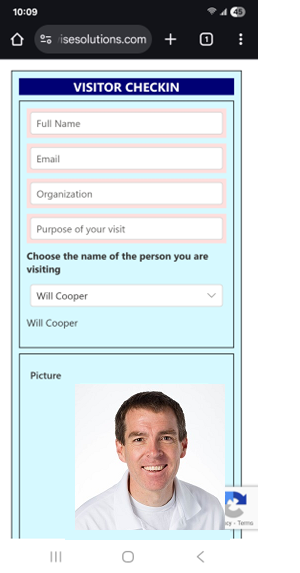
Forms designed for desktop screens automatically adapt to a clean, single-column layout on mobile devices. There is no need to create a separate mobile version of the form, no duplicate maintenance, and no special configuration. The same form definition works seamlessly across desktops, tablets, and phones.
This approach ensures consistency while delivering a mobile experience that feels intentional rather than compromised.
Instant Mobile Access Through QR Codes
In many real-world scenarios, the biggest barrier to mobile form usage is simply getting users to the form quickly. Typing long URLs, navigating SharePoint menus, or searching for the correct page is impractical on a phone.
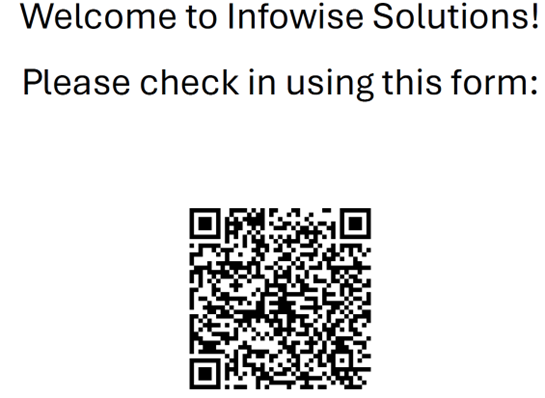
Ultimate Forms solves this with automatically generated QR codes for every form.
Users can scan a QR code with their phone and instantly open the form with no typing, no navigation, no instructions required. This is especially valuable in environments such as:
-
Workshops and factory floors
-
Construction and job sites
-
Visitor check-in stations
-
Public-facing kiosks
-
Safety boards and signage
QR codes turn mobile form usage into a frictionless "scan and submit" experience.
Public Forms Without SharePoint Login
One of the most significant limitations of native SharePoint forms is authentication. Out of the box, SharePoint requires users to log in, making it unavailable for many mobile and public-facing scenarios.
Ultimate Forms removes this limitation entirely.
With Ultimate Forms, you can create public-facing forms that do not require users to log in to SharePoint. External users, visitors, contractors, customers, and vendors can submit forms from their mobile devices without needing Microsoft 365 accounts.
This capability is simply not available in standard SharePoint and opens the door to entirely new use cases, including:
-
Visitor registration
-
Public service requests
-
Event sign-ups
-
External incident reporting
-
Customer or vendor submissions
Combined with QR codes, public forms enable true mobile data collection anywhere.
No-Code Form Design
Mobile form usability often requires frequent iteration. Fields need to be simplified, instructions clarified, layouts adjusted, and validation refined. When forms depend on custom code, every change becomes slower, riskier, and more expensive.
Ultimate Forms requires no programming to build or maintain mobile-ready forms.
The visual form designer allows business users and administrators to make changes quickly without writing code or relying on developers. This makes it practical to continuously improve mobile forms based on real-world feedback.
No-code design is especially important for mobile scenarios, where user expectations are high and patience is low.
Clear Post-Submission Confirmation
Mobile users need immediate feedback. Without it, users are often left wondering whether their submission was successful, leading to confusion and duplicate submissions.
Ultimate Forms includes a second, fully customizable confirmation screen that appears after the form is submitted.
This confirmation screen can display clear success messages, reference numbers, next steps, instructions, or links. On mobile devices, this reassurance is critical - it confirms that the task is complete and eliminates uncertainty.
Automatic Email Notifications for Internal and External Users
Mobile workflows rarely end at form submission. Someone needs to be notified, a process needs to begin, or a confirmation needs to be sent.
Ultimate Forms supports automatic email notifications to any recipient, including people outside the organization.
These notifications can be used to:
-
Confirm submissions for public users
-
Send receipts or reference numbers
-
Notify supervisors or service teams instantly
-
Trigger follow-up actions without requiring SharePoint access
This ensures mobile forms are part of a complete, end-to-end workflow rather than a dead end.
Branding and Visual Trust on Mobile
Visual consistency matters even more on mobile than on desktop. Public users are far more likely to trust and complete a form when it looks professional and clearly branded.
Ultimate Forms allows full control over form appearance, including colors, styling, and custom logos. This ensures mobile forms align with organizational branding and feel legitimate, especially when accessed via QR codes or public links.
Branding is not just aesthetic - it directly impacts user confidence and completion rates.
Mobile Device Detection and Conditional Behavior
Not all users should see the same form experience. Mobile users often need simpler layouts, fewer fields, and different instructions than desktop users.
Ultimate Forms can detect whether a form is being submitted from a mobile device. This detection can be used to dynamically show or hide fields, adjust instructions, or modify form behavior.
This enables:
-
Simplified mobile-only experiences
-
Device-specific instructions
-
Cleaner forms without maintaining duplicates
-
Tracking submissions by device type for reporting and optimization
Rather than treating mobile as an afterthought, Ultimate Forms allows you to design intentionally for it.
Designing for the Way Work Actually Happens
Mobile-first design is no longer optional. If your SharePoint forms only work well at a desk, they don't truly support the way modern organizations operate.
Infowise Ultimate Forms makes it possible to deliver mobile-ready SharePoint forms that are fast, intuitive, accessible, and trustworthy - without Power Apps, without custom code, and without maintaining separate mobile versions.
When forms are designed for how people actually work, adoption increases, data quality improves, and processes move faster. That is the real promise of mobile-first SharePoint forms—and it’s exactly what Ultimate Forms was built to deliver.
Add your comment