Ultimate Forms can operate Microsoft Teams directly from your SharePoint processes. The Manage Teams action creates and manages teams, creates standard and private channels, adds and removes members, and posts messages to channels, group chats, and individuals. All triggered by SharePoint events, timers, or a button click, with no code and no Power Automate flows. And it includes a detail that changes how the messages land: values from SharePoint's Person columns are converted into real @mentions in chat and channel messages, so the people named in your list item are not just referenced in the text, they are actually notified. This article covers what the action does and, more importantly, the real-life processes it quietly transforms.
Two platforms, one process
Most organizations run their structured work in SharePoint and their conversations in Teams, and the seam between them is where processes leak. A ticket is assigned in a list, but the discussion about it starts an hour later, when the assignee happens to check. A project is approved in SharePoint, and someone then manually creates the project team, adds the members, makes the channels, and posts the kickoff note. The data lives on one side, the attention lives on the other, and a human ferries updates between them.
The Actions component exists to remove exactly this kind of ferrying, and its Manage Teams action type is the bridge for this seam. Like every action, it runs on item events (created, modified, etc.), on a timer, or manually from a button, so it drops into any SharePoint-based solution you already have.
What the action can do
The action operates on the three object types that make up Teams.
Teams. Create a new team, update an existing one's title or description, and delete a team, with both archiving and permanent deletion supported. Membership is managed too: add or remove users in the owner, member, and guest classes, supplied either from a picker or from any column of the current SharePoint item. Two practical notes from the trenches: every team needs at least one owner (if none is provided, the action uses its creator's identity), and each team carries an email nickname, taken from a column if you map one, generated from the title if you don't.
Channels. Create standard or private channels, update and delete them, manage the membership of private channels, and send messages into any channel. Team and channel creation are separate operations, so a "new project, new team, new channels" setup chains them in an action group, executing the whole sequence as one unit.
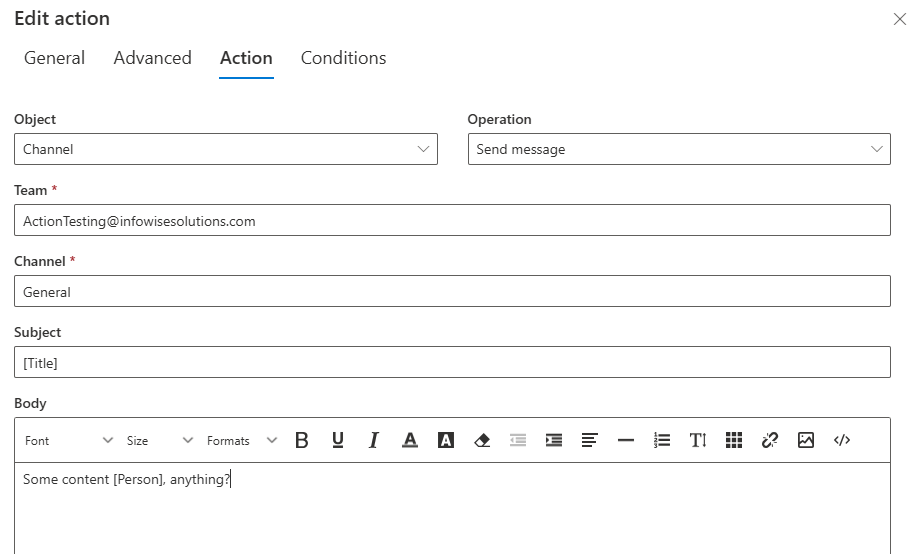
Chats. Send a message to a group chat or directly to an individual, the right channel when the update concerns one person rather than a room.
The detail that matters: Person columns become @mentions
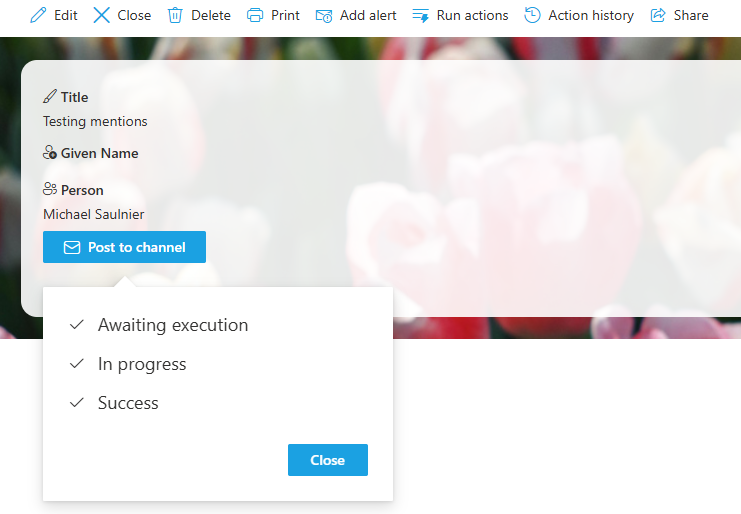
Here is the capability that separates a message that informs from a message that gets acted on. When the action composes a chat or channel message, values drawn from SharePoint Person columns are converted into genuine Teams @mentions. The assignee named in your ticket's Assigned To column doesn't merely appear as text in the channel message, they are mentioned, which means Teams treats them exactly as if a colleague had typed @ and their name: the notification fires, the activity feed lights up, and the message survives the scroll of a busy channel.

Anyone who has automated Teams messages knows why this is the headline. A bot message that names people as plain text is furniture; everyone assumes someone else read it. A message that @mentions the responsible person creates ownership at the moment of posting, and it does so dynamically, whoever the Person column holds on this item is who gets mentioned, with no per-recipient configuration. The mention list is data, and the data drives it.
Real-life scenarios
Ticket assignment that interrupts politely. A help desk runs on a SharePoint list; assignment happens by setting the Assigned To column. An action posts to the support channel the moment assignment changes: "New P1 ticket #4127, network outage in Building C, assigned to @Dana Cohen." Dana is mentioned, so Dana is notified, in the tool she already watches, seconds after the triage decision. The gap between "assigned" and "aware," where SLAs quietly die, disappears. Escalations work the same way: when a timer-based escalation promotes a ticket, the escalation manager from the item is mentioned in the same breath.
Project kickoff without the setup afternoon. A projects list holds the project name, the manager, and the team members in Person columns. When status changes to Approved, an action group creates the team (manager mapped as owner), creates its standard channels, Planning, Delivery, Budget, adds every member from the item, and posts a kickoff message mentioning the project manager with a link back to the project record. What used to be an administrator's checklist is now a side effect of an approval, and every project's Teams presence is identical because a rule built it.
Approvals that reach approvers where they live. Approval emails compete with a hundred others; a chat message to the approver does not. When a purchase request enters Pending Approval, the action sends the approver, read dynamically from the item's Approver column, a direct chat message with the amount, the requester, and a link to the approval form. Paired with the approval process itself, the mention-driven nudge measurably shortens the wait, and the reminder that follows if nothing happens mentions them again.
The incident war room. An incident report with severity Critical triggers the full sequence: create a private channel named for the incident, add the on-call responders from the item's Person columns, and post the opening message mentioning the incident commander, all before the reporter has finished their coffee. When the incident closes, another action archives the team, preserving the record without cluttering the sidebar.
Onboarding that greets by name. A new hire record triggers additions: the newcomer is added to the department team and the buddy named in the record is mentioned in the welcome message, "@Maya Levi, meet your new teammate", turning an HR row into a human introduction. Offboarding runs the mirror image: departure date arrives, a timer action removes the account from the teams the record lists.
The daily digest with owners attached. A timer action posts each morning's summary to the operations channel: overdue tasks, each line mentioning its owner from the task's Person column. One message, every name notified, no manager playing town crier. It is the Teams-native cousin of the email digest, for teams whose attention lives in channels rather than inboxes.
Across all six, notice the shared shape: SharePoint remains the system of record, Teams remains the system of attention, and the action, with mentions carrying the names, keeps them synchronized without anyone doing it as a job.
Where to go deeper
The message-sending operations have a dedicated walkthrough in Automatically Post Messages to Teams from SharePoint, and the full configuration demo, list setup, action mapping, owners, nicknames, and manual execution, is in SharePoint Action: Manage Microsoft Teams. The integration also runs in the other direction: Ultimate Forms web parts and forms work inside Teams tabs, so the same solution that posts into channels can be filled and browsed from them. Between the two directions, SharePoint and Teams stop being two places your process lives and become one process with two doors.
Frequently asked questions
Add your comment