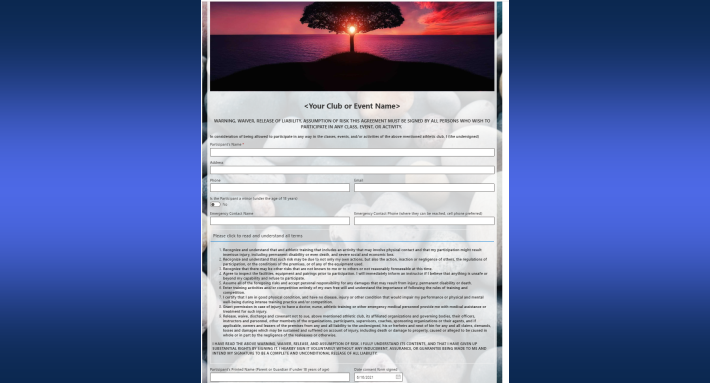
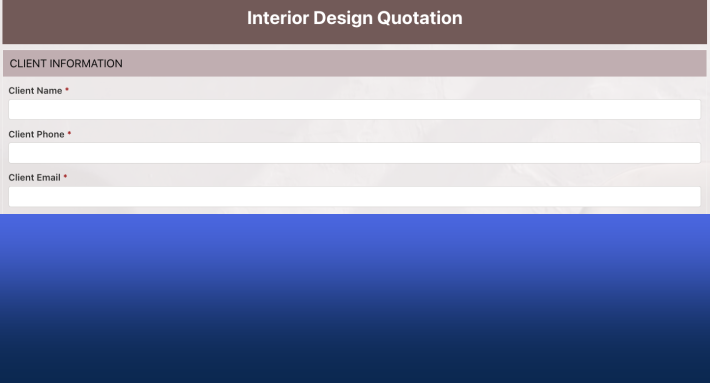
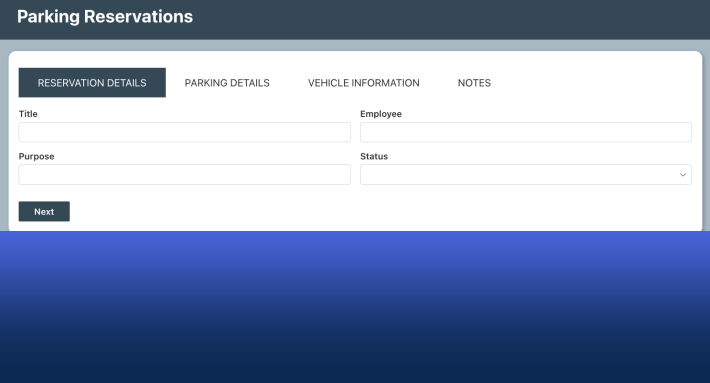
SharePoint forms can carry images, banners, and video, and in Ultimate Forms they come from a managed gallery rather than ad hoc uploads. The Image, video or banner control places visuals anywhere in the form layout, drawing on three sources: a built-in gallery of professional images provided with the product, an Organization gallery your team uploads once and reuses everywhere, and any image URL you host yourself. Add sizing, positioning, and YouTube embedding, and the form gains a visual layer that guides, brands, and explains, with no code and no separate design tool. This guide covers the control, the scenarios where visuals earn their space, and the habits that keep image-rich forms fast. For the rest of the visual toolkit, see the ten must-have features.
What a picture does on a form
Forms are instruments of data entry, and the reflex is to treat anything visual as decoration. The reflex is wrong in three specific ways.
A banner orients. The user who opens a form and sees the process's own imagery, the brand, the department, the familiar visual of the thing being requested, knows instantly they are in the right place, before reading a word. On external forms this goes from helpful to essential: an anonymous applicant judges legitimacy by appearance, and a branded, professional header is what separates "official company form" from "suspicious web page."
A diagram instructs. Safety procedures, equipment locations, sample filled entries, where-to-find-it screenshots: visual instructions embedded at the point of entry prevent the errors that written instructions, filed elsewhere and read never, do not. The image is help that cannot be lost.
And a visual signals state. Because the control obeys permission rules like any form element, different images can show under different conditions, a red escalation banner on high-value expenses, a different header per process stage, so the form's appearance communicates before its columns do.
The three image sources
The control's flexibility is mostly about where pictures come from, and the three sources cover three situations.
The built-in gallery. Ultimate Forms ships with a wide selection of professional images, ready to use. For teams without design resources, this is the difference between a polished banner today and a request to marketing with a two-week turnaround:
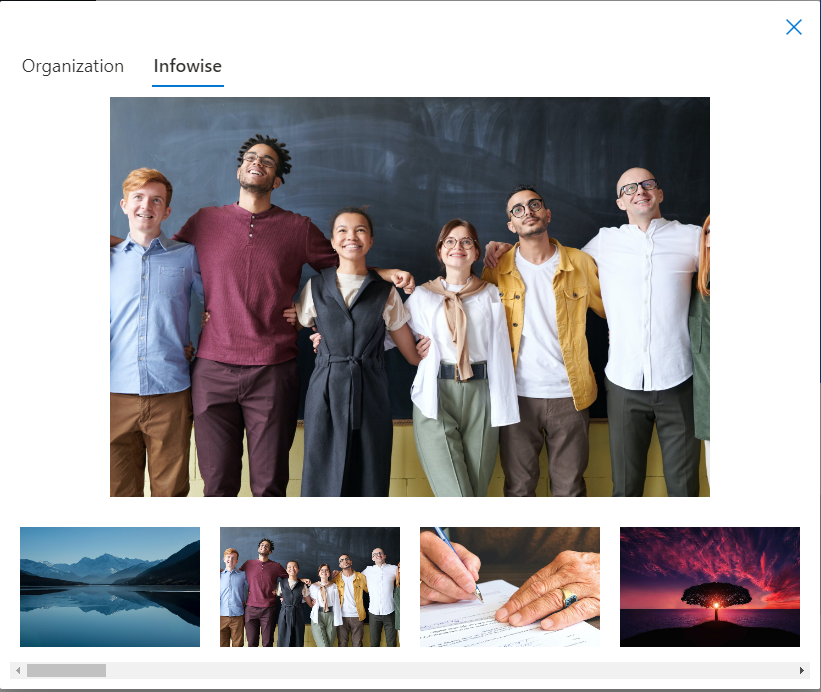
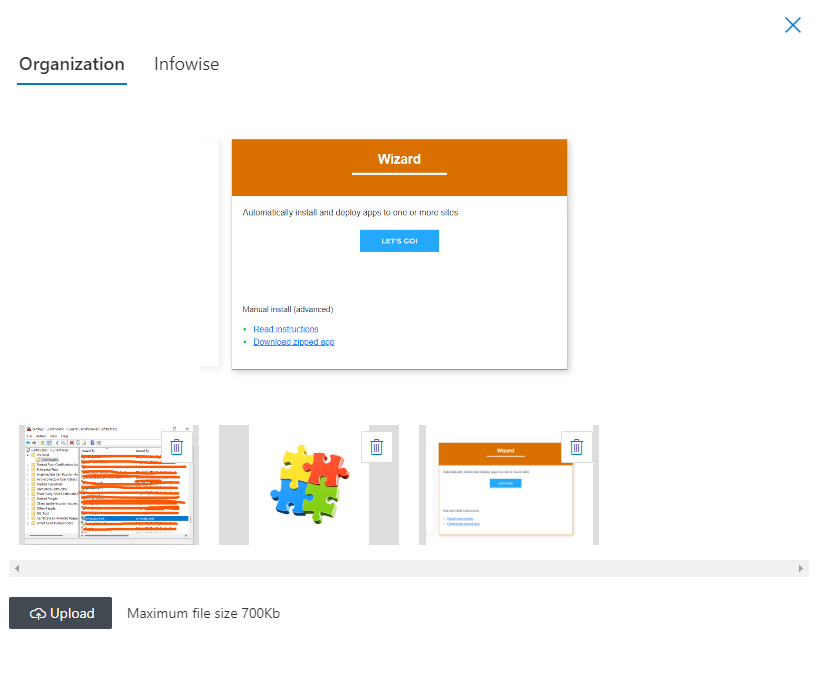
The Organization gallery. Your own uploads, shared across the tenant: logos, brand banners, product imagery, instruction diagrams. Upload once, and every form designer selects from the same pool, no duplicates, no hunting for the right file, no slightly-different logo versions drifting across departments. This is the gallery earning its "managed" adjective, and it does for images what shared styles do for colors and themes:
A custom URL. Any image accessible to your users, in Site Assets, a picture library, or a CDN, referenced directly. The one discipline this source demands: confirm the hosting location's permissions, because an image the user cannot reach renders as a broken placeholder, and prefer hosting you control over external URLs that can move or go down.
Setting it up
The build is the usual Form Designer pattern. Drag the Image, Video or Banner control onto the canvas, wherever the visual belongs, a full-width banner at the top, a diagram beside the section it explains. Gallery mode is the default; point it at a shared image:
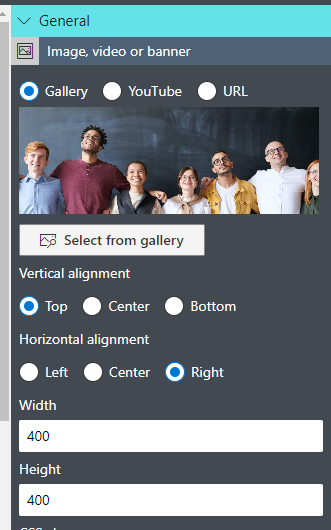
Then size and place it. Width and height are explicit, and the image's horizontal and vertical position within the banner area is adjustable, left, center, or right, top, center, or bottom, so the composition survives different screen widths. The same control embeds YouTube video instead of a still image: provide the video URL and size the frame, which turns a training form into one that carries its own training.
For conditional visuals, wrap the control in a container or attach permission rules directly: one banner for managers, another for staff; an image that appears only in New forms and stays out of Display mode; stage imagery that follows the record's status. The rule engine treats images exactly like any other element, which is what makes them a state instrument rather than wallpaper.
Finish with the cross-device pass: preview on desktop and mobile, check that banners scale rather than truncate, and test with a low-privilege account so permission gaps show up as broken images on your screen, not a user's.
Where visuals earn their place
Onboarding and welcome forms. A new hire's first form sets the tone for every form after it. Step imagery, "fill in your profile," "set up your workspace", makes the journey visible, and the warmth of a designed welcome costs nothing to repeat for every hire.
Compliance and safety entry. The inspection form that shows the diagram of what to check, the hazard form that shows the labeling standard, the claim form that shows a correctly filled sample: each embeds the instruction at the exact moment of use, which is the only moment instructions reliably work.
Product and selection scenarios. When the form is about a thing, showing the thing reduces errors: equipment request forms with the equipment pictured, facility bookings with the room shown. The user confirming against a photograph catches the wrong-item mistake that a text description lets through, before it becomes a return, a reschedule, or a support ticket.
Branding, inside and out. Internally, consistent headers make a form library feel like one product. Externally, on public forms, the brand imagery is doing identity work: the Thank You page with the same visual language closes the loop, so the whole interaction, form, submission, confirmation, reads as one designed experience.
Keeping image-rich forms fast and honest
Four habits cover nearly all the operational risk.
Compress. Image weight is the one way this feature can hurt: a crisp, compressed banner loads invisibly, while a full-resolution photograph taxes every open, worst on mobile. Optimize before uploading, and let the few essential visuals carry the form rather than decorating every section.
Standardize ratios and names. Shared banners in one aspect ratio compose cleanly everywhere; clear names ("SafetyDiagram-Forklift.png," not "image(4).png") keep the Organization gallery usable as it grows. Both are thirty-second habits with compounding returns.
Provide the text alternative. Alt text for every image, and for instructional visuals, make sure the essential content also exists as text, a label or fragment nearby, so users who cannot see the image still get the guidance. Accessibility aside, the text version is what search, screen readers, and copy-paste can use.
Maintain the gallery. Outdated screenshots, superseded logos, and last year's campaign banners accumulate silently. A periodic pass through the Organization gallery, remove, replace, rename, keeps every form drawing from current assets, which is cheaper than fixing forms one by one after a rebrand.
The through-line: visuals should support the data entry, never overshadow it. A form with one purposeful banner, one instructive diagram, and fast load times beats a visually heavy one on every measure that matters, completion rate included. The gallery control makes good visuals cheap; the design judgment about which visuals, and how few, stays yours.
Frequently asked questions
Add your comment