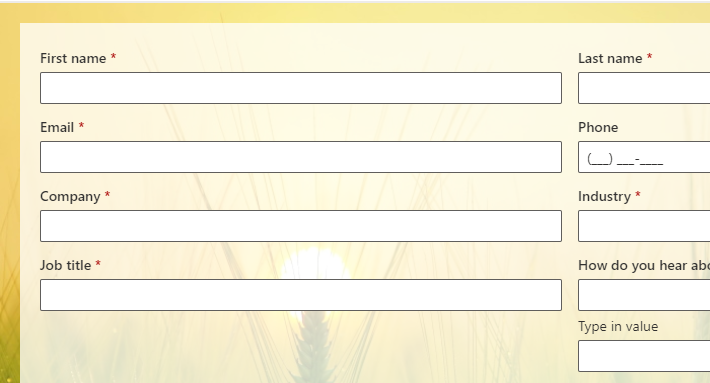
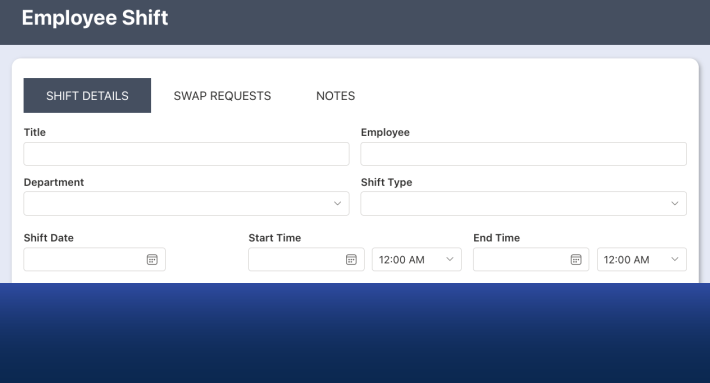
There is a problem that every organization running SharePoint forms across multiple teams eventually encounters. The first form gets styled carefully. The colors are right. The header looks professional. The layout reflects the organization's visual identity. Then a second form gets built, by the same administrator on a different day, or by a different administrator entirely. Small differences appear. A slightly different background shade. A different font weight. A different border style. Over time, the collection of forms that should look like a unified system starts to look like a collection of individually maintained pages.
This is not a process failure. It is a structural limitation of per-form styling. When every form carries its own style settings, consistency is only achievable through constant vigilance and manual correction. Most organizations have neither the time nor the mechanism for that.
Ultimate Forms now has a direct solution to this problem: Shared Styles.
What Shared Styles Does
Shared Styles allows an administrator to define a style set once, in a single location, and make it available to every form across the entire tenant. When a form designer selects a shared style, the form adopts that style immediately. There is nothing else to configure at the form level.
The style set is created in the Global Settings section of the Ultimate Forms administration area, under Styles. Creating a style set takes a few minutes. Once it exists, it is available to every form in the tenant. Not just forms on the current site, but every form anywhere in the organization's SharePoint environment.
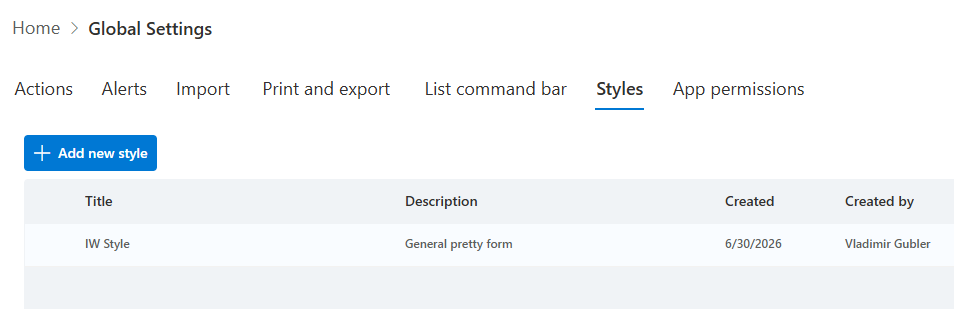
Any number of style sets can be created. An organization might create one for internal staff forms, one for external client-facing forms, and one for formal compliance or audit documents. Each set applies instantly to any form that selects it.
No Technical Skills Required
This is the part that matters most for most organizations.
Creating a shared style set does not require CSS knowledge. The style configuration interface in Ultimate Forms is the same visual designer that administrators already use to style individual forms. Themes, colors, backgrounds, borders, and font settings are all selected through dropdown menus and color pickers. An administrator who has never written a line of CSS can create a professional, on-brand style set in minutes.
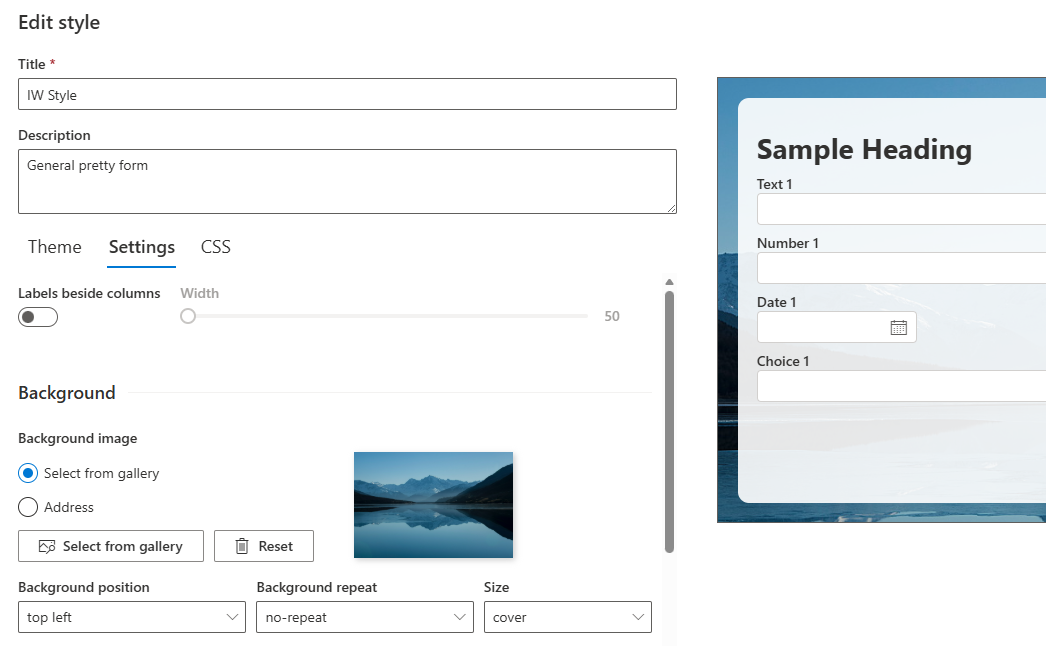
For organizations that do want to apply custom CSS — for example, to reference a central design system stylesheet — that option is also available. But it is not required. The majority of organizations will get everything they need from the built-in theme and settings options.
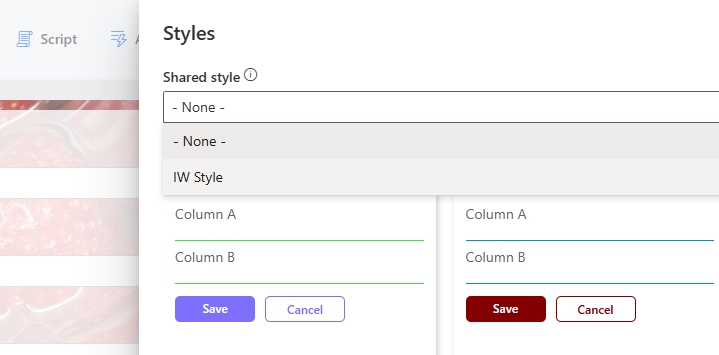
Once a shared style is created, applying it to a form is a single selection in the Form Designer. The user opens the Styles panel, chooses the shared style from the list, and publishes the form. Done. The form immediately reflects the organization's chosen look and feel, and the form-specific styling options are hidden so they cannot accidentally override the shared configuration.
Why This Matters: Branding Without Overhead
Organizations invest in visual identity because it communicates consistency, professionalism, and trust. A brand is not just a logo — it is the accumulated impression of every touchpoint an employee, client, or partner has with the organization. Forms are touchpoints. A leave request form, a client onboarding form, a vendor registration form — each of these carries an implicit message about how the organization is run.
When forms look inconsistent, the implicit message is that the digital environment is fragmented. When they look consistent, the message is the opposite: that the organization manages its systems with the same care it applies to other aspects of its operations.
The challenge has always been that achieving this consistency required either significant technical effort or constant manual oversight. Shared Styles removes both requirements. The administrator responsible for brand governance creates the style once. Everyone else simply selects it.
Real-World Examples
A large organization with multiple departments
An organization using Ultimate Forms across HR, IT, Finance, and Operations has forty forms deployed across eight SharePoint sites. Before Shared Styles, keeping all forty forms visually consistent required checking each one individually whenever the organization updated its intranet color palette or font choice. In practice, that check was never fully completed, and the forms had drifted out of consistency over time.
With Shared Styles, the intranet team creates a single internal forms style set that captures the organization's current palette and layout preferences. They apply it to all forty forms in a single session — open form, select shared style, publish, repeat. The entire standardization effort takes less than half a day. When the intranet is updated next year, changing one style set updates every form automatically.
A client-facing external form deployment
A professional services firm uses Ultimate Forms external forms to collect client information, signed acknowledgments, and project intake data. These forms are the first thing new clients interact with when beginning an engagement. The firm's brand guidelines are strict: specific colors, a specific font, a specific header structure.
Previously, ensuring that external forms matched the firm's website required an experienced administrator to configure each form carefully and review it against the brand guidelines. With Shared Styles, a style set is created once that captures the firm's brand exactly. New external forms are assigned this style immediately upon creation. No review required. No risk of a junior administrator making different choices. Every client interaction reflects the firm's brand correctly from day one.
A SharePoint partner managing multiple clients
An Ultimate Forms implementation partner delivers solutions to multiple client organizations. At the start of each engagement, the partner's consultant creates a client-specific shared style set based on the client's brand guidelines. All forms built during the engagement use this style. When the client's own administrators take over and build additional forms, they select the same shared style. And every form they create automatically matches what the partner delivered.
The partner also uses a shared style internally to ensure that demo environments always carry the Infowise brand rather than the default theme, regardless of which consultant set them up.
Getting Started
Shared styles are available to site collection administrators in the Global Settings section of the Ultimate Forms administration area (under your initials in the top right corner). The process is straightforward:
Create a style set — open Global Settings, go to Styles, and create a new style set. Optionally choose a theme, configure any specific settings such as background color or border style, or maybe enter custom CSS classes and save. This takes a few minutes.
Apply to existing forms — open each form in the designer, click on the Styles panel, select the shared style from the list, and publish. For a large form library, working through this systematically is the fastest path to full consistency.
Apply to new forms — make selecting the shared style part of the standard form creation process. New forms automatically inherit the style with a single selection at the time of design.
No technical background is required at any of these steps. If the organization later wants to update its brand — a color change, a new background, a different theme — the change is made once in the style set. Every form that uses the style updates immediately upon the next form load.
Full documentation is available at infowisesolutions.com/documentation/index/350.
Add your comment