A SharePoint intranet is an internal website built on the SharePoint platform that gives employees a central place to find information, access tools, and stay connected with what is happening across the organization. It replaces shared drives, email announcements, and disconnected department websites with a single, governed, searchable experience inside Microsoft 365.
For organizations already using Microsoft 365, building a SharePoint intranet means working with infrastructure that is already paid for, already integrated with Teams, Outlook, and OneDrive, and already accessible to every licensed user. The question is not whether the platform can support it. The question is how to build it well.
This guide walks through the planning decisions, structural components, and practical steps involved in building a SharePoint intranet.
What a SharePoint Intranet Is Made Of
A SharePoint intranet is not a single site. It is a collection of sites connected by a shared navigation structure, search scope, and branding. Understanding the building blocks makes the architecture decisions clearer.
Communication Sites
A communication site is designed for publishing content to a broad audience. A small editorial group manages and publishes content. Everyone else reads it. Communication sites have a clean, page-based layout suited to news, announcements, policy libraries, and department portals.
The organization's main intranet home page is typically a communication site. Department-level portals — HR, Finance, IT, Legal — are usually communication sites as well.
Team Sites
A team site is designed for collaboration within a group. It is the right choice for a project team, a working group, or a department that needs a shared workspace rather than a publishing portal. Team sites are connected to Microsoft 365 Groups, which links them to a Teams channel, a shared Outlook mailbox, and a Planner board.
Team sites are part of the intranet in the sense that they appear in search and navigation, but they are managed by the team rather than a central communications or IT function.
Hub Sites
A hub site is a connection layer. It links related communication and team sites under a shared navigation bar, search scope, and visual theme. When a site is associated with a hub, it inherits the hub's navigation and can be included in hub-scoped search and rollup web parts.
Hub sites are the structural backbone of a well-organized SharePoint intranet. A typical organization might have one hub for the company intranet home and separate hubs for each major division or geographic region.
Pages and Web Parts
Each site is made up of pages. Pages are built using web parts, which are configurable content blocks. Standard web parts include the News web part, which aggregates and displays news posts from across the intranet; the Hero web part, which displays featured content in a visual banner; the Quick Links web part, which provides navigation to frequently accessed resources; and the People web part, which displays contact cards for a team or leadership group.
SharePoint's modern page editor requires no code. Site owners and content editors add, remove, and configure web parts through a visual interface.
Planning Before You Build
The most common intranet failure is building before planning. The result is a site that looks complete on launch day and becomes a maintenance burden within six months. The planning decisions that matter most are governance, information architecture, and content ownership.
Governance
Who can create sites? Who approves new pages? Who is responsible for keeping department content current? Without answers to these questions, the intranet grows without structure and ages without maintenance.
The SharePoint Administrator controls site creation permissions in the SharePoint Admin Center. Most organizations restrict site creation to administrators or approved requesters rather than allowing any user to create sites. This keeps the site inventory manageable.
Content ownership is a governance decision, not a technical one. Each section of the intranet needs a named owner who is responsible for its accuracy. Without named owners, content goes stale and no one takes responsibility for updating it.
Information Architecture
Information architecture determines how the intranet is organized and how users navigate it. The most important decisions are:
Hub structure. How many hubs does the organization need? A single-hub model works for smaller organizations. A multi-hub model, organized by division, region, or function, works better for larger or more complex organizations.
Navigation design. What appears in the global navigation bar? The hub navigation should give users access to the most frequently needed destinations without requiring them to know the intranet's underlying structure.
Search configuration. SharePoint search is powerful but requires some configuration to deliver useful results. This includes setting up promoted results for common queries, ensuring pages and documents have useful metadata, and configuring the hub search scope so users searching from the intranet home see intranet-relevant results rather than results from every SharePoint site in the tenant.
Naming conventions. Site names, page titles, and document library names should follow a consistent convention that makes content findable. Inconsistent naming is one of the leading causes of poor search results.
Content Inventory and Migration
Before building the new intranet, take stock of what content needs to be on it and where it currently lives. Many organizations discover during this process that a significant portion of their existing content is out of date, duplicated, or no longer needed. This is an opportunity to rationalize rather than migrate everything as-is.
Content that is current and needed should be migrated to the new structure. Content that is outdated should be archived or deleted. Content that does not exist yet but needs to should be identified so it can be created as part of the launch plan.
Building the Intranet: Step by Step
Step 1: Create the Home Site
The intranet home is a communication site that serves as the organization's starting point. Create it in the SharePoint Admin Center and designate it as the organization's home site. The home site designation makes it the default landing page when users navigate to SharePoint.
Design the home page with the organization's most critical needs in mind: a news feed, links to frequently accessed tools and resources, an events calendar, and quick navigation to department portals.
Step 2: Set Up Hub Sites
Register the home site as a hub in the SharePoint Admin Center. Create additional hub sites for each major organizational division if the structure warrants it. Register department and team sites as members of the appropriate hub.
Hub association gives each connected site access to the hub's navigation and search scope. Users who land on a department portal site can navigate to other intranet destinations through the hub navigation bar without having to return to the home page first.
Step 3: Build Department Portals
Each department that needs a presence on the intranet gets its own communication site. The site structure for a typical department portal includes:
- A home page with department news, quick links, and contact information for the team
- A document library for policies, procedures, and templates
- An announcements page or news section
- Links to any SharePoint lists used for department processes
Associate each department site with the appropriate hub so it inherits the intranet navigation and appears in hub-scoped search.
Step 4: Configure Navigation
Navigation design is one of the highest-impact decisions in the intranet build. The global navigation bar on the hub should give users access to the most frequently needed destinations in as few clicks as possible.
SharePoint's global navigation supports multilevel menus. Keep the top-level items to the most essential destinations. Use second-level items for sub-sections that a subset of users will need. Avoid deep hierarchies that require three or more clicks to reach common content.
Test navigation with real users before launch. What seems obvious to the team that built the intranet is often not obvious to someone encountering it for the first time.
Step 5: Publish and Promote
An intranet that launches without users knowing about it will not achieve adoption. The launch should be treated as a communication project, not just a technical one.
Communicate the launch date and what users will find on the intranet. Provide brief guidance on where things are, particularly if the intranet replaces a previous system. Set the intranet home as the default SharePoint home page and, if possible, set it as the Teams app bar landing page so users encounter it naturally in their daily workflow.
Adding Business Processes to the Intranet
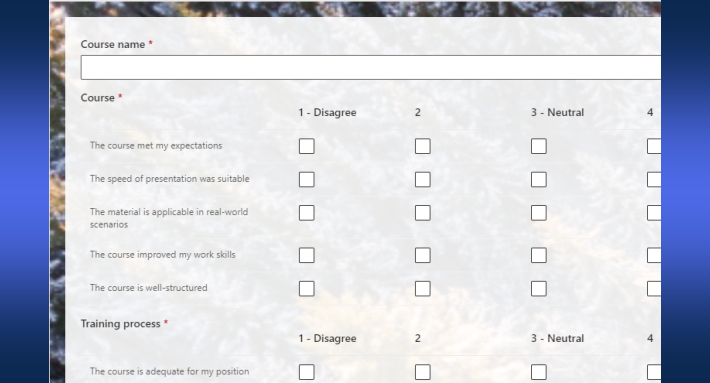
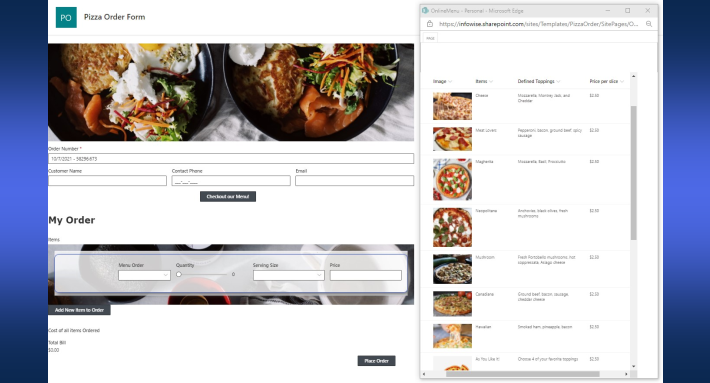
A SharePoint intranet built entirely from pages and document libraries leaves a significant part of SharePoint's value unused. Lists and forms are what transform a passive information resource into an active tool that employees interact with daily.
Common process forms embedded in SharePoint intranets include IT help desk intake, facilities maintenance requests, HR onboarding checklists, travel and expense approvals, and policy acknowledgment tracking. Each of these is a SharePoint list with a form, some automation, and a view that shows managers the current status of open items.
Building these processes inside the intranet has practical advantages. Users submit requests without leaving the browser tab they are already in. Managers see real-time status without chasing email threads. Administrators govern data access through the same SharePoint permissions that apply to every other intranet resource.
Ultimate Forms by Infowise extends SharePoint lists with conditional forms, column-level permissions, automated routing, e-signatures, and print templates. A help desk intake form built with Ultimate Forms can show different columns to the person submitting the request and the IT technician handling it, route new submissions to the right team automatically, and generate a printed summary for records. The same list that holds the data also drives the form, the workflow, and the report.
Maintaining the Intranet Over Time
A SharePoint intranet is a living resource. It reflects the organization as it currently is, which means it needs ongoing maintenance as the organization changes.
The practical maintenance tasks are:
Content review cycles. Establish a schedule for content owners to review their sections. Quarterly reviews work for most organizations. High-change areas like IT policies or HR documents may need more frequent attention.
Governance audits. The SharePoint Administrator should periodically audit the site inventory for inactive or orphaned sites, review external sharing settings, and check that content ownership assignments are current.
Usage analytics. SharePoint provides built-in usage reports at the site and page level. These show which pages are visited most often and which are ignored, which navigation links are clicked and which are bypassed. Usage data should inform content prioritization and navigation adjustments over time.
News and announcements. The intranet's news feed needs a steady supply of content to remain useful. Organizations that treat news publishing as optional find that their intranet home page looks stale within weeks of launch. Assign publishing responsibilities to communication owners in each department before the launch, not after.
Summary
A SharePoint intranet is one of the highest-value things an organization can build on a Microsoft 365 investment it has already made. The platform provides the infrastructure. The work is in planning the structure, assigning content ownership, and designing navigation that works for real users rather than the team that built it.
Communication sites handle publishing. Team sites handle collaboration. Hub sites connect everything into a coherent, searchable, governed experience.
For organizations that want to go further and embed business processes directly into the intranet, Ultimate Forms by Infowise provides the forms, automation, and workflow capabilities to make that happen without custom development. Learn more at infowisesolutions.com.
Related reading:
- SharePoint Communication Site: What It Is, When to Use It
- What Is a SharePoint Team Site and When Should You Use One?
- SharePoint Administrator: Roles and Responsibilities
Frequently asked questions
Add your comment