A multi level approval workflow routes a request through two or more approval stages in sequence: the manager first, then the department head, then finance, with each level starting only after the previous one approves. In SharePoint, the fastest way to build one is the Approval control in Ultimate Forms: configure the levels as a list of approvers, mark which ones are conditional, and publish, with notifications, reminders, locking, and the approval log included. This guide builds a three-level budget request workflow, explains how levels should be designed, and covers what happens when a level rejects, stalls, or isn't needed. For the wider map of approval patterns, see the complete guide to SharePoint approval workflows.
What makes an approval multi level
Single-level approvals answer one question: does the right person agree? Multi level approvals answer a chain of them, each at a different altitude. The manager confirms the request is real and sensible. The department head confirms it fits the plan and the budget. Finance confirms the organization can and should pay. Each level has its own competence, and the sequence exists because the later questions are wasted effort if the earlier answers are no.
That logic also defines what multi level is not: several people asked the same question at once is parallel approval, not multi level, and one person asked harder is just a better form. Levels earn their place when each one would catch something the others would not, which is the test to apply before adding a fourth.
The usual way, and its cost
The standard answer in the Microsoft stack is Power Automate: a sequential approval template, extended with conditions and branches as the requirements grow. It works, and for a single simple chain it may be enough. The cost arrives with reality: each level's conditions become branch logic, reminders and escalations become their own flows, the form knows nothing about the approval unless you build the connection, and the whole construction is owned by whoever built it, which is rarely the person who owns the process. The third change request is where most of these flows stop being maintained and start being feared.
The approach below inverts the architecture: the approval lives inside the form, as a configured control, and the levels are a readable list rather than a diagram. The low-code myth covers why that difference compounds; here it simply makes the build short.
The build: a three-level budget request
The scenario: budget requests where the requester's manager always approves, the department head joins above $10,000, and the CFO joins above $50,000. Three levels, two of them conditional.
Step 1: list and form
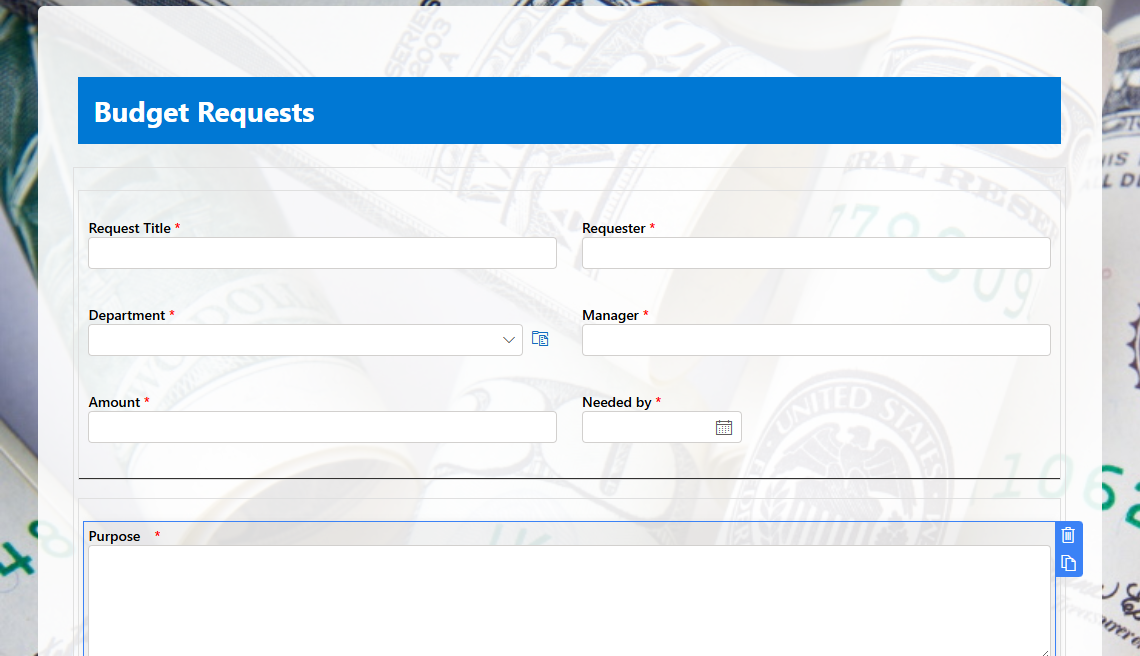
Create a Budget Requests list and, in Form Designer, add the columns: Request Title, Requester (person, defaulted to the current user), Department (lookup), Manager (person, automatically set to current user's manager via a rule), Amount (currency), Purpose (multiple lines of text), Needed By (date). Add the validation rules the approvers would otherwise enforce by email: Purpose required, Needed By not in the past, and a justification attachment above a threshold if your process wants one.
Step 2: the levels, as a list of approvers
Drag the Approval control onto the form and configure three approvers in sequence:
- Manager: resolved dynamically from the requester's profile, so every request finds its own manager, per the dynamic approvers pattern. No conditions: level one always runs.
- Department Head: resolved from the Department lookup, with a condition: Amount greater than 10,000.
- CFO: a named user or a Finance Leadership group, condition: Amount greater than 50,000.
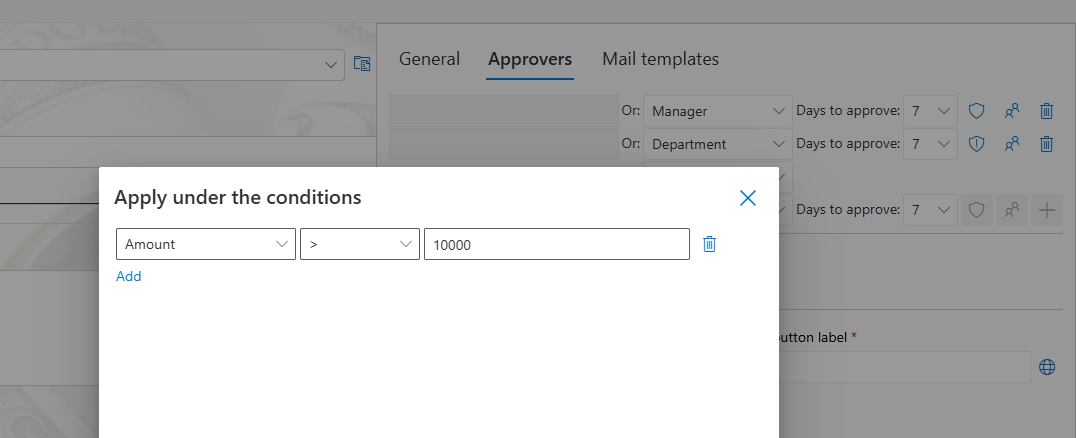
Read what that configuration means: a $4,000 request sees one level, a $25,000 request two, a $80,000 request all three, and nobody designed a branch. The control evaluates the conditions per item and assembles each request's own chain. Sequential mode guarantees order, and because level two's approver is a resolution rather than a name, reorganizations do not break the workflow.
Step 3: behavior at each level
Set the approval to start automatically on item creation. Enable form locking, so the amounts level three approves are the amounts levels one and two saw; mid-chain edits are the classic multi level failure, and the lock removes the category. Choose Resume after revision for rejections, and require comments on rejection so the requester learns what to fix.
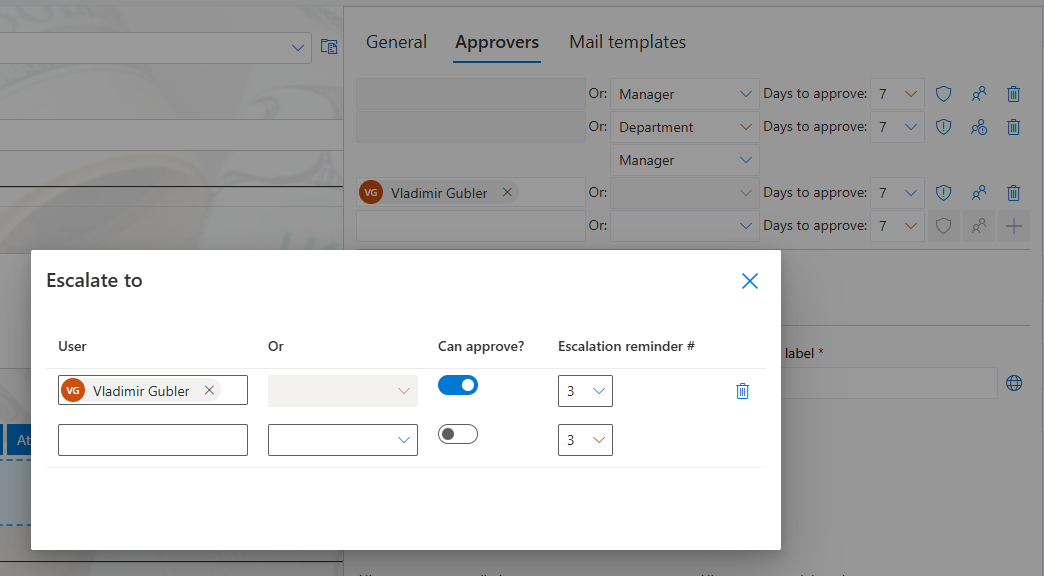
Configure the notifications so each level's subject line carries the decision's inputs: requester, amount, purpose, in the subject. Set reminders to begin on day two, and add an escalation rule per level, from the third reminder, copy the level's backup, with approve-on-behalf where the process allows it. Multi level chains multiply the stall risk, three levels is three chances for silence, so escalation is not an extra here; it is the difference between a chain and a queue of dead ends.
Step 4: visibility along the chain
The control's progress bar shows each request's position in the chain directly in list views, with overdue states colored. Add views per audience: My Requests for requesters, Awaiting Me for approvers at any level, and an In Flight view grouped by current level for the process owner, who can now see at a glance which level is the bottleneck, a question that cycle-time dashboards answer quantitatively as the data accumulates.

Design rules for levels
Three decisions make or break multi level workflows, and all three are design, not configuration.
Fewer levels than you think. Every level adds a day of latency in the best case. If two levels would catch everything three do, the third is pure delay; the test from the opening section, would this level catch something the others would not, trims most chains to two or three.
Thresholds at natural authority boundaries. The $10,000 and $50,000 lines should match the authority limits the organization already recognizes, not invent new ones. When the workflow's thresholds mirror the delegation-of-authority policy, the configuration documents the policy, and auditors notice the alignment.
Parallel inside a level where order has no meaning. Sometimes "level two" is really two reviewers with different competence, legal and security, say, whose order does not matter. Run them in parallel within the stage rather than inventing a false sequence; the control supports parallel groups, and first-to-respond mode where any one voice suffices.
When a level says no, or nothing
Rejection at level two with Resume after revision sends the request back to the requester with the comments; the revision re-enters the chain, and the earlier approval history is preserved on the record, so level one's approval of the earlier version remains visible, which is exactly what an audit wants to see. Silence is handled by the escalation rules per level, and planned absence by group-based approvers or delegation. The chain, in other words, has an answer for each of the three ways a level can fail to say yes, which is what makes it dependable enough to retire the email thread it replaces.
Multi level approval is the workhorse pattern of the whole approval family: most real processes above trivial stakes end up here. Built as a list of conditional approvers rather than a diagram of branches, it stays owned by the people who own the process, and the complete guide to SharePoint approval workflows covers everything around it, from the other routing patterns to the hard cases each level can meet.
Frequently asked questions
Add your comment