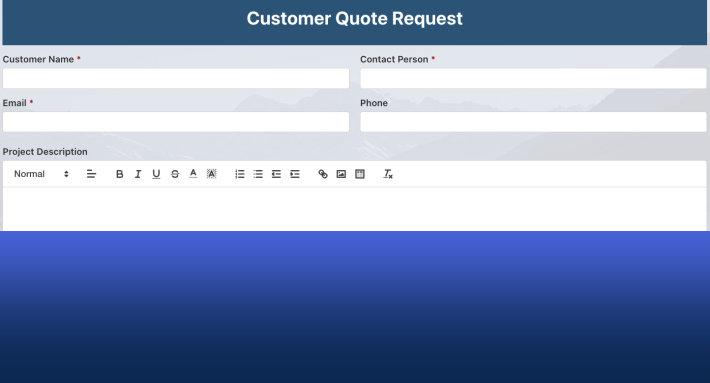
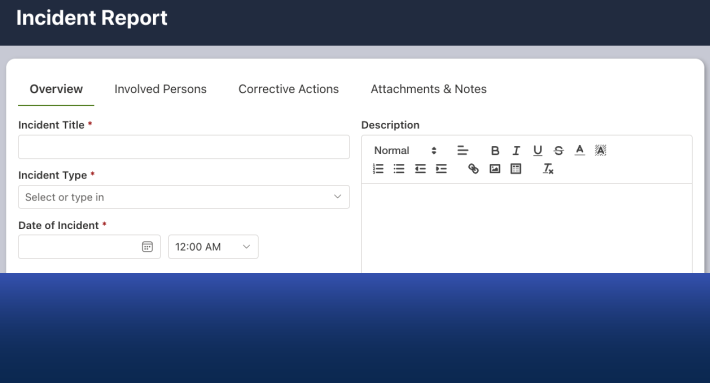
SharePoint columns can do far more in a form than SharePoint lets them. Ultimate Forms extends many built-in column type in its modern forms. It introduces input masks, localized placeholders, time slots, sliders, and smarter lookups. And it adds column types SharePoint does not have at all: repeating sections, signatures, external data, indicators, and more. This guide tours the column features that matter most, ordered by the difference they make in real solutions, from the ones that turn lists into applications down to the small touches that make forms pleasant.
The columns that turn lists into applications
Associated items: repeating sections
The single most consequential column in the platform. An Associated Items column displays related child items as a repeating table inside the parent form. Think the lines on an invoice, the tasks on a project, the participants on a training session. Users add, edit, and remove child rows without ever leaving the parent. And the relationship is real data in a real list, not a text blob pretending to be a table. This one column is the difference between a flat list and a one-to-many application. Most serious solutions are built around it.
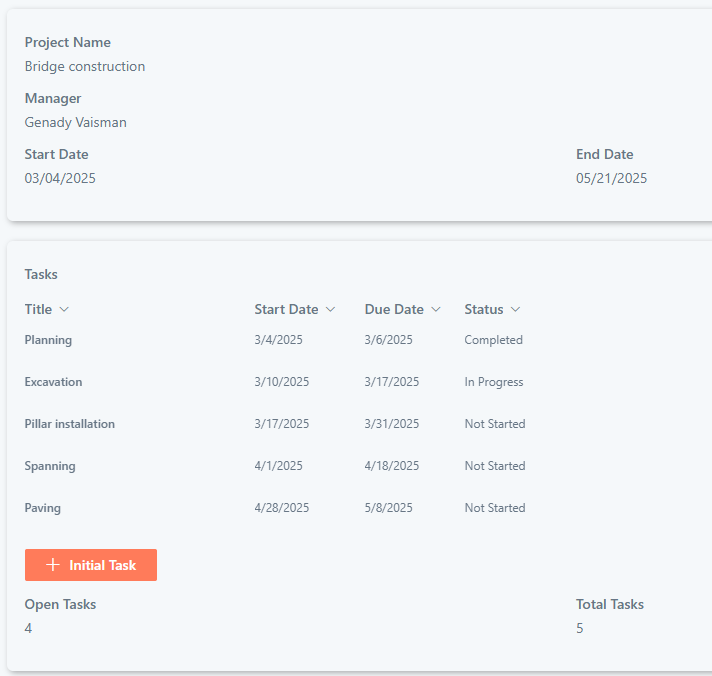
Associated items summary: the totals, live
The companion column computes automatically over those children: the sum of the line amounts, the count of open tasks, the latest delivery date. The parent carries its own bottom line, recalculated as children change, with no formulas for anyone to maintain. Orders total themselves; projects count their own overdue work.
Lookup, the way it should have worked
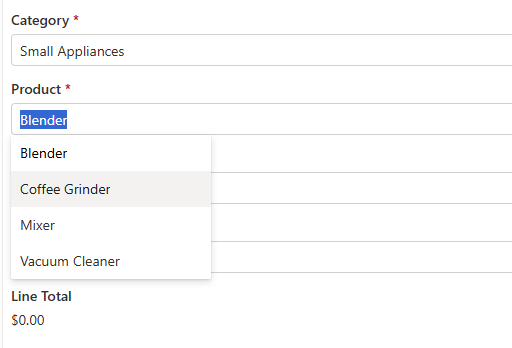
The standard lookup column is the one everyone uses and nobody enjoys. Ultimate Forms rebuilds it. Filter and sort the available values by a view, so retired records stop appearing in new forms. Auto-complete replaces the endless dropdown for large lists. Filter one lookup by another lookup or choice column, giving you cascading selections, country narrows to city, category narrows to product, with no code. Users can add a new value directly from the form when the one they need does not exist yet. And a preview form shows the details of the selected value on the spot, so nobody opens a second tab to check which "Acme Ltd" this is.
External data lookup: beyond SharePoint entirely
The same selection experience pointed at other systems. An External Data Lookup column references records in outside applications, through data connections to SQL, Dataverse, Salesforce, and REST APIs, so users pick the real customer from the real CRM instead of retyping it. The master data stays where it lives; the form stops collecting copies of it.
The columns that make forms trustworthy
Signature: sign it, and know if it changed
A Signature column electronically signs selected column values. From the moment of signing, any change to the signed data is tracked and flagged, so an approval means what it says and tampering is visible rather than silent. For regulated and formal processes, this is the column that turns a form into a document of record.
User property: stop asking what you already know
A User Property column pre-fills values from the user's profile: department, manager, phone, job title. The form recognizes who arrived instead of interrogating them, data lands consistent with the directory, and manual entry of known facts disappears.
Code-free conditional validation
Around all of these, validation rules guard the gate without code. Conditions ensure validation rules are only applied when needed. Rules can compare columns to values and to each other, so the rules speak business: the end date cannot precede the start date, a rejection requires a comment, an amount above the threshold demands a second approver. Messages appear while the user can still fix the entry, which is the only moment validation is cheap.
The columns that improve everyday entry
Multiple lines of text: the workhorse, upgraded
The long-text column gains the most individual features. A localized placeholder guides the writer in their own language. The integrated AI-based rewrite polishes rough text on demand, tightening a description or correcting its tone without leaving the form. Images embedded in the text are uploaded automatically into a library instead of bloating the list, and files dropped into the column upload the same way. The column users type the most into is the one that quietly does the most work.
Date: pickers that match how people actually choose
Date-only columns can present as three dropdowns, day, month, year, ordered automatically by the site locale. The layout is faster than a calendar for birthdates and document dates.

Date-time columns can offer predefined time slots at whatever minute interval you define. So a booking form offers 9:00, 9:30, 10:00 rather than a free-form time nobody enters consistently. The column stops being a calendar control and starts being a scheduling control.

Choice: options users can see
Choice values can be localized, so the same column shows French options to French users. Multi-choice columns display as a dropdown or as checkboxes, whichever suits the count. And choices can carry icons, which turns a status or category picker into something scannable at a glance.
Number and currency: controls, not just boxes
A number can render as a slider for bounded values, satisfaction from 1 to 10, percentage complete, or show plus and minus buttons for stepwise adjustment, quantities, licenses, seats. Localized placeholders guide the format. Small things, but they remove the two classic number-column errors: wild out-of-range values and formats the process did not expect.
Yes/No, single line, and the rest of the toolbox
The Yes/No column displays as a toggle or a checkbox, with custom localized labels, so it can finally say "Approve / Decline" instead of an ambiguous tick. The single line of text column gains an input mask, phone numbers, IDs, and reference codes arrive in one format instead of five, plus its own localized placeholder.
Three more specialized columns round out the set. Indicator renders automatic KPIs, progress bars, and countdowns from the item's data, putting the state of the record on its face. Document Link connects the item to existing documents or uploads new ones as proper linked files, keeping contracts and attachments tied to the records they belong to. And Voting adds votes and comments to any item, which turns a plain list into a lightweight review, prioritization, or feedback process.
The general layer: labels and descriptions
Two features apply to every column on the form, and they are easy to underestimate.
Labels can carry icons, can differ per position on the form, independent of the column name in views, or disappear entirely where the layout speaks for itself. The list can keep its terse technical names while the form says things in the user's words.
Descriptions are rich text, not a gray one-liner, and longer instructions can be set to appear on click, so guidance is available exactly when wanted and invisible when not. A form that explains itself on demand is a form that stops generating "what do I put here?" emails.
Together with form styling and tabs, these are what make an Ultimate Forms form read as a designed application screen rather than a list of database columns.
Choosing where to start
The order above is a usable adoption path. If your solution involves related records, start with Associated Items and its summary; they change what you can build. If your pain is data quality, start with the lookup upgrades, validation rules, and input masks; they change what arrives. And if your forms simply feel unfriendly, the placeholders, labels, descriptions, toggles, and icons are an afternoon of polish that users notice the next morning. Every feature here is configuration in Form Designer, so the distance between reading this list and shipping any item on it is minutes, not a project.
Frequently asked questions
Add your comment