A contract approval workflow in SharePoint can run entirely without Power Automate. Ultimate Forms builds it from configuration: contracts submitted into a library with proper metadata, routed by type and value through the Approval control, locked against changes while under review, signed with tamper-evident electronic signatures, and watched by renewal alerts long after the ink dries. No flows, no premium connectors, no workflow that only its builder understands. This guide builds the complete lifecycle, and places it among the other approval patterns in SharePoint.
Contracts are the hardest easy process
Every contract approval looks simple from a distance: legal reviews it, someone signs it, done. Up close it is the most failure-prone approval in the building. The contract is a document, so it changes while being reviewed, and nobody is sure which version was approved. The routing depends on what kind of contract it is and how much it is worth, so half the submissions go to the wrong reviewer first. The signature must mean something legally. And the contract's most expensive moment often comes years later, when the auto-renewal nobody was watching quietly commits another twelve months.
Email and shared drives fail all four tests at once. A workflow tool fails them more slowly: Power Automate can route a contract, but the type-and-value branching grows into a diagram, the version problem needs separate handling, the reminders are their own flows, and the legal team, who own the process, cannot safely touch any of it. The question that matters is not whether the workflow can be built; it is whether the people who own contracts can own the workflow. The build below says yes, because every rule in it reads the way legal states it.
Step 1: the library and its metadata
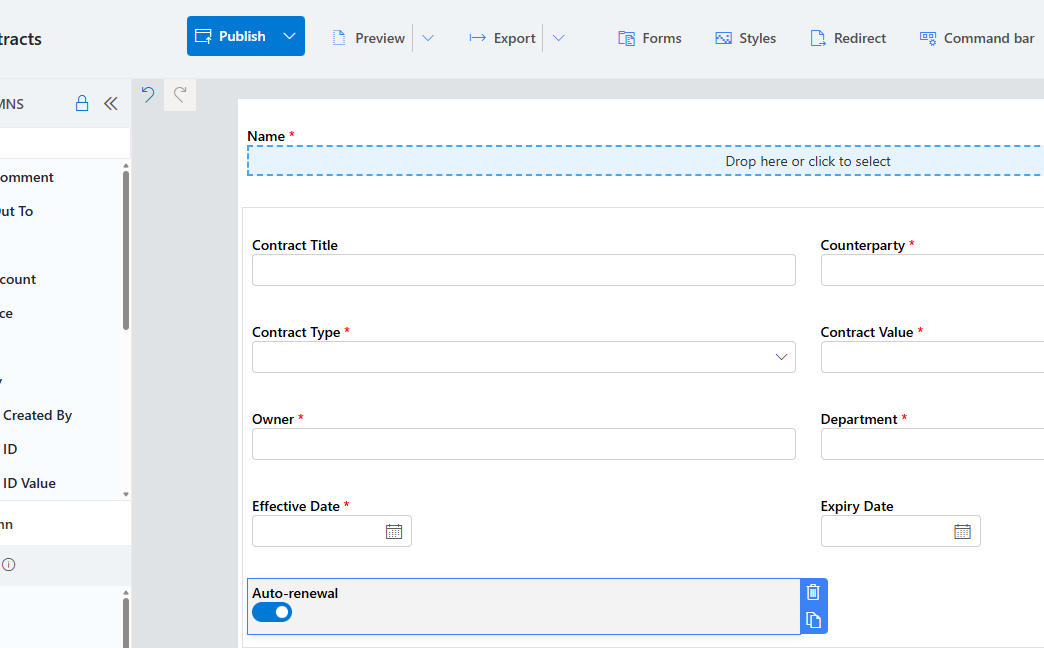
Contracts live in a document library, not a list, because the file is the record. Create a Contracts library and add the columns that drive everything downstream: Contract Title, Counterparty, Contract Type (choice: Vendor Agreement, Third Party Service, NDA, Renewal, Customer Agreement), Contract Value (currency), Owner (person), Department (lookup), Effective Date and Expiry Date (dates), and Auto Renewal (yes/no).
In Form Designer, make the metadata earn its keep: Contract Type and Contract Value required, Expiry Date required whenever Auto Renewal is yes, and a validation message that explains why. The routing in step 2 is only as good as these columns, and requiring them at intake is the only moment it is cheap. Enable versioning on the library; the version history becomes part of the audit story.
Step 2: routing by type and value
Drag the Approval control onto the form and express the routing as a list of approvers with conditions, the way legal would dictate it aloud:
- Owner's Department Head: always, resolved from the Department lookup per the dynamic approvers pattern.
- Legal: a SharePoint group, with a condition: Contract Type is Vendor Agreement or Third Party Service. Routine renewals and NDAs on the standard template skip the legal queue, which is half the cycle-time win on its own.
- CFO or Finance Leadership: condition: Contract Value greater than 100,000, the multi level pattern joining by amount.
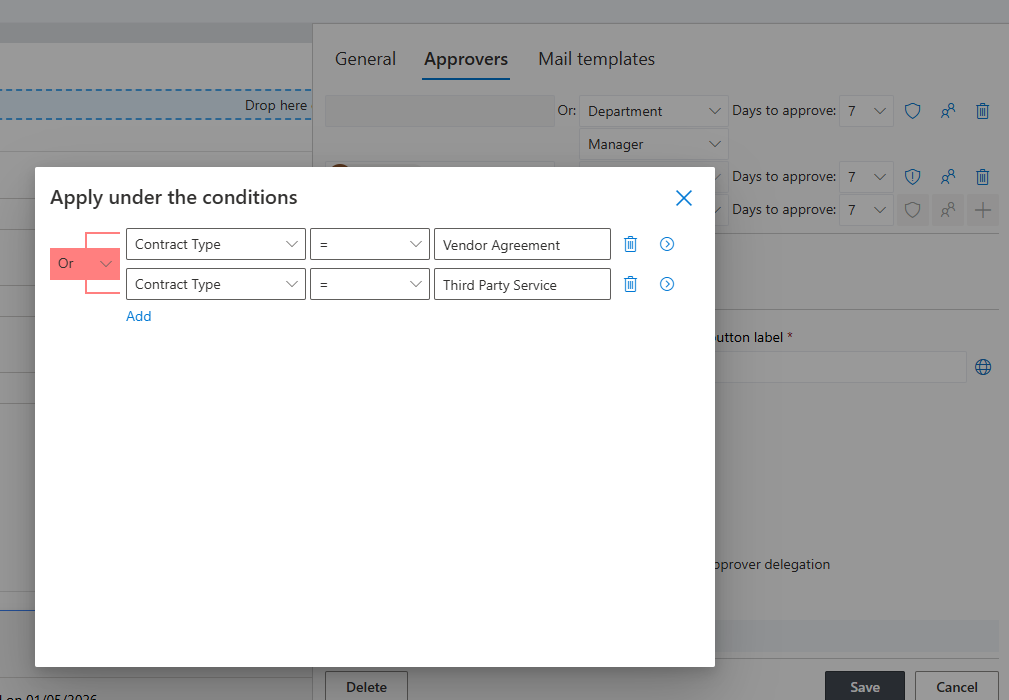
A $20,000 standard renewal sees one approver. A new $250,000 vendor agreement sees all three, in sequence. The legal group rather than a named lawyer means vacations do not stall the queue, and any group member's decision advances the contract.
Step 3: the version problem, solved by locking
Set the approval to start automatically when the contract is submitted for review, and enable form locking during and after approval. From the moment review begins, the metadata is read-only and the record stable; combined with library versioning, every decision in the approval log points at a specific, unchanged version. For processes where editing and check-out choreography is itself the complexity, redlines circulating, multiple authors, the approvals with check-in and check-out build adds the document-state automation around this same control.
Configure Resume after revision for rejections: legal's redline comments return the contract to its owner, the revised version re-enters the chain, and the full history, including what legal rejected and why, stays on the record.
Step 4: signatures that mean something
Approval and signature are different acts, and contracts need both. Internally, an electronic signature binds the final sign-off to the approved values: the signer validates their identity in real time, a hash of the signed columns is stored, and any later change to them breaks the signature visibly. That is the difference between "the log says someone clicked Approve" and "this person proved who they were and signed exactly these terms."
For the counterparty's signature, the external half of every contract, the DocuSign integration carries the document out for legally managed external signing and brings the executed copy back to the record. The contract's whole signature story then lives in one place: internal sign-off on the item, external execution attached to it.

Step 5: the renewal clock
The approval workflow ends; the contract does not. Two date-driven alerts keep it from going feral: ninety days before Expiry Date, the Owner and Department Head are notified, with the contract's terms in the message, time to renegotiate rather than rubber-stamp; and thirty days out, a second alert escalates to include procurement or legal when Auto Renewal is yes, because an unexamined auto-renewal is a purchasing decision made by a calendar. A monthly digest of everything expiring in the next two quarters gives leadership the forward view without anyone maintaining a spreadsheet.
This is the step most contract processes skip, and it is where the money is: the workflow above saves days per contract, but one caught auto-renewal can pay for the whole system.
A quiet companion to the renewal clock is the expiry view: a library view filtered to contracts expiring within 180 days, sorted by value, color-coded by auto-renewal status. Legal opens it Monday mornings; leadership sees its totals on a counter. When the renewal conversation starts from a view instead of a surprise, the negotiating leverage changes sides.
The lifecycle, end to end
Follow one contract through: the owner uploads a draft vendor agreement at $250,000 and submits. The metadata validation insists on the expiry date. The department head approves the business need; legal joins because of the type, redlines once, receives the revision, approves; finance joins because of the value and approves. The record locks, the internal signature binds the sign-off to the terms, DocuSign collects the counterparty, and the executed contract sits in the library with its complete trail: versions, decisions, comments, signatures. Twenty-one months later, the ninety-day alert fires, and the renegotiation starts on time instead of never.
Every rule in that story is visible in configuration that reads like the policy it implements, which is what "without Power Automate" actually buys: not the absence of a tool, but the presence of an owner. The complete guide to SharePoint approval workflows maps the patterns this build draws on, and the Contract Management System template installs a ready-made version, requests, approvals, document generation, and renewals, to adapt instead of starting blank.
Frequently asked questions
Add your comment