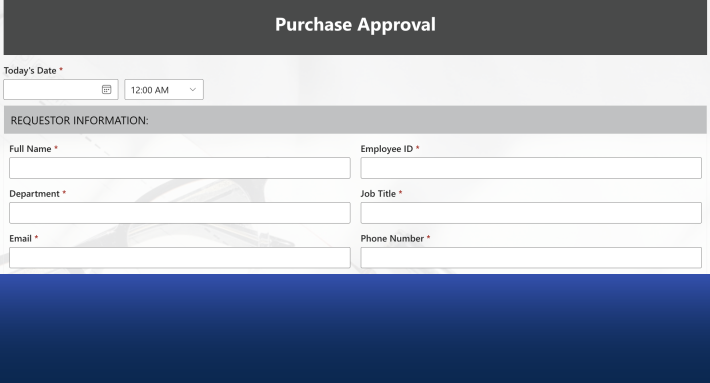
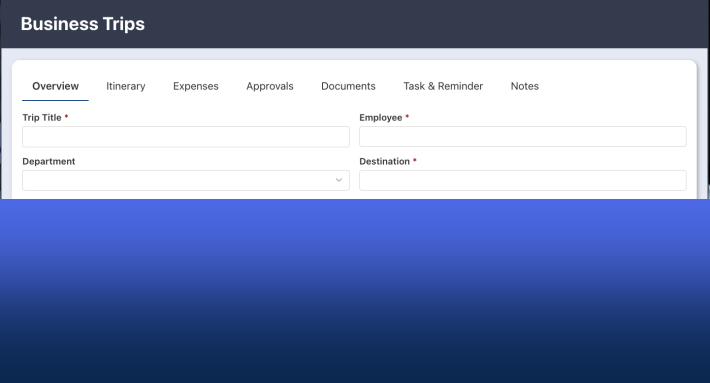
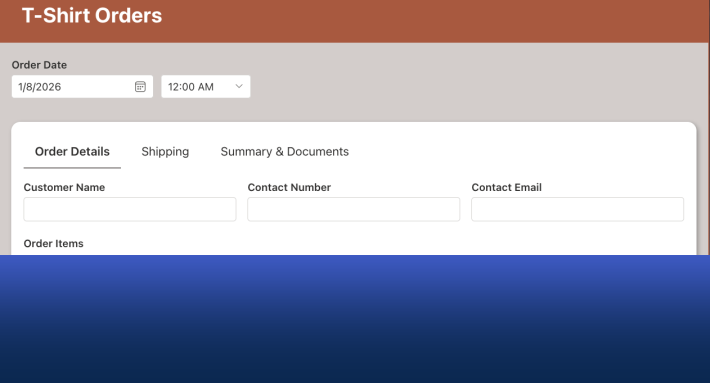
SharePoint forms work on phones, and with Ultimate Forms they work well: the same form your desktop users fill in adapts automatically to a phone screen through responsive design, with no separate mobile version to build. The best way to use them is the one already in every pocket, the phone's browser, opened to your SharePoint URL and saved as a home-screen icon. This article clears up the three myths that keep organizations from going mobile, lays out the five advantages that reward the ones who do, and walks through a real inspection performed entirely from a phone, camera included.
We use our phones everywhere we go; for many people the phone is the primary computer. When it comes to SharePoint, phones shouldn't be an afterthought. Every solution deserves the question: how will this work for someone standing up?
Three myths, debunked
Myth 1: "Phones are for fun, computers are for work." Whether we like it or not, mobile devices are in constant use at home and on the job alike, and the fastest, most reliable way to get a response from a worker is through the device they check all day. An approval that waits for someone to "get back to their desk" is an approval measured in hours; the same approval on a phone is measured in taps. Insisting that real work happens only at keyboards doesn't change behavior, it just slows processes down.
Myth 2: "Mobile forms are a hassle to build." They used to be: a second form, built and maintained separately for small screens, doubling the work. With Ultimate Forms, no extra work is required. Forms are responsive by design, adapting layout automatically to the available screen, on the narrowest screens even repositioning labels and converting tabs into accordion sections so everything stays reachable with a thumb. One form, designed once, correct everywhere. (The mechanics are covered in Side-by-Side Labels in Modern SharePoint Forms and the design philosophy in Mobile SharePoint Forms Made Easy.)
Myth 3: "SharePoint is not for phones." The opposite is true. Microsoft built SharePoint Online's modern interface to look right on small screens and desktops alike, with no extra work needed to enjoy it, and Ultimate Forms follows the same principle. The platform stopped being desktop-only years ago; the perception just hasn't caught up everywhere.
The best mobile client is the browser
How should users actually open SharePoint on a phone? Just open the browser and enter your SharePoint URL. That's it. Navigation and menus look different, but every link is where it should be. The one setup step worth doing: bookmark the relevant page and save it as an icon on the home screen, so the solution is one tap away, indistinguishable from an app.
The phone browser is genuinely the best way to use mobile forms. The dedicated SharePoint mobile app predates the modern experience and has not kept pace with it, so features your forms rely on are safest in the browser, which always renders the real thing.
Five reasons mobile forms pay off
- Improved response speed. Processes move at the speed of their slowest response. Phones are always accessible, so providing a way to act immediately is the single most effective latency cut available to a process owner.
- Convenience. Responding with a few taps beats accumulating a mental queue of tasks to remember at the next desk session. Convenience is not a luxury here; it is what determines whether updates happen at the moment of knowledge or from memory, hours later.
- Mission-critical situations. Some scenarios cannot wait: an incident, a safety issue, an outage. If updates arrive by email and can only be acted on at a computer, the response time may simply be too long. A phone-ready form turns the alert-to-action gap into seconds.
- Phones are cameras. Many solutions need pictures, and mobile forms capture them in real time from within the form itself, attached to the record automatically. No photograph-then-email-then-upload relay, and no wondering later which photo belonged to which item. (This capability has its own deep dive: Capture Photos on Your Phone with SharePoint Forms.)
- Collaboration across work styles. Office workers and field workers update the same forms and the same data from different devices. Nobody transcribes anybody else's paper notes, and the data arrives structured no matter where it was born.
Walkthrough: a building inspection from a phone
Theory aside, here is what mobile actually feels like, using an Inspections solution in SharePoint Online.
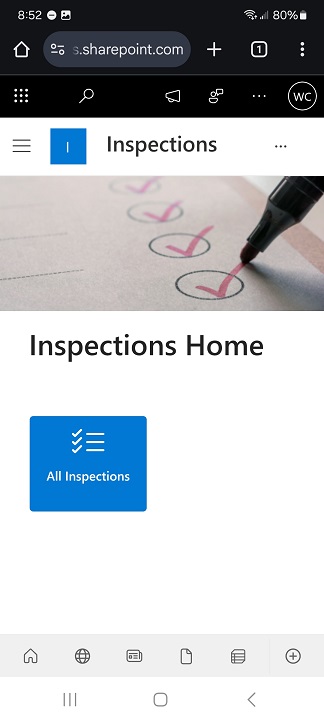
Tapping the home-screen shortcut opens the forms landing page in the phone browser:
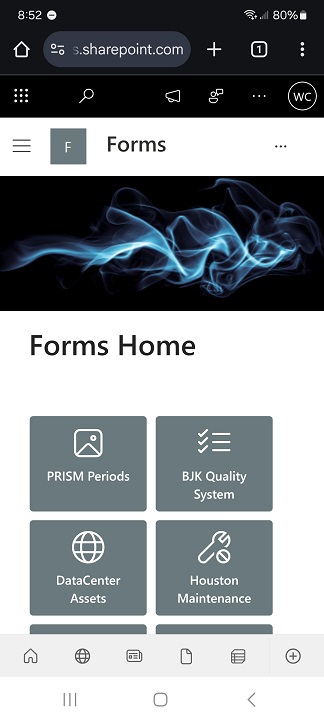
The Quick Links web part shows tiles that are easy to see and tap, worth remembering when you design landing pages for mobile users; tiles beat text links on a touch screen. A tap opens the Inspections solution page:
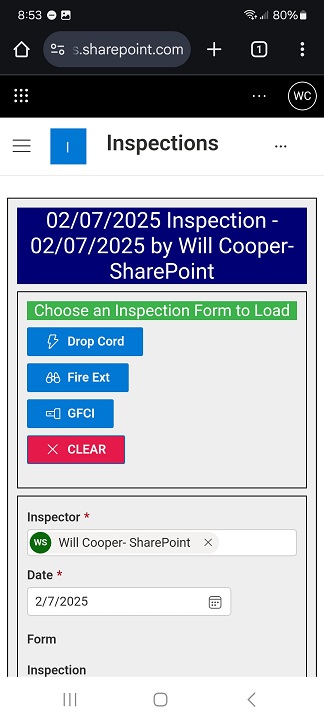
From the menu, New opens a fresh form, which auto-populates the date and the inspector's name, two fields the user never has to type, and two more taps saved:
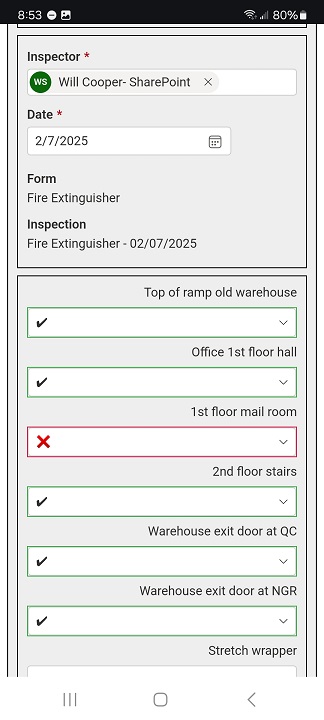
Now the actual inspection: walking the building, phone in hand, making selections from dropdowns as findings come up. Dropdowns matter on mobile; picking beats typing every time:
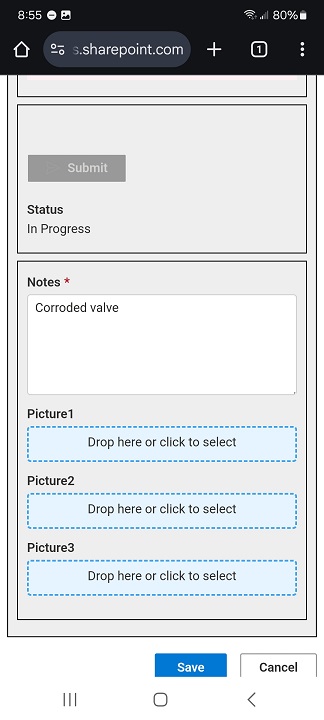
A problem is found, so the Picture field opens the camera directly:
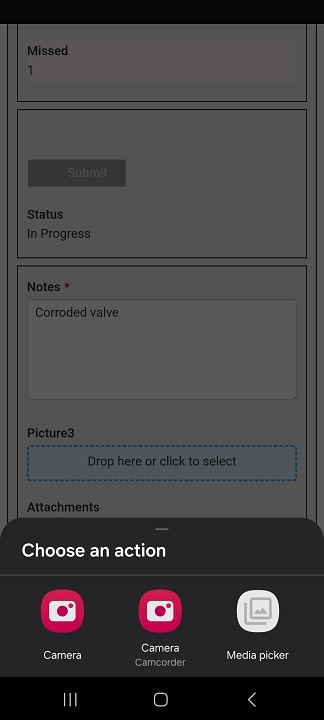
The phone offers the camera or an existing photo from the device:
The picture loads straight into the form in a few seconds, attached to this inspection item, timestamped by the process itself:
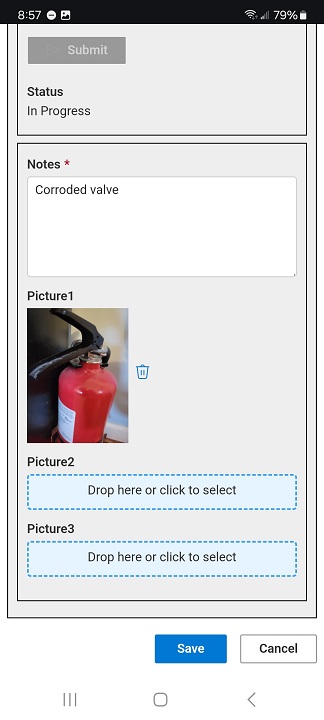
That's the whole process. Imagine doing the same walk with a laptop, balancing it on one arm while photographing a leak with a separate camera, then reconciling everything at a desk afterward. In this scenario a phone is not just adequate, it is clearly the right tool.
Designing with thumbs in mind
The walkthrough hides a few design decisions worth copying. Auto-populate everything the system already knows, dates, names, defaults, because every field a mobile user doesn't type is friction removed. Prefer dropdowns, choices, and toggles over free text. Keep the mobile path short: the fields essential in the field, with the long tail of optional detail left for later editing at a desk if needed. And give mobile users a tile-based landing page rather than a list of links. None of this compromises the desktop experience; it improves it too, which is the quiet lesson of mobile-first thinking.
The same pattern fits far beyond inspections: timesheets filled at the job site, expense reports captured as receipts happen, mileage logs, approval systems where managers unblock requests from anywhere. Seven ready examples are collected in Seven Must Have Phone Friendly SharePoint Forms, and the template library includes deployable starting points for most of them, the inspection solution among them. Pretty much any solution benefits when users can make updates from phones; the ones above just benefit first.
Frequently asked questions
Add your comment