Modern business processes do not happen behind a desk anymore. Inspections happen in the field. Deliveries are confirmed at the loading dock. Incidents are reported on the factory floor. Customer visits happen on the road.
In all of these situations, employees need a fast way to capture photos and attach them directly to a SharePoint item without going back to the office.
With Infowise Ultimate Forms, you can use your phone camera to take pictures and upload them directly into SharePoint using Image columns and Document Link columns. No custom apps. No Power Apps complexity. No separate mobile solutions.
This article explains how it works and provides real-world examples of how organizations use this capability every day.
Why Mobile Photo Capture Matters
Many business processes rely on visual proof:
-
Equipment damage
-
Delivery confirmation
-
Site inspections
-
Safety violations
-
Completed repairs
-
Inventory counts
-
Quality issues
If users must:
-
Take a photo
-
Save it locally
-
Email it to themselves
-
Upload it later to SharePoint
The process breaks down.
People forget.
Files get lost.
Data becomes incomplete.
Ultimate Forms removes that friction by letting users capture and upload photos directly from their phone inside the SharePoint form itself.
How It Works in Ultimate Forms
When you add an Image column or a Document Link column to a SharePoint list and configure it with Ultimate Forms, users can:
-
Open the form on their phone browser
-
Tap the image upload control
-
Choose “Take Photo”
-
Capture the image
-
Save it directly to the item
Because modern mobile browsers integrate with the phone camera, the process is seamless.
No additional app is required.
Option 1: Using Image Columns for Direct Photo Capture
The Image column is ideal when:
-
You want a single photo directly stored with the item
-
You want to preview the camera directly in the form
-
You want thumbnails inside list views
-
You want a clean, visual layout
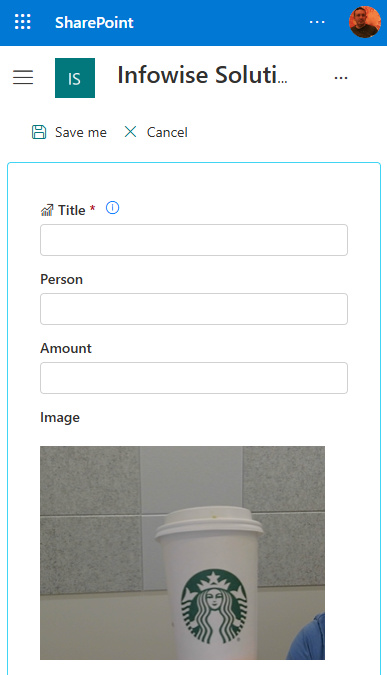
What the user experiences
On a mobile device:
-
The camera preview appears directly within the form
-
The capture button is within the preview
-
The photo is captured
-
It uploads instantly to the SharePoint item
-
The image displays directly in the form
This makes field reporting incredibly simple.
Real World Example 1: Facilities Work Orders
A facilities department manages maintenance requests in SharePoint.
Each work order includes:
-
Location
-
Description
-
Priority
-
Assigned technician
-
Image column for “Before Photo”
-
Image column for “After Photo”
Workflow
-
Employee submits work order with a photo of the issue.
-
Technician opens the task on their phone.
-
Technician repairs the issue.
-
Technician takes an “After” photo directly in the form.
-
Status changes to Completed.
The result:
-
Visual proof of completion
-
Reduced disputes
-
Clear documentation for audits
-
Faster closure cycle
No separate maintenance app required.
Real World Example 2: Safety Incident Reporting
In manufacturing environments, safety compliance is critical.
An organization builds a Safety Incident list using Ultimate Forms.
Columns include:
-
Incident type
-
Location
-
Description
-
Image column for “Incident Photo”
-
Image column for “Corrective Action Photo”
-
Severity rating
When an incident occurs:
-
A supervisor opens the form on their phone
-
Takes photos of the hazard
-
Submits immediately
-
The safety team receives alerts
Later:
-
After remediation, another photo is added
This creates a complete visual audit trail directly in SharePoint.
Option 2: Using Document Link Columns for Structured Storage
The Document Link column provides more advanced functionality.
It allows you to:
-
Upload multiple images and documents or select existing ones
-
Store files in a specific document library
-
Automatically create folders
-
Organize photos by item ID
-
Maintain structured document management
This is ideal when:
-
You need multiple attachments
-
You want folder-based storage
-
You require metadata control
-
You need integration with document lifecycle processes
Real World Example 3: Construction Site Inspections
A construction company manages inspections using SharePoint.
Each inspection record:
-
Automatically creates a folder in a document library
-
Uses a Document Link column to store photos
-
Allows multiple images per inspection
-
Applies metadata to the folder
Field inspectors:
-
Open inspection form on their phone
-
Take multiple photos
-
Upload directly through the Document Link control
-
Submit report
The system:
-
Stores photos in the correct project folder
-
Links them to the inspection item
-
Makes them searchable
-
Applies retention policies
This creates enterprise-grade document control without custom development.
Real World Example 4: Delivery Confirmation and Proof of Service
A logistics company uses Ultimate Forms to manage delivery confirmations.
Drivers:
-
Open delivery record
-
Capture photo of signed paperwork
-
Capture photo of delivered goods
-
Submit
The Document Link column stores photos in a structured library tied to the order.
Benefits:
-
Reduced billing disputes
-
Faster payment cycles
-
Centralized recordkeeping
-
Improved customer satisfaction
Real World Example 5: Inventory and Asset Tracking
An IT department manages asset inventory.
Each asset record includes:
-
Serial number
-
Location
-
Assigned employee
-
Image column for asset photo
-
Document Link column for warranty documents
When deploying equipment:
-
Technician takes a photo of the device
-
Uploads warranty PDF
-
Updates status to Active
When retiring equipment:
-
Takes decommissioning photo
-
Updates status to Retired
All documentation stays connected to the asset record.
Why This Is Better Than Email Attachments
Without structured upload:
-
Photos live in inboxes
-
Files are duplicated
-
Audit trails are incomplete
-
Records are disconnected
With Image and Document Link columns:
-
Files are tied to the item
-
Version history is preserved
-
Metadata is searchable
-
Permissions are controlled
-
Automation can trigger on upload
It becomes part of the business process.
Mobile-Friendly Forms Without Power Apps
Many organizations attempt to solve mobile capture using Power Apps.
Common challenges include:
-
Development complexity
-
Licensing cost
-
Maintenance overhead
-
Integration with document libraries
-
Performance issues
Ultimate Forms keeps everything inside SharePoint:
-
Native forms
-
Responsive layouts
-
Configurable controls
-
No custom coding required
This reduces cost and increases speed of deployment.
Combining Photo Capture with Workflow Automation
The real power comes when image upload triggers actions:
-
Send notification when photo added
-
Lock form after “After Photo” uploaded
-
Require photo before approval
-
Escalate if no completion image within SLA
-
Automatically move item to next stage
For example:
In a quality inspection process:
-
Inspector uploads photo
-
Status changes to “Pending Review”
-
Manager receives alert
-
Manager reviews image and approves
Photo capture becomes integrated into workflow logic.
Governance and Security
Both Image and Document Link columns respect SharePoint permissions.
You can:
-
Restrict who can upload
-
Hide images from certain roles
-
Break inheritance for sensitive content
-
Automatically assign permissions on upload
This is critical in:
-
HR investigations
-
Legal compliance
-
Medical documentation
-
Safety incidents
Performance Considerations
For large image volumes:
-
Use Document Link columns for better storage structure
-
Automatically compress images if required
-
Organize photos into folders per item
-
Apply retention policies
Ultimate Forms allows you to design storage architecture without code.
Designing an Effective Mobile Photo Process
Best practices:
-
Keep forms simple on mobile.
-
Use clear labels like “Take Before Photo.”
-
Make images required when necessary.
-
Combine with status transitions.
-
Use alerts for missing uploads.
-
Display thumbnails in list views for quick scanning.
The goal is reducing friction.
Transforming SharePoint into a Field-Ready Platform
When organizations add mobile photo capture through Ultimate Forms, SharePoint becomes:
-
A field inspection tool
-
A maintenance platform
-
A compliance tracker
-
A construction reporting system
-
A delivery confirmation system
-
An asset tracking solution
Without building a custom application.
Final Thoughts
Using your phone camera to capture images directly into SharePoint through Image and Document Link columns is simple to configure in Ultimate Forms, but the impact is significant.
It:
-
Eliminates process gaps
-
Improves data accuracy
-
Provides visual documentation
-
Strengthens compliance
-
Speeds up workflows
-
Enhances accountability
Most importantly, it empowers users to complete business processes in real time, wherever they are.
That is the true value of Ultimate Forms.
Add your comment