Microsoft 365 Education is Microsoft's licensing program for accredited academic institutions. It provides schools, colleges, and universities with access to the same productivity and collaboration tools used in the enterprise, often at no cost or at a significantly reduced price.
For IT administrators managing a Microsoft tenant at an educational institution, understanding the program's structure determines how much your organization pays, which tools your users can access, and how effectively you can build and govern the digital workplace.
This guide covers the Microsoft 365 Education plans in detail, explains who qualifies and how to verify eligibility, outlines what each plan includes, and addresses the administrative considerations most relevant to IT teams.
What Is Microsoft 365 Education?
Microsoft 365 Education is a suite of cloud-based productivity and collaboration tools offered to eligible academic institutions through Microsoft's academic licensing program. It encompasses the full Microsoft 365 stack, including Office applications, Exchange Online, SharePoint Online, Microsoft Teams, and a range of security and compliance tools.
The program is built around four primary plan tiers, designated A1 through A5. Each tier adds capabilities on top of the previous one, following the same progression as Microsoft's commercial licensing. The key distinction from commercial licensing is that the A1 plan is available at no cost for both students and faculty at qualifying institutions.
Who Qualifies for Microsoft 365 Education?
Eligibility is determined by Microsoft's academic verification process. The following institution types typically qualify:
- Accredited K-12 schools and school districts
- Colleges and universities
- Technical and vocational institutions
- Non-profit educational organizations
To confirm eligibility, an institution submits its domain for verification through Microsoft's academic verification portal. Microsoft checks the domain against a database of accredited institutions. Institutions that do not appear in the database can submit documentation for manual review.
Individual users are licensed within one of two categories. Faculty and staff licenses cover employees of the institution. Student licenses cover enrolled students. Some features, particularly around security and compliance, are restricted to faculty and staff licenses even on the same plan tier.
Microsoft 365 Education Plans: A1, A3, and A5
Microsoft 365 Education is offered in three main plan tiers. Device-based variants (A1 for Devices, A3 for Devices) also exist for shared-device scenarios such as computer labs. Here is what each tier includes.
Microsoft 365 A1
A1 is the free tier. It is available to both students and faculty at no cost and covers the core productivity and collaboration needs of most educational institutions.
What is included in A1:
- Office for the web (Word, Excel, PowerPoint, OneNote in browser)
- Microsoft Teams
- SharePoint Online
- Exchange Online (student mailboxes are 50 GB; faculty mailboxes are 50 GB)
- OneDrive with 1 TB of storage per user
- Microsoft Forms, Sway, and Stream
- Basic security features including multi-factor authentication
A1 does not include the desktop Office applications. Users access Word, Excel, and PowerPoint through a browser or through the mobile apps, but cannot install the full desktop versions on their computers.
For many institutions, A1 covers everything students need. Faculty and staff who require desktop applications typically require an A3 or A5 license.
Microsoft 365 A3
A3 is the mid-tier paid plan. It adds the desktop Office applications and a substantially expanded set of compliance and security tools.
What A3 adds over A1:
- Fully installed Office apps on up to five PCs or Macs and five mobile devices per user
- Advanced compliance features: eDiscovery, litigation hold, in-place archiving
- Microsoft Intune for device management
- Azure Active Directory Premium P1 for conditional access and advanced identity management
- Microsoft Defender for Office 365 Plan 1
- Yammer Enterprise
A3 is the most common choice for faculty and staff who need desktop Office, managed devices, and more granular compliance controls. Many institutions license A1 for students and A3 for faculty and staff, which keeps cost manageable while giving employees the tools they need.
Microsoft 365 A5
A5 is the premium tier. It is the academic equivalent of Microsoft 365 E5 in the commercial space.
What A5 adds over A3:
- Microsoft Defender for Office 365 Plan 2 (advanced threat protection)
- Microsoft Defender for Identity
- Azure Active Directory Premium P2 (identity protection, privileged identity management)
- Microsoft Purview compliance tools: advanced eDiscovery, insider risk management, communication compliance
- Power BI Pro
A5 is typically adopted by larger institutions with dedicated security teams, significant compliance obligations, or requirements for advanced analytics. For many educational institutions, A3 represents the practical ceiling; A5 is relevant primarily where regulatory or security requirements drive the decision.
A1 for Devices and A3 for Devices
Device-based licenses assign the license to a shared device rather than to an individual user. Any student or staff member who logs in to a licensed device can access the included applications, without consuming an individual user license.
This model is designed for shared environments: computer labs, library terminals, kiosk stations, and classroom devices that rotate among many users. It is significantly more cost-effective than assigning individual licenses to every student who might occasionally use a lab machine.
Device licenses require Windows 10 or 11 Education or Windows 11 SE, and the devices must be managed through Microsoft Intune or a compatible MDM solution.
Microsoft 365 Education vs. Office 365 Education
You will encounter both names in Microsoft's documentation and licensing agreements. The distinction matters.
Office 365 Education refers to the older naming convention that covered only the cloud-based productivity applications: Exchange, SharePoint, Teams, and the Office apps. Microsoft 365 Education is the newer, broader designation that encompasses Office 365 plus Windows licensing (on eligible plans), device management through Intune, and advanced security and compliance tools.
For most institutions that signed agreements before 2020, the product they were sold as "Office 365 Education" is now administered and referred to as Microsoft 365 Education. The underlying services are largely the same; the naming reflects Microsoft's consolidation of its product portfolio under the Microsoft 365 brand.
When evaluating renewal options or new agreements, always confirm which specific services are included in the SKU being offered. Plan names do not always translate directly between agreement types (enrollment, CSP, direct billing), and what is listed on a price sheet may bundle or exclude components that are separately licensed elsewhere.
SharePoint in Microsoft 365 Education
SharePoint Online is included in every Microsoft 365 Education plan, including A1. For educational institutions, SharePoint serves several functions that go beyond simple document storage.
Department and faculty portals. Schools and universities use SharePoint communication sites to publish curriculum information, policies, announcements, and resource libraries to students and faculty. The site acts as a structured intranet page that is maintained by a small editorial group and read by a broad audience.
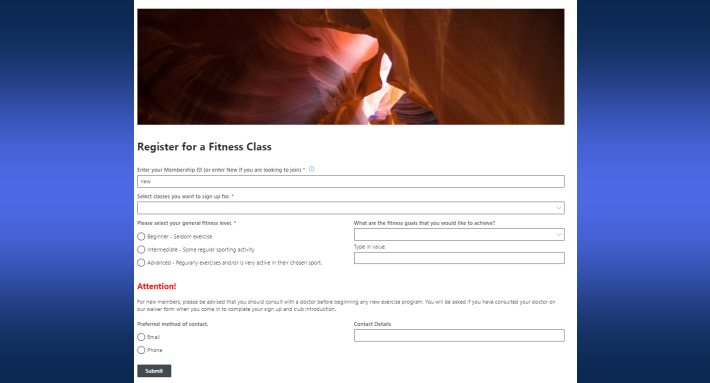
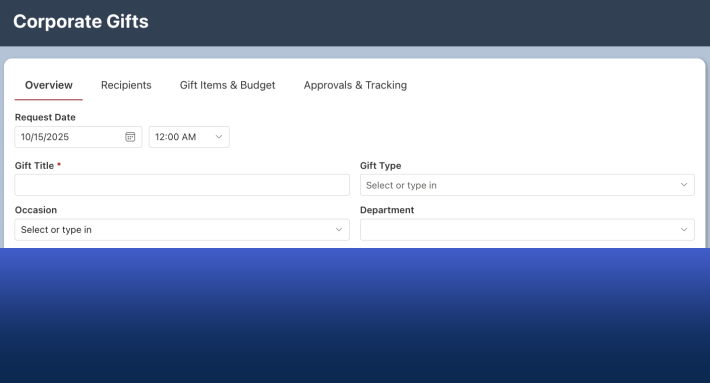
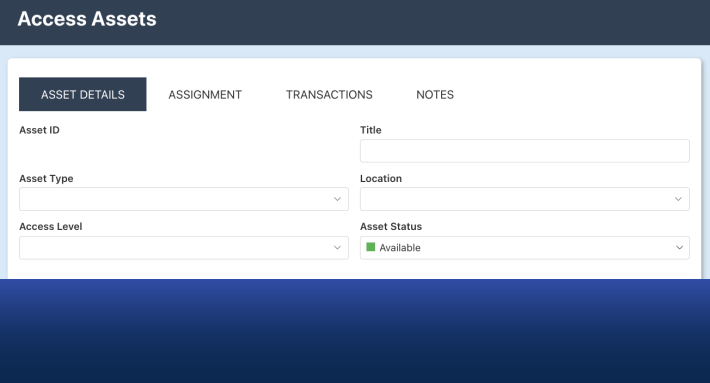
Administrative process management. Many administrative processes that are still handled through paper forms or email chains can be built directly in SharePoint. Student accommodation requests, facilities maintenance intake, HR onboarding workflows, and IT help desk submissions are all well-suited to SharePoint list-based solutions.
Document and records management. SharePoint's document libraries support version control, metadata tagging, retention policies, and permission-based access. For institutions with compliance obligations around student records or financial documents, this is a meaningful capability.
For institutions that need more structured processes built on SharePoint, Ultimate Forms by Infowise provides a no-code layer for forms, conditional logic, automated alerts, approval workflows, and print templates. Because it runs entirely inside the institution's SharePoint environment, data remains in the Microsoft tenant and no additional vendor relationship is introduced.
Key Administrative Considerations
Tenant setup and domain verification. The institution's primary domain must be verified in the Microsoft 365 admin center. If the institution uses multiple domains (for example, separate domains for graduate and undergraduate programs), each domain must be verified independently.
User provisioning. Most institutions connect Microsoft 365 to their existing identity provider, typically Active Directory, using Azure AD Connect or a third-party provisioning tool. This allows student and staff accounts created in the institution's directory to automatically propagate to Microsoft 365. Managing this sync cleanly is one of the more operationally demanding aspects of running a Microsoft 365 Education tenant at scale.
Student Data Privacy. Microsoft contractually commits to the requirements of FERPA (Family Educational Rights and Privacy Act) for A1, A3, and A5 plans through its Microsoft Products and Services Data Protection Addendum. Administrators should review this documentation and confirm that any third-party tools added to the Microsoft 365 environment hold equivalent commitments.
License assignment at scale. Large institutions may have tens of thousands of users. Assigning licenses manually is not practical. Most IT teams use group-based licensing in Azure Active Directory, which automatically assigns the correct license based on a user's group membership. Faculty, staff, and student populations are licensed differently, so the group structure needs to reflect those distinctions.
Guest access and external collaboration. Microsoft 365 Education tenants can configure external sharing and guest access in SharePoint and Teams. For K-12 environments in particular, this requires careful governance. External sharing should be scoped narrowly by default and expanded only where a documented need exists.
Quick Reference: Microsoft 365 Education Plan Comparison
| Feature | A1 (Free) | A3 | A5 |
|---|---|---|---|
| Office web apps | Yes | Yes | Yes |
| Desktop Office apps | No | Yes | Yes |
| Microsoft Teams | Yes | Yes | Yes |
| SharePoint Online | Yes | Yes | Yes |
| Exchange Online | Yes | Yes | Yes |
| OneDrive (1 TB) | Yes | Yes | Yes |
| Microsoft Intune | No | Yes | Yes |
| Azure AD Premium P1 | No | Yes | Yes |
| Azure AD Premium P2 | No | No | Yes |
| Defender for Office 365 P1 | No | Yes | Yes |
| Defender for Office 365 P2 | No | No | Yes |
| Advanced eDiscovery | No | No | Yes |
| Power BI Pro | No | No | Yes |
| Cost | Free | Paid | Paid |
Summary
Microsoft 365 Education provides accredited institutions with access to the same tools used across the enterprise, structured into four plan tiers to match different institutional needs and budgets. A1 is free and covers the majority of student needs. A3 adds desktop applications, device management, and compliance tools that most faculty and staff require. A5 is for institutions with advanced security and compliance obligations.
For IT administrators, the program's value extends well beyond the Office applications. SharePoint, Teams, Exchange, and Intune together provide a foundation for managing devices, communication, collaboration, and administrative processes across the entire institution.
If your institution is using SharePoint as part of its Microsoft 365 environment and wants to build structured processes on it, such as request intake, approvals, or onboarding workflows, Ultimate Forms by Infowise extends those capabilities without adding an external vendor or moving data outside your tenant. Learn more at infowisesolutions.com.
Related reading:
- SharePoint Communication Site: What It Is, When to Use It, and How to Build One
- What Is a SharePoint Team Site and When Should You Use One?
- Is SharePoint HIPAA Compliant?
Frequently asked questions
Add your comment