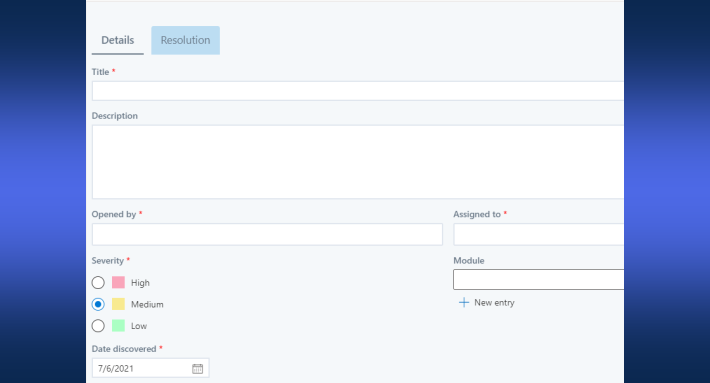
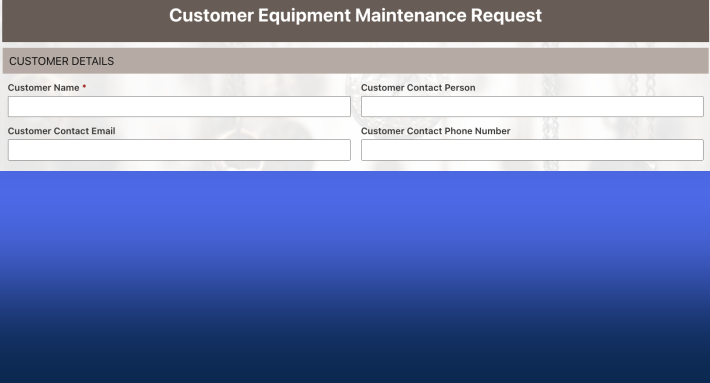
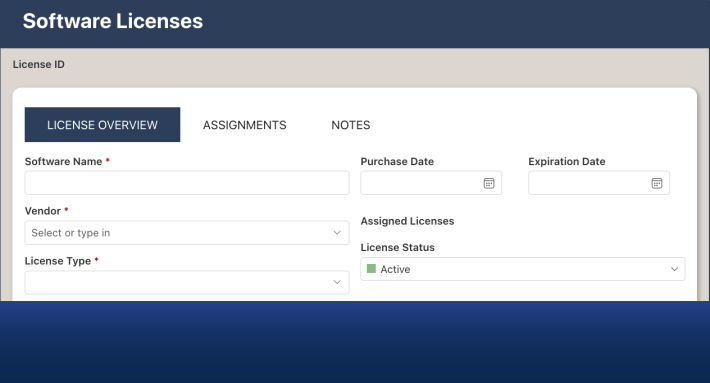
This is a working session, not an overview. By the end of it you will have a complete expense approval system running in SharePoint: a validated submission form, an Approval control routing to the manager and, above a threshold, to finance, notifications and reminders running themselves, and a dashboard showing the queue. Every step is configuration in Ultimate Forms, and the whole build fits in one sitting. For the concepts behind the clicks, routing patterns, escalation, the hard cases, keep the complete guide to SharePoint approval workflows open in the next tab; this article is the part where you build.
The scenario, pinned down
Expense approval, because everyone has one and it exercises every muscle: employees submit claims with receipts, the manager approves, claims over $2,500 also need finance, the requester hears the outcome, and nothing sits unanswered for more than three days without someone finding out. Swap the nouns freely; contract reviews and purchase requests are the same build with different columns.
Step 1: the list (10 minutes)
Create a list named Expense Claims on the site where the process will live; a dedicated site keeps permissions and navigation clean if the process is organization-wide. Open the list, click Design, and create the columns in Form Designer: Claim Title (single line of text, rename the existing Title column), Claimant (person, defaulted to the current user by a value rule), Department (choice or lookup), Expense Date (date), Amount (currency), Category (choice: travel, equipment, meals, other), Justification (multiple lines of text). Keep the Attachments area on the form for receipts.
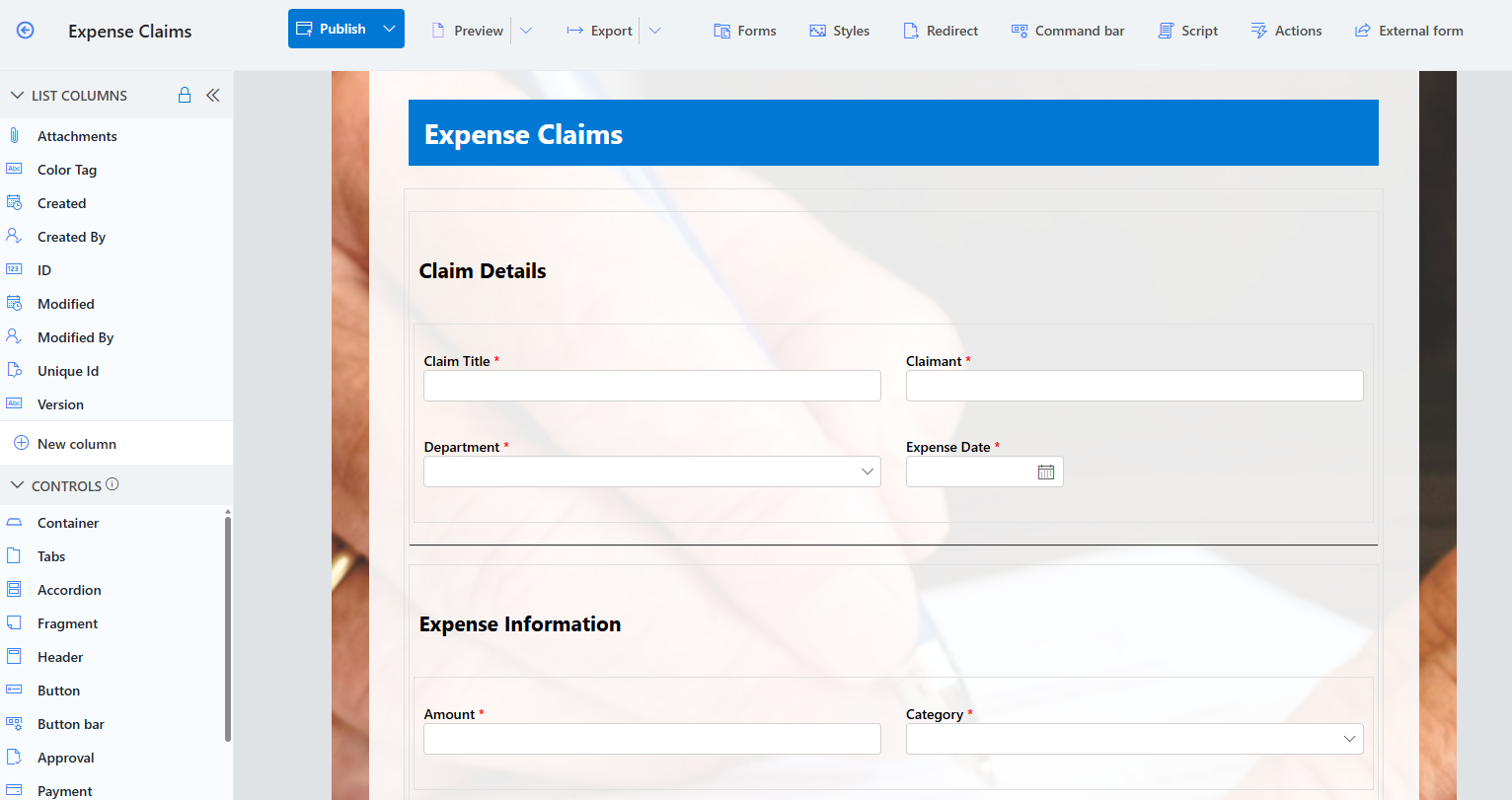
The one column you do not create is Status: the Approval control will manage its own in step 3, which is one less thing to govern by hand.
Step 2: the form that collects clean data (15 minutes)
Lay the form out in the order a claimant thinks: what, when, how much, why, receipt. Then add the three rules that spare the approver from chasing:
- A validation rule requiring an attachment when Amount exceeds $100: no receipt, no save, with a message that says so politely.
- A validation rule refusing an Expense Date in the future.
- A value rule stamping Claimant with the current user, so nobody files on someone else's behalf by accident.
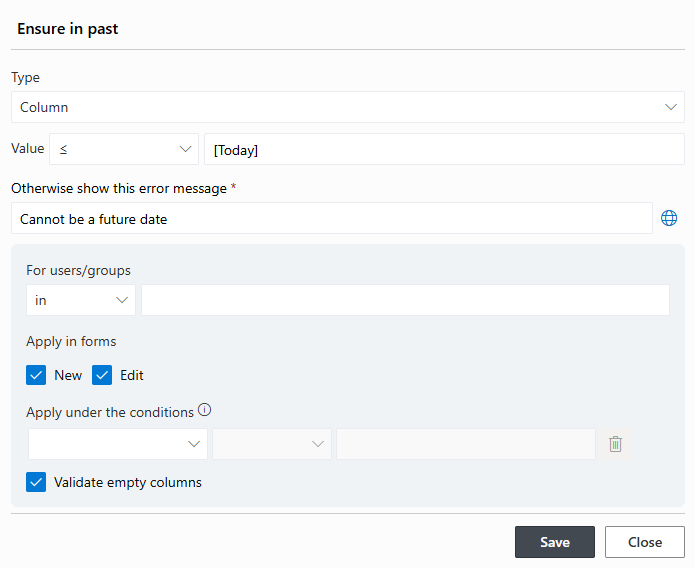
Publish and submit a test claim. Thirty seconds of testing here saves the approver a month of incomplete submissions.
Step 3: the Approval control (15 minutes)
Back in Form Designer, drag the Approval control onto the form. Click Configure and set up two approvers in sequence:
- Manager: resolved dynamically from the claimant's profile, so the right manager is found per claim with nothing hardcoded, the pattern from dynamic approvers.
- Finance: a SharePoint group, with a condition: Amount greater than 2,500. Below the threshold, finance is skipped automatically; the group membership means any finance member can act, which is approver-unavailability insurance you get for free.
Set the approval to start automatically on item creation, enable form locking during and after approval so the claim the manager sees is the claim that stands, choose Resume after revision for rejections so a fixable claim gets fixed rather than resubmitted from scratch, and let the control create and manage its Status column.
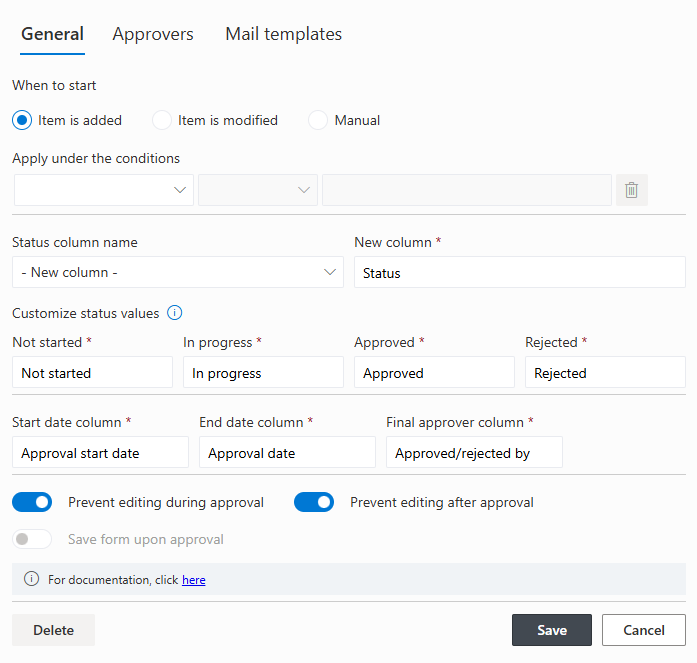
That single control just absorbed what used to be the hard part: routing, status management, decision logging, and locking, in one configuration pane.
Step 4: notifications and the three-day rule (10 minutes)
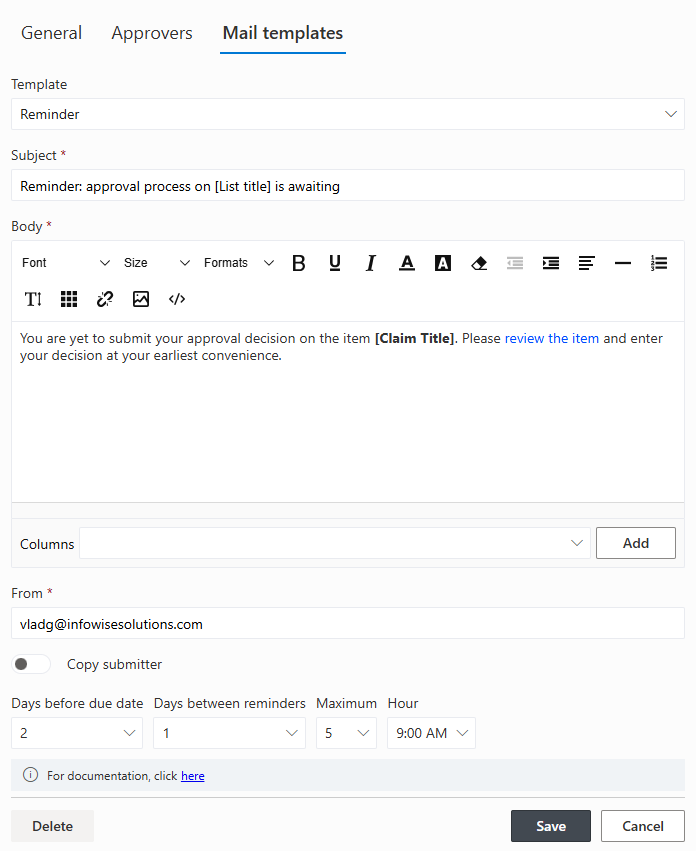
The control's built-in notifications cover assignment, approval, and rejection; customize their subjects to carry the payload: "Expense claim from [Claimant]: [Amount]" tells the manager everything before the email is opened.
Then encode the three-day rule: configure the control's reminders to start on day two and repeat daily, and add an escalation rule that copies the manager's manager from the third reminder onward. If your approvers live in Teams, switch the delivery: alerts reach chats and channels with automatic mentions and action buttons, and an expense approval becomes one click in a chat.
Step 5: the views that run the queue (10 minutes)
Create three views on the list. My Claims, filtered to the current user, is the claimant's answer to "did it go through." Pending, grouped by approver, is the manager's queue. This Month, grouped by department with Amount totals, is what finance opens at month end. Color-code the status column, green, yellow, red, so each view reads at a glance, and the Approval control's own progress bars and overdue indicators do the rest in the list view.
For management, two counters on a page, open claims and total pending amount, replace the weekly "where are we on expenses" email thread.
Step 6: test the branches, then go live (15 minutes)
Run four tests with real accounts, not your own admin account: a small claim through the manager only; a $3,000 claim through both stages; a rejection, confirming the claimant can revise and resubmit from the same record; and a deliberate stall, confirming the reminder fires and the escalation copies the right person. Fix the message wording while you are there, since the test is the first time you read your own notifications as a recipient.
Then announce it with one sentence and one link, and stop accepting emailed spreadsheets. The parallel-running period tends to be short, because the system answers the question that drove the old process into the ground: "what happened to my claim?" is now a view, not an interruption.
Three mistakes first builds make
The same missteps appear in almost every first approval system, and all three are cheap to avoid.
Modeling the exception as a stage. The CEO approves claims over $50,000 twice a year; that is a condition on an approver, not a permanent third stage everyone else's claims must acknowledge. Keep the stage list short and push rarity into conditions, or the common case pays rent for the rare one.
Notifying everyone about everything. The first build's instinct is to copy the manager, finance, and the claimant on every event. Resist it: each recipient should hear only about the events they act on, or the notifications train everyone to skim. The claimant needs the outcome; the approver needs the assignment and the reminders; nobody needs both.
Skipping the revision path. Teams that leave rejections as dead ends rediscover email within a month, because real claims are usually fixable, not refusable. Resume after revision costs one toggle in step 3 and removes the main reason people route around the system.
What you built, and what to borrow next
In about an hour: validated intake, two-stage conditional routing with dynamic approvers, automatic locking and logging, reminders with escalation, and a live queue. No flow, no code, no status column maintained by hand.
The parts are all reusable. The same Approval control with different conditions runs contract reviews and document sign-offs; the same validation-plus-routing shape runs purchase requests and HR changes; and when a process needs formality beyond logging, electronic signatures bind decisions to the approved values. The solution library has installable starting points for most of these, and the complete guide to SharePoint approval workflows maps everything this tutorial touched, one pattern at a time.
Frequently asked questions
Add your comment