Immediate Call to Action via Teams Chat
Microsoft Teams has become one of the dominant forms of workplace communication, changing how employees communicate throughout the workday. Microsoft reported in 2024 that Teams had surpassed 320 million monthly active users across 181 markets and 44 languages. For many organizations, Teams is no longer simply a meeting application. It is where employees have conversations, collaborate with coworkers, and respond to issues as they occur.
At the same time, employees continue to receive an enormous volume of email, including automated notifications generated by business systems. An important SharePoint notification can easily become just another message in a crowded inbox, where it may not receive attention until much later. Teams provides an opportunity to put especially important notifications directly into the communication environment employees are actively using throughout the workday.
Ultimate Forms can now deliver SharePoint alerts directly through Microsoft Teams chats and channels. Our previous article, Send SharePoint Alerts to Teams with Ultimate Forms, introduces this capability and explains how Teams notifications work. In this article, we're going to focus on one particularly powerful way to use this new feature: Immediate Call to Action.
What Is an Immediate Call to Action?
There are many situations that need an Immediate Call to Action (ICA). An ICA is a notification that requires someone to take action promptly, rather than simply making them aware that something happened. It reaches the person responsible, clearly communicates what requires attention, and provides a hyperlink directly to the place where the recipient can perform the required next step.
An ICA is never passive. For example, "Your purchase request has been submitted" is useful information, but it doesn't require the recipient to do anything. "An urgent purchase request requires your approval: Review and Approve Request" is an ICA because it identifies an immediate responsibility and provides a direct path to completing it.
This makes Teams particularly well suited to ICAs. Employees who actively use Teams are likely to notice a new chat message as part of their normal workday communication, rather than discovering it later among dozens of emails. An ICA takes advantage of that visibility to put an urgent issue and the link needed to act on it directly in front of the responsible person.
1. Persistent Critical Alert
Imagine a production facility where a critical piece of equipment suddenly stops working. Every minute of downtime is expensive, so a SharePoint issue-tracking system immediately records the failure and sends a Teams ICA to the responsible supervisor. The message identifies the problem as critical and provides a Review Critical Issue link that opens the SharePoint record where the supervisor can investigate and respond.
But a truly critical problem shouldn't depend on someone noticing a single notification. Ultimate Forms can send another Teams ICA every five minutes for as long as the critical condition remains unresolved. The repeated messages continue until someone takes the necessary action and changes the SharePoint record so that the alert condition is no longer true.
This is a perfect example of the difference between a routine notification and an ICA. The system isn't merely documenting that equipment failed. It is persistently demanding action while the problem exists, and every message provides the hyperlink necessary to respond. Once the issue is resolved, the condition is no longer met and the persistent ICA automatically stops.

2. Urgent Purchase Approval
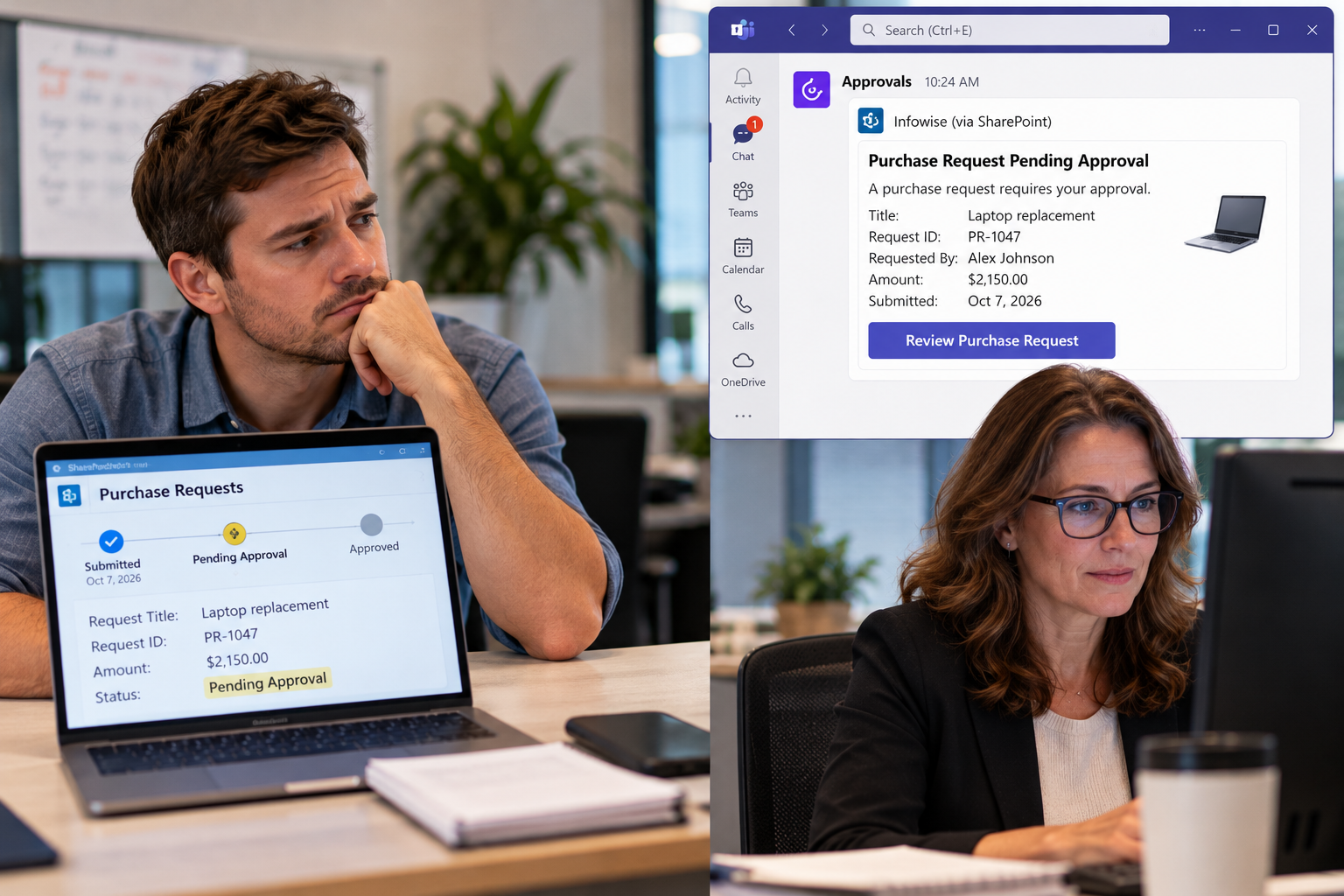
Consider an employee who needs replacement equipment to complete an important customer project. The purchase request has been entered into SharePoint, but work cannot continue until a manager approves the expenditure. Instead of relying solely on an email that might sit unnoticed, Ultimate Forms can deliver a Teams ICA directly to the manager with a Review Purchase Request link.
The manager can follow that link directly to the SharePoint request, examine the details, and make the required decision. Ultimate Forms can also provide even more direct interaction using the techniques described in Action Buttons in SharePoint Alerts. The objective is to make the distance between receiving the ICA and taking action as short as possible.
This is exactly the type of situation where an ICA can prevent an ordinary business process from becoming a bottleneck. The employee isn't waiting because the manager made a difficult decision. The employee may simply be waiting because the manager hasn't seen the request yet. Moving the approval request into Teams and providing an immediate path to the request can help keep the process moving.
3. Safety Incident
Suppose a warehouse employee discovers a dangerous spill near a busy loading area and immediately reports the hazard through a SharePoint safety incident form. The submission can trigger a Teams ICA to the safety manager identifying the location and seriousness of the problem. A Review Safety Incident hyperlink takes the manager directly to the report, including photographs and other information submitted with it.
The safety manager can immediately review the situation, coordinate a response, assign responsibility, and document the corrective action. If several people need to respond, the ICA can be delivered through an appropriate Teams group chat or channel, allowing the responsible employees to coordinate their response. The important point is that the message isn't simply saying, "A safety incident was submitted." It is telling someone that action is required now.
This type of ICA can be especially valuable because the urgency is determined by the condition of the SharePoint data. A routine safety report might generate an informational email, while a report categorized as Critical could trigger an immediate Teams message. The notification method can therefore reflect the actual urgency of the situation.

4. Critical Customer Complaint
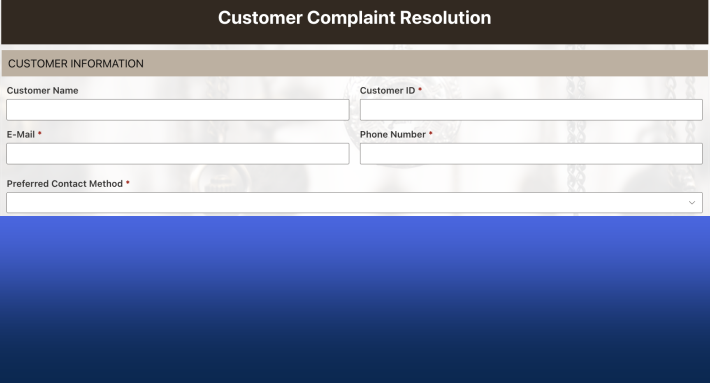
A major customer contacts your organization because an important delivery was missed, a product failed, or a service problem is disrupting their operations. A customer service representative records the complaint in SharePoint and identifies it as Critical, automatically triggering an ICA to the account manager. The Teams message summarizes the situation and provides a Review Customer Complaint link directly to the SharePoint record.
The account manager can immediately review the customer's concerns and begin coordinating a response. The ICA could also be delivered to a group chat containing the account manager, customer service supervisor, and technical support representative when several people need to participate. Instead of waiting for an email thread to develop, the appropriate people can begin addressing the urgent customer problem immediately.
Customer relationships can deteriorate quickly when serious problems appear to go unanswered. In this situation, the purpose of the ICA is not simply to record that a complaint exists. It is to trigger a rapid human response, with a hyperlink that gives the responsible employee an immediate route from the Teams message to the information needed to take the next step.

5. Shipment Problem
A warehouse team is preparing an important customer shipment that must leave within the hour, but during final inspection an employee discovers that several items are damaged or missing. The employee records the problem in SharePoint, and Ultimate Forms immediately sends a Teams ICA to the shipping manager. The message explains that the order cannot ship as scheduled and includes a Review Shipping Issue link.
The manager can open the SharePoint record and determine what should happen next. Replacement inventory might be available, the shipment might need to be divided, or the customer may need to be contacted before the truck leaves. Whatever the solution, the ICA puts the time-sensitive decision directly in front of the person authorized to make it.
This is another situation where timing determines whether a notification is merely useful or genuinely valuable. An email discovered two hours later may accurately describe what happened, but by then the shipping deadline could already have passed. A Teams ICA is designed to prompt action while there is still time to solve the problem.

Teams ICAs and Email Alerts Work Together
Using Teams for ICAs does not mean replacing email alerts. Email remains an excellent choice for confirmations, routine status updates, summaries, documentation, and information that recipients may want to reference later. The better approach is to choose the communication channel according to the purpose and urgency of the message.
A purchase approval process provides a good example of how the two channels can complement each other. The employee might receive an email confirmation after submitting the request, while the manager receives a Teams ICA when approval is required. After the manager approves it, Ultimate Forms can send another informational email to the employee confirming the decision.
The distinction is simple: email is excellent for information, while Teams is especially effective for immediate action. Both can be incorporated into the same Ultimate Forms solution, with different rules handling different stages of the business process. The Ultimate Forms Alerts feature overview provides more information about the alert capabilities available for building these types of solutions.
Creating an ICA Is Easy
If you already know how to create an Ultimate Forms alert, creating a Teams ICA requires very little additional work. You can use the same familiar alert rules, conditions, dynamic SharePoint values, recipients, scheduling options, and message content. Instead of delivering the notification as an email, you can simply select Teams as the delivery method.
This means an existing SharePoint business process doesn't need to be redesigned simply because some of its notifications would work better as ICAs. You can identify the messages that genuinely require immediate action and move those communications to Teams while leaving informational email notifications exactly where they make sense. The Ultimate Forms Alerts documentation provides detailed information about configuring alert rules and their available options.
Start Looking for Your ICAs
Every organization has situations where something important happens and someone needs to respond quickly. An approval is waiting, equipment has failed, a safety problem has been discovered, a customer needs attention, or a deadline is approaching. These are exactly the situations where an Immediate Call to Action can turn a SharePoint notification into a direct path from problem to response.
Start by looking at your existing SharePoint alerts and asking what the recipient is expected to do after receiving each one. If the message is primarily informational, email may continue to be the best choice; if someone needs to act immediately, consider turning it into a Teams ICA with a direct hyperlink to the next step. Instead of simply notifying people that something needs to be done, use an Immediate Call to Action to help them do it now.
Add your comment