One email (or a Teams message) can carry everything that changed. Summary Mode in Ultimate Forms Alerts compiles all triggered notifications into a single digest, each change reduced to one line, what happened, to which item, by whom, when, delivered on the schedule you choose: daily at nine, weekly on Mondays, or batched within business hours. It is the difference between forty pings nobody reads and one message everybody does. This guide covers how Summary Mode works, when a digest beats immediate alerts, and the design choices that keep digests read for years. For the full notification engine around it, see the complete guide to replacing SharePoint alerts.
Alert fatigue is a design failure, not a volume problem
A busy list generates changes all day, and a naive alert setup forwards each one: an email per edit, per addition, per deletion, per date trigger. The recipient's inbox fills, attention collapses, and within weeks the notifications are rules-filtered into a folder nobody opens. The expensive part is not the clutter; it is that the important alert now looks exactly like the noise, and gets ignored with it.
The fix is not fewer changes or tougher readers. It is matching the delivery to the information's rhythm: changes that demand action in minutes deserve immediate alerts, and everything else deserves a digest. Summary Mode is the digest half of that bargain.
What Summary Mode does
Summary Mode is a delivery option on any alert. Instead of one email per event, the alert batch-processes everything it caught, additions, modifications, deletions, date-triggered items, and delivers one consolidated message, one line per change:
- Order 1123 modified by Jane Cohen, 08:00 AM
- Order 1124 added by Bob Keller, 08:15 AM
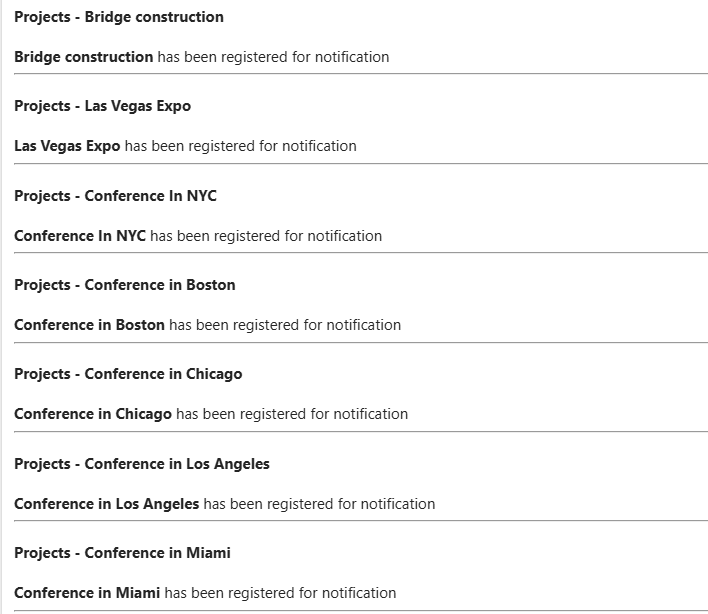
Alerts from multiple lists, and even across site collections, converge into one message when they share a schedule and recipients, so a department's entire morning picture can arrive as a single email. The subject, item template, headers, and footers of the summary are all customizable, which is where the digest gets its identity: "Procurement Daily" tells the reader the cost of opening before they pay it.
Setting it up
The configuration is an ordinary alert with two decisions changed.
- Create the alert from the Design button on the list (or for a folder or single item), as with any alert.
- Choose the triggers: additions, modifications, deletions, or date-based conditions such as two days before the Due Date.
- Add conditions so the digest carries only what matters: Status equals Pending Approval, or dynamic conditions like Due Date greater than [Today].
- Set When to Send: daily, weekly, monthly, or within business hours, the digest's clock.
- Enable Summary Mode: choose "Summary mode" for one-line entries (item-specific templates are bypassed in favor of the compact layout), or "Send as single message" for a combined email that keeps full per-item detail.
- Pick recipients: internal, external, or column-resolved, as anywhere else in Alerts.
- Save and watch the first digest arrive. Read it as its recipient, and adjust the conditions until every line deserves its place.
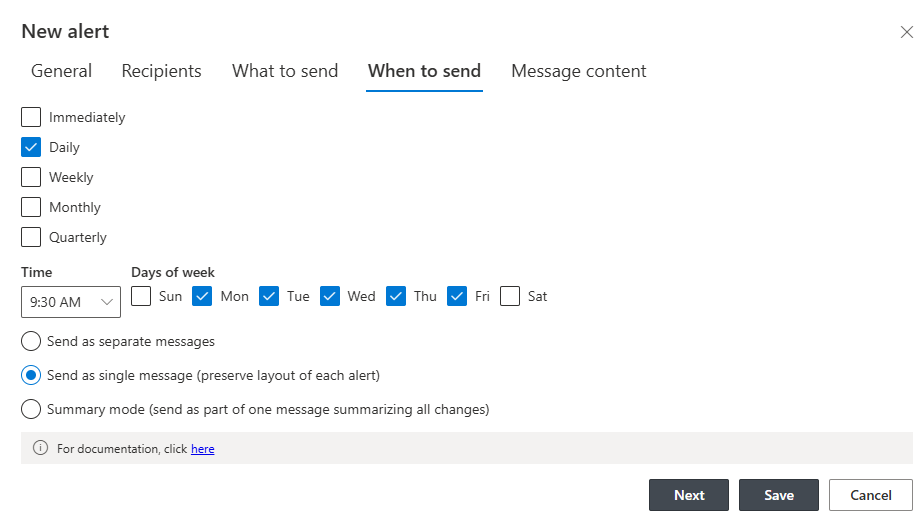
The two format choices in step 5 split the digest world usefully: summary mode for volume, where scannability wins, and the combined message for a handful of substantial items, where detail wins. The configuration guide covers the full format set.
Where digests beat everything else
The shared queue's morning picture. A procurement team's Orders list, conditions on Pending Approval, daily at 9 AM, summary mode, to the procurement lead. Two lines on a quiet day, twenty on a loud one, and either way one email: the day's workload, pre-sorted.
The executive weekly. Changes across the project lists, weekly on Friday, combined-message format, to the leadership group. The status meeting's first fifteen minutes, delivered before the meeting, which tends to shorten the meeting.
The compliance watch. Every modification to the contracts library, daily digest to the records officer. Oversight without surveillance-level email volume, and with the alert log underneath it when an auditor asks what was reported when.
The multi-team snapshot. Several teams updating documents in different places, one digest converging it all for whoever coordinates them. The alternative is that person maintaining mental state across five lists, which is a job description nobody wrote.
The change-vs-deadline pairing. Digests carry what changed; their sibling, the date-driven reminder, carries what is coming. Most teams need one of each per list, and very little else.
Designing a digest people keep reading
Four choices decide whether the digest is alive in a year.
Frequency matches decision rhythm. Daily for operational queues, weekly for oversight, monthly for governance. A digest that arrives more often than its reader decides gets skimmed; one that arrives less often gets superseded by hallway questions.
Conditions guard the door. Every line that does not merit attention teaches the reader to skim, so the conditions should be as tight as the portfolio discipline demands. The test is per line: would the recipient act on, or at least want to know, this exact entry?
The subject carries the load. Name the tool: "Procurement Daily" lets the reader triage from the inbox list, which is where most triage happens. The same subject-line rules that govern single alerts govern digests, with the count as the digest's special weapon.
Audit it quarterly. Recipients change roles, lists change purpose, and a digest that outlives its audience becomes wallpaper. A quarterly glance at who receives what, with the delete key handy, keeps the system credible.
And for teams whose attention lives in Teams rather than Outlook, the same digests deliver to chats and channels, where one organized post per day is the difference between a channel people read and one they mute.
Immediate or digest: the sorting rule
Every alert on a list eventually faces the same question, and the answer has a clean test: what is the cost of the recipient learning this tomorrow morning instead of now? If the cost is real, an SLA slipping, an approval blocking a colleague, a security-relevant change, the alert stays immediate, tightly conditioned, and rare. If the cost is zero, and for most changes it is, the information belongs in the digest, where it arrives organized instead of interrupting. Teams that apply the test end up with one or two immediate alerts per list and one digest, which is precisely the mix that keeps both kinds read. The immediate alert's scarcity is what preserves its force; the digest is what makes the scarcity affordable.
The quiet payoff
A good digest changes a team's information diet. The list stops being something individuals poll and starts being something that reports itself, once a day, in ninety seconds of reading. Questions like "did anything happen with the Henderson order" stop being interruptions, because the answer already arrived at nine. And the one alert that still comes immediately, because its conditions say it must, now lands in an inbox that takes it seriously. That restored credibility is Summary Mode's real product; the tidier inbox is just the receipt. The complete guide to replacing SharePoint alerts covers the rest of the engine this plugs into.
Frequently asked questions
Add your comment