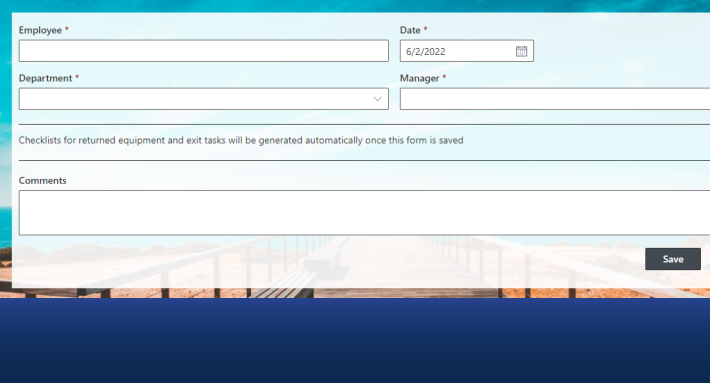
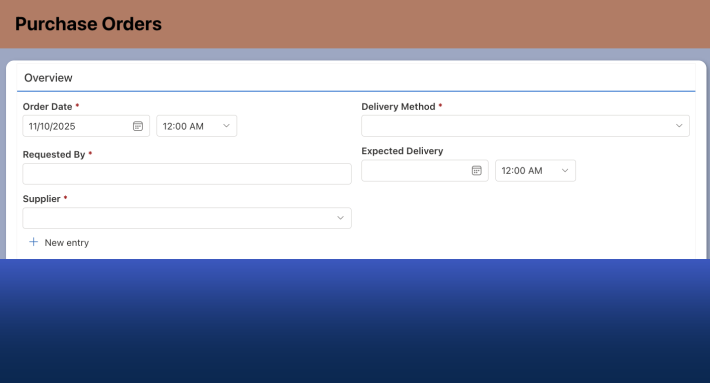
A well-designed SharePoint form does more than simply collect information. It creates a professional experience that reflects your organization's branding while making the form easier to navigate. One of the most effective ways to organize large forms is by using tabs or accordions to group related fields into logical sections. Infowise Ultimate Forms has long provided these capabilities, making it easy to create clean, user-friendly forms without writing code.
Ultimate Forms includes extensive styling options for both tabs and accordions, allowing you to customize their appearance to match the rest of your form. In addition, these styling options can be included as part of reusable global themes, making it easier than ever to maintain a consistent look across every SharePoint form in your environment. (Styling the controls is this article’s subject; organizing forms with tabs and accordions covers when and why to use each.)
Why Tab Styling Matters
Tabs and accordions organize large forms, but on many platforms their appearance can’t be adjusted to match the rest of the design. Organizations carefully select colors, fonts, and branding throughout their forms, only to have the navigation controls stand out as generic interface elements.
Ultimate Forms removes that limitation: tabs and accordions style to blend seamlessly with the rest of your form, resulting in a more polished and professional appearance. Whether your organization prefers bold corporate branding or a clean, minimal design, these new options give you the flexibility to create forms that look exactly the way you want. If you are new to Ultimate Forms, you can learn more about our powerful Tabbed Forms capabilities and how they improve form usability by visiting the Infowise website.
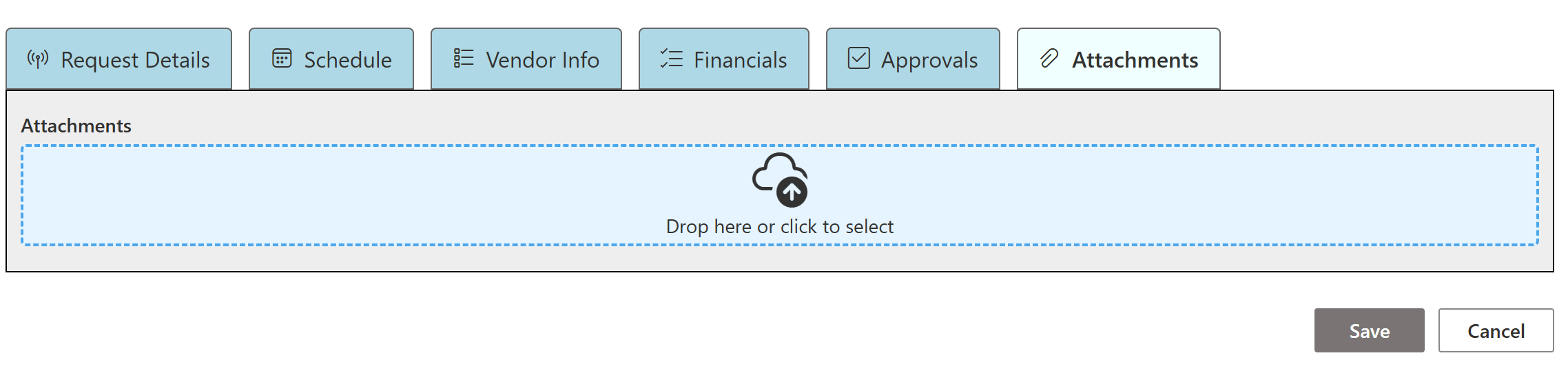
Completed SharePoint form demonstrating professionally organized tabs.
Customize Tabs on Individual Forms
Every form can now have its own unique styling without affecting any other forms in your SharePoint environment.
Administrators can independently configure the appearance of tabs in three different states:
-
Active tabs
-
Inactive tabs
-
Hover tabs
For each state, you can configure several visual properties, including:
-
Border color
-
Background color
-
Text color
-
Font size
-
Font weight
These options make it possible to create tabs that complement the rest of your form instead of appearing as generic interface elements. Whether you want subtle neutral colors or vibrant branding that matches your organization's visual identity, every aspect of the tab appearance can now be adjusted directly from the control settings. Because these settings are configured through the Ultimate Forms interface, no programming or custom CSS is required. Administrators simply choose the desired values and immediately see the results when the form is displayed. For additional ways to improve the appearance and usability of your SharePoint forms, explore the Ultimate Forms Designer and Forms documentation available on the Infowise website.
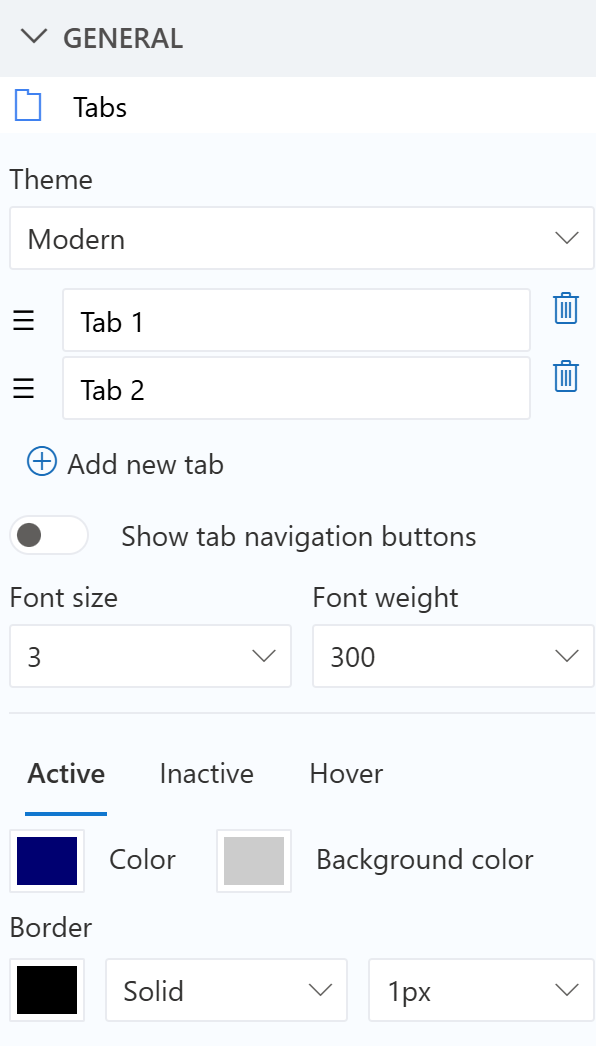
Tab styling settings available directly within the control.
Accordions Receive the Same Powerful Styling Options
Tabbed forms are not the only navigation control receiving an upgrade. The Accordion control supports the same styling capabilities. Many organizations prefer accordions because they work especially well on mobile devices or on forms containing many sections. Users can expand only the section they need while keeping the rest of the form collapsed, creating a cleaner and more focused experience.
Administrators have the same level of control available for tabs. Just like the tab control, accordion styling can be configured independently for:
-
Active sections
-
Inactive sections
-
Hover states
Each state supports customization of border colors, background colors, text colors, font sizes, and font weights. This consistency means you do not have to choose between tabs and accordions based on styling limitations. Instead, you can select whichever navigation method works best for your users while maintaining a consistent visual design throughout your forms. This flexibility allows every SharePoint form to present information in a way that feels modern, organized, and consistent with the rest of your SharePoint environment.
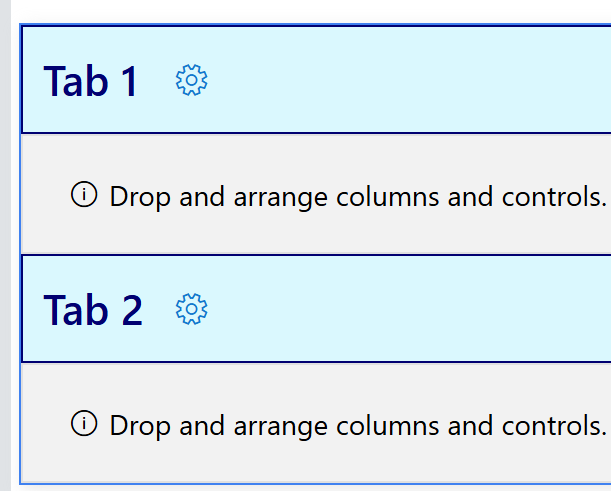
Accordion styling options available for individual forms.
Save Time with Reusable Global Themes
While per-form customization provides tremendous flexibility, many organizations prefer maintaining a consistent design standard across every form they build. That is where the new global theme enhancements become especially valuable. Ultimate Forms already supports reusable global themes that simplify the creation of consistent forms. Tab and accordion styling is part of those themes.
Instead of configuring the appearance of tabs and accordions individually on every form, administrators can define the styling once inside a global theme. Any form using that theme automatically inherits the same professional appearance.
This provides several important benefits. First, it dramatically reduces setup time for new forms. Rather than repeating the same styling configuration over and over again, developers simply select the desired theme. Second, it promotes branding consistency throughout the organization. Every form can use the same colors, fonts, and visual standards without requiring additional effort from the form designer. Finally, global themes make long-term maintenance much easier. If branding guidelines change in the future, administrators can update the global theme instead of editing every individual form separately.
For organizations managing dozens or even hundreds of SharePoint forms, this enhancement can save a significant amount of time while improving consistency across the entire solution.
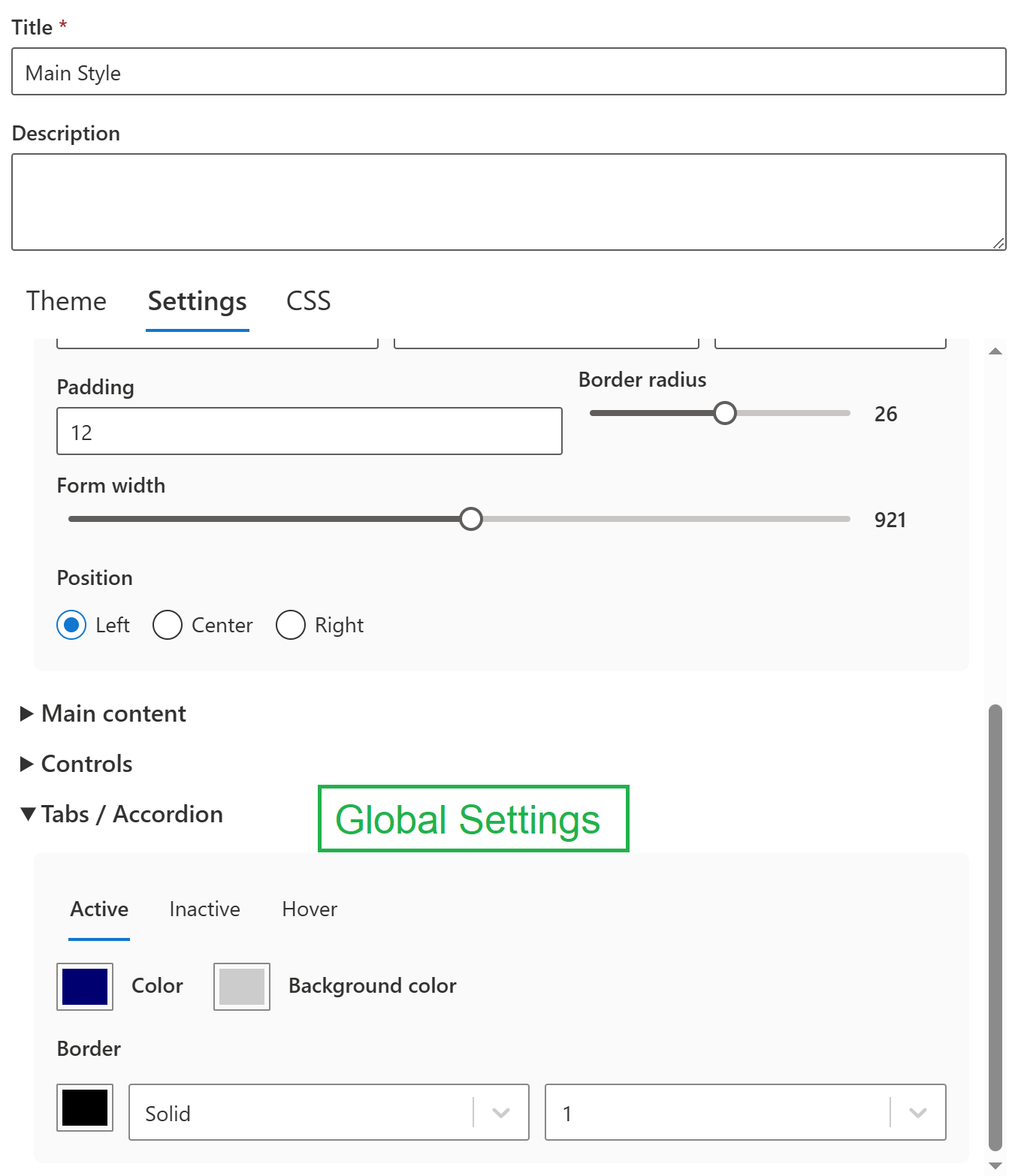
Global theme settings including reusable tab and accordion styling.
Better Looking Forms Without Programming
One of the defining principles behind Ultimate Forms has always been making sophisticated SharePoint solutions accessible without requiring custom development. This release continues that philosophy. Every one of these new styling options is configured entirely through the Ultimate Forms interface. There is no need to write CSS, edit style sheets, or create custom code. Simply select the desired colors, font sizes, font weights, and other visual settings using the intuitive configuration panels. This approach allows business users, SharePoint administrators, and power users alike to create polished forms without depending on developers. Organizations can deliver attractive, branded forms more quickly while reducing maintenance costs and simplifying future updates.
If your team has already standardized on Ultimate Forms for workflows, permissions, validation, and dynamic forms, these new styling capabilities make it even easier to deliver a consistent user experience throughout your SharePoint environment. You can also explore related capabilities such as Conditional Rules, Dynamic Forms, and Global Themes on the Infowise website to see how they work together to create complete business solutions.
Create Forms That Match Your Brand
Great forms are not only functional. They should also look professional and reflect your organization's identity. The new tab and accordion styling features allow you to move beyond default appearances and create forms that feel like a natural extension of your SharePoint environment.
Whether you customize styling individually for a single form or define reusable global themes for your entire organization, these enhancements provide the flexibility needed to build modern, visually consistent SharePoint forms. Combined with Ultimate Forms' powerful no-code design tools, these new capabilities make it easier than ever to create forms that users enjoy completing while maintaining the professional appearance your organization expects. Tab styling is one layer of the larger picture: styling at four levels, shared styles for the tenant, and the ten UX principles that decide what all of it should serve.
Frequently asked questions
Add your comment