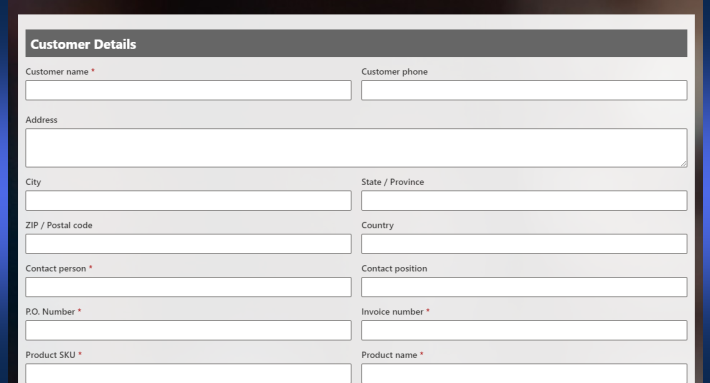
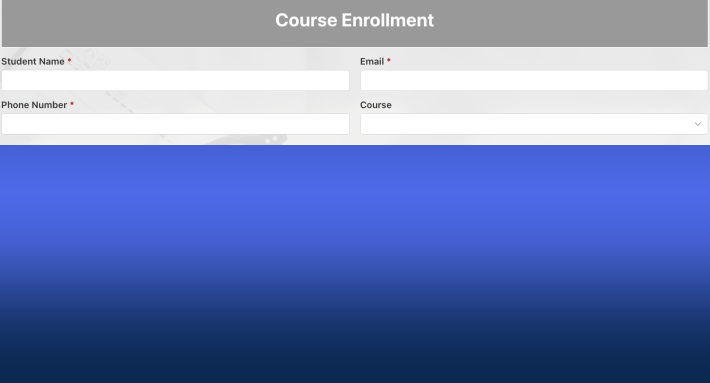
Modern business forms often need to capture a large amount of information. As forms grow in complexity, presenting everything on a single page can overwhelm users, increase data entry errors, and reduce completion rates. This is where Tabs and Accordion controls in Ultimate Forms become invaluable.
By organizing information into logical sections, tabs and accordions transform lengthy forms into intuitive, easy-to-navigate experiences. Whether you're building a simple employee onboarding form or a sophisticated multi-stage business process, Ultimate Forms provides powerful tab and accordion capabilities that can be implemented in minutes.
Why Tabs and Accordions Improve User Experience
One of the biggest challenges in form design is balancing the amount of information required with the user's ability to comfortably complete the form. Tabs and accordions solve this problem by breaking large forms into manageable sections.
Benefits include:
- Reduced visual clutter by displaying only relevant information at a time.
- Improved usability through logical grouping of related columns.
- Faster data entry because users can focus on one section at a time.
- Better mobile experience where screen real estate is limited.
- Higher completion rates as forms feel less intimidating.
For example, an employee onboarding form might contain sections for Personal Information, Employment Details, Benefits, Equipment Requests, and Approvals. Rather than presenting dozens of columns at once, each section can be organized into its own tab or accordion panel.
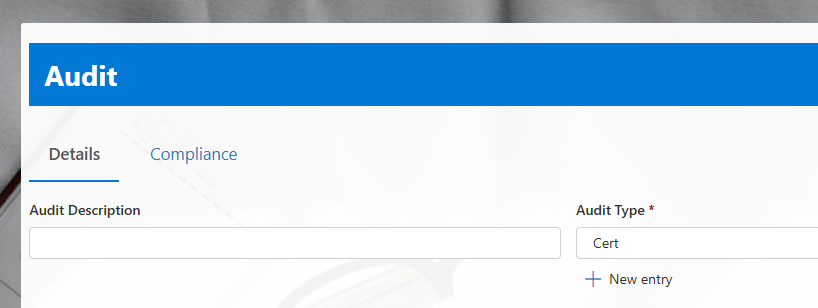
The result is a cleaner, more professional experience that guides users through the process naturally.
Simple to Implement
Despite the sophisticated functionality they provide, tabs and accordions are remarkably easy to configure in Ultimate Forms.
Form designers can simply drag the Tabs and Accordion control on the design canvas. Then they add and name tabs, and drag columns into each tab.
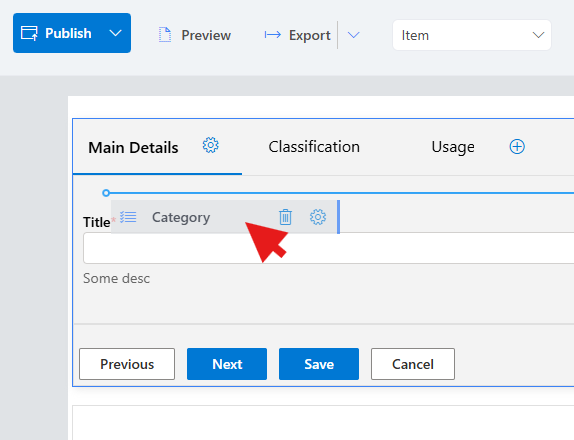
There is no need for custom development, complex scripting, or advanced technical knowledge. Configuration is handled directly through the Ultimate Forms interface, allowing business users and power users to create sophisticated form experiences without writing code.
This simplicity dramatically reduces implementation time while still providing enterprise-level flexibility.
Multiple Themes and Visual Styles
Every organization has different design requirements. Some prefer modern and minimal interfaces, while others want a more traditional business application appearance.
Ultimate Forms includes multiple themes and styling options that allow tabs and accordions to match the overall look and feel of your solution.
Administrators can easily select different visual themes to:
- Align with corporate branding
- Create modern user experiences
- Maintain consistency across applications
- Improve accessibility and readability
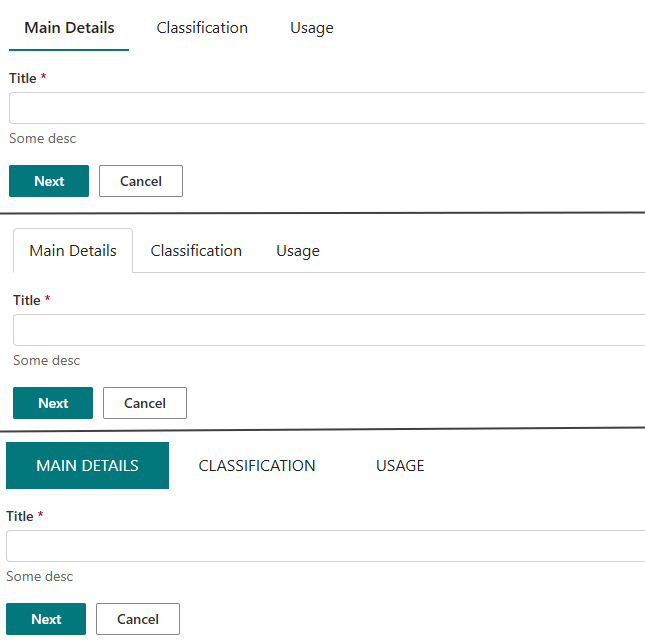
Because styling is built directly into the platform, organizations can achieve professional results without extensive CSS customization.
Powerful Tab Permissions
Beyond organization and appearance, Ultimate Forms tabs become a powerful tool for managing business processes through tab-level permissions.
Permissions can be configured to control who can view specific tabs and when those tabs should be available.
Common scenarios include:
Role-Based Visibility
Different users can see different sections of the same form.
For example:
- Employees see Employee Information tabs.
- Managers see Approval tabs.
- HR personnel see Benefits and Compensation tabs.
- Finance teams see Budget and Cost Allocation tabs.
Process-Based Visibility
Tabs can appear only when a form reaches a particular stage in the workflow.
For example:
- Initial request tabs are visible during submission.
- Review tabs become available during approval.
- Final processing tabs appear after approval is complete.
Conditional Visibility
Tabs can be dynamically shown or hidden based on user selections or business rules.
Examples include:
- Showing a Travel Details tab only when travel is required.
- Displaying a Vendor Information tab only when an external vendor is selected.
- Revealing additional compliance sections based on project type.
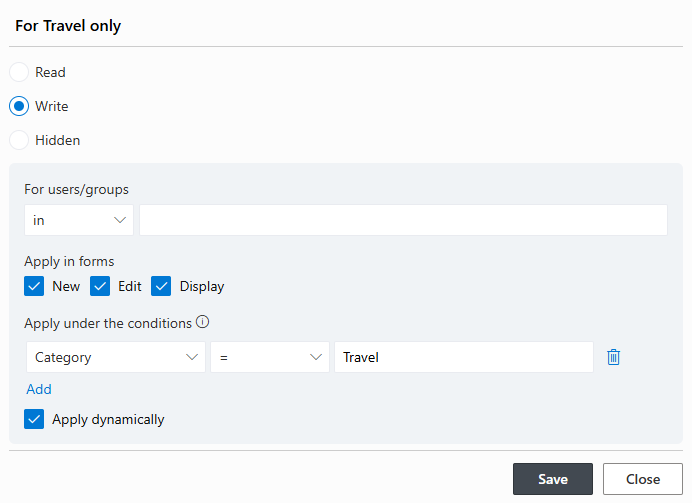
This ability to conditionally show and hide tabs enables organizations to create highly sophisticated business processes while maintaining a clean and user-friendly interface.
Advanced Navigation Buttons for Guided Processes
One of the most powerful features of tabs in Ultimate Forms is the ability to configure navigation buttons. These settings allow form designers to transform standard tabs into guided workflows and wizard-style experiences.

Instead of relying solely on users clicking tab headers, navigation can be carefully controlled to ensure the correct sequence is followed.
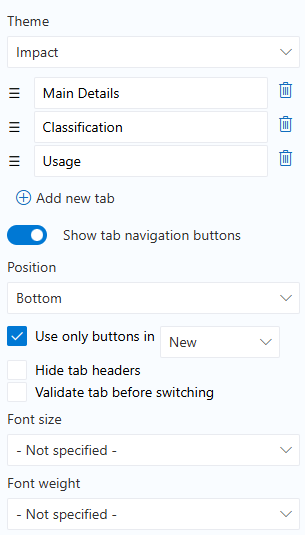
Show Tab Navigation Buttons
The first option is a simple toggle that enables or disables navigation buttons.
When enabled, users can move between tabs using dedicated Next and Previous buttons, creating a structured flow through the form.
Benefits include:
- Clear navigation paths
- Improved usability for large forms
- Reduced user confusion
- Better guidance through multi-step processes
This setting is particularly useful for onboarding forms, application processes, inspections, audits, and approval workflows.
Position Options
Navigation buttons can be placed in different locations to suit the desired user experience.
Available positions include:
Bottom
Buttons appear below the tab content. This is ideal for traditional form layouts where users complete a section and then move forward after reaching the end.
Top
Buttons appear between the tab headers and the tab content. This placement provides immediate visibility and is especially useful when forms contain large sections of information that require scrolling.
Organizations can choose the position that best aligns with their users' expectations and workflow requirements.
Use Only Buttons in New, Edit, and Display Modes
This setting is one of the most powerful workflow features available.
When enabled:
- Users cannot click tab headers directly.
- Navigation occurs exclusively through the configured buttons.
- Movement between tabs follows the intended sequence.
This effectively turns the form into a guided wizard.
Benefits include:
- Enforcing business process order
- Preventing users from skipping required steps
- Creating structured data collection experiences
- Improving process compliance
- Reducing incomplete submissions
For example, a new employee onboarding process may require users to complete Personal Information before Employment Details, and Employment Details before Equipment Requests. By forcing navigation through buttons only, administrators can ensure every stage is completed in the proper order.
Hide Tab Headers
For scenarios where a true wizard experience is desired, Ultimate Forms allows tab headers to be completely hidden.
When enabled:
- Tab names are not displayed.
- Users navigate exclusively using buttons.
- The interface becomes streamlined and focused.
This approach is particularly effective for:
- Application forms
- Registration processes
- Surveys
- Guided assessments
- Multi-stage approvals
By removing visual distractions, users remain focused on the current step rather than jumping ahead.
Validate Before Switching
Data quality is often a major concern in business applications.
The "Validate Before Switching" option ensures that validation rules are executed before users can move to the next tab.
This means:
- Required columns must be completed.
- Validation rules must pass.
- Data issues are identified immediately.
- Users receive feedback at the appropriate step.
The result is a true wizard-like experience where each stage must be completed successfully before progression is allowed.
Benefits include:
- Higher quality data
- Reduced rework
- Better user guidance
- Improved compliance with business requirements
Rather than discovering validation issues at final submission, users resolve them as they move through the process.
Font Size and Font Weight Controls
Visual presentation matters, especially in enterprise applications where clarity and usability are critical.
Ultimate Forms provides built-in controls for modifying:
- Font size
- Font weight
These settings allow administrators to easily adjust the appearance of tab headers without writing custom CSS or creating styling rules.
Examples include:
- Larger tab headers for improved accessibility
- Bold headers for better visibility
- More prominent section labels for complex forms
- Consistent branding across applications
Because these settings are configurable directly within Ultimate Forms, form designers can quickly achieve the desired appearance without involving developers.
Combining Features for Complex Business Processes
The true power of tabs and accordions becomes apparent when multiple features are used together.
Consider a multi-stage procurement request process:
- Users complete Request Information.
- Validation ensures required details are entered.
- Navigation buttons guide progression.
- Additional tabs appear based on request type.
- Approval tabs become visible only to managers.
- Finance tabs appear after approval.
- Certain sections remain hidden until prerequisite steps are completed.
What would normally require custom development can be achieved through configuration using tab permissions, conditional visibility, validation rules, and navigation controls.
The result is a sophisticated process that remains simple and intuitive for end users.
Conclusion
Tabs and accordion controls in Ultimate Forms do far more than organize columns. They create cleaner user experiences, simplify complex forms, and provide powerful tools for implementing business processes.
With flexible themes, conditional visibility, role-based permissions, and advanced navigation options, organizations can build everything from simple data entry forms to fully guided workflow applications.
The ability to enforce progression order, validate data before advancing, hide or display tabs dynamically, and customize the visual presentation makes Ultimate Forms an exceptionally powerful platform for designing professional, user-friendly forms without custom development.
Add your comment