Rooms, vehicles, equipment, and people's time all share one failure mode: double booking. A resource scheduling system in SharePoint ends it. Users request bookings through a validated form. Approvals run as one-click actions with automatic notifications. A shared calendar shows every booking at a glance, and conflict checks stop overlaps before they save. This guide builds the system step by step with Ultimate Forms, no code anywhere.
Why manual scheduling always breaks
Resource scheduling by email and spreadsheet works until the second person wants the same thing. Then the failure modes arrive on schedule. Two teams book the projector for the same hour. The booking spreadsheet is current on one laptop and stale on four. Nobody can say who approved the van for Friday, or whether anyone did.
The cost is not just the conflict itself. It is the meeting that starts late while a room is renegotiated, and the coordinator whose actual job has become referee. A scheduling system replaces the refereeing with structure: one request channel, one approval path, one calendar everyone trusts.
Step 1: The booking list and form
Start with the central repository. In your SharePoint site, open Site Contents and create a new list named Resource Scheduling. Every booking will live here as an item.
Then shape the form. Open the list, click Design, and build the booking form in Form Designer with the columns the process needs:
- Resource Name: which resource is being booked. Make it a lookup to a Resources list rather than free text, so bookings stay consistent and reportable.
- Booking Date: the date of the booking.
- Start Time and End Time: the slot.
- Requested By: a user picker identifying the requester.
- Purpose: a multiline description of why.
- Status: a dropdown with Pending, Approved, and Denied.
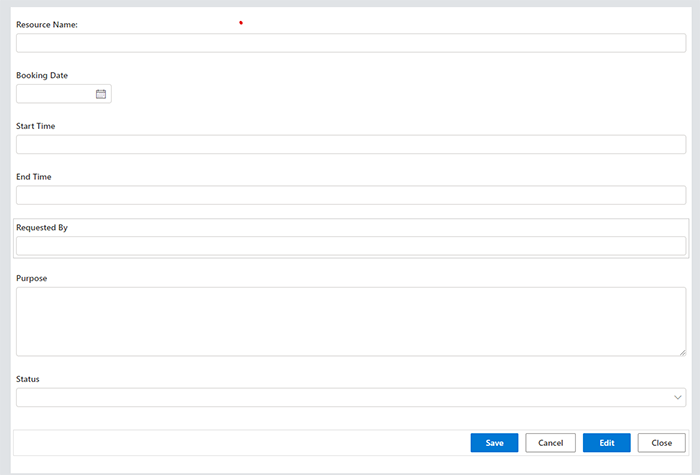
Small design choices here pay off later. Default Requested By to the current user. Default Status to Pending and make it read-only for requesters, so the approval path cannot be skipped. The form is the gate; everything downstream trusts what it lets through.
Step 2: Approvals that run themselves
Approval is where scheduling systems usually drown in email. Actions replace the email with a click.
Navigate to Actions under the Business Logic menu and create two.
The approval action. An Update List Item action sets Status to Approved. A Send Email action follows, notifying the requester, with dynamic placeholders carrying the booking details: Resource Name, Booking Date, and the time slot, right in the message:
The denial action. The mirror image: Status set to Denied, and an email including a Reason for Denial column, because a denial without a reason generates a follow-up conversation every time.
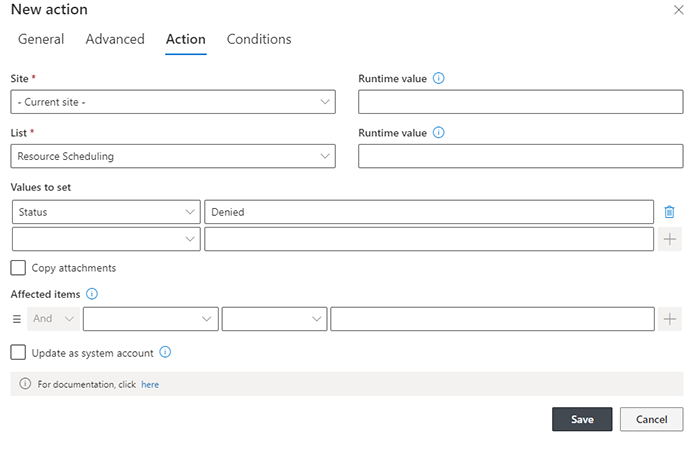
Approvers execute either action from the Run Action button in the list ribbon or the context menu on any item. Review the request, one click, done. The status updates and the requester knows, without anyone composing anything.
Turn on Log History for both actions. In each action's settings, enable the Log History option. Every execution is then logged: the action name, who ran it, when, and the outcome:
The log answers the question every scheduling dispute eventually asks. Go to Action History, and select the action name. Which user approved the Friday van booking, and when? Thirty seconds, with evidence.
Step 3: Validation at the door
A scheduling system is only as good as its worst booking, so invalid requests must fail at entry.
In Form Designer, open the Validation settings for the time columns. The essential rule: End Time must be later than Start Time, with a clear error message, "End Time must be later than Start Time," shown the moment the user gets it wrong:
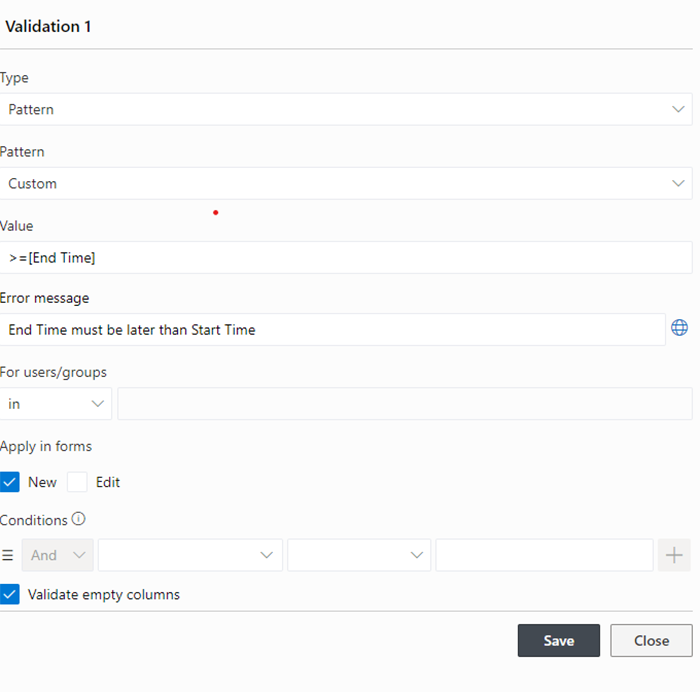
Add the rules your resources demand on top. Bookings only within working hours. A maximum duration for high-demand rooms. A required Purpose above a certain length for executive resources. Each is a condition in the same validation tab. Then test: save the settings, open the form, and try to break it. The error messages you see are the support tickets you will not receive.
Step 4: The calendar everyone can see
Approved bookings deserve better than a list view. Display them on a color-coded calendar, colored by resource or by status, so the week's allocation is visible at a glance.
The calendar changes behavior quietly. Requesters check availability before they ask, which removes a share of conflicts before they are ever submitted. Coordinators see utilization patterns, the room that sits empty, the vehicle that never does, and allocate accordingly. Put the calendar on the team site's home page, where people already look.
Step 5: Make double booking impossible
Everything so far reduces conflicts. This step eliminates them. An action checks new requests against existing approved bookings for the same resource and overlapping time, and blocks the duplicate before it takes hold. The complete recipe is in Block Double Booking with Ultimate Forms Actions, and it bolts directly onto the list built above.
With the check in place, the system's promise becomes absolute: if a booking stands, the resource is yours. No one needs to double-confirm by email, which was always the tax manual scheduling charged.
Step 6: Learn what your resources really do
Once bookings flow through one list, the list starts teaching you things. Put the lessons on a dashboard.
Counters make the headlines visible: bookings this month, requests pending approval, denials this quarter. Charts show the patterns underneath: bookings by resource, by department, by day of week. The conference room everyone fights over and the one nobody remembers both show up in the same bar chart.
The numbers change decisions. A resource with constant conflicts is an argument for buying another one, now backed by data instead of complaints. A resource at ten percent utilization is a candidate for retirement, or for better promotion. A rising denial rate on one team's requests is a conversation worth having before it becomes friction.
None of this requires exporting anything. The dashboard reads the same list the bookings live in, updates itself, and sits on the page beside the calendar. Allocation stops being a feeling and becomes a report, and next year's resource budget writes itself from this year's evidence.
Shortcuts and siblings
If building from scratch is not the goal, templates deliver the skeleton installed. The Room and Equipment Reservation template covers the classic case, and the Vehicle Reservation template adds a three-step process for fleets. Install, then apply the steps above as customizations.
Scheduling is also one slice of the wider discipline. Staff, rooms, and time slots as a connected whole are covered in Using SharePoint and Ultimate Forms for Resource Management, and shift-based workforces have their own pattern in Shift Scheduling in SharePoint.
Build the list this afternoon, wire the two actions tomorrow, and put the calendar where the team looks. The double bookings stop first. The chasing emails stop next. And the coordinator gets their actual job back, which was never refereeing a spreadsheet.
Frequently asked questions
Add your comment