You can copy any rule from one element of a SharePoint form and paste it onto another. Form Designer in Ultimate Forms supports copy and paste for all four rule types, permission rules, validation rules, default value rules, and style rules. Check off the rules to copy, click the copy button in that rule section's header, click the target element, and paste. A copied rule can be pasted onto as many elements as you need. A companion capability, Element Copy, duplicates entire form elements, containers, headers, fragments, and more, anywhere in the form.
Two small buttons, and yet they change how you build. Here is why, and exactly how to use them.
Repetition is the hidden cost of good forms
The better a form gets, the more its rules repeat. Hide the finance tab from non-finance users, and the same permission rule belongs on every column of that tab. Highlight overdue fields in red, and the same style rule applies to each date column. Require a value when status is Submitted, and a dozen columns need the same validation condition. Well-designed forms are full of deliberate, consistent behavior, and consistency, built by hand, means configuring the same rule again and again.
Rebuilding a rule manually is not just slow; it is where inconsistency creeps in. Recreate a condition twelve times and the thirteenth will eventually differ by one operator, and now two columns that should behave identically don't, and someone spends an afternoon finding out why. Copy and paste eliminates the retyping and, with it, the drift: every pasted copy starts life identical to the original.
If rules are new territory, start with How to Build Dynamic SharePoint Forms with Rules; this article assumes you have some and want to stop rebuilding them.
Copying rules, step by step
The mechanism will feel instantly familiar, and that is deliberate: it works just the same as copy and paste in a Word document.
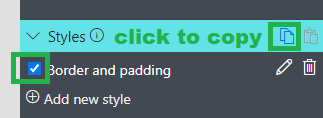
First, on the source element, check off the rule or rules you want to copy, then click the copy button in the header of that rules section:
Your copied rules are now stored and ready to apply. Click another element in your form, and in the corresponding rule section click the paste button:
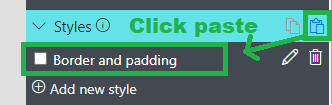
That's it. The rule now exists on the target element, identical to the source:

Two behaviors are worth knowing. Copying is one-slot: whenever you click the copy button, any previously copied rule is replaced by the new selection, so copy, then paste everywhere you need, then move on to the next rule. And pasting is unlimited: one copied rule can be pasted onto element after element, which is precisely what makes the tab-wide permission scenario a thirty-second job.
Note the phrase "corresponding rule section": rules paste into their own kind. A permission rule copied from one column pastes into the permission section of another, a style rule into the style section, and so on, which keeps the operation predictable.
Copying whole elements
Sometimes the thing that repeats is not a rule but a structure. A styled container with a header. A fragment holding formatted instructions. A block you have laid out carefully and now need three more of. That is what Element Copy is for: it duplicates controls, containers, headers, fragments, and other elements, throughout your form.
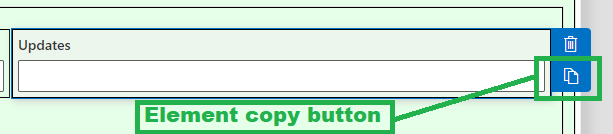
To use it, click on an element, then click the copy button on the right side:
The practical pattern that falls out of these two capabilities together is worth naming: perfect one, propagate many. Build a single column or container completely, its permissions, validation, defaults, styling, and layout, review it until it is exactly right, and only then copy it across the form. You do the careful thinking once, and the form inherits it everywhere. This is the same philosophy that runs through the platform at larger scales: Fragments reuse content blocks across forms, and tenant-wide style consistency applies the propagate-don't-rebuild idea to entire organizations. Copy and paste is the within-one-form member of that family.
Edit boldly, with a safety net
Bulk operations invite bulk mistakes, and pasting rules across many elements is a bulk operation. It is comforting to know that Form Designer keeps version history, so a propagation session that goes sideways can be rolled back rather than reverse-engineered. Copy freely; the undo exists.
The habit to build is simple. Next time you catch yourself configuring a rule and thinking "I just did this on the previous column," stop. Delete nothing, retype nothing: check, copy, click, paste. The minutes saved per form are real, but the consistency is the bigger prize, because forms whose identical behaviors are actually identical are the forms that stay maintainable a year later.
Frequently asked questions
Add your comment