Every SharePoint administrator who has spent time configuring a complex form has experienced the moment of regret. A conditional rule that seemed straightforward turns out to break something else. A column layout change looks fine in the designer but renders incorrectly for a specific user role. A validation rule is removed to fix one problem, but something more important was relying on it. By the time the issue is discovered, the form has been published, users are seeing the problem, and the original working configuration exists only in memory.
Ultimate Forms now has a direct solution to this: built-in version history for form definitions, accessible from within the Form Designer.
How Form Version History Works
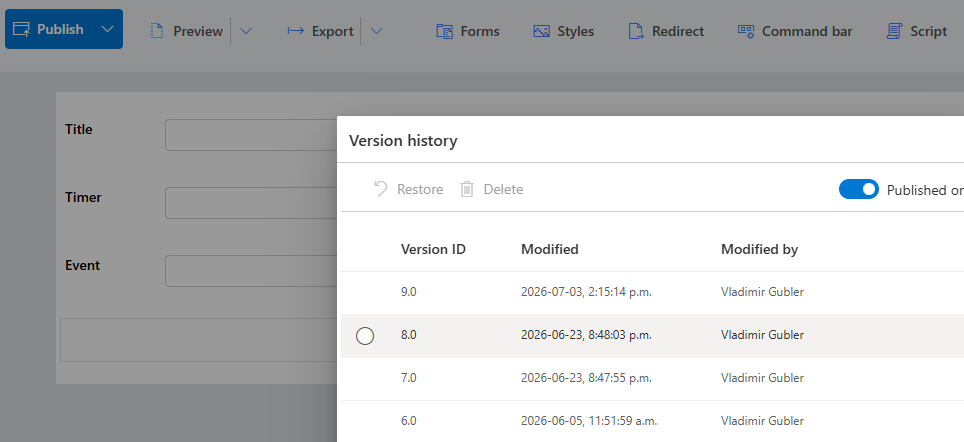
Every time a form definition is published in Ultimate Forms, the definition file is saved in the Site Assets library of the SharePoint site. SharePoint's native versioning has always been active on this library, which means every published version of the form has always been stored. The capability just was not exposed in a way that made it usable.
The new version history panel in the Form Designer surfaces this list directly. The access button is conveniently located under the Publish button dropdown. When you open it, you see a chronological list of all saved versions, each identified by its version number and the date and time it was saved. From this list, you can restore any previous version with a single action.
No manual file management. No digging through the Site Assets library. No reconstructing a configuration from memory. The working version you need is already there — it always was.
Why This Matters in Practice
Form configurations in Ultimate Forms are often significant investments of time and thought. A production form for a leave request process, a purchase approval workflow, or a client onboarding intake might contain dozens of conditional rules, multiple permission configurations, calculated column values, validation logic across several sections, and a carefully arranged layout. Getting all of that right takes time. Breaking it and having no way to recover takes even more time, and introduces a period where the form in production is either incorrect or unavailable.
Version history changes the risk profile of form maintenance work entirely. When you know that every published version is preserved and recoverable in seconds, form changes stop being high-stakes operations. You can experiment with a new layout, publish it to test the effect, and roll back immediately if it does not work as expected. You can make a change requested by a department head, discover it conflicts with something else, and restore the previous version without a conversation about how long the fix will take.
A Real-World Example: The Conditional Logic That Broke Everything
A healthcare organization runs a staff incident report form through Ultimate Forms. The form has conditional logic that shows a mandatory clinical section when the incident category is set to Clinical. It has been in production for eight months and is used by approximately two hundred staff members.
A new administrator is asked to add a new incident category — Administrative — with its own section that should appear conditionally. While configuring the new rule, the administrator accidentally modifies one of the existing conditions rather than creating a new one. The form is published before the change is caught. Within the hour, incident reports are being submitted without the clinical section appearing for clinical incidents. Which means mandatory information is being omitted from legally required documentation.
Without version history, the administrator must reconstruct the original conditional logic from memory or by asking a colleague who may or may not remember the configuration. This takes time, during which the form continues to produce incorrect records.
With version history, the response is different. The administrator opens the Form Designer, navigates to the version history panel, identifies the version published before the erroneous change, and restores it. The working form is back in production in just seconds. The incorrect version can then be addressed carefully, with the correct logic as a reference, and tested before the next publish.
Live Preview of Draft Versions
Alongside version history, Ultimate Forms has added a second capability that addresses a related problem: how to test a form configuration thoroughly before exposing it to all users.
You could always force forms to load the draft version. But that required adding an obscure URL parameter. Most users simply never knew about it. This created pressure to get the configuration right before publishing, because any published version was immediately visible to everyone with access to the list.
The new draft preview feature makes it simple. A preview link is now available directly in the Form Designer, under the Preview button. This link opens the actual live form and loads the draft version of the form definition. The result is the real form, running in the real SharePoint environment, with the real data and the real permissions, but showing the draft configuration rather than the published one.
This is not a simulator or a rendering approximation. It is the form itself. Conditional logic fires. Validation rules run. Column permissions apply. If the form behaves correctly in the draft preview — for the user roles you need to test, with the data conditions you need to verify — you can publish with confidence.
For organizations where form changes must be reviewed and approved before being made available to users, the draft preview link can be shared with reviewers directly. They see exactly what the published form will look like without the administrator having to publish first.
Getting Started
Both features are available from within the Form Designer. The version history panel is accessible from Publish button dropdown. Selecting a version from the list allows it to be restored as the current version (published or draft). The draft preview link is available in the Preview button dropdown. Note that you should save the draft prior to using it to ensure the latest version is loaded.
Neither feature requires any additional configuration. They are available to administrators who already have access to the Ultimate Forms Form Designer for a given list.
Add your comment