Document approvals have a problem list approvals never meet: the file keeps changing. A reviewer approves version 4 while the author is already editing version 5, and nobody can say afterwards what exactly was approved. The fix is to govern check-in and check-out as part of the approval itself, and Ultimate Forms Actions make that automation: submitting for approval checks the document in, approval locks it, rejection checks it back out for edits, all without code. This guide designs the combined workflow, builds it step by step, and walks a contract review library end to end. For the full map of approval patterns beyond documents, see the complete guide to SharePoint approval workflows.
Why approvals and check-in belong together
Consider what each mechanism guarantees alone. Check-out guarantees one editor at a time, but says nothing about whether the edits were ever reviewed. Approval guarantees a review happened, but says nothing about whether the file changed afterwards. Only together do they produce the property documents actually need: what was approved is what exists.
The combination earns its keep four ways. It governs change: edits happen before approval or after an explicit reopening, never silently in between. It protects version integrity: the approved version is checked in, numbered, and stable. It enforces compliance: downstream steps, publishing, archiving, distribution, can be blocked until the approval is recorded and the file is checked in. And it automates the behavior people forget: nobody has to remember to check the file in before submitting, because submission does it for them.
Ultimate Forms makes the combination practical because Actions trigger on the document events themselves: file checked out, file checked in, item added or modified, manual buttons, and timers. The document's lifecycle events become the workflow's trigger points.
The workflow, designed before built
The pattern, in the order a document experiences it:
- An author uploads or checks out a document; its status is Draft.
- The document stays checked out while editing continues.
- The author clicks Submit for Approval: the document is checked in automatically if still out, the status becomes Pending, and the reviewer is notified.
- The reviewer approves or rejects from buttons only they can see.
- Approved: the status updates, the decision is logged, and editing locks.
- Rejected: the status updates, and the document checks out again for revision.
- A timer watches for documents stuck in Pending and escalates past the threshold.
Each numbered step maps to one action or rule. That one-to-one mapping is what keeps the build readable a year later.
Building it step by step
1. Prepare the library. Enable versioning, and set check-out as required or optional to match how strictly edits must be serialized.
2. The Submit for Approval button. In Form Designer, add a Trigger action button labeled Submit for Approval. Its action, type Update list item, sets Approval Status to Pending and sets the document's check-in flag, so a still-checked-out file is checked in as part of submission. Condition the action on the status being Draft, so the button cannot re-fire mid-review.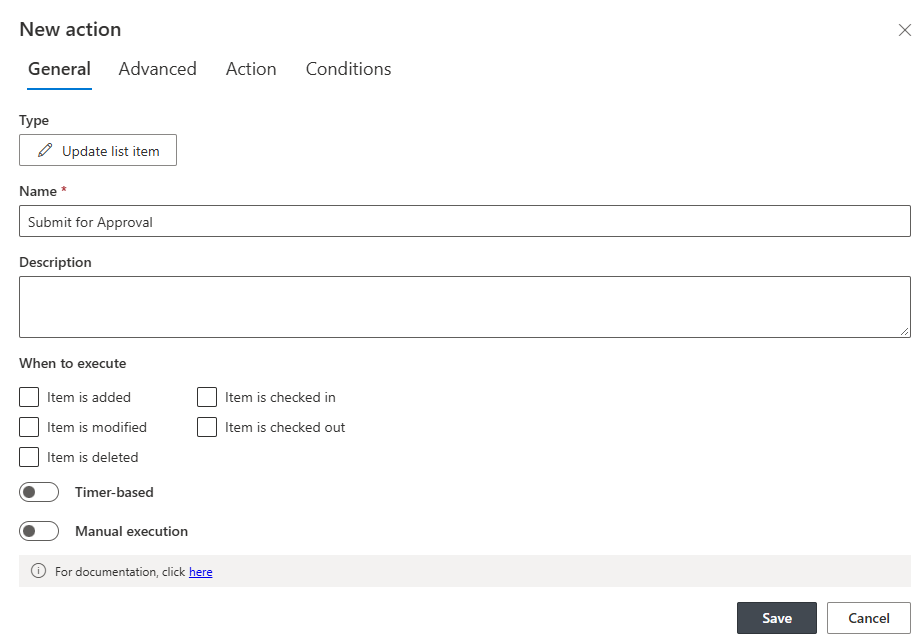
3. The Approve and Reject buttons. Two more actions, surfaced as buttons visible only to approvers (permission rules or conditional visibility handle the audience). Approve sets Approval Status to Approved, stamps the approver and timestamp into dedicated columns, and locks further editing, via read-only column rules or a permissions change. Reject sets the status to Rejected and checks the document out again, handing it straight back to the author for revision. Both check the file in first if somehow still out.

4. The check-in listener (optional but powerful). A separate action triggered on file checked in inspects the Approval Status and routes accordingly: Pending notifies the reviewers, Rejected notifies the author, Approved can move the file to a publishing library or announce it to stakeholders. This is the step that makes the library feel alive: the natural act of checking in a file advances the process without anyone opening a form.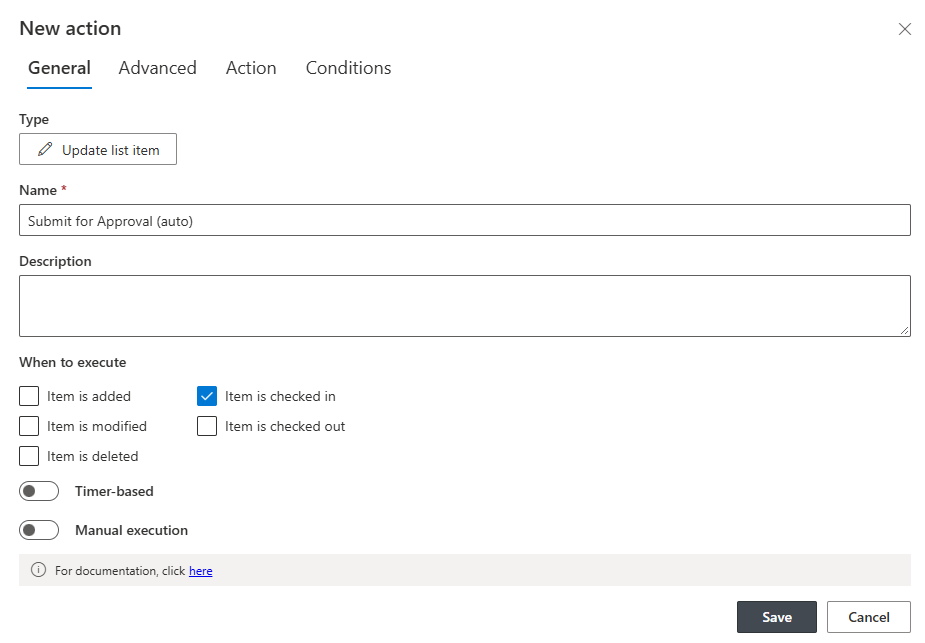
5. The escalation timer. A timer action finds documents sitting in Pending longer than the threshold and acts: sets an Escalated status, reminds or reassigns, or auto-declines if the process prefers a hard deadline. The same thinking as approval escalation rules, applied to the document flow.
6. Permissions and visibility. Tab and column permissions keep each audience in its lane: comments editable only in Rejected status, approval columns visible but never editable to authors, the Submit button hidden once the status has left Draft. The same dynamic permission machinery that guards forms guards the library.
7. The audit. Action history records every automated step; Approved By, Approval Timestamp, and Comments columns record the human ones; and version history ties each decision to the exact file version it concerned. Where the stakes justify it, an electronic signature binds the decision to the approved values tamper-evidently.
Worked example: the contract review library
A legal team's library makes the pattern concrete.
A lawyer uploads a contract and keeps it checked out through drafting; the status reads Draft. Finished, they click Submit for Approval: the file checks in, the status flips to Pending, and the assigned reviewer is notified. The reviewer, and only the reviewer, sees Approve and Reject.
On approval, the status becomes Approved, the decision is stamped and logged, editing locks, and the final document moves to the publishing library. On rejection, the status becomes Rejected, the contract checks out again, and the author receives the reasons by email. If the reviewer sits on it for seven days, the timer escalates to a manager, marks the contract Escalated, and sends the nudge that private reminders failed to deliver.
Every contract that reaches the publishing library got there one way, through a recorded decision about a stable version, which is the sentence an auditor wants to hear.
Where the Approval control fits
For the decision machinery itself, stages, comments, reminders, delegation, the inline log, the Approval control is the fast path, and it already locks the form during and after approval. What the hand-built pattern above adds is the document dimension: actions on check-in and check-out events, re-checking files out on rejection, and routing files between libraries. The two compose naturally: run the Approval control for the decision, and let a small set of actions handle the check-in choreography around it. Reach for the fully hand-built version when the process is more document lifecycle than approval, and for everything else start with the control, as the complete guide recommends.
Practices that keep it reliable
Test every branch with real user accounts, approve, reject, and timeout, confirming visibility, check-in behavior, and permissions at each state. Mind the approvers' rights: they need check-in and metadata permissions that regular users should not have. On large libraries, keep action conditions narrow and schedule timers off-hours, for the same reasons that govern scheduled actions generally. Give users confirmation feedback, "Document submitted for review", so the automation never feels like a void. And label the buttons in the language of the process, because the button text is the only training most users will ever receive.
Frequently asked questions
Add your comment