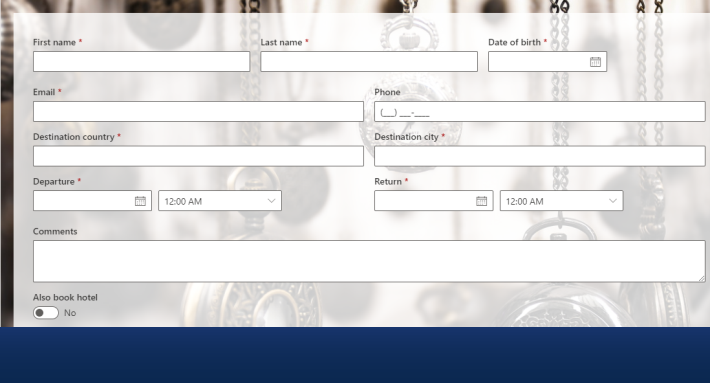
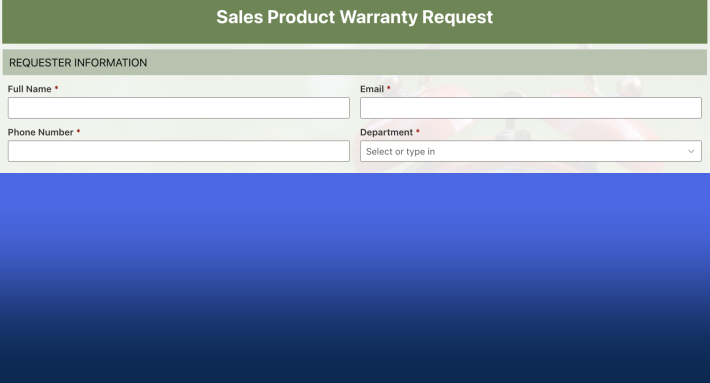
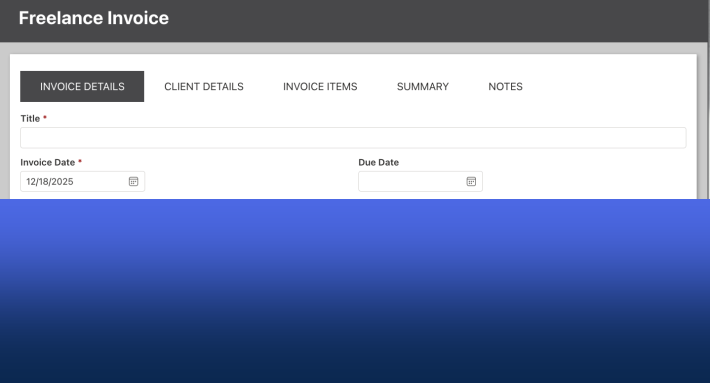
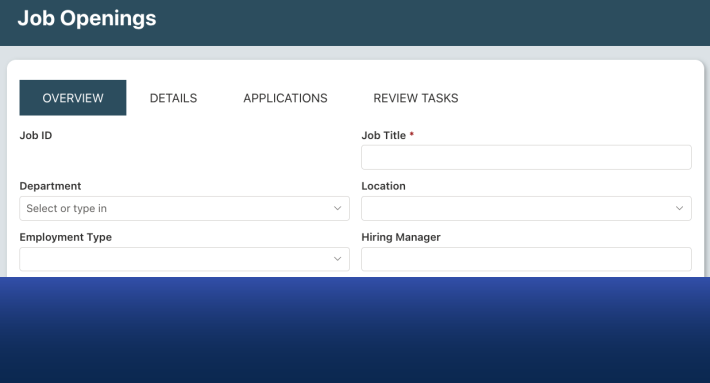
There is a version of SharePoint that most organizations never fully reach. The one where forms adapt to the person filling them out. Where an approval request automatically routes to the right manager and locks itself while it waits. Where a manager can see the state of every open request at a glance without asking anyone to send them a spreadsheet. Where the process owner — not the IT department — decides when something needs to change and changes it themselves.
This version of SharePoint is not difficult to reach. It does not require custom development, a Power Platform specialist, or a six-week implementation project. What it requires is the right tool and a learning curve that does not defeat the people who actually own the processes.
That tool is Infowise Ultimate Forms.
Why the Learning Curve Is the Real Problem
Most organizations that have tried to extend SharePoint beyond its defaults have encountered the same frustration. The tool that promises to solve the problem turns out to require skills the process owner does not have.
Power Automate is capable — but it asks you to think in flowchart logic. You define triggers, branches, conditions, and loops as a diagram. For someone who understands the approval process they are trying to automate but has never built a workflow tool before, the translation between business knowledge and diagram logic is a significant barrier. Small errors in the flow structure produce unexpected behavior that is genuinely difficult to debug.
Power Apps requires even more — a canvas model, a formula language similar to Excel but substantially more complex, and an understanding of connectors, data sources, and app lifecycle management. It is a capable application development platform. It is not designed for a non-technical administrator who needs to build a leave request form by end of week.
InfoPath, which many organizations relied on for years, is retired. The gap it left has not been filled by a single obvious successor, and many organizations are still working around the absence of a proper replacement.
Ultimate Forms takes a different approach entirely. Everything is configured in the browser, in a visual interface, using concepts that map directly onto the business process being built. There is no diagram to draw, no complex formula language to learn, and no separate platform to manage alongside SharePoint.
What Non-Technical Users Are Actually Asked to Do
The best way to understand why Ultimate Forms is easier is to walk through what a non-technical administrator is actually asked to do when building with it — compared to what the same task requires in the alternatives.
Building a form with conditional sections
The scenario: An HR manager needs a leave request form where a second section — covering extended leave documentation — only appears when the employee selects a leave duration of more than ten days.
In Power Apps: The HR manager needs to create a canvas app, add controls to the canvas, write a formula for the Visible property of the second section using the selected value of the first control, and configure the data connection back to SharePoint. If the formula is incorrect, the section either always shows or never shows, and there is no clear error message.
In Ultimate Forms: The HR manager opens the form designer in the browser, selects the section that should be conditional, adds a permission rule — "Write when Leave Duration is greater than 10" — and publishes.
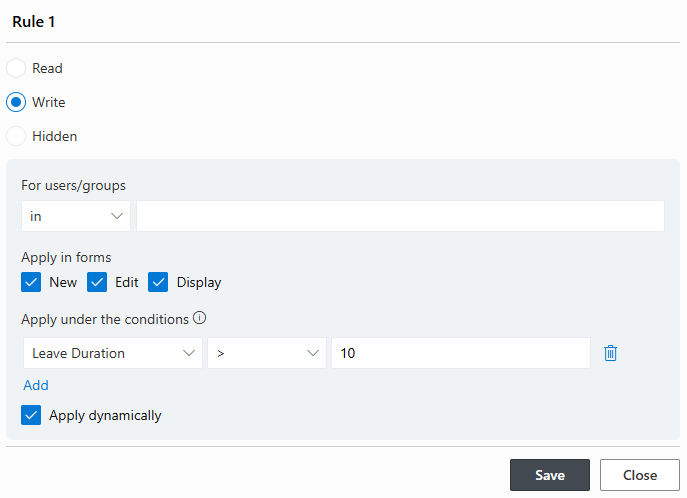
The outcome is identical. The process to get there is not.
Adding an approval workflow
The scenario: A purchasing manager needs a purchase request form that routes to the team leader for approval, then automatically sends a confirmation email to the requester when approved.
In Power Automate: The purchasing manager needs to create a cloud flow, add a trigger, configure an Approval action with the correct approver assignment, add branches for the approved and rejected outcomes, configure email actions with dynamic content references, test the flow, and diagnose any run failures in the flow run history.
In Ultimate Forms: The purchasing manager drags the Approval control on the form. Then in its configuration, adds the team leader as an approver and publishes. The entire configuration is in the same interface.
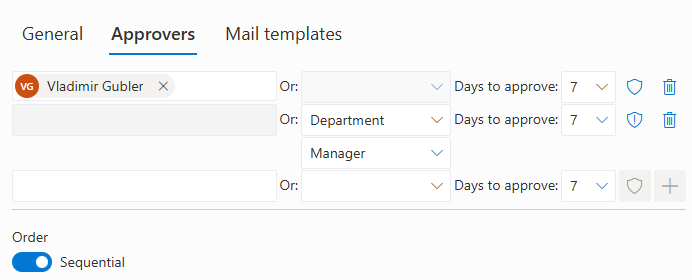
No flowchart. No run history to diagnose. No difference between what was configured and what happens.
Creating a live dashboard
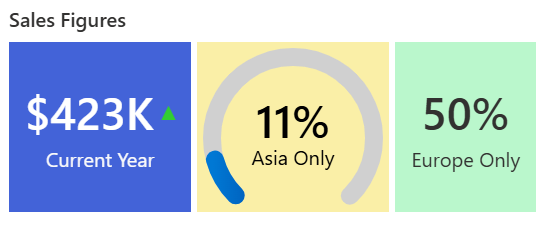
The scenario: An operations manager wants a page that shows the number of open IT requests, the number overdue, and the number resolved this month — without exporting anything to Excel.
In Power BI: The operations manager needs to connect Power BI to SharePoint, build a dataset, design a report, publish it to the Power BI service, embed it in SharePoint, and manage refresh schedules. When the SharePoint list structure changes, the dataset needs to be updated.
In Ultimate Forms: The operations manager configures a Counter web part profile, providing for each Counter filter condition and summary operation — open requests, overdue, resolved this month. Adds counter web parts to the SharePoint page, select the profile and publishes the page. The counters update in real time. Nothing needs to be refreshed. Nothing needs to be re-published when the list changes.
The Principle That Makes It Accessible
What each of these comparisons illustrates is a consistent principle: in Ultimate Forms, the configuration describes the outcome directly.
When you add a conditional rule, you are describing the condition you want. When you configure an approval, you are simply listing the approvers. When you build a dashboard, you are pointing at the data you want to display.
In the alternatives, configuration describes a process that produces the outcome. You build a flow that will, if correctly structured, result in an approval. You write a formula that will, if syntactically correct, hide a section when a condition is met. The outcome is one step removed from what you are configuring, which means errors are also one step removed from where they occur — and much harder to trace.
For non-technical users, this difference is the difference between a tool they can learn in a day and one they will need ongoing training and support to use.
What Happens When Something Changes
The learning curve is only part of the story. The other part is what happens when the process evolves — which it always does.
A new department gets added and the leave request form needs a new option in the department dropdown. An approval threshold changes from $5,000 to $10,000. A new step needs to be added to the onboarding checklist. In most organizations, these changes go into the IT support queue, because the person who owns the process cannot make them without touching the tool that built it — and that tool requires skills they do not have.
In Ultimate Forms, the person who configured the form in the first place can make any of these changes in minutes. The dropdown is updated in the column settings. The approval condition is updated in the Approval control. The checklist item is added directly to the form. No ticket. No queue. No waiting.
This is not a minor convenience. It is the difference between processes that evolve with the business and processes that ossify because the cost of changing them is too high.
The Starting Point Is Lower Than You Think
Ultimate Forms includes a catalog of over 440 pre-built solution templates — leave requests, help desks, purchase approvals, onboarding workflows, incident reports, and hundreds more. Each template is a fully configured, production-ready solution that installs with a single click and can be customized from the moment it is deployed.
For a non-technical administrator who is new to Ultimate Forms, this is the most effective starting point. Rather than building from scratch, they install the template closest to what they need, explore how it is configured, and adapt it. The configuration choices made in the template are visible and understandable — a practical tutorial embedded in something that already works.
The learning curve that might have taken weeks becomes a matter of days. Often hours.
The Right Tool for the Right User
Ultimate Forms is not positioned as a replacement for Power Platform in every scenario. Complex integrations, cross-system orchestration, and enterprise-scale applications may genuinely require the capabilities that Power Automate and Power Apps provide. For those scenarios, the right tool is the one with the right capabilities.
But for the overwhelming majority of the business process automation that SharePoint administrators are asked to deliver — forms with logic, approvals with routing, dashboards with live data, alerts that fire on conditions — Ultimate Forms delivers the outcome faster, more reliably, and with a learning curve that does not require a dedicated specialist to navigate.
The SharePoint power user who owns the process should be able to build the process. Ultimate Forms is the tool that makes that true.
Explore the full feature set and browse over 440 ready-to-use solution templates at infowisesolutions.com. A free 30-day trial is available for all supported SharePoint deployments.
Add your comment