Introduction
Modern business processes demand forms that adapt to the user, the workflow stage, and the data itself. A static form that looks the same for every person leads to confusion, security issues, data inconsistencies, and unnecessary complexity. Ultimate Forms solves this by providing a powerful permissions system directly inside the Form Designer. You can control who sees what, who can edit which columns, and how forms behave under different conditions. These permissions help create cleaner, safer, and more intuitive user experiences without writing any code.
This article explores how permissions work in Ultimate Forms, how users and groups influence visibility and access, how lookup columns can drive dynamic permissions, and why these features matter for real business applications.
Understanding Permission Rules in Ultimate Forms
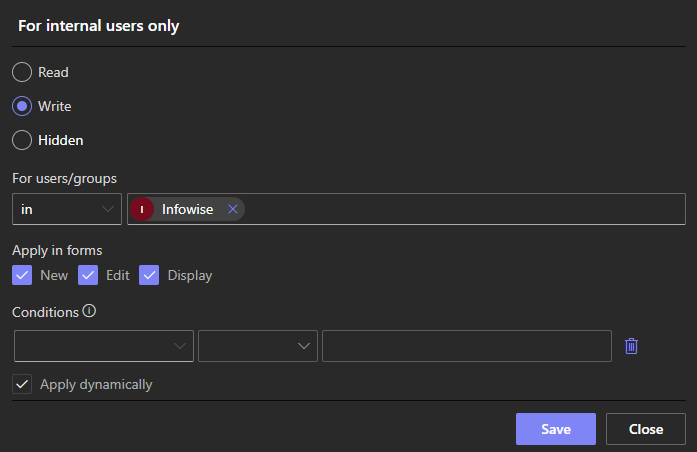
Ultimate Forms includes a permission engine that lets you set rules for form elements. These rules determine whether a form element is:
-
Write: fully visible and editable
-
Read: visible but read-only
-
Hidden: not visible to the user
Rules can be applied to almost anything:
-
Individual columns
-
Tabs and sections
-
Containers of columns and other elements
-
Buttons, headers, and other UI elements
This allows the form to restructure itself automatically based on who is accessing it and what the data contains.
Permissions can depend on:
-
Specific users
-
SharePoint or Entra ID / AD groups
-
Person or group columns, either directly or via lookup columns
-
Conditions based on column values
- Form types
-
Combinations of all the above
These options make Ultimate Forms one of the most flexible form design tools available in the Microsoft SharePoint ecosystem.
Using Users and Groups in Permission Rules
The most common way to configure permissions is by using user or group identity. Since Ultimate Forms integrates directly with SharePoint and Microsoft 365, it can leverage:
-
SharePoint groups
-
Entra ID or Active Directory groups
-
Person or Group columns in the list
-
Person or Group columns in a lookup list
With these tools, you can build forms that adjust to different roles inside your organization.
1. Permissions Based on User Identity
This rule type checks whether the logged-in user matches specific user accounts. It is useful when you have:
-
A small group of administrators
-
A designated form owner
-
A workflow manager
-
Named approvers
Example:
Only the John Doe (the HR manager) should see the “Salary Adjustment” tab.
You can set a permission rule on the tab and assign visibility only to the HR Manager user account. Other employees will never see the tab, making the form cleaner and more secure.
2. Permissions Based on SharePoint or Entra ID / AD Groups
Group-based permissions are one of the most powerful tools for enterprise-scale forms. Instead of maintaining individual users, you can assign groups such as:
-
Finance team
-
IT staff
-
Supervisors
-
Regional managers
-
Project stakeholders
-
Contractors
Example:
The “Finance Approval” container should be read-only for everyone except the Finance SharePoint group.
Once a role changes, your IT team simply updates the SharePoint group membership. The form updates automatically without any modifications to the permissions themselves.
3. Permissions Based on Person or Group Columns
Sometimes you want visibility to depend not on the logged-in user’s group, but on the value of a Person or Group column in the list item.
Example:
Only the “Assigned To” user should be able to edit the “Task Update” section.
With a rule that compares the logged-in user to the Assigned To column, Ultimate Forms can hide or lock parts of the form automatically.
This approach is commonly used in:
-
Task tracking
-
Ticketing systems
-
Approval workflows
-
Project assignments
-
Leave requests
Person or Group column permissions are incredibly dynamic. As item ownership changes, the form behavior changes too.
Permission Rules Based on Lookup Columns
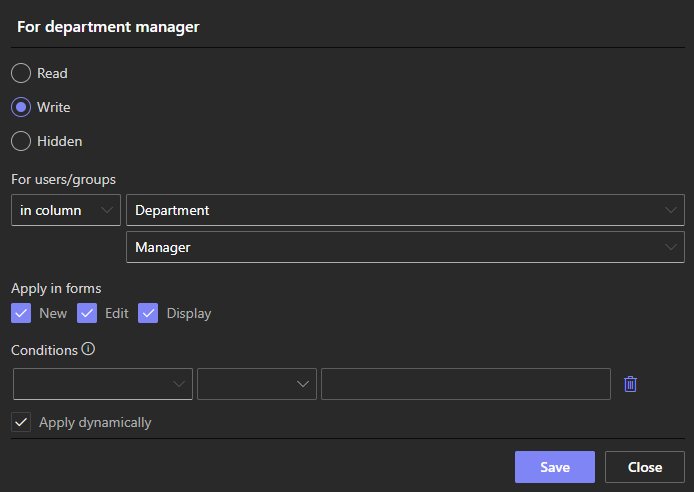
Ultimate Forms also supports conditions based on lookup column values. This opens the door to even more dynamic and contextual form behavior.
A lookup column connects the current list to another list. Permissions can use values from that linked list to determine visibility and editability.
Why Lookup-Based Permissions Are Useful
Many organizations store configuration or role information in lists such as:
-
Department list
-
Site list
-
Project list
-
Client list
-
Resource inventory
-
Product list
-
Project team members
Lookup-based permissions allow the form to adapt based on the data in those lists.
Real Example: Department-Based Permissions
Imagine a form with a “Department” lookup column that points to a Department list. That list contains information such as:
-
Department Name
-
Department Owner
-
Approval Group
-
Cost Center
You can use these values to control form behavior.
For example:
Show the “Department Budget” tab only if the logged-in user belongs to the “Approval Group” stored in the selected department record.
This allows the same form to behave differently depending on the department associated with the item.
Real Example: Project Team Permissions
A “Project” lookup column may store:
-
Project Manager
-
Project Team (multi-person column)
-
Project Type
-
Security Level
You can use a rule such as:
Only users listed in the Project Team of the selected project can update the “Status Update” container.
This rule ensures sensitive project information is accessible only to those who are assigned to the project, without needing countless SharePoint groups.
Real World Scenarios That Benefit From Permission Rules
Permission rules help create intuitive and secure business applications. Here are several scenarios where permissions transform how forms function.
1. HR Case Management
HR processes involve highly confidential information.
Examples:
-
Only HR staff should see compensation details.
-
Employees can view their own records but not others.
-
Managers can access their team’s forms, but not forms for other departments.
Using user, group, and lookup-based rules, Ultimate Forms can adjust the form to match HR policies while preventing accidental access.
2. Employee Onboarding and Offboarding
Onboarding forms often contain:
-
New hire details
-
IT access requests
-
Equipment allocation
-
Manager approval
-
HR verification
Permissions allow:
-
Managers to see and edit only managerial sections
-
IT to see only the access request section
-
HR to see the entire form
-
Employees to complete only their personal information section
This reduces confusion and ensures each stakeholder sees only the content relevant to their role.
3. Project Management and Resource Allocation
Projects often involve multiple roles, including:
-
Project Manager
-
Team members
-
Financial controller
-
QA reviewer
Permission rules allow:
-
PMs to update schedules and budgets
-
Team members to update progress
-
Finances to update cost or billing columns
-
External contractors to access only their assigned tasks
Lookup-based permissions tied to the selected project ensure each project behaves according to its own team structure.
4. Purchase Requests and Approvals
Purchase forms might include:
-
Request details
-
Vendor information
-
Cost center approval
-
Finance approval
-
Delivery confirmation
Permissions help ensure:
-
Requesters can submit and edit requests only in draft mode
-
Department approvers can approve or reject
-
Finance staff can review cost center coding
-
Warehouse staff can update delivery status
-
Only finance can see budget columns
Everything is cleaner and more secure.
5. Incident or Safety Reporting
Incident forms often include confidential investigation details. Ultimate Forms can ensure:
-
Employees see only the reporting portion
-
Safety officer sees investigation and root cause analysis
-
Management sees reports tied to their department
-
Executive staff sees organization-wide analytics
Permission rules make safety reporting easier and safer.
Advantages of Using Permission Rules
Ultimate Forms permission rules offer several advantages that traditional tools cannot match.
1. Cleaner and More Usable Forms
Users see only what is relevant to them. This reduces confusion and improves completion rates.
2. Better Security and Compliance
Sensitive information is hidden from unauthorized users. This is especially important for HR, compliance, and financial data.
3. Automatic Adaptation Without Manual Intervention
As users change roles, join teams, or are assigned to new items, permissions update automatically.
4. Improved Data Quality
Users cannot modify columns they should not touch. This reduces accidental overwrites and keeps data consistent.
5. Faster Development and Easier Maintenance
There is no need to build multiple versions of the same form. One form can serve different purposes simply by applying permission rules.
6. Eliminates the Need for Custom Code
Everything is configured visually in the Form Designer. There is no need for Power Apps formulas or custom scripts.
Conclusion
Ultimate Forms provides a powerful and flexible permissions system that helps organizations build intelligent, secure, and user-friendly forms inside SharePoint and Microsoft 365. With support for users, groups, person or group columns, and lookup-based logic, the Form Designer gives you control over who can see and edit every part of the form.
These capabilities are vital for modern business applications. They ensure that the right people see the right information at the right time. They also reduce the need for custom development and allow HR, IT, operations, and project teams to design workflows that adapt to real-world needs.
Add your comment