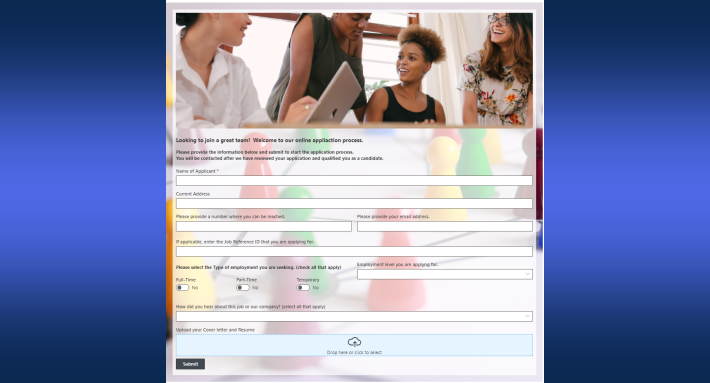
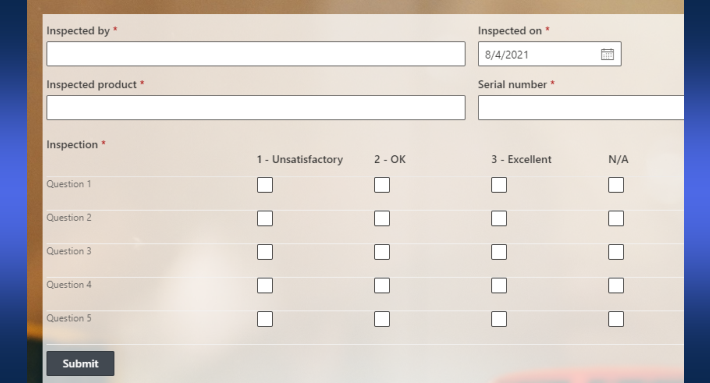
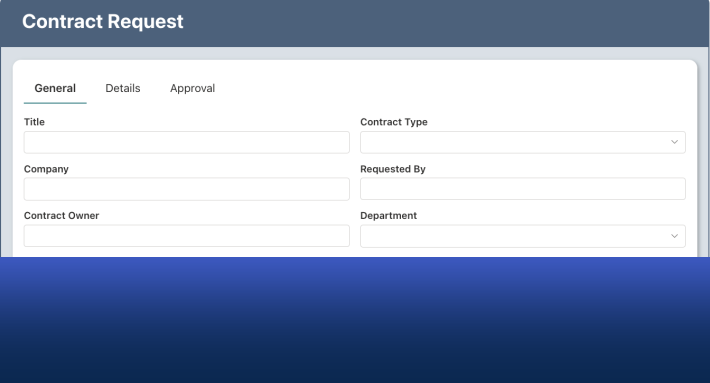
Ultimate Forms includes a built-in dark mode. One click in the user menu switches the entire interface to light text on a dark background, and your choice is remembered on your device, so every session opens the way you prefer. There is no functionality difference between the modes and no configuration involved; it is a personal display preference, available to every user, that takes effect instantly.
It is a small feature by any measure. It is also one of the most requested ones we ever shipped, and there is a good reason for that.
Why dark mode is worth a click
Anyone who spends the workday in front of a screen knows the feeling: by mid-afternoon, a bright white interface starts to feel like staring into a lamp. Dark mode lowers the average brightness of the screen dramatically, which many users find noticeably easier on the eyes, especially during long working sessions, in dim environments, or at the end of the day.
There is more to it than comfort. Light sensitivity varies from person to person, and for some users a dark interface is not a preference but the difference between a comfortable workday and a headache. Reduced brightness can also help on modern displays where dark pixels consume less power. And there is the simplest reason of all: much of the software people use daily, from their operating system to their editors and chat tools, already offers a dark theme, and an interface that cannot follow along feels dated. Solution builders who spend hours at a time configuring forms, actions, and alerts appreciate having the choice.
The principle behind it is one we apply everywhere: the people using a tool all day deserve control over how it looks and feels. It is the same thinking that drives our approach to form styling and form UX in general: comfort is not a luxury, it directly affects how well and how long people work.
How to enable dark mode
Switching takes seconds and requires no administrator involvement.
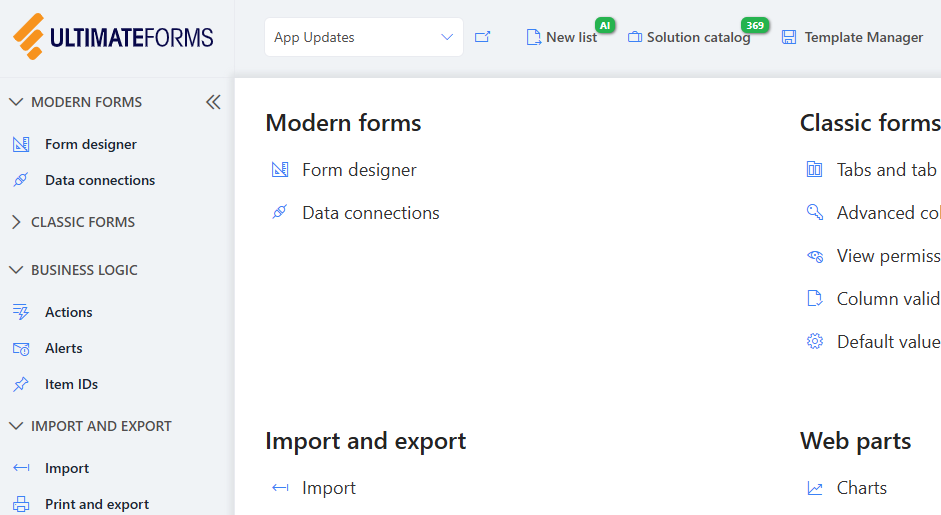
When you use Ultimate Forms for the first time, it loads in light mode:
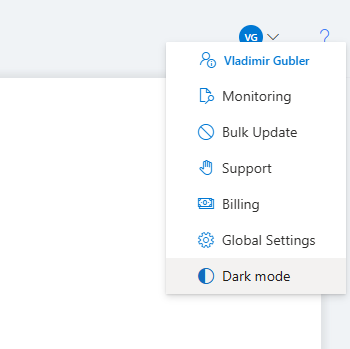
To switch, open the menu under your initials in the top right corner and click Dark Mode:
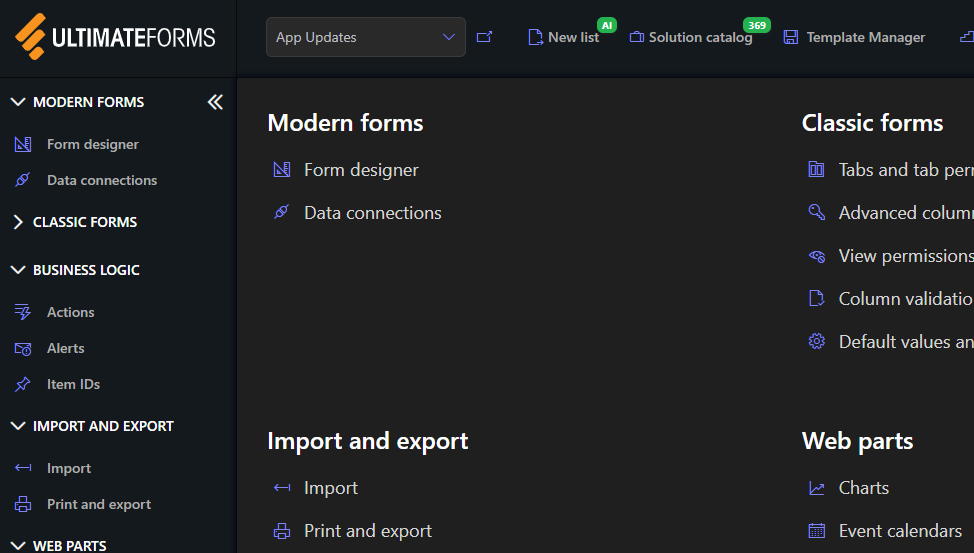
The interface switches immediately, no reload required:
That is the entire procedure. The same menu switches you back at any time, and you can change between the modes as often as you like.
How your preference is handled
Your selection is stored on your computer, so Ultimate Forms opens in your chosen mode on every subsequent visit without asking again. Because the preference is personal and per-device, your choice affects only you: a colleague opening the same site sees their own preferred mode, and nothing about the solution itself changes. Forms, actions, alerts, and every other feature work identically in both modes; the difference is purely visual.
This is worth underlining for solution builders: dark mode is not a design decision you make for your users, and it does not alter how the solutions you build are configured or delivered. Each person controls their own screen. You keep designing your forms and processes exactly as before, and every user views the interface in the mode that suits them.
A small part of a bigger idea
Dark mode belongs to a family of capabilities in Ultimate Forms that exist purely to make the experience of building and using SharePoint solutions more comfortable. The form width slider lets forms adapt to any screen. Tab and accordion styling gives long forms a modern, navigable look. Advanced styling options keep every form on brand. None of these changes what a solution does; all of them change how it feels to use, and that is often what determines whether a solution gets adopted or avoided.
If your organization is still deciding whether user experience details like these matter, watch what happens to data quality when people actually enjoy the tools they are given. Comfort compounds.
Frequently asked questions
Add your comment