In SharePoint, every list item automatically receives an Item ID. Most organizations treat this ID as a technical detail. Something useful only for developers, administrators, or internal references. In practice, however, Item IDs can play a much more meaningful role in everyday business processes.
With Infowise Ultimate Forms, unique item IDs become a functional, user-friendly element. It helps organizations improve traceability, simplify communication, automate processes, and enhance the overall user experience. No more relying on a meaningless, often hidden system values. You can create item IDs as recognizable, actionable identifiers that adds real business value.
What Is a SharePoint Item ID?
A SharePoint Item ID is a unique numeric value automatically assigned to each item in a list. It is:
-
Unique within the list
-
Assigned automatically
-
Permanent for the lifetime of the item
-
Sequential, making it easy to reference
Out of the box, SharePoint exposes the Item ID mainly as a system field. While useful for internal logic, it is rarely presented to users in a meaningful way.
Ultimate Forms changes this by allowing you to create your own Item IDs. These can be easy to surface, format, and use as part of the business process.
Why Item IDs Matter in Real Business Processes
In many organizations, users constantly need to answer questions like:
-
“Which request are you referring to?”
-
“Can you send me the reference number?”
-
“What ticket is this email about?”
-
“Which inspection report needs approval?”
When processes rely only on titles or descriptions, ambiguity creeps in. Names can change, titles can be duplicated, and descriptions can be unclear. Item IDs solve this problem by providing a clear, unambiguous reference.
When used properly, Item IDs become:
-
Reference numbers
-
Case numbers
-
Request IDs
-
Ticket numbers
-
Inspection IDs
-
Document references
Ultimate Forms makes it easy to turn raw Item IDs into business-friendly identifiers.
Making Item IDs User-Friendly with Ultimate Forms
One of the key strengths of Ultimate Forms is how easily it makes it to create such unique identifiers.
Using Ultimate Forms, you can:
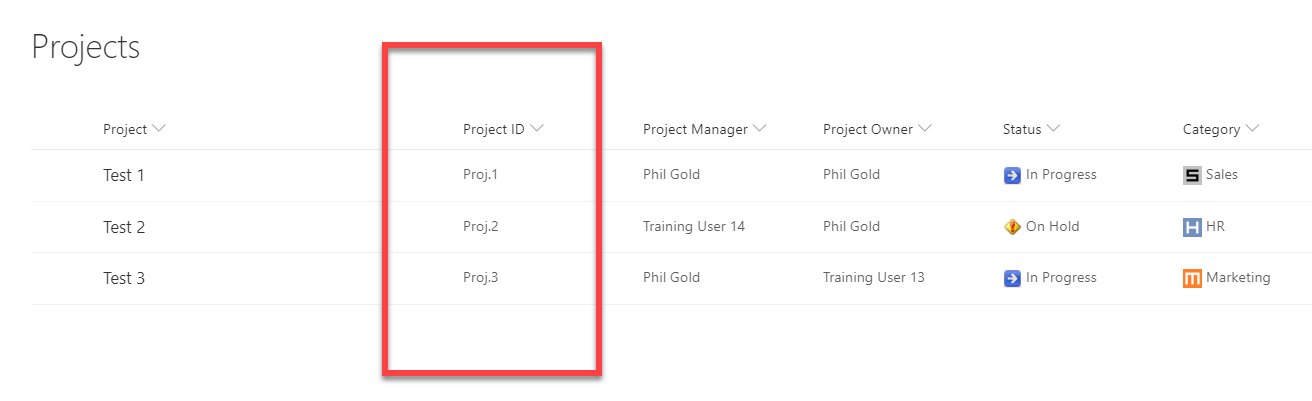
- Turn any column into an unique identifier with your own template
-
Display the item ID directly on the form
-
Include it in emails and notifications
-
Combine it with text or prefixes (for example: “REQ-1024”)
-
Use it in printable documents
-
Reference it in workflows and actions
-
Make it visible in list views and dashboards
All of this is done through configuration, not development. This makes it accessible to business analysts, power users, and IT teams alike.
Real-World Scenario 1: Request and Approval Systems
One of the most common uses of SharePoint is request management. Be it purchase requests, IT requests, HR requests, access requests, etc.
The Challenge
Users submit a request and later need to follow up. Without a clear reference number, communication becomes vague:
-
“My laptop request from last week…”
-
“The purchase request for the marketing team…”
Support teams waste time searching, and users get frustrated.
How Item IDs Help
With Ultimate Forms, the Item ID can be displayed prominently on the form and included in confirmation emails:
“Your request has been submitted successfully. Reference ID: PR-4587.”
This reference ID can then be used in:
-
Follow-up emails
-
Support tickets
-
Approval discussions
-
Audit trails
The result is faster resolution, clearer communication, and fewer misunderstandings.
Real-World Scenario 2: Help Desk and Support Tickets
Help desk systems rely heavily on ticket numbers. Many organizations use SharePoint lists for internal or lightweight support solutions.
The Challenge
Without a clear ticket number:
-
Users describe issues inconsistently
-
Support teams must search by keywords
-
Duplicate tickets are harder to identify
How Item IDs Help
Ultimate Forms allows Item IDs to function as ticket numbers with minimal effort. The ID can be:
-
Shown as “Ticket SP-1249” on the form
-
Included in all notification emails
-
Used in subject lines automatically
-
Printed in reports
Because Item IDs are generated automatically, there’s no risk of duplication or manual errors.
Real-World Scenario 3: Compliance, Audits, and Inspections
In compliance-driven environments, traceability is critical. Auditors expect clear references that link documentation, approvals, and outcomes.
The Challenge
Compliance teams often struggle to match:
-
Inspection reports
-
Corrective actions
-
Approval records
-
Audit findings
When titles change or documents are renamed, tracking becomes difficult.
How Item IDs Help
Using Ultimate Forms, each inspection or audit record can be assigned a visible reference ID based on the Item ID:
-
“Inspection ID: INS-2023-311”
-
“Audit Finding #842”
This ID can appear on:
-
Forms
-
Printable reports
-
Email notifications
-
Follow-up action items
Auditors and compliance officers gain a clear, consistent reference across all systems.
Real-World Scenario 4: Document Generation and Printed Records
Many organizations generate official documents from SharePoint data: contracts, inspection summaries, onboarding records, approval confirmations, and more.
The Challenge
Documents need a clear reference number for:
-
Filing
-
Legal traceability
-
Customer communication
-
Internal audits
Manually creating reference numbers introduces risk and inconsistency.
How Item IDs Help
Ultimate Forms allows Item IDs to be automatically inserted into printed documents or PDFs:
-
“Document Reference: DOC-7813”
-
“Case Number: CS-1042”
Because the ID is generated by SharePoint, it is guaranteed to be unique and consistent with the source record.
Real-World Scenario 5: Cross-System Communication
SharePoint often integrates with other systems: email, ticketing tools, finance systems, or external applications.
The Challenge
When data flows between systems, a common identifier is needed to maintain alignment.
How Item IDs Help
The SharePoint Item ID can act as the primary reference key across integrations. Ultimate Forms makes it easy to:
-
Pass the Item ID to external systems
-
Include it in API calls or actions
-
Store it as a reference in other platforms
This simplifies troubleshooting and ensures all systems are talking about the same record.
Ease of Use: No Code, No Complexity
What makes Ultimate Forms especially valuable is how easy it is to implement these scenarios. There is no need to:
-
Write custom scripts
-
Create calculated columns with complex formulas
-
Maintain custom numbering logic
-
Build Power Apps just to expose an ID
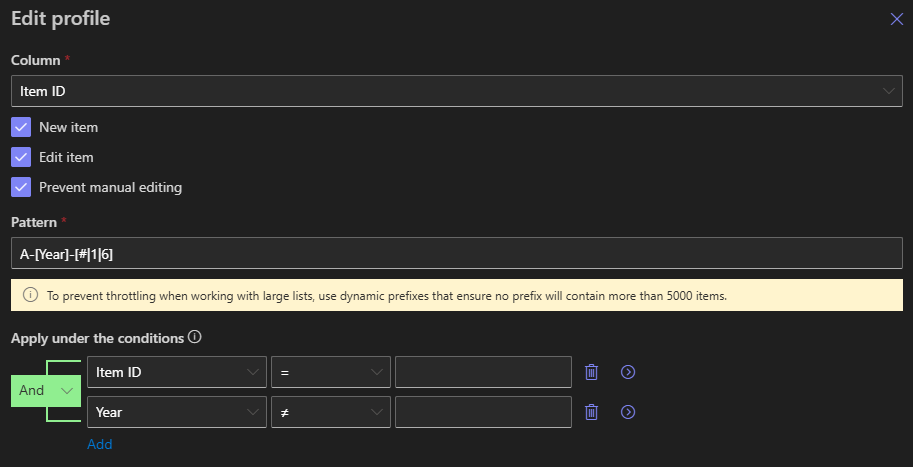
Everything is handled through simple configuration. Business users can:
-
Add a label or field showing the Item ID
-
Insert it into email templates
-
Reference it in print templates
-
Use it in actions and workflows
This dramatically lowers the barrier to adoption and reduces reliance on developers.
Turning Item IDs Into Meaningful Business Identifiers
By combining Item IDs with prefixes or descriptive text, organizations can create identifiers that make sense to users:
-
PO-1024
-
HR-5581
-
TKT-9033
-
INS-417
Ultimate Forms allows this formatting without complex logic, helping organizations maintain professional, consistent references across all processes.
Why This Matters for IT, Business Analysts, and Project Teams
For IT teams, using Item IDs reduces custom development and improves data integrity.
For business analysts, it enables better process design without technical complexity.
For project managers, it improves traceability, reporting, and stakeholder communication.
For end users, it provides clarity and confidence. Every item has a clear reference they can rely on.
Conclusion: Item IDs as a Simple but Powerful Asset
SharePoint Item IDs are often overlooked, but when used thoughtfully, they become a powerful foundation for business processes. With Infowise Ultimate Forms, Item IDs move beyond technical identifiers and become user-friendly, meaningful references that support communication, automation, and compliance.
By making Item IDs visible, configurable, and easy to work with, Ultimate Forms helps organizations deliver clearer processes, reduce friction, and build solutions that feel professional and complete—without adding complexity.
Add your comment