Non-technical users are left behind
Organizations that rely on Microsoft 365 often start their digital transformation journey with SharePoint. As soon as they need custom forms or automated approvals, they are naturally directed toward Power Apps and Power Automate. Promoted as low code tools, they still require a level of technical knowledge that many business users simply do not possess. As a result, teams often face obstacles at every stage of implementation.
Infowise Ultimate Forms takes a very different approach. It allows organizations to design fully functional business solutions inside SharePoint using a point-and-click interface. The entire process stays inside SharePoint and every configuration is intuitive, visual, and designed for users who are not developers.
This article explains the main problems that users encounter with Power Apps and Power Automate and shows how Ultimate Forms addresses each one.
1. Steep learning curve
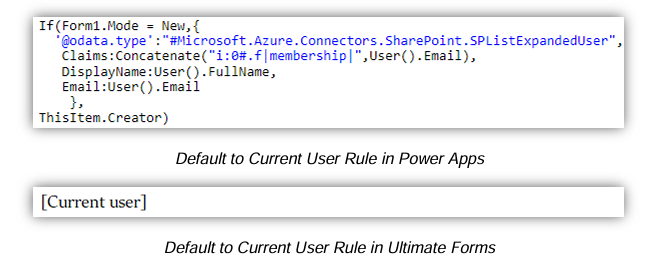
Power Apps does not behave like a traditional SharePoint form designer. Instead of working directly with SharePoint columns and layouts, users must understand screens, controls, and properties. Even simple tasks, such as hiding a field or making it read-only, require formulas rather than straightforward configuration, which is a major shift for SharePoint users.
Working with SharePoint data is another hurdle. Users need to understand how lists are connected, how records are referenced, and how submit logic works. Concepts like delegation limits can cause forms to behave differently as lists grow, making issues hard for novices to diagnose.
Layout management also adds complexity. Unlike standard SharePoint forms, Power Apps requires manual control positioning and responsive design adjustments. Small layout mistakes can easily lead to usability issues, especially on mobile devices.
Over time, maintenance becomes challenging. Changes to SharePoint columns often require updates across multiple formulas and controls. Although Power Apps is presented as low code, building and maintaining functional SharePoint forms still requires knowledge of formulas, expressions, and app logic that many SharePoint users do not have.
How Ultimate Forms solves this challenge
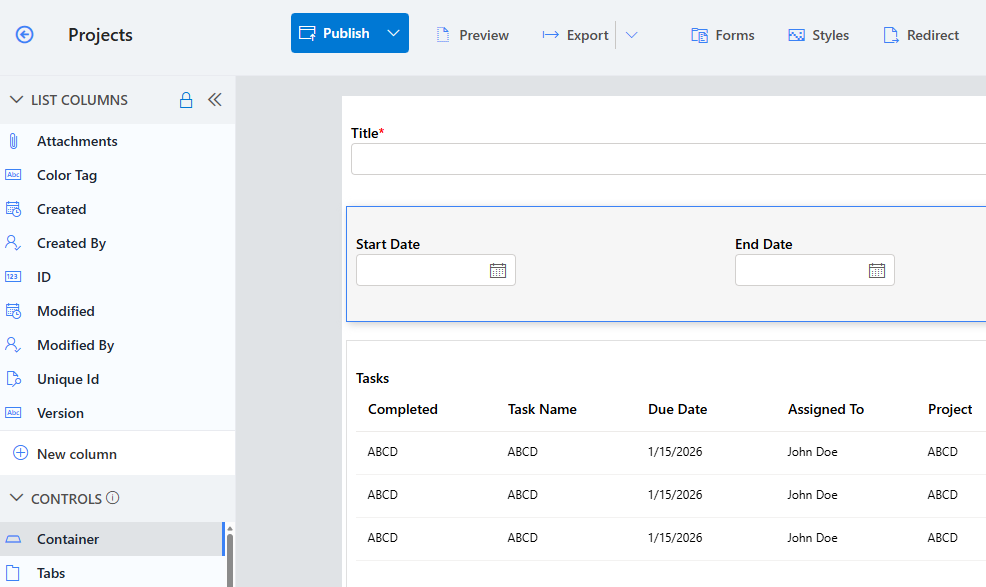
Infowise Ultimate Forms offers a solution built specifically for SharePoint. Forms are designed directly around SharePoint lists and columns, so users do not need to learn new and potentially confusing concepts.
Instead of formulas, Ultimate Forms relies on visual, rule-based configuration to handle validation, visibility, defaults, and permissions. This makes common form behavior easy to implement without writing expressions or troubleshooting complex logic. With easier maintenance, reusable templates, and built-in features like printing, comments, and dashboards, it enables complete SharePoint solutions without requiring a developer mindset.
2. The flowchart paradigm in Power Automate
The flowchart-style paradigm in Power Automate can be challenging for novice users, especially those coming from a SharePoint background.
While the visual layout looks simple, even basic SharePoint workflows quickly turn into long chains of actions and conditions. Beginners often struggle to understand execution order, particularly when flows branch into multiple paths or contain nested conditions.
Power Automate also requires users to think procedurally, step by step, rather than configuring rules around SharePoint items. This shift in mindset can be confusing for users who expect to define behavior instead of orchestrating a process.
As flows grow, readability drops fast. Long vertical designs are hard to scan, debug, and maintain, making novice users hesitant to change or extend existing flows.
Actions in Ultimate Forms
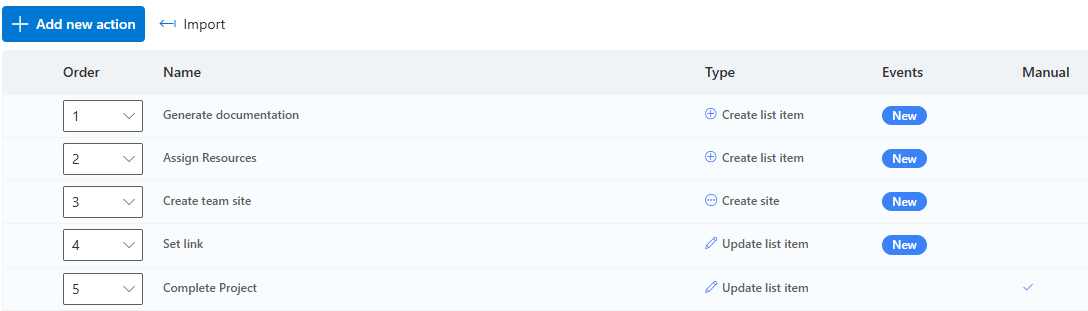
Actions in Ultimate Forms are simple to configure and are self-contained. Each action contains all the information it needs to run:
- What triggers the action (item is added, timer or manual execution)
- Under which conditions it runs (Status has changed to Approved)
- What to do, specific to each action type
Actions do not depend on each other and can be added/removed in a modular fashion.
3. Publishing, versioning, and environments are confusing
While the Publish button itself is simple, understanding what publishing actually means is often confusing. In Power Apps, users must know when to save, publish, and share the app, and how those steps affect who can see and use it in SharePoint. It is not always clear why changes appear for the creator but not for other users, or why a form still shows an older version.
Power Automate adds another layer of complexity. Users must understand flow ownership, connections, and whether a flow runs under the creator’s account or a service account. Publishing a flow does not automatically make it usable by others, and permissions often need to be adjusted separately in SharePoint and in the flow.
Environment and permission settings can also trip up beginners. Issues related to environments, connectors, and licensing are not always obvious, and error messages provide little guidance. As a result, novice users frequently feel uncertain about whether their app or flow is truly published, shared correctly, and ready for real-world use.
Ultimate Forms solves this with SharePoint native deployment
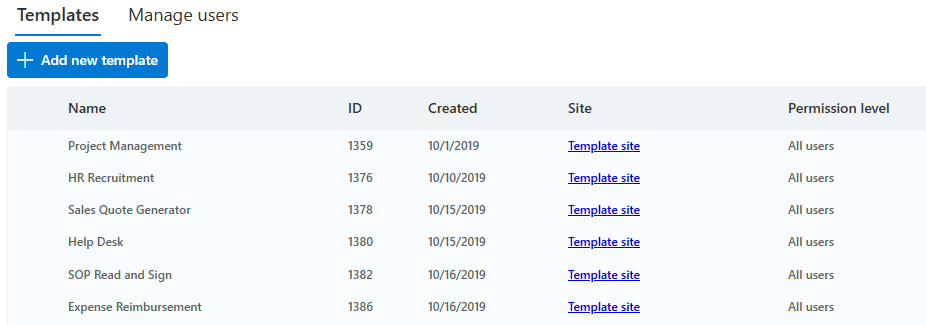
Ultimate Forms stores all configuration inside the SharePoint site itself. There are no external apps to publish and no environments to manage.
Benefits include:
-
Changes take effect immediately
- Solutions move easily between sites with Template Manager
-
No external connectors that break over time
Users can confidently update and refine solutions without worrying about overwriting someone else’s work or breaking production flows.
4. Power Apps and Power Automate licensing is confusing and expensive
Organizations often discover unexpected costs:
-
Premium connectors require additional licensing (Dataverse, Salesforce, etc.)
-
Per flow and per user plans increase budgets quickly
-
API call limits restrict automated workloads
These hidden expenses become a barrier to adoption.
Ultimate Forms avoids these additional licensing costs
Ultimate Forms:
-
All data connectors are included in the base price
-
Does not require per user or per flow add-ons
-
Has no API call quota limits beyond SharePoint throttling limits
-
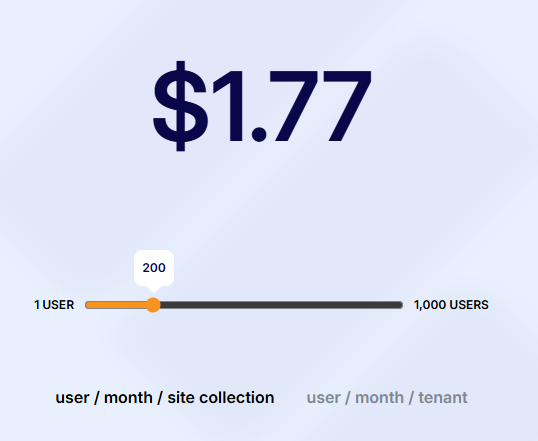
Is licensed per seat so organizations maintain predictable costs
5. Performance problems in Power Apps
When used with SharePoint, Power Apps can introduce performance issues, especially in list-based scenarios.
Forms often load slowly because Power Apps retrieves data through connectors rather than working directly with the SharePoint page. As lists grow, delegation limits can prevent queries from running efficiently, leading to incomplete data or extra client-side processing that slows down the app.
Complex forms with many controls, formulas, and conditional logic also impact performance. Each control may trigger recalculations, which increases load times and causes lag during user interaction. On slower networks or mobile devices, this becomes especially noticeable.
Overall, Power Apps performance in SharePoint can degrade as data volume and form complexity increase, requiring careful design and optimization that novice users may find difficult.
Ultimate Forms delivers fast performance by design
Ultimate Forms forms load quickly because:
-
They run directly inside SharePoint, with no connectors
-
They only load needed data
-
They use efficient native components
-
They avoid heavy scripting or formulas
The result is a responsive form experience that scales with SharePoint itself.
6. Features users expect are missing or require complex workarounds
Examples include:
-
Repeating tables
-
Print-ready layouts and PDF conversion
-
Cascading dropdowns
-
Container-level and column-level permissions
-
Signature columns
-
Conditional visibility
-
Confirmation screens
Power Apps often requires formulas, external integrations, or premium tools to achieve these.
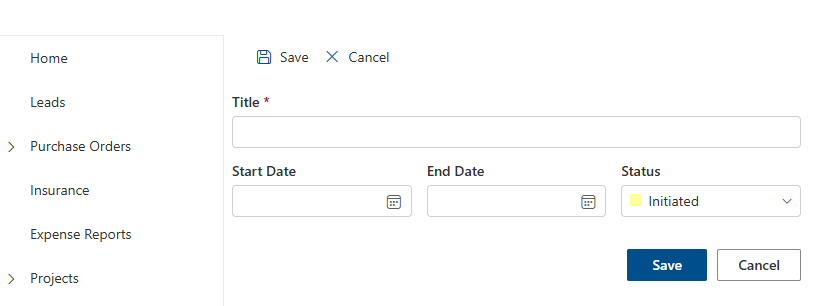
Ultimate Forms includes these features out of the box
Ultimate Forms provides:
-
Associated Items column for repeating tables
-
Advanced printing engine with full layout design, PDF/Word/Excel conversion
-
Built-in cascading lookup columns
-
Column and container-level dynamic permissions (show, hide, make read-only)
-
Signature capture columns
-
Conditional formatting and Dynamic Rules
-
Custom buttons with actions
Users get production ready capability without writing code.
7. There are no ready-made Power Apps solutions for common business needs
Most organizations need:
-
Approval workflows
-
Expense reports
-
Help desk systems
-
Training requests
-
Purchase requests
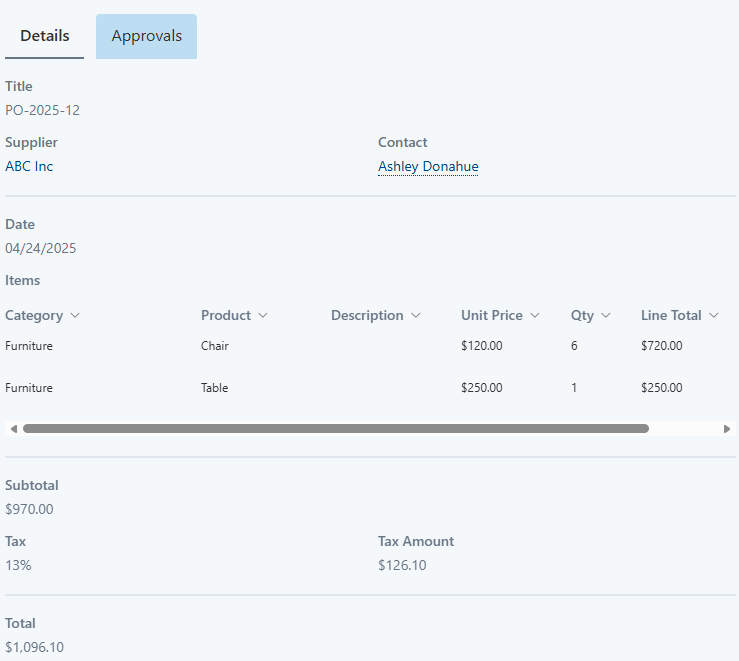
Power Apps provides templates but not complete, production-ready business solutions.
Ultimate Forms provides a full library of ready to use templates
Organizations can deploy a complete SharePoint solution in minutes using the Solution Gallery.
Examples include:
Each template is fully customizable in the browser and can be extended without code.

Conclusion
Power Apps and Power Automate are strong platforms for developers and technical power users. However, most SharePoint users need a simpler and more reliable toolset. The common issues they face include a steep learning curve, performance challenges, delegation limits, complex permissions, fragile workflows, and difficult troubleshooting.
Infowise Ultimate Forms solves these problems by keeping everything inside SharePoint with a visual, point and click experience. It allows any user to design forms, automate processes, manage permissions, build dashboards, and create complete business solutions without coding and without relying on external services.
Organizations that want to modernize their processes without complexity find Ultimate Forms to be the most practical and cost effective choice for SharePoint process automation.
Learn more about how Ultimate Forms compares to the Power Platform and what makes it such a compelling Power Platform alternative.
Frequently asked questions
Add your comment