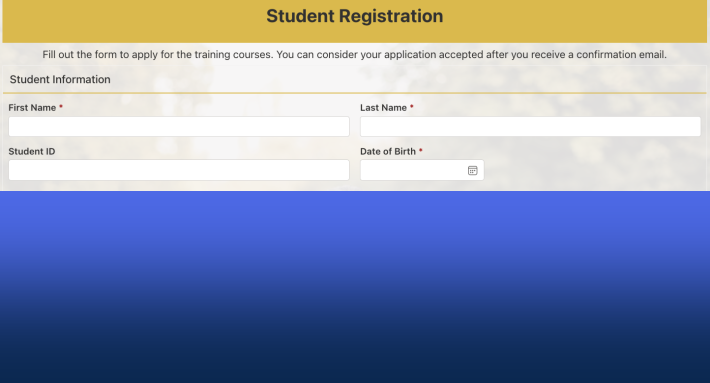
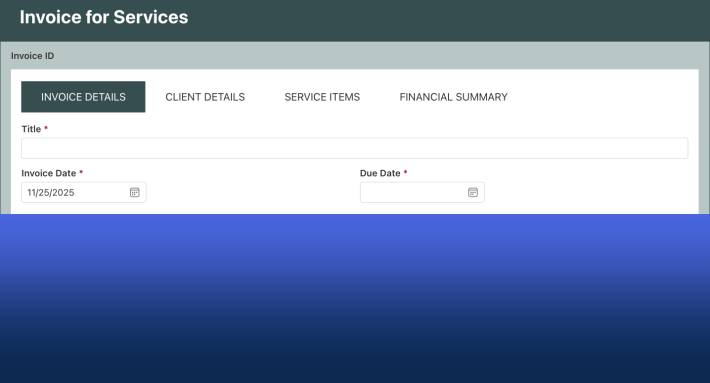
Lists are the Center of SharePoint
SharePoint lists are the heart of SharePoint. Even document libraries are actually just lists of documents. Creating new SharePoint lists is one of the most common tasks for any organization that relies on SharePoint. Using the most efficient approach can streamline processes saving time and eliminating frustration. Let's take a look at the out of the box way to create lists and then compare to the fast and efficient list creation tool available in Ultimate Forms.
The slowest way to create lists - List Settings
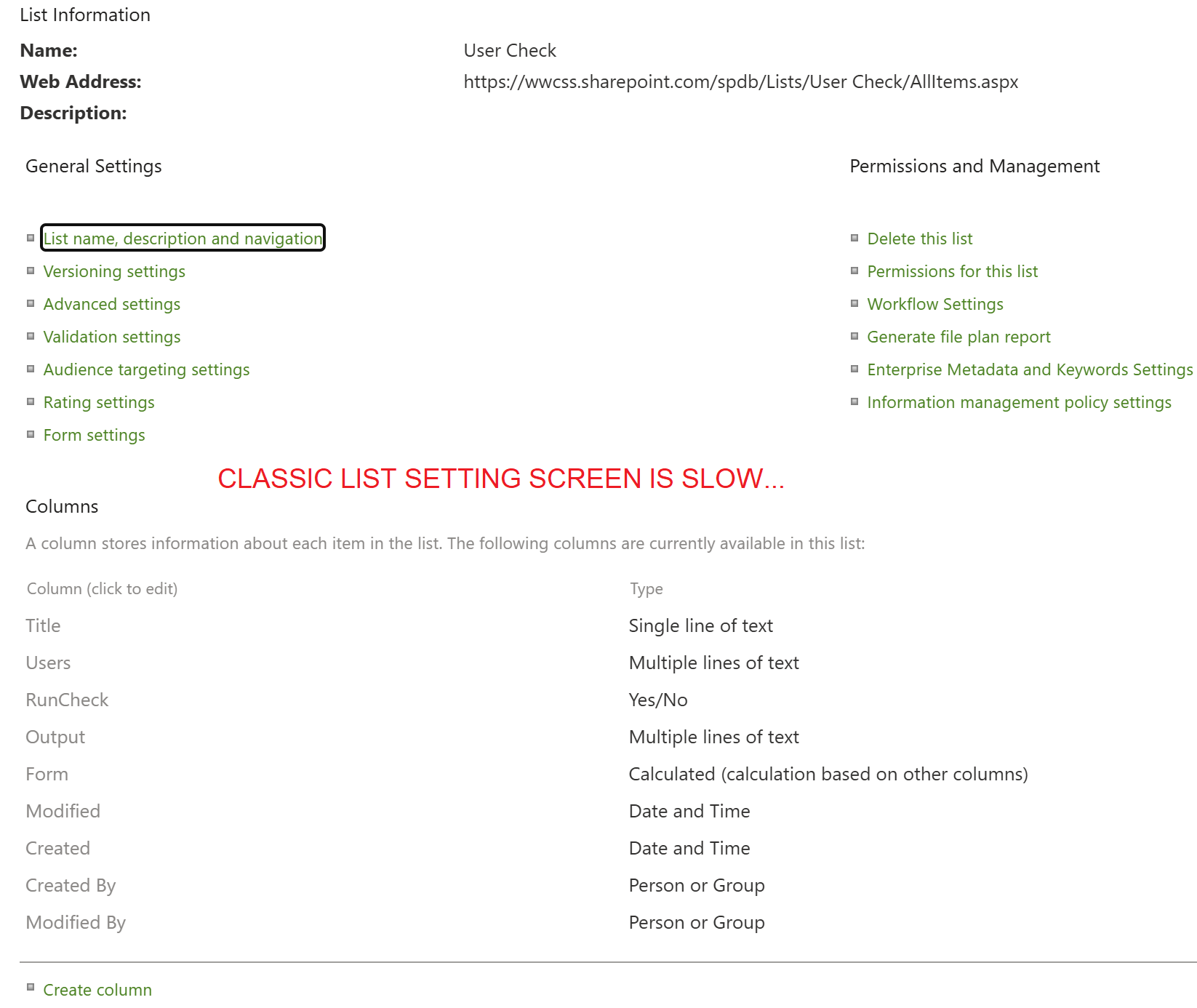
To begin, let's take a look at what is available out of the box. The oldest way to make lists (which has been around well more than 20 years) is the classic list settings screen. On this screen, you can click the Create column link to make columns one at a time. This works, but the process is quite slow. Each time you click a link or adjust a setting, you must wait for a response from the server which eats up time when you have many columns to create. Fields must be created one at a time. It's not uncommon to spend 10 to 15 minutes creating a large list when using the list settings screen. This is the oldest way to do things so naturally it the least efficient. It hasn't been improved in 20 years!
A Newer Out of the Box Approach - Creating Columns from the List View
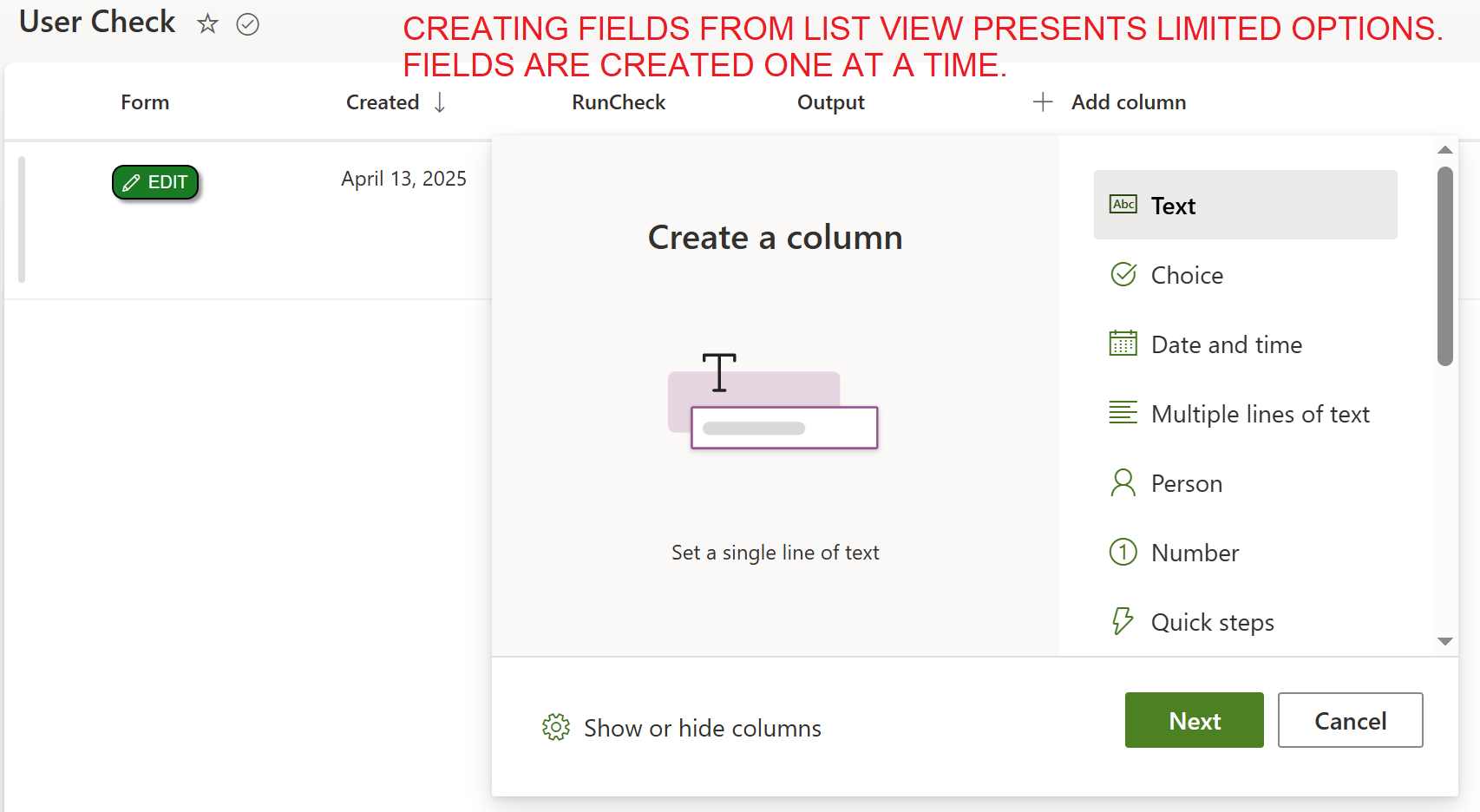
It is also possible to add columns one at a time from the modern list view. This is more fluid compared to the list settings screen, but there are drawbacks. We must still create fields one at a time working through multiple screens. Additionally, it is not possible to see all fields at one time and some field options are missing. In general this approach may be handy for adding a few fields, but not for creating all the fields in a list. We need a screen which allows us to see a complete manifest of ALL fields all at one time. The List View screen is intended for viewing records, not for comprehensive list creation.
Ultimate Forms New List Functionality for the Win
Working through the Ultimate Forms interface, we can select the New List Tool which provides many advantages over the out of the box options. When first creating a list, click New List in the command bar to begin the process. You can allow Ultimate Forms to Auto generate suggested fields for your solution. Simply describe what kind of list you are making and indicate how many columns. Once you submit, the list of fields is created for you automatically.
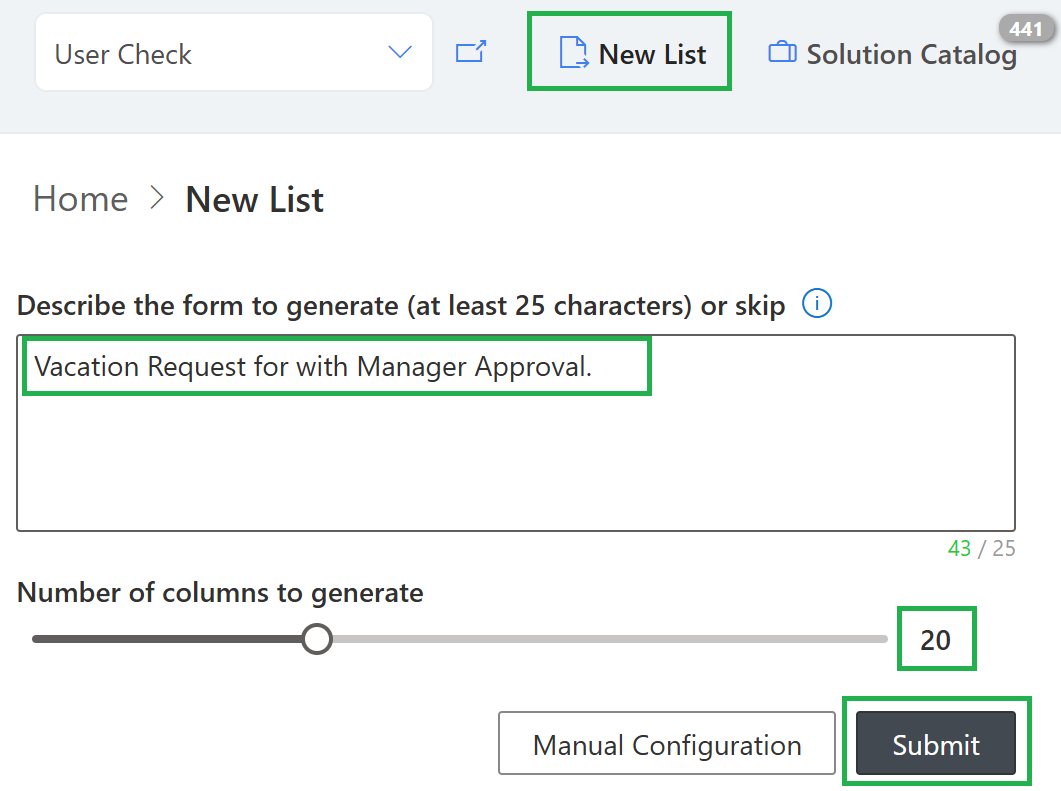
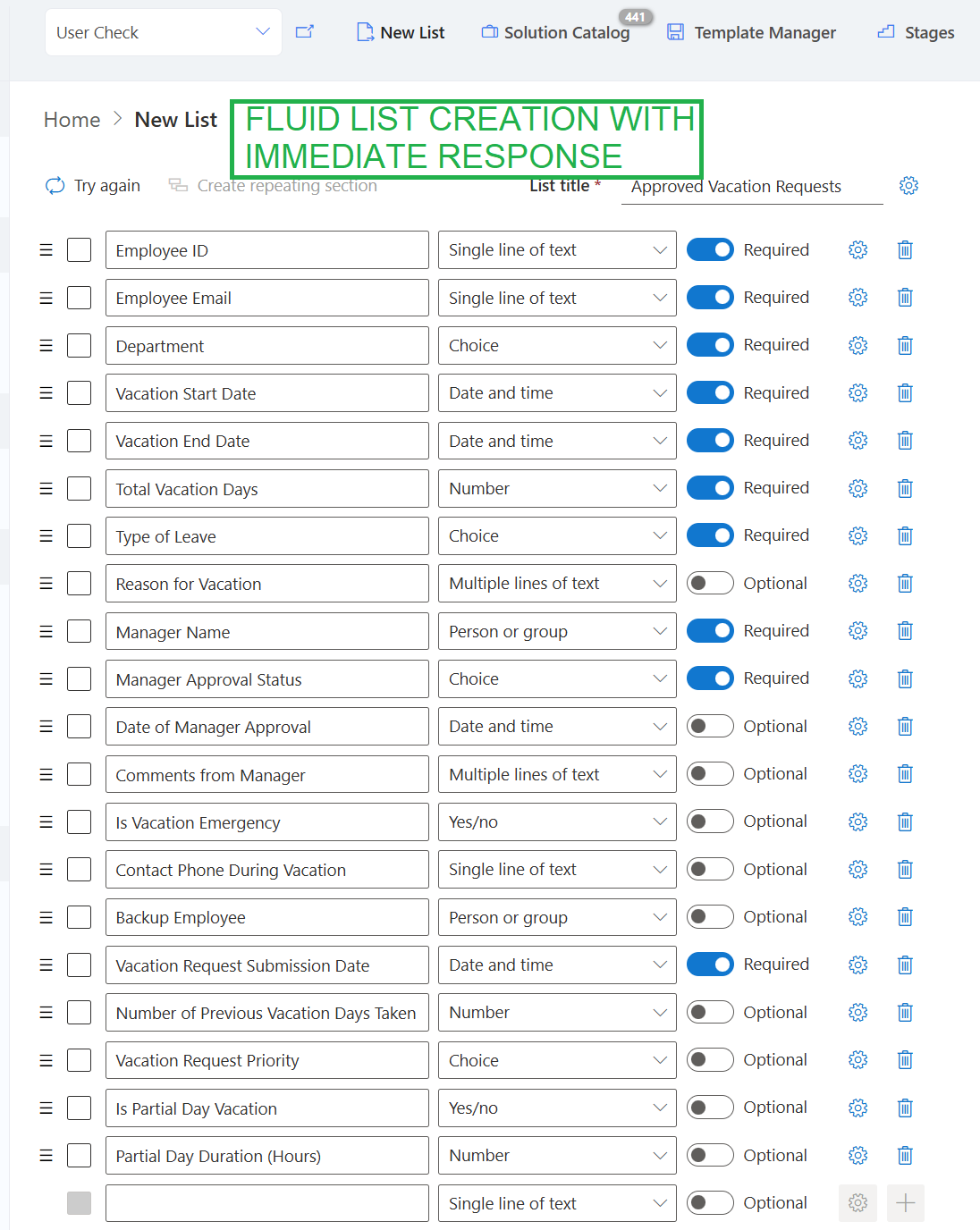
Note that you can jump directly to Manual Configuration if you wish to define the fields on your own. After this initial step, you are sent directly to the list creation screen with a full manifest of fields and options. This is the heart of the New List Tool which includes many major advantages compared to other approaches.
There are not server post backs while on this screen. All settings and entries happend immediately with no delay. Once your columns are fully defined, you can save the page and the entire list is created all at once.
The FASTEST way to Configure SharePoint Lists
Add Columns while Building your Form
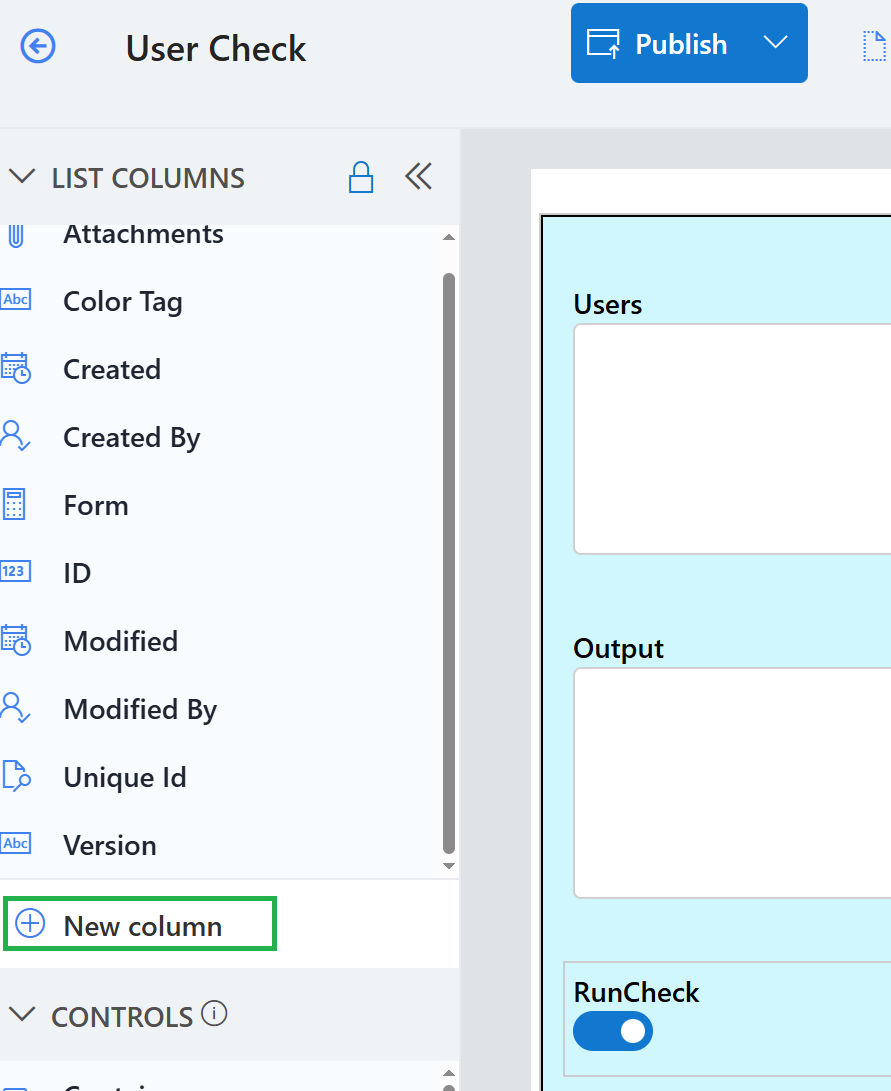
What if you forget to add a column? Another fantastic option is the ability to add columns while you are setting up your form. It is often the case, when you are building a SharePoint form that more columns need to be added. With Ultimate Forms, you can do that by simply clicking + New column on the left hand bar. It saves time by allowing you to continue building your form without exiting to add fields from another screen.
Working Smarter and Faster
In the end, while SharePoint provides multiple out-of-the-box methods for creating lists, they all share the same fundamental limitation - manual, step-by-step processes that slow you down and interrupt your workflow. Ultimate Forms removes these inefficiencies by giving you a centralized, real-time interface where all fields can be created, viewed, and modified at once, without constant page reloads. Whether you’re generating columns automatically, configuring them in bulk, or adding new ones on the fly while building your form, the process becomes dramatically faster and more intuitive. For organizations that rely heavily on SharePoint, adopting a streamlined approach like this doesn’t just save time - it fundamentally improves how solutions are built and maintained.
Add your comment