Infowise Ultimate Forms has supported both classic and modern SharePoint experiences for many years. While classic forms played an important role in earlier SharePoint deployments, Microsoft’s ongoing shift toward the modern SharePoint experience makes upgrading to modern Ultimate Forms an essential step for long-term stability, usability, and support.
This article explains what upgrading from Ultimate Forms classic forms to modern Ultimate Forms forms really means, why the upgrade matters, what changes to expect, and how to approach the transition safely.
Classic vs Modern Ultimate Forms: What’s the Difference?
Classic Ultimate Forms were designed for classic SharePoint pages and list forms. They rely on the classic rendering pipeline and behaviors that are no longer evolving.
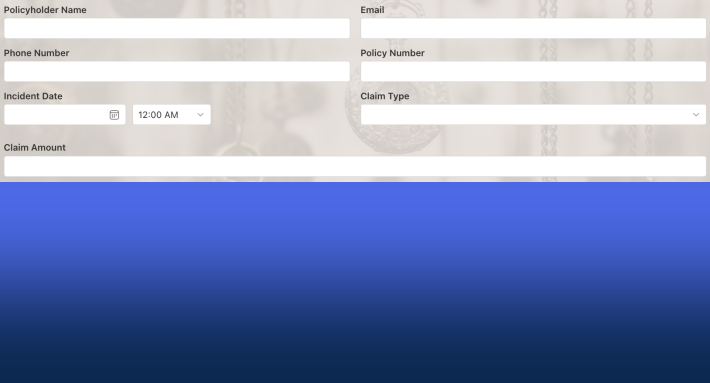
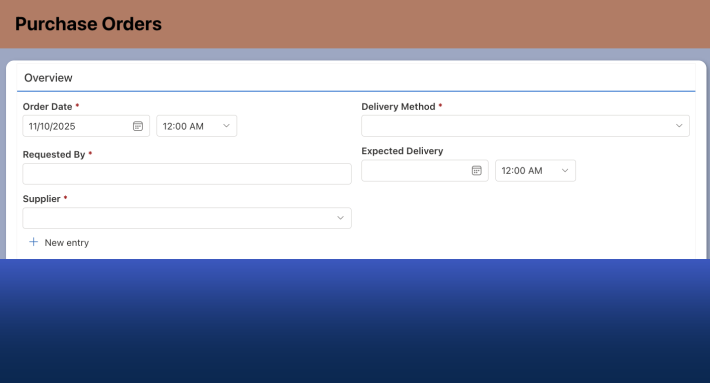
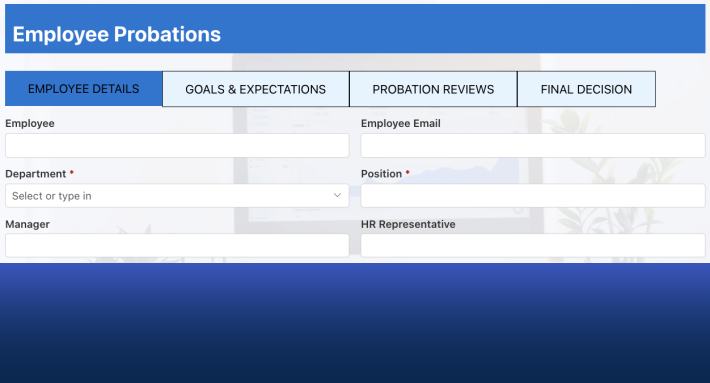
Modern Ultimate Forms are built specifically for the modern SharePoint experience and align with Microsoft’s current UI, performance, and accessibility standards.
Key differences include:
Classic Ultimate Forms
- Designed for classic SharePoint pages
- Limited mobile responsiveness
- Heavier reliance on legacy page structure
- Increasingly constrained by Microsoft updates
- No longer enhanced or developed
Modern Ultimate Forms
- Fully compatible with modern SharePoint pages
- Full layout flexibility
- Responsive and mobile-friendly
- Faster loading and rendering
- Actively enhanced with new features
Upgrading does not mean replacing Ultimate Forms. It means moving from the classic Ultimate Forms form architecture to the modern one.
Why Upgrading to Modern Ultimate Forms Matters
1. Alignment with Microsoft’s Direction
Microsoft continues to invest exclusively in the modern SharePoint experience. While classic pages still exist, they are no longer the focus of innovation.
Modern Ultimate Forms ensures your forms remain compatible with:
- Future SharePoint updates
- Modern browsers
- Mobile and tablet devices
Staying on classic forms increases long-term risk.
2. Better User Experience
Modern Ultimate Forms deliver:
- Fully flexible layout system, using nested controls, letting you build exactly what you want
- Fully responsive forms that automatically adjust and look great on any device
- Cascading, multi-level permission rules, allowing you to dynamically control permissions at any nested control level
- Conditional styling on any level
- Multiple themes for that sophisticated look and feel
- Scripting support, already built-in
- Actions integration, trigger Actions with buttons directly on the form
- External forms, allowing you to expose your lists outside of your organization in a secure fashion
- Export/import of form settings for replication between lists or environments
- Data connections, allowing you to create forms that work with external, non-SharePoint data
- Drag & drop Form Designer with all capabilities in one location, including the ability to create and modify columns
- Flexible redirect mechanism
- Payment integration
Users immediately notice the difference, especially when working on mobile or smaller screens.
3. Access to New Ultimate Forms Features
Many newer Ultimate Forms capabilities are available only in modern forms, including:
- Advanced layout controls
- Improved permission rule behavior
- Brand new controls and features, such as External Forms
- Better integration with modern SharePoint components and column types
Remaining on classic forms limits what you can do going forward.
What Happens During the Upgrade
Upgrading from classic to modern Ultimate Forms is not an automatic switch. It is a controlled transition that gives administrators flexibility.
Important points to understand:
- Classic and modern forms can coexist
- Existing data remains unchanged
- Lists do not need to be recreated
- You decide when to activate modern forms
This allows organizations to upgrade gradually instead of all at once.
Form Layout and Design Changes
Classic and modern forms use different layout engines. As a result, layouts may not look identical after the upgrade.
What typically needs review:
- Section and tab structure
- Column placement
- Custom styling
- Screen spacing and alignment
In most cases, this is an opportunity to improve usability rather than simply replicate the old layout.
Business Logic and Rules
Permissions, validations and rules are fully supported in modern Ultimate Forms, but older configurations may need adjustment.
During the upgrade, review:
- Permission rules
- Validation logic
- Calculated values
- Status changes
The logic itself usually remains the same, but modern forms offer clearer configuration and more predictable execution.
Permissions and Security Remain the Same
Upgrading to modern Ultimate Forms does not change:
- SharePoint list permissions
- Role-based access
- Item-level security
All security continues to be enforced by SharePoint itself, which means no additional configuration is required.
Recommended Upgrade Approach
To minimize disruption, Infowise recommends a phased approach.
Step 1: Identify Active Classic Forms
Start with forms that are still actively used. Older or unused forms may not need upgrading immediately. Use the Inventory page in Ultimate Forms to identify lists still using Classic forms.
Step 2: Convert the Form
You can convert an existing Classic form by simply entering Form Designer from the list. Form Designer will recognize the classic form and offer to upgrade it automatically. The form is not automatically deployed upon upgrade. Form Designer allows you to make changes and enhancements before hitting Publish.
Step 3: Enable Modern Forms in a Test Environment
Review layout, rules, and printing behavior before rolling out changes broadly.
Step 4: Refine Layout and UX
Take advantage of modern form capabilities to simplify and improve the user experience.
Step 5: Roll Out Gradually
Upgrade forms list by list or process by process rather than all at once. Start with simpler lists (fewer columns and rules) first to become proficient at the process.
Common Upgrade Questions
Do I need to rebuild my forms from scratch?
No. Most (if not all) configurations carry over, though layout and styling may require adjustments.
Can I switch back if needed?
Yes. Classic and modern forms can coexist, allowing controlled migration.
Will users need training?
Minimal training is usually required. Modern forms are more intuitive and familiar to users.
Conclusion
Upgrading from Ultimate Forms classic forms to modern Ultimate Forms is a necessary step to stay aligned with SharePoint’s future and continue benefiting from new Ultimate Forms capabilities.
The upgrade improves performance, usability, and maintainability while preserving your existing data, logic, and security. With a phased and deliberate approach, organizations can modernize their forms without disruption and position themselves for long-term success.
Add your comment