When an approver is unavailable, SharePoint approvals keep moving through three mechanisms in Ultimate Forms: delegation to a substitute, escalation that copies a backup on reminders, and approve-on-behalf rights, all logged.
Every approval workflow eventually runs into the same problem. The person who needs to approve something is on leave, at a conference, or simply unreachable for a few days. The request sits. The process stalls. Someone emails the approver's manager manually, who was not set up to receive approvals, and the whole thing gets resolved through an informal workaround that leaves no record.
This is not an edge case. It is a predictable, recurring failure point in any approval process that assumes a single named approver will always be available. And the way most SharePoint workflow tools handle it (if they handle it at all) is messy. It requires the developer to reconfigure the workflow, build a delegation flow in Power Automate, or manage a separate escalation process.
The Approval control in Ultimate Forms addresses this through two approaches. Both can be configured in minutes by anyone who manages the list, with no technical background required. One gives the approver themselves the ability to hand off the task. The other removes the dependency on a single person from the outset.
The Problem with Single-Approver Workflows
When an approval is assigned to one named person, the process is only as available as that person. In practice, this means:
- A purchase request submitted on Friday afternoon waits until the approving manager returns from leave on Thursday.
- A leave request sits unanswered while the person responsible for approving it is attending the same conference as the requester.
- A time-sensitive contract approval delays a deal because the single approver named in the workflow has no way to hand the task to someone who is available.
The natural response might be for the administrator to reconfigure the approver column, run a test, and revert the change when the original approver returns. A manual intervention that introduces risk of misconfiguration and leaves no formal record of who approved what and under what circumstances.
Both problems are solved by designing the approval process to account for approver unavailability from the start, or by giving approvers a formal mechanism to hand off tasks when they cannot act on them.
Option 1: Manual Delegation
The first approach gives the approver the ability to delegate the approval task to another user directly from within the form — without involving the administrator at all.
How it works
When an approver opens a form with an active approval pending their action, the Approval control displays a Delegate button alongside the standard Approve and Reject options. The approver clicks Delegate, selects the user they want to hand the task to, and confirms. The selected user receives an automated notification informing them that the approval has been assigned to them.
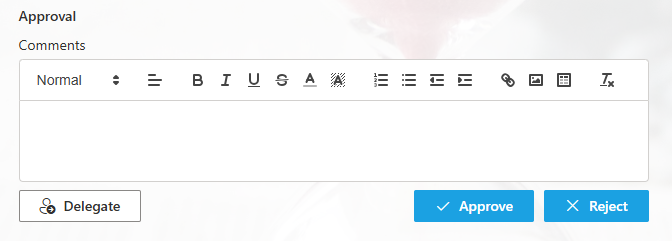
From that point, the delegated user sees the full record — all the submitted data, the approval history, and the current status — and can approve or reject the item exactly as the original approver would have. The delegation is recorded in the approval log alongside the timestamp and the name of the user who initiated it, creating a complete audit trail of how the approval reached the person who ultimately acted on it.

Why this works for non-technical users
The entire delegation process takes three clicks. The approver does not need to contact the administrator, submit a support request, or explain the situation to anyone. They open the form, click Delegate, choose a person, submits, and the system handles the rest — notification, access, logging.
This is particularly valuable in organizations where approvers are managers or senior staff who are comfortable using SharePoint but have no involvement in configuring it. The tool gives them a self-service mechanism for an entirely predictable situation, without requiring IT to be involved in a routine operational decision.
When to use delegation
Delegation is the right approach when the approver unavailability is temporary and specific. A planned absence, a conference trip, a period of high workload where the regular approver cannot respond in a reasonable timeframe. The approver knows they cannot act, they know who should act instead, and they can make that decision themselves without disrupting the underlying workflow configuration.
It is also the right approach when the backup approver varies by situation. The manager may delegate to a senior team member for low-value requests and to another manager for high-value ones. Because the delegating user chooses who to delegate to each time, this flexibility is built into the mechanism without requiring any additional configuration.
Option 2: Group-Based Approval
The second approach eliminates the single-approver dependency altogether by assigning a SharePoint group as the approver rather than an individual user.
How it works
Instead of naming a specific user as the approver for a given stage, the Approval control is configured with a SharePoint group. When an approval task is generated, all members of the group receive notification and can see the pending approval. Only one member needs to act — approval by any member of the group is sufficient to advance the workflow. If one member approves, the stage is complete regardless of whether the others have acted.

A common configuration is to place the primary approver and their designated backup in the same group. The manager and the assistant manager, for example, are both members of the group. Both receive the approval notification when a request comes in. In normal operation, the manager reviews and approves — the assistant manager sees the notification and knows the manager is handling it. When the manager is unavailable, the assistant manager simply acts on the notification instead. No delegation required, no process reconfiguration, no waiting for IT.
Why this works for non-technical users
The configuration is straightforward. Where a workflow previously named a specific user as the approver, a group name is entered instead. The group itself is managed through standard SharePoint group membership — adding the assistant manager to the group, removing them when circumstances change, updating membership for a team restructure — all handled through the same interface used to manage any other SharePoint group.
There is no workflow to rebuild, no flow to modify, and no action required when the primary approver is unavailable. The backup is already in place. The system already knows they can act. The process continues without interruption.
When to use group-based approval
Group-based approval is the right approach when there is always a defined set of people who can approve a given type of request — a primary approver and one or more backups whose authority is standing rather than situational.
It is particularly well suited to processes with high volume or time sensitivity, where a delegation step would introduce unnecessary friction. If approvals need to happen within hours, waiting for the primary approver to realize they need to delegate adds delay that the group approach eliminates entirely.
It is also appropriate for any team where cover arrangements are already established. If the organization already has a practice of the assistant manager covering the manager's responsibilities during absences, the group-based approval simply formalizes that arrangement inside the approval workflow — without requiring any new process or new behavior.
Choosing the Right Approach
Both options can be used independently or in combination, depending on the process and the organizational structure.
Group-based approval is the better default for most recurring approval processes. It requires no action from the approver when they are unavailable, no notification delay, and no administrator involvement. The backup mechanism is always active.
Delegation is the better fit for situations where the backup is not always the same person, where the approver wants to retain control over who acts on their behalf, or where the process does not warrant a standing group arrangement. It also provides a useful safety net even in group-based workflows — if for some reason neither the primary nor the backup in the group can act, the primary can delegate to a third party directly from the form.
Neither approach requires a developer. Neither requires building a flow in Power Automate. Neither requires the administrator to reconfigure anything when an approver is unavailable. Both are configured once and operate automatically from that point forward, leaving a complete audit trail of every decision and every delegation in the SharePoint record where the process lives.
Implementation in Practice
Setting up delegation requires enabling the Delegate option in the Approval control configuration — a single toggle in the approval stage settings. No additional configuration is needed; the mechanism is built in.
Setting up group-based approval requires replacing the individual user reference in the approver configuration with a SharePoint group name and ensuring the appropriate members are in the group. A process that previously had a named user as the approver can be updated to use a group in under five minutes.
Both configurations are available to any administrator who can access the Ultimate Forms settings for the list. No IT ticket. No developer involvement. No delay between identifying the need and implementing the solution.
Add your comment