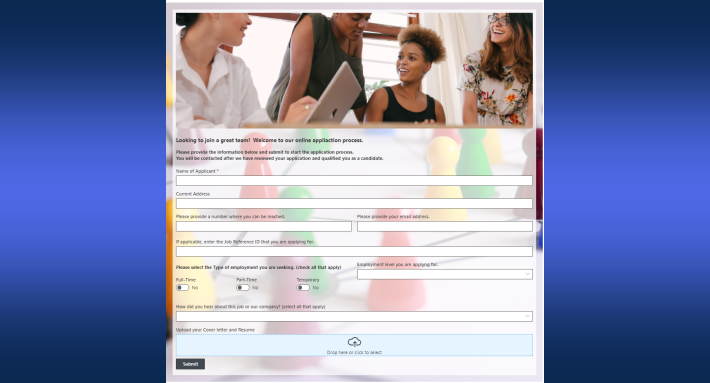
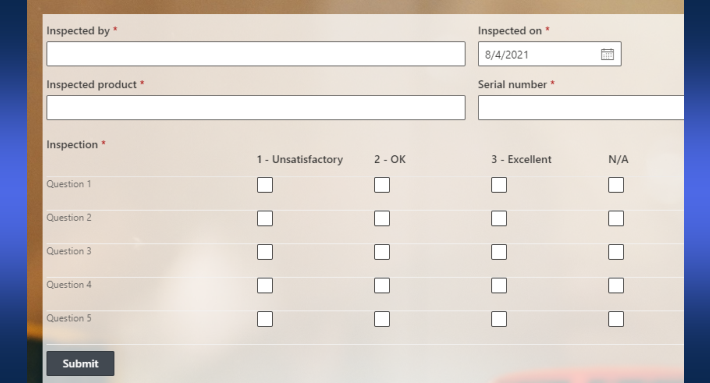
The buttons at the top of a SharePoint form are configurable in Ultimate Forms: show the ones the process needs, hide the rest, rename any of them, and localize the labels per language. The adjustment takes minutes and applies to every user of the form, which is exactly its character, not a permissions instrument but a vocabulary one. "Save" becomes "Submit Request," Print disappears from a form that should never be printed, and a multilingual workforce reads the same toolbar in their own words. This guide covers what toolbar configuration changes, the renaming craft that makes it worthwhile, and where it sits among the form design toolkit's other controls.
The toolbar speaks first
Every form opens the same way: the user's eye lands on the commands before the columns. Save, Cancel, Print, and whatever else the form carries are the first words the form says, and they frame everything below. When the words are wrong, generic where the process is specific, plural where the moment wants one obvious action, the form starts the interaction with a small confusion that compounds down the page.
Two failure modes recur. The first is clutter: buttons that do not apply to this process, sitting in the most prominent position on the form, each one a chance to click wrong. A purchase request that exposes Save and New invites duplicate submissions; a compliance form with a visible Print button invites printed copies the process forbids. The second is vocabulary: "Save" is honest but mute. It does not say whether the entry is submitted or drafted, final or editable, and the user who cannot tell asks, guesses, or emails. The UX principles put it as a rule: the form should answer questions before users ask them, and the toolbar is where the first questions live.
Toolbar configuration addresses both at the source. The designer chooses which buttons the form offers and what each one says, so the toolbar stops being an inherited default and becomes a designed sentence: here is what you can do, in the words of your process.
What you can configure
The configuration covers three things, each small, each compounding.
Visibility. Any toolbar button can be shown or hidden. The working principle is subtraction: a form needs the actions its process uses, and every other button is a cost without a benefit. Most process forms end up with two or three.
Labels. Any button can be renamed. This is where the feature earns its keep, because the rename is free documentation: "Submit Request," "Save Draft," "Record Findings," "Update Project" each explain the consequence in the space where the click happens, and a label that states the consequence replaces a training slide.
Localization. Labels can be translated, so the same form presents its commands in each user's language. For international deployments this closes the last gap that form-level translation leaves: a localized form with English-only buttons still makes every user pause at the decisive moment. With localized labels, the entire interaction, columns, messages, and commands, speaks one language to each person.
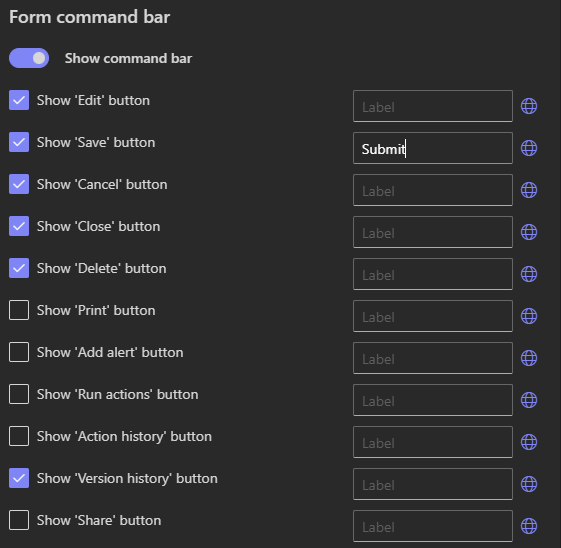
One boundary keeps expectations straight: toolbar settings apply to all users of the form equally. They shape the form's vocabulary, not its security. When different roles should see different actions, that is the job of permission rules on the form's elements, and when the form needs actions of its own beyond the standard set, custom action buttons in the Button Bar carry them. The three mechanisms layer cleanly: the toolbar defines the shared vocabulary, permissions decide who sees what, and action buttons add what the process invents.
The renaming craft
Since labels are the heart of the feature, the craft deserves its own rules, and three cover most of it.
Name the consequence, not the gesture. "Save" describes the click; "Submit Request" describes what happens to the request. Users act confidently when the label tells them what state the world will be in afterward, which is the same principle that makes inbox action buttons trustworthy.
Distinguish the siblings. The classic confusion pair is save-as-draft versus save-as-final. If the process has both, the labels must separate them unmistakably: "Save Draft" and "Submit for Approval" cannot be mistaken for each other, while "Save" and "OK" can. If the process has only one, hide the other entirely rather than labeling around it.
Use the process's own words. Every organization has a working vocabulary, requests are "lodged," inspections are "recorded," entries are "finalized", and the toolbar should speak it. The form that uses the team's own verbs reads as built for the team, which it was.
A quick test for any label: cover the rest of the form and read the toolbar alone. If a new user could not say what clicking each button does to the record, the labels are not finished. Most pass after one round of renaming, and the round takes five minutes.
Where the configuration pays fastest
Process forms with a submission moment. Purchase requests, approvals, applications: show "Submit Request" and "Cancel," hide Save and New to prevent accidental duplicates, and rename the draft path explicitly if one exists. The toolbar then enforces the process's shape, one request, deliberately submitted, which is half of what the approval machinery downstream depends on.
High-volume entry. Help desks and service teams work the same form hundreds of times a day, and every needless button is friction multiplied by volume. A minimal toolbar with exact labels speeds entry and survives staff rotation, because the form itself carries the instructions.
Field and compliance work. Inspection and audit forms want the fewest distractions and the most precise verbs: "Save Inspection," "Record Findings." Hiding Print until results are validated keeps premature copies out of circulation, and the uniform toolbar means inspectors and supervisors share one interface, one vocabulary, one procedure.
External audiences. Contractors, vendors, and applicants on external forms have never seen SharePoint and never should. For them the toolbar is the whole interface contract: one clear, plainly labeled action, in their language, with the internal machinery invisible. The same subtraction that helps employees is simply mandatory for guests.
HR and onboarding. New hires meet these forms on their first day, when confidence is lowest. "Submit Information" and "Move to Next Step" make the forms feel guided rather than administrative, which is a small kindness with a measurable return in completed-first-attempt rates.
A governance habit, not just a design one
Because toolbar settings are uniform, they standardize behavior the way style guides standardize writing. When every department's request forms carry the same two buttons with the same labels, users move between processes without relearning, auditors find predictable actions behind predictable names, and the odd behaviors that come from improvised saving, drafts submitted, finals re-edited, duplicates spawned from Save and New, fall away. Write the house toolbar conventions down once, next to the house widths and shared styles: which buttons a submission form shows, what the draft path is called, which languages labels carry. The review question for each new form becomes "does the toolbar follow the conventions?", and the answer takes ten seconds to check.
The configuration itself takes minutes in Form Designer, which makes it one of the highest-leverage small settings on the platform: the first thing every user reads on every form, made deliberate for the cost of a coffee break.
Frequently asked questions
Add your comment