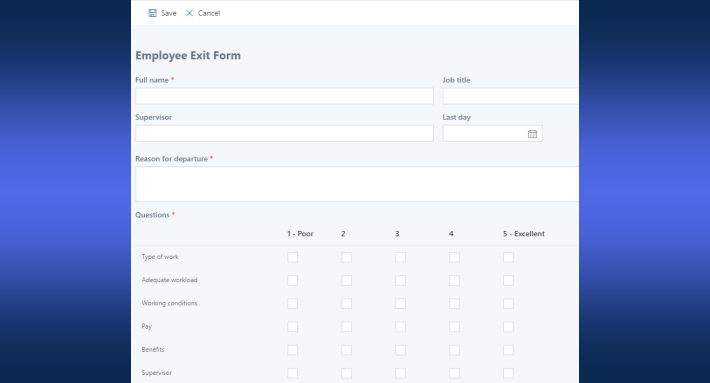
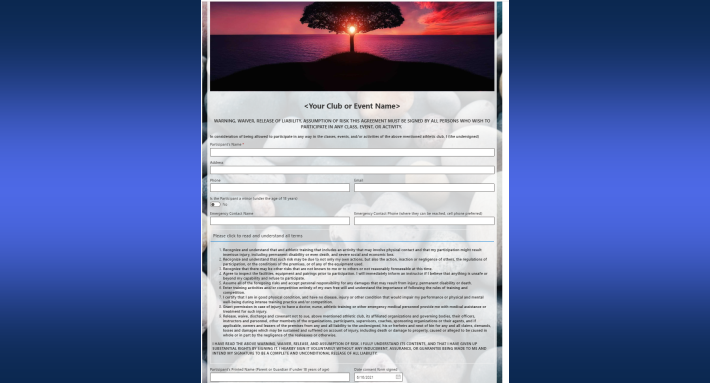
SharePoint connects to SQL databases, Salesforce, Exchange, Dataverse, and REST APIs through Ultimate Forms data integration: live lookups in forms, automatic updates back, and no middleware to build.
SharePoint is where the work gets recorded. The data that drives that work, however, often lives somewhere else.
- In a SQL database maintained by a different team
- In a Salesforce CRM instance managed by sales
- In an Exchange mailbox receiving orders from suppliers
- In a REST API exposed by a third-party service
Getting these systems to talk to SharePoint has traditionally meant custom integration code, middleware platforms, or a developer with knowledge of multiple systems.
Ultimate Forms takes a different approach. Rather than requiring integration to be built separately from the forms and processes it supports, data connections are configured directly inside the same interface used to design forms, views, alerts, and actions. The result is that a SharePoint administrator — without writing a line of code — can pull live data from external systems, push updates back out, and build processes that span multiple platforms as naturally as if all the data lived in a single SharePoint list.
The Data Provider Framework
Ultimate Forms supports a range of data providers, each corresponding to a common enterprise data source. Some of the most common ones are:
- Databases — for organizational databases, ERP systems, and any data store built on SQL
- REST API — for any modern web service exposing a standard HTTP endpoint
- Salesforce — for CRM data including contacts, accounts, opportunities, and custom objects
- Dataverse — modern business applications
- Exchange / Microsoft 365 Mail — for email-based data capture and communication workflows
- SMS — for incoming message import and outbound text message notifications as part of automated workflows
- SharePoint/OneDrive cross-site — for lookups and actions targeting lists on different sites or site collections within the same tenant or across tenants
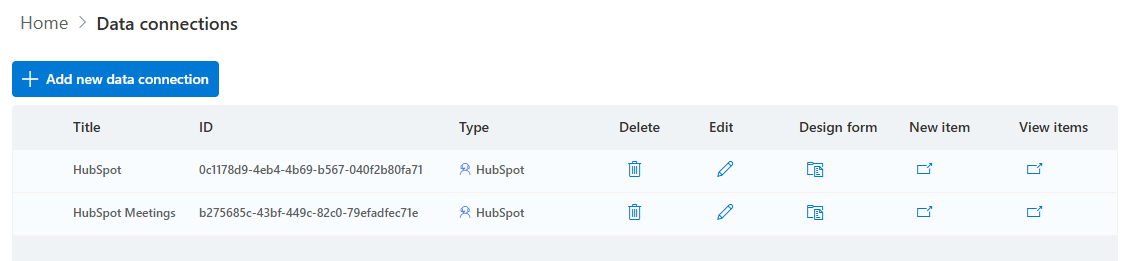
Each provider is configured once and can then be referenced across multiple features — forms, views, actions, import, and print — without reconfiguring the connection each time.
Where Data Connections Are Used
Forms and External Lookups
The most immediate application of a data connection is in the form itself. Using data connection you can add or edit items in an external applications from forms located directly in SharePoint pages. The forms look and behave like regular SharePoint forms, making the integration transparent to users.
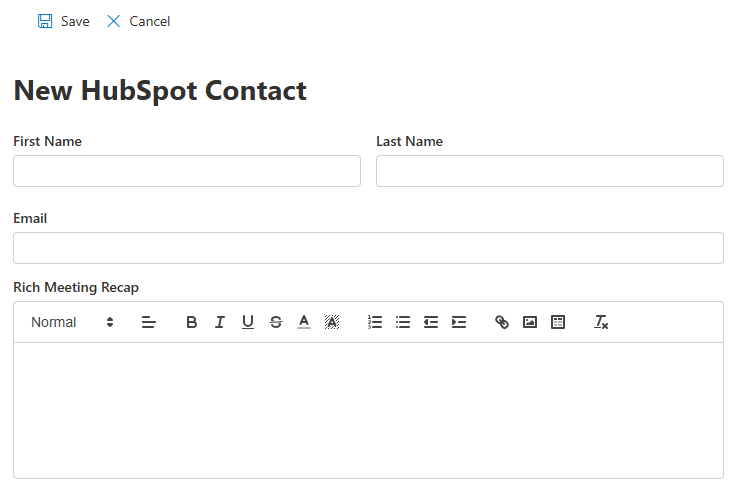
Another often utilized option is to use data connection as data sources for external lookup columns. These columns are added to regular SharePoint lists, but draw their values from external data connections.
Consider a procurement form where the employee selects a supplier from a dropdown. The supplier database lives in an ERP system, not in SharePoint. Rather than maintaining a duplicate supplier list that falls out of sync, the form's lookup connects directly to the SQL table — presenting only active, current suppliers, in real time, from the authoritative source.
The same pattern applies to client lookups from Salesforce, product catalogs from a REST API, or employee directories from an Exchange-connected address book. The form shows live data. The user selects from accurate options. No synchronization job required.
Views
Data connections can drive standalone views that display external data directly on a SharePoint page. The view renders data pulled from a SQL table, a REST API response, or a Salesforce object, presented inside a SharePoint page as if it were native list data — with no SharePoint list required.
A finance team can have a SharePoint page showing live accounts payable data from their ERP database. A sales team can view their current Salesforce pipeline directly on a SharePoint intranet page. An operations manager can see inventory levels from a SQL warehouse system without leaving SharePoint.
The data lives in the external system. It is read directly from the source and displayed in place — live, current, and requiring no data duplication or parallel SharePoint list to maintain.
Actions
Ultimate Forms Actions handle the automation layer of a process — what happens when an item is created, updated, or reaches a certain status. With data connections, Actions can write to external systems as part of the same workflow that updates the SharePoint record.
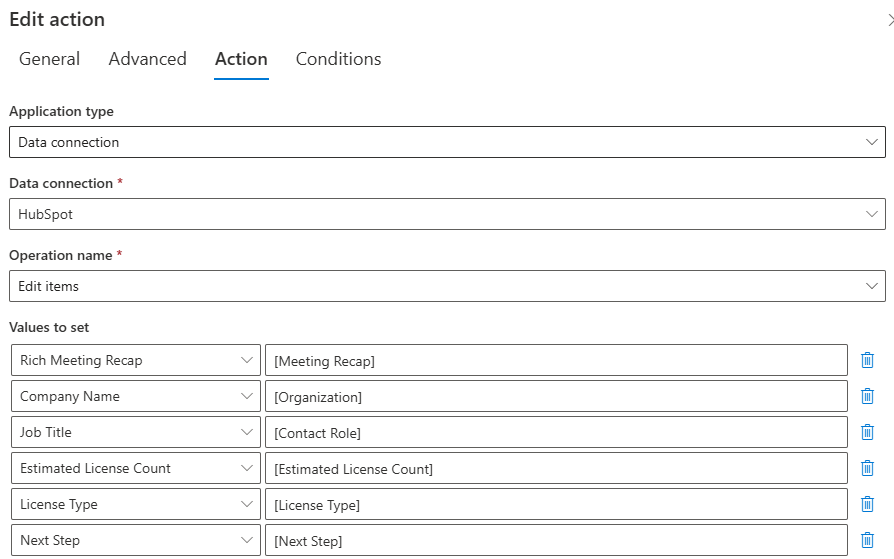
When a purchase request is approved, an Action can insert a record into a SQL procurement database, send a structured REST API call to a vendor portal, and trigger an SMS notification to the assigned buyer — all as part of the same approval completion event. The SharePoint form is the interface. The data connections make it an integrated process.
This is particularly valuable for organizations that operate SharePoint alongside other enterprise systems and need updates to flow between them without manual re-entry. A status change in SharePoint triggers the equivalent update in the connected system, automatically.
Import
The Import feature uses data providers to capture information from external sources and create or update SharePoint list items automatically. The most common implementation is email-based import. Incoming emails from suppliers, customers, or automated systems are parsed and inserted into a SharePoint list. And it happens within seconds of arrival, using the Immediate polling schedule introduced in early 2026.
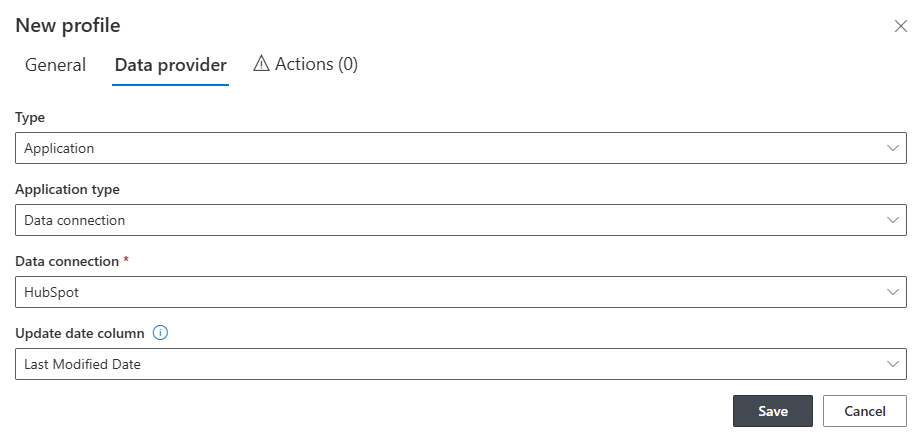
Beyond email, Import can draw from SQL queries, REST API responses, text messages, and Salesforce objects — capturing scheduled data extracts from external systems and maintaining corresponding SharePoint records without manual intervention. An organization that receives daily inventory updates from a supplier via a REST feed can have those updates automatically reflected in a SharePoint inventory list, triggering alerts when stock falls below threshold and creating purchase request items automatically.
Data provider connections extend to the print layer as well. Print templates configured in Ultimate Forms can pull data directly from connected external sources — SQL databases, REST APIs, Salesforce, or Exchange — and render it within the output document at the moment of printing.
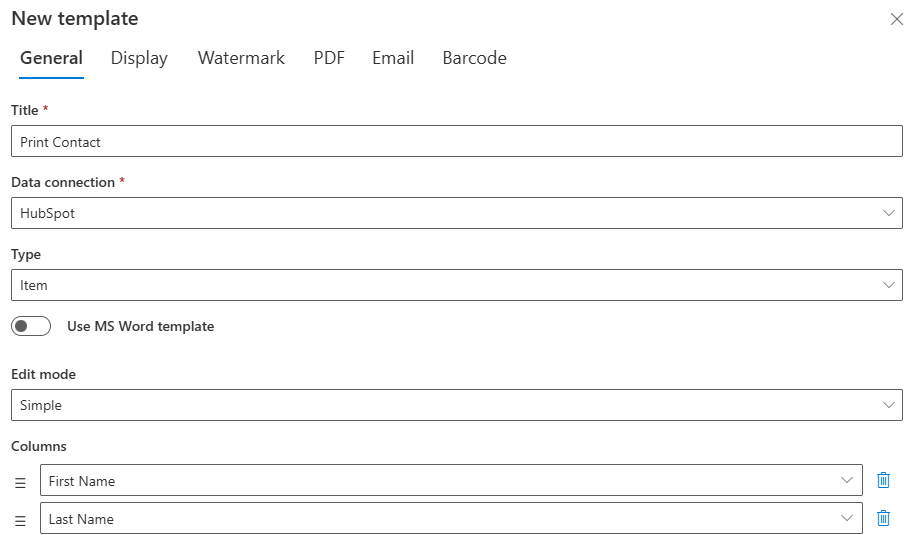
A formatted PDF can include current pricing read directly from a SQL product catalog, client account details pulled live from Salesforce, or contract terms retrieved from an Exchange-connected template — all assembled into a single document from a single print action, without any intermediate copy or synchronization step.
The data comes from the external system at the moment the document is generated. Nothing needs to be stored or duplicated anywhere else for it to appear in the output.
Configuration Without Code
What distinguishes the Ultimate Forms data provider framework from traditional integration approaches is the configuration model. Each provider is set up through a visual interface: a connection string or URL, the appropriate authentication credentials, and a query or endpoint definition. No transformation scripts, no middleware configuration, no deployment pipeline.
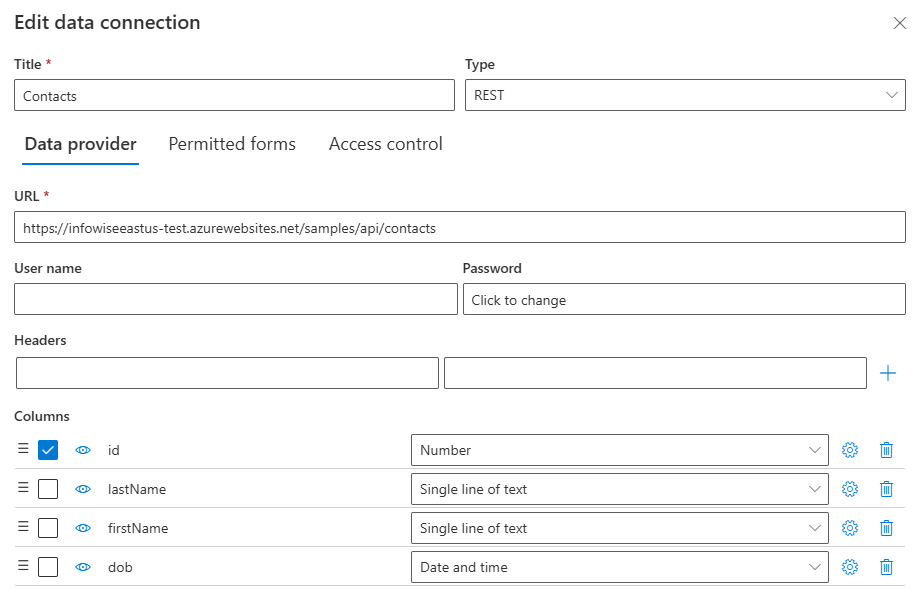
A SQL data provider is configured with a connection string and table name. The result set columns become the available fields for the lookup, view, action, or import configuration. A REST API provider is configured with the endpoint URL, the HTTP method, any required headers or authentication tokens, and property to column mappings. The configuration is tested and validated in the same interface where it is defined.
For organizations that have previously treated SharePoint integration as a development project — something that requires a developer, a testing environment, and a change management process — this configuration model represents a meaningful shift. The SharePoint administrator who owns the process configures the connection, tests it against live data, and deploys it. When the external system changes — a new column in the SQL table, a new field in the Salesforce object — the connection is updated in the same interface. The process keeps working.
Real Business Scenarios
HR onboarding — A new hire form pulls the manager's name and department details from a REST API connected to the HR system. On submission, an action creates the user's SharePoint profile, triggers an IT provisioning request via REST, and sends an SMS to the hiring manager confirming the start date.
Supply chain — Incoming supplier order confirmations are captured from Exchange via Import and inserted into a SharePoint order tracking list. An action then updates the corresponding purchase order status in the SQL ERP database and sends a confirmation SMS to the warehouse team.
Customer service — A support ticket form shows the customer's account status, recent purchase history, and open cases pulled live from Salesforce. When the ticket is resolved, an action updates the Salesforce case, logs the resolution in a SQL reporting database, and sends an automated email to the customer via Exchange.
Financial reporting — A budget tracking view pulls actual spend figures from a SQL financial system alongside the budgeted figures stored in SharePoint, giving finance teams a live comparison without an Excel export. A print action generates a formatted monthly report combining both sources into a single PDF.
The Integration Layer That Belongs Inside SharePoint
The case for data connections in Ultimate Forms is not simply that they make integration easier — though they do. It is that they make integration accessible to the people who design and maintain the processes that need it.
SharePoint administrators understand the business process. They understand what data is needed, where it should come from, and what should happen when it changes. Data provider connections give them the tools to act on that understanding directly — without handing the requirement to a development team, without waiting for an integration project to be scoped and scheduled, and without the ongoing maintenance overhead of a separately managed integration layer.
When data connections live inside the same platform as the form, the view, the alert, and the action, the process is whole. It can be understood, modified, and maintained by the people who own it. That is what makes Ultimate Forms data providers more than a technical capability — it is what makes them operationally useful.
Full documentation for data provider configuration is available at infowisesolutions.com/documentation. A free 30-day trial is available for all supported SharePoint deployments. SharePoint On premises only supports a subset of data connection functionality.
Add your comment