Forms
Actions
Alerts
Associated Items
Connected Lookup
Print
Import
Signature
External Data Lookup
Calendar
Rollups
Charts
Counters
List Search
Filters
Item IDs
Color Choice
User Property
Document Link
Voting
Stay in the know
Get helpful videos
Search large SharePoint lists in seconds: multi-condition queries, dropdown value pickers, saved searches, and Excel export. No code, no lost items.

Ultimate Forms: List Search
adds real search to SharePoint lists and document libraries: a simple box for quick lookups and an advanced interface that chains up to five conditions with AND and OR logic. Search inputs adapt to each column type, so choice and lookup columns offer dropdowns of actual values and date columns show a date picker. Results arrive in a working grid with full context menus, sortable, pageable, exportable to Excel, and queries can be saved and shared. Configured in the browser, no code.
When a list passes a few hundred items, scrolling stops being a strategy. This is what replaces it.
Big lists, tiny search box
Native list search is one keyword box: no "status is Open AND department is Finance AND created before March," no dropdown of valid values, no way to save the query you run every Monday. So users compensate with view sprawl, endless scrolling, or the classic move: export everything to Excel just to filter it there, on data that is stale the moment it downloads.List Search brings the query to the data. Ask the precise question in SharePoint, get live results, and act on them where they stand. It is the capability behind advanced search in HR and records solutions, where finding the one right item among thousands is the whole job.
What List Search can do
Ask precise questions without a query language
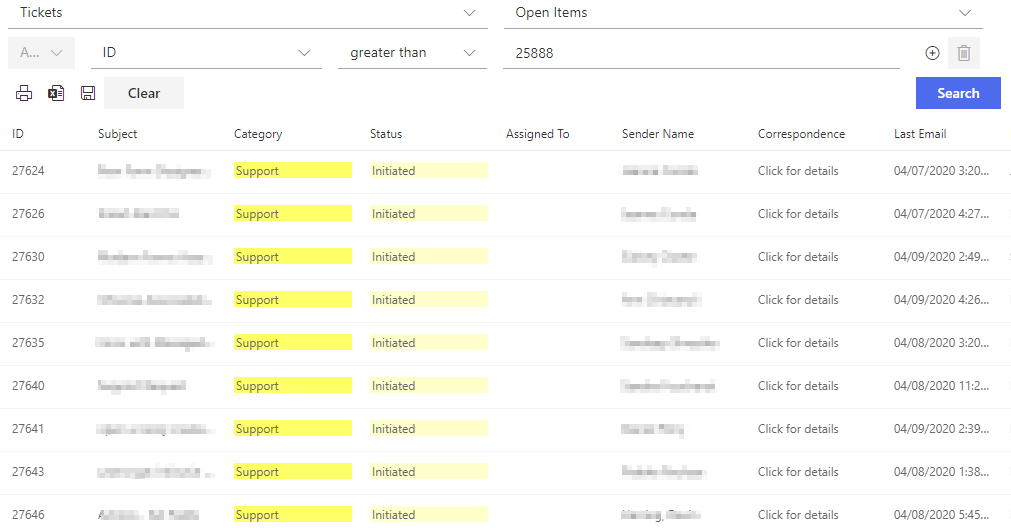
Chain up to five conditions with AND and OR. All searchable columns are presented on the fly, and every input matches its column type: pick a value from a dropdown for choice and lookup columns, pick a day from a calendar for dates, instead of guessing spellings into a text box. Precision without syntax means anyone on the team can query like they mean it.Get results you can work with
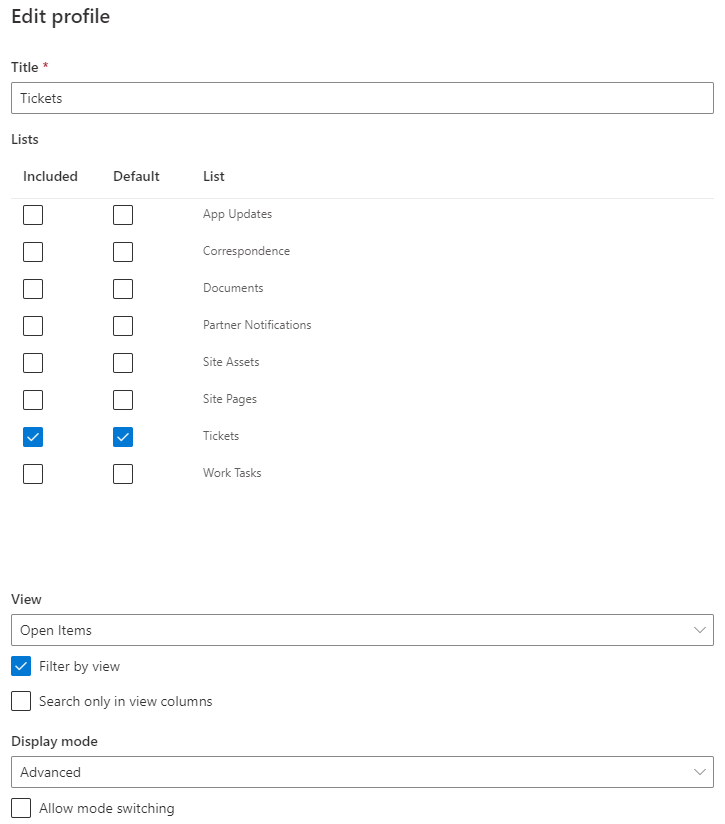
Results appear in a grid with the full SharePoint context menu on every item: open, edit, and manage matches without navigating away. Sort in both directions, page through large result sets, display results in a view you select, and optionally filter results by view or search only a view's columns, so the search respects the same definitions your lists already use.Save the question, share the answer
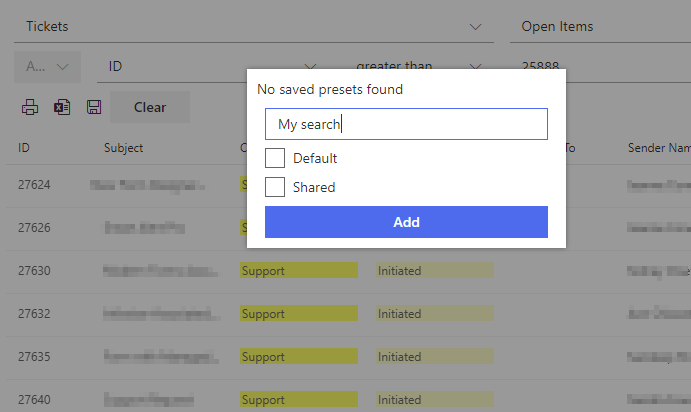
Save query conditions and reuse them, and let administrators publish shared presets for the whole team, so "this month's unassigned high-priority tickets" becomes a one-click search for everyone rather than tribal knowledge. Recurring searches are where List Search quietly saves the most hours.Take the results with you
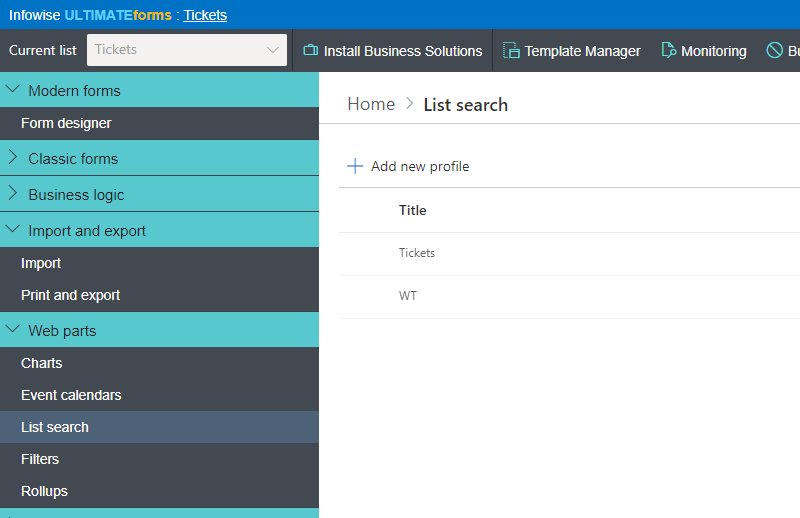
Export search results to Excel when the analysis continues elsewhere, or print them through Print when a meeting needs paper. You choose which site lists are available to search, keeping the tool focused on the data that matters.Compared with Native SharePoint
| Ultimate Forms | Native SharePoint | |
|---|---|---|
| Simple search interface | ✓ |
✓
|
| Advanced search interface with multiple conditions | ✓ |
|
| Specific value entry controls for different column type | ✓ |
|
| View results in grid with context menu and sorting functionality | ✓ |
|
| View results in selected view | ✓ |
|
| Full-featured context menu in search result items | ✓ |
|
| Sorting and paging in search results | ✓ |
|
| Optionally filter results by view | ✓ |
|
| Optionally search only in view columns | ✓ |
|
| Saved and shared query conditions | ✓ |
|
| Print search results (requires UltimateForms: Print) | ✓ |
|
| Export search results to Excel | ✓ |
|
| Localized into English, French, Spanish and German | ✓ |
✓
|
Where teams use it
Help desks locating tickets by requester, status, and date range in one query on the Help Desk template. HR searching candidate and employee records across structured columns. Contract teams pulling every agreement with a vendor expiring this quarter. Anywhere a list has grown past what scrolling and single-keyword search can handle, which is to say, every list that matters.Frequently asked questions
Q: How do I search a SharePoint list with multiple conditions?
A: List Search chains up to five conditions with AND and OR logic through a visual interface: pick the column, the operator, and the value, with no query syntax to learn.
Q: Can search inputs show actual column values instead of free text?
A: Yes. Choice and lookup columns present dropdowns of real values, and date columns present a date picker, eliminating typos and guesswork.
Q: Can I save a search and reuse it?
A: Yes. Users save their own query conditions, and administrators can publish shared presets available to everyone.
Q: Can I act on results without leaving the search?
A: Yes. Results carry the full item context menu, so matches can be opened, edited, and managed directly from the results grid.
Q: Can I export search results?
A: Yes. Results export to Excel, and can be printed with Ultimate Forms Print.
Q: Does it help with very large lists?
A: Yes. Targeted queries with paging and sorting retrieve just the matching items, making large lists navigable without view sprawl or Excel exports.
Screenshots