The section contains one or more recipients set to receive the alert. By default, the only recipient included is the alert creator.
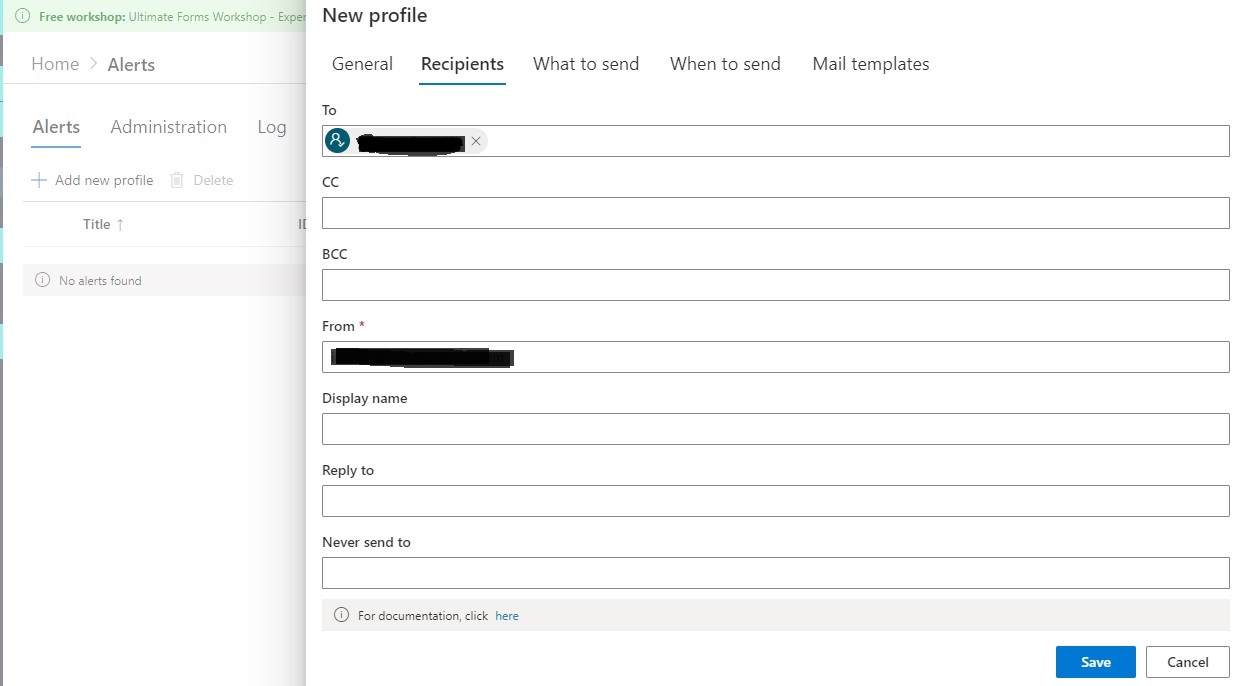
You must include at least one recipient in your alert.
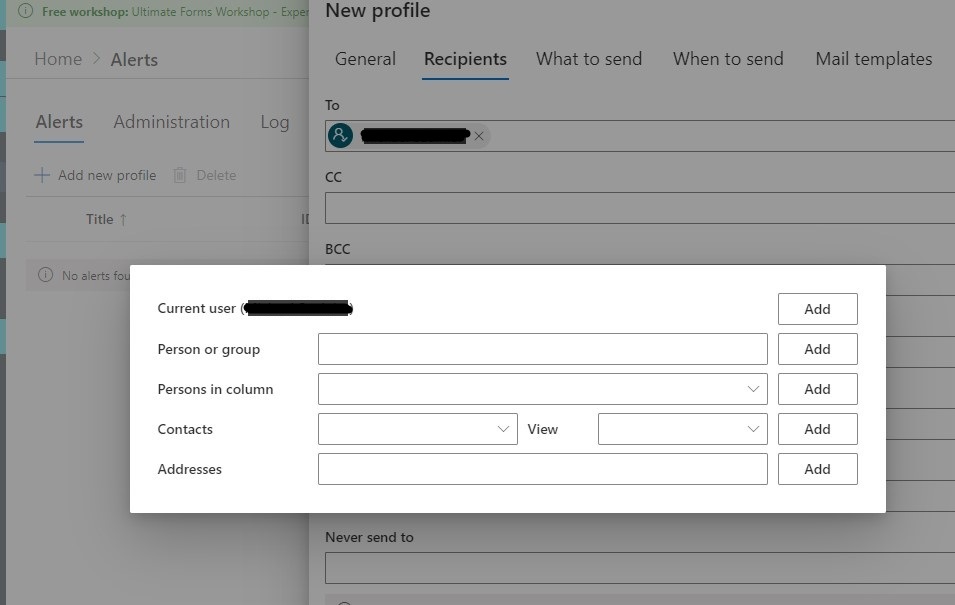
The recipients can be of the following types:
- SharePoint users and groups – any SharePoint user (person or domain group) or cross-site group in the current site. Note that the emails will be sent to each individual user email, even though a group appears as a recipient. The breakdown of the group is done at the moment of alert sending, so the actual make-up of the recipients may vary according to the changes made to the group membership.
- Users in column – select any supported column of the current list. The actual value of the column at the moment of alert sending will be used as recipients.
NOTE: any text column can also be used and is assumed to contain email address[es]. If multiple addresses are used, they must be separated by semi-colon (;). Note that no validation is performed for the email addresses.
NOTE: if you select a lookup column, you can then select a column from the lookup list. For example, if you select Department column, you can then select Manager column from Departments list
- People in Contacts list – select a Contacts list (list created from the Contacts template) in the current site. You can also filter the list by any view. The alert is sent to each contact with a filled out Email column.
- E-mail addresses – manually enter one or more email addresses, separated by semicolon.
NOTE: When security trimming is enabled (default), Alerts will only be sent to users who have at least Read permissions for the underlying SharePoint item. When sending alerts to external users, the alert creator must have at least Read permissions for the item at the moment of alert sending.
NOTE: The system is capable of sending alerts to internal and external users.
- On-premises, the system uses the SMTP server configured for use by SharePoint. Make sure your SMTP server is set to allow relaying emails to external accounts before you attempt to send out alerts to external users.
- SharePoint Online: the app is granted a permission to send via your Exchange Online. It can be one by a Global Administrator on Administration tab within Alerts. If you do not grant this permissions, alerts will not be sent.
You can add recipients to To, CC or BCC fields, similar to any regular email. The recipients in the BCC field are hidden from the rest of the recipients in the Inbox.
You can specify the From address by either selecting from a drop-down box. The options available for selection are your own email address (if allowed) and the Authorized senders defined by an administrator. From address is mandatory, alerts cannot be sent without a valid sender mailbox.
Display Name field allows you to specify the sender's display name, to be used in alert email messages. Use the value picker to define dynamic sender name.
You can include any SharePoint user or group in the Never send to field to prevent sending alerts to those users under all conditions.
Add your comment



