Your Emails are Boring and Nobody Cares
I know you thought you were doing the right thing, but we just don't care about those automated emails you are sending from that new SharePoint tool. I'm getting hundreds of automated emails every day and the last thing I want is another flood of email notifications. I suppose I might care about them if you did things differently. But unless things change, I will add a rule to delete them. So will everybody else.
This is what your employees would tell you if they could do it without getting in trouble.
They are all thinking it, but just not saying it.
Let's be honest, you don't look at these emails either.
Who wants to get hundreds of emails with all this? Not me!
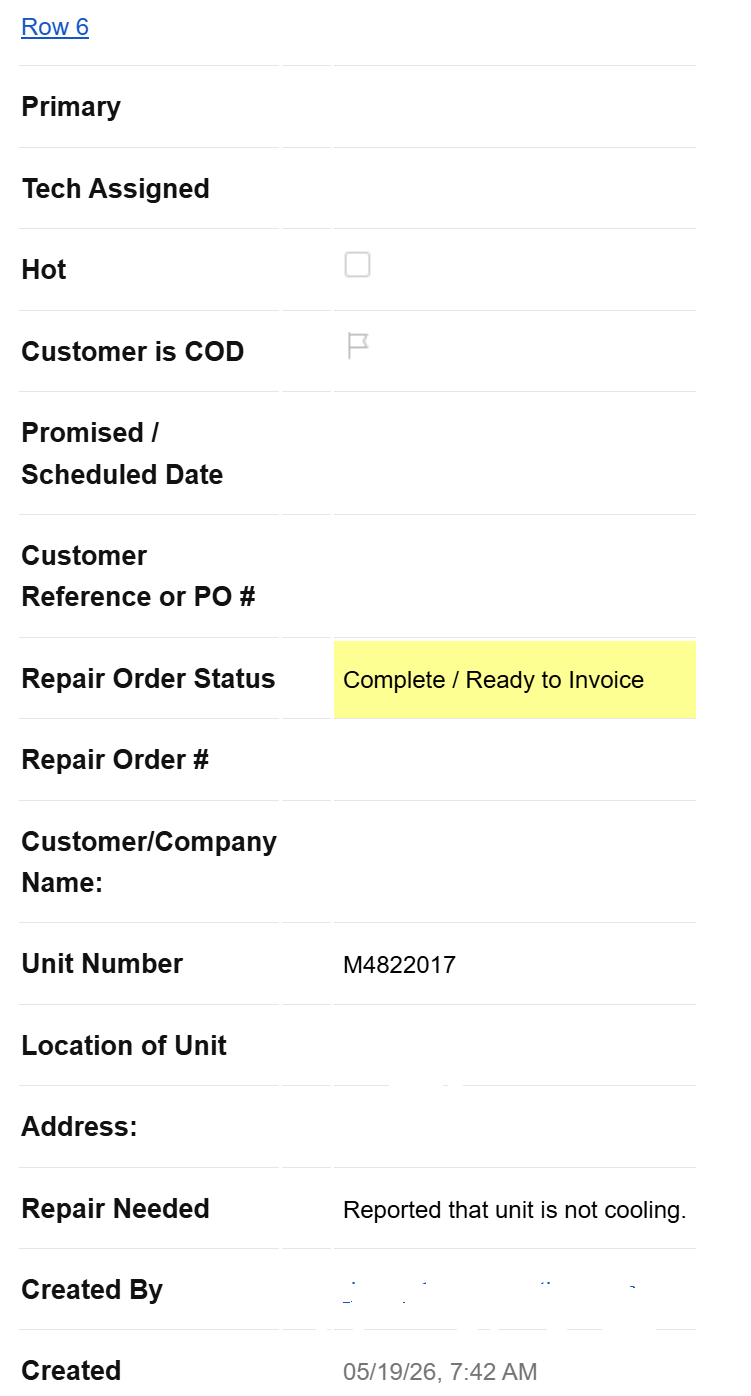
A typical "info dump" automated email. Boring and unnecessary.
If you want people to read your SharePoint emails, you have to do better
Setting up automated emails is usually done as an afterthought with little consideration. It's time to change the approach. There are only a few things you need to change and everything will be better.
1. Quit Blowing Up My Inbox
Seriously. If your system sends me 50 emails a week, I am just not going to read them. It's true, I need updates, but one email a day would be fine. Use the When to Send settings in Ultimate Forms Email Alerts to consolidate all updates for an entire day into one email. Now I can browse through all updates in one email instead of getting hammered with emails throughout the day. I can handle getting a single daily email.
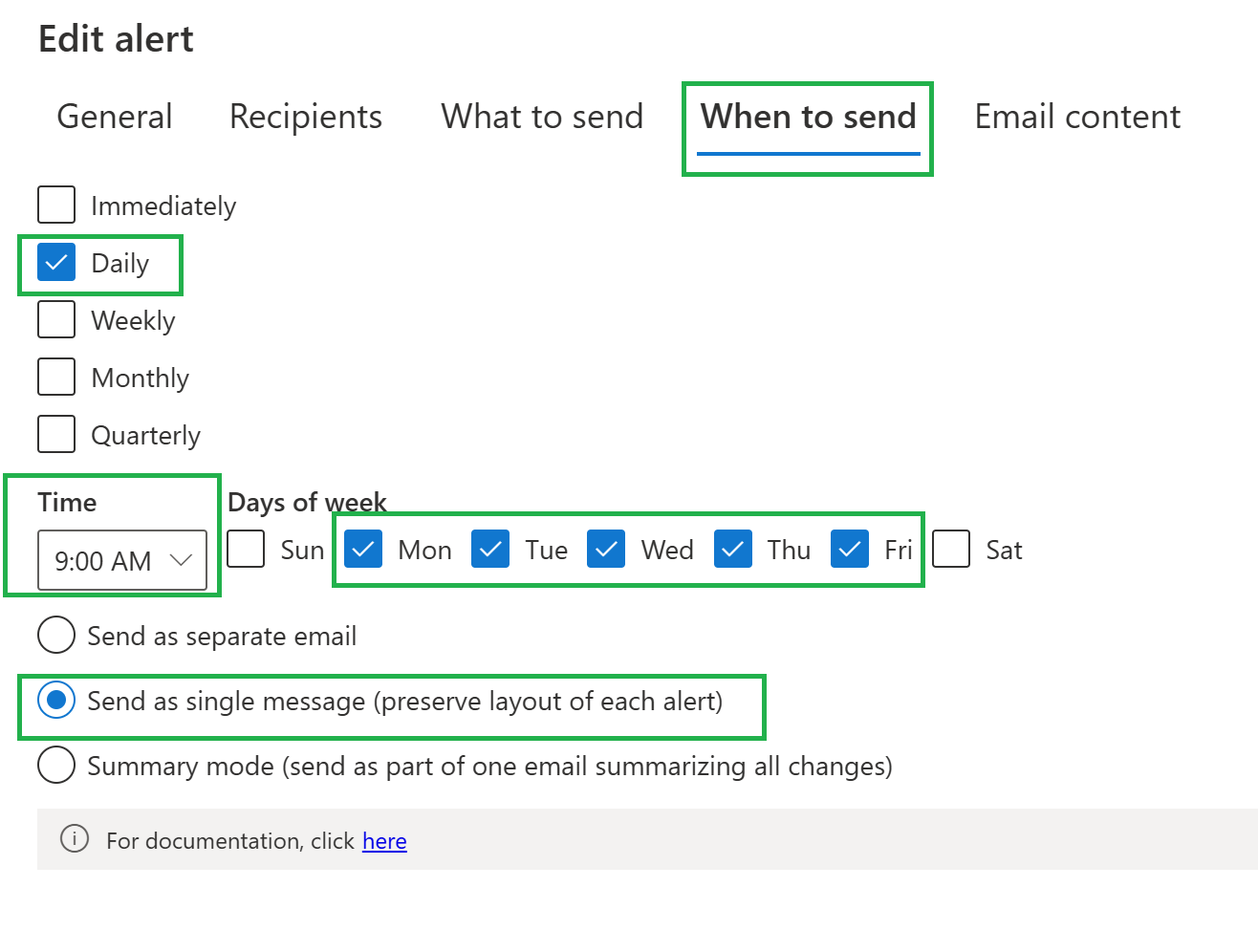
Easy "digest mode" settings provided in Ultimate Forms Email Alerts under "When to send" settings.
2. Put it in the Subject Line
Help me save time by putting all key information in the subject line. Don't just send me emails that say "Tech Projects Update" one after another. In many cases, everything I need to know could go in the subject line of the email. So do your best to put it there for me. In fact, most employees will ONLY read the subject line. Here is an example of a subject line done RIGHT:
Template:
[SharePoint Tool Name] - Project "[Title]" updated to [Status] by [Modified by]
Example Email:
IT Support Projects - Project "Network Server Install" updated to Complete by Jim Miller
In many cases, all that I need to know is in the subject line. I can read that and move on with my day.
See how Email Templates let you build dynamic subject lines using SharePoint column values.
3. Stop with the Wall of Text
I just need the key information. I don't care about every little detail. After all, that information is already in SharePoint if I need it. In fact usually, I only need a couple of sentences. Stop information dumping in your email. I don't have time to read all that! Give me the critical information in the first sentence. After that, provide a link which I will follow if I need to learn more. Give me a button link that I can click to get more details. Less is more!
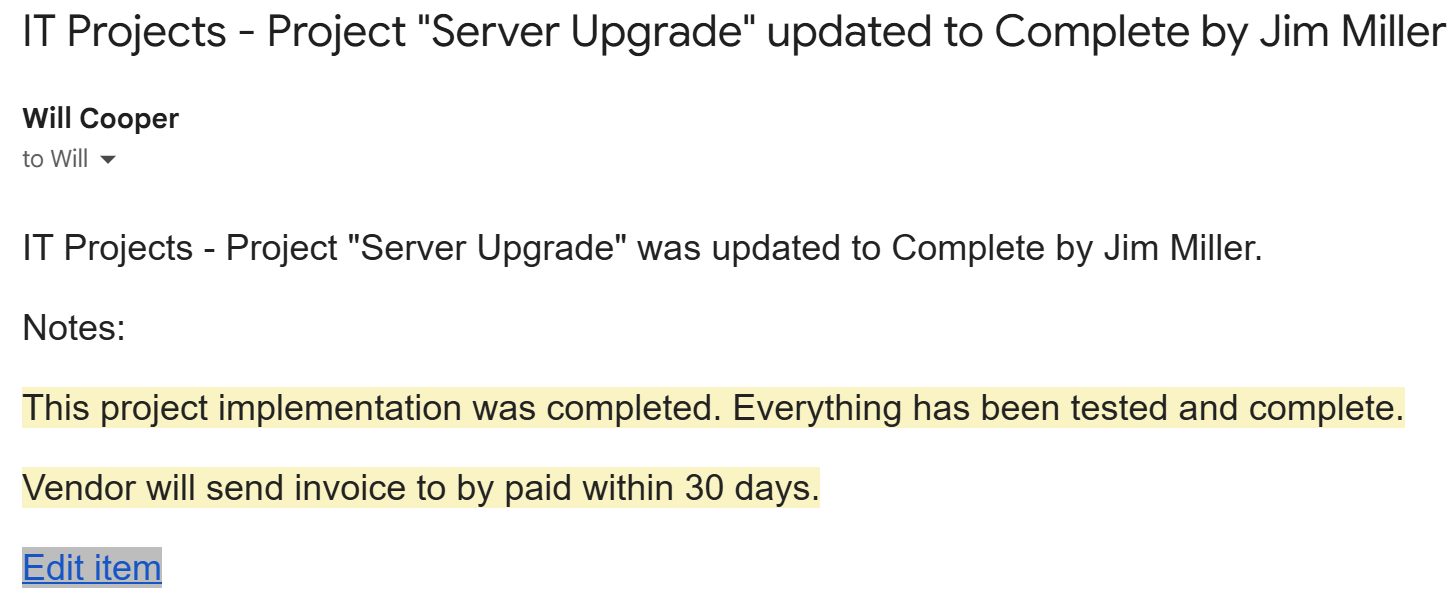
4. Respect my time and I will Pay Attention
Practice the Golden Rule. When you set up the email rule, consider "Is this what I want to see in my inbox every day"? Start sending emails the way that YOU want to get them. If you make sure to send me messages that let me use my time as efficiently as possible I am going to start relying on these messages instead of ignoring them. The good news is that none of these changes are difficult. Small improvements to how your automated emails are structured can dramatically improve engagement and response rates. Instead of flooding users with constant notifications and walls of text, focus on sending concise, useful messages that help employees quickly understand what matters and what action is required.
Want to see these techniques in action? Watch our Email Alerts training or explore the complete Email Alerts feature list.
Now put it in Action
Automated emails should help employees work more efficiently, not train them to ignore notifications entirely. When SharePoint alerts are short, focused, and respectful of users' time, employees are far more likely to pay attention and take action. By reducing unnecessary notifications, improving subject lines, and keeping messages concise, organizations can turn automated emails from background noise into a genuinely useful parts of important work processes.
Add your comment