Introduction
Columns in Ultimate Forms can do much more than store information. In addition to collecting user input, they can automatically populate values, respond to changes made in the form, validate entered data, and control when information is displayed or editable.
These capabilities help reduce manual data entry, improve data quality, and create forms that adapt to different users and business scenarios without requiring custom code.
Instructions
Ultimate Forms provides four ways to automate data entry and control how columns behave in a form:
- Default Values automatically populate a column when a form is opened.
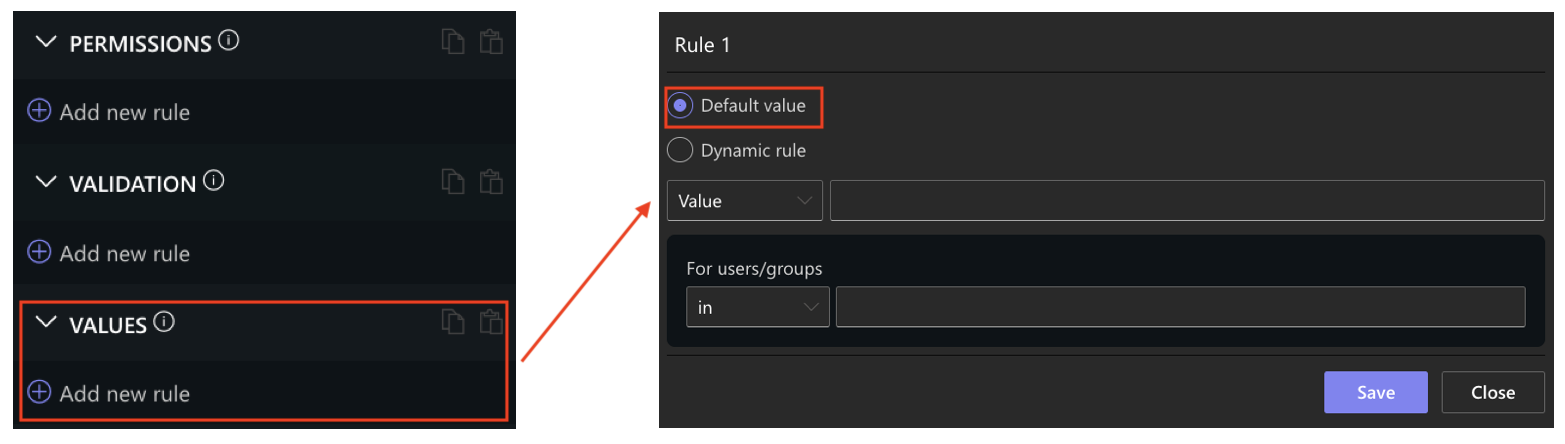
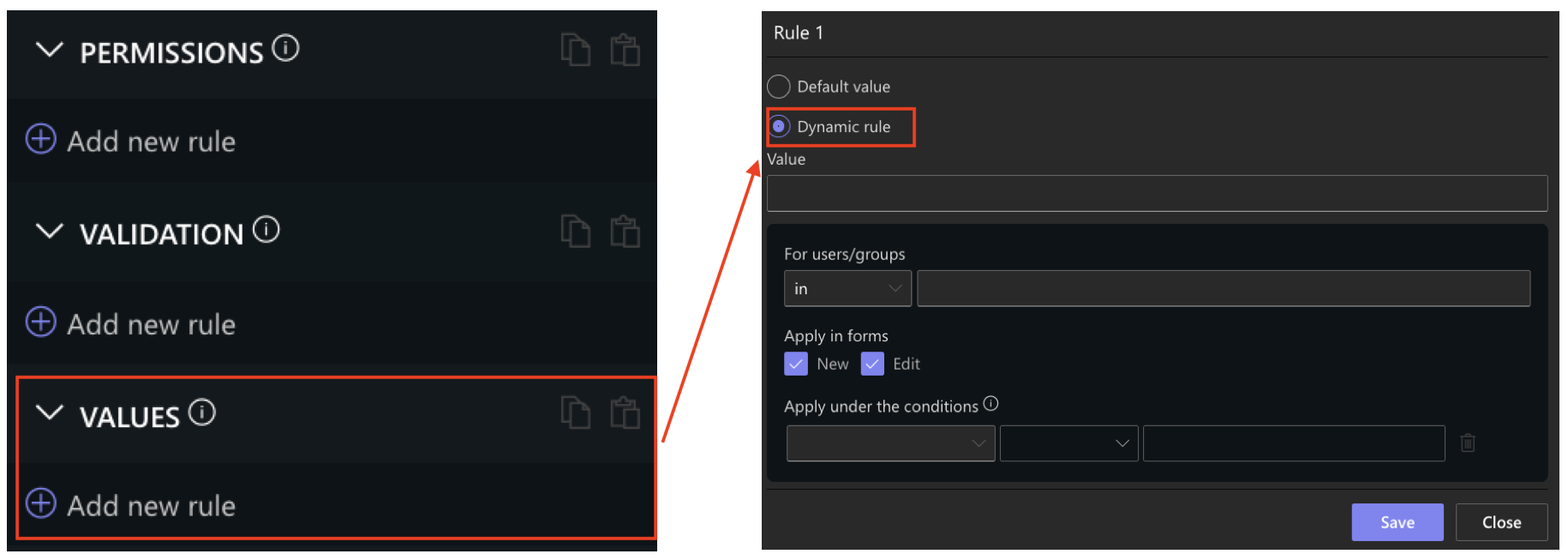
- Dynamic Rules update column values automatically while the user is filling out the form.
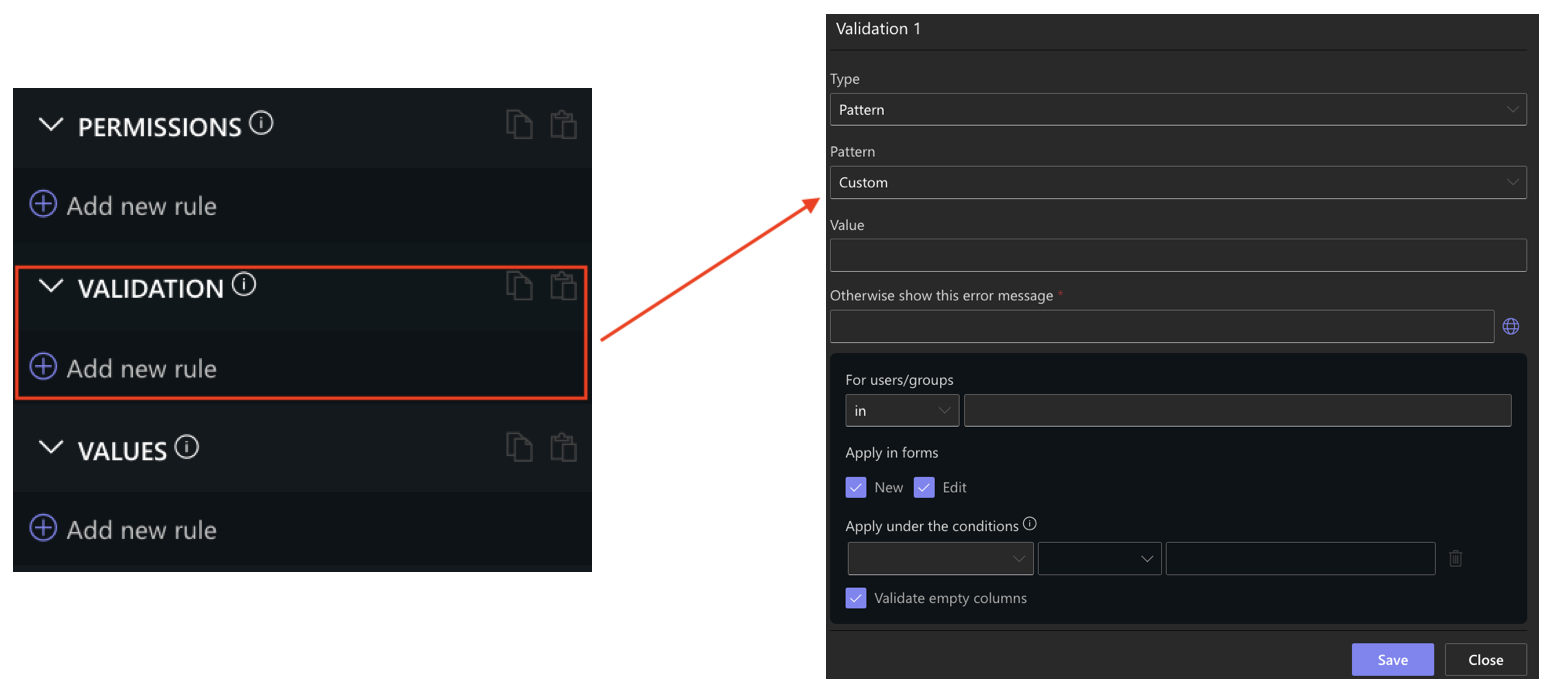
- Validation Rules verify that entered data meets your business requirements before the form can be saved.
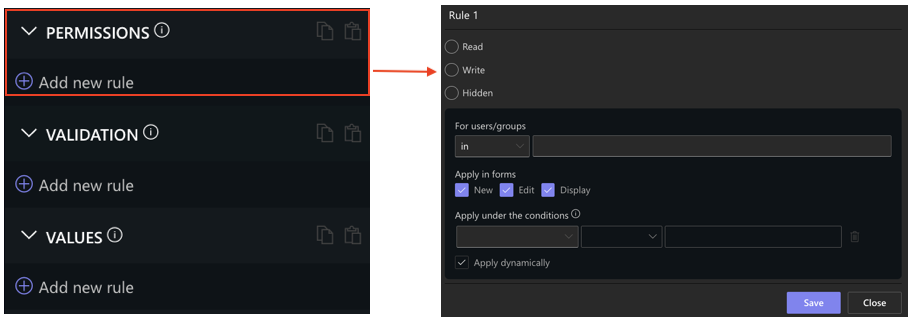
- Permission Rules control whether columns are visible, editable, or read-only based on conditions.
Although each one serves a different purpose, they are designed to work together. A single form can use all four simultaneously to automate user input, guide users through the form, and ensure that only valid information is submitted.
Working Together
The greatest benefit comes from combining Default Values, Dynamic Rules, Validation Rules, and Permission Rules within the same form.
For example, imagine an Employee Travel Request form.
When a user opens the form:
- Default Values automatically populate the Request Date with today's date and the Requested By column with the current user.
- After the user selects International Travel, a Dynamic Rule automatically sets Passport Required to Yes.
- A Permission Rule then displays the Passport Number column only when a passport is required.
- Before the form is submitted, a Validation Rule ensures that a passport number has been entered.
Instead of asking users to complete every column manually, the form reacts to their input, displays only the information that is relevant, and verifies that all required information has been provided before the form is submitted.
When to Use Each Type
Although they are often used together, each one serves a different purpose.
| Use | When you want to... |
| Default Values | Populate a column automatically when the form opens. |
| Dynamic Rules | Change a column value automatically based on another value in the form |
| Validation Rules | Ensure entered data meets your business requirements before saving. |
| Permission Rules | Show, hide, or make columns read-only based on conditions. |
Choosing the right one for each scenario helps simplify forms, improve the user experience, and maintain consistent data.
Common Business Scenarios
Default Values, Dynamic Rules, Validation Rules, and Permission Rules can be used in almost any business process. Common examples include:
- automatically setting the current user, today's date, or a default status when a form opens;
- updating values automatically based on user selections;
- displaying additional columns only when they are relevant;
- requiring information only under specific conditions;
- preventing invalid or incomplete forms from being submitted;
- hiding administrative columns from regular users.
Whether you are building request forms, approval processes, HR solutions, project management systems, or asset tracking applications, these capabilities help create forms that are easier to complete and require less manual effort.
Summary
Default Values, Dynamic Rules, Validation Rules, and Permission Rules work together to automate data entry, guide users through the form, and ensure that only valid information is submitted.
In the following tutorials, you'll learn how to configure each rule individually, understand when to use it, and combine them to build intelligent, dynamic forms for real-world business scenarios.