Creating and Using Shared Styles
Shared Styles allow you to create reusable style sets for modern forms. Instead of configuring the same appearance separately for each form, a shared style can define the theme, form settings, and custom CSS and then be reused across the tenant.
Shared Styles are created and managed by Site Collection Administrators in Global Settings → Styles. Users who have permission to edit lists can select and apply existing shared styles when working with modern forms in Form Designer.
In this tutorial, we'll create a shared style and apply it to a form in Form Designer.
Instructions
Step 1: Open Shared Styles
As a Site Collection Administrator, open Ultimate Forms and go to Global Settings.
- Select the Styles
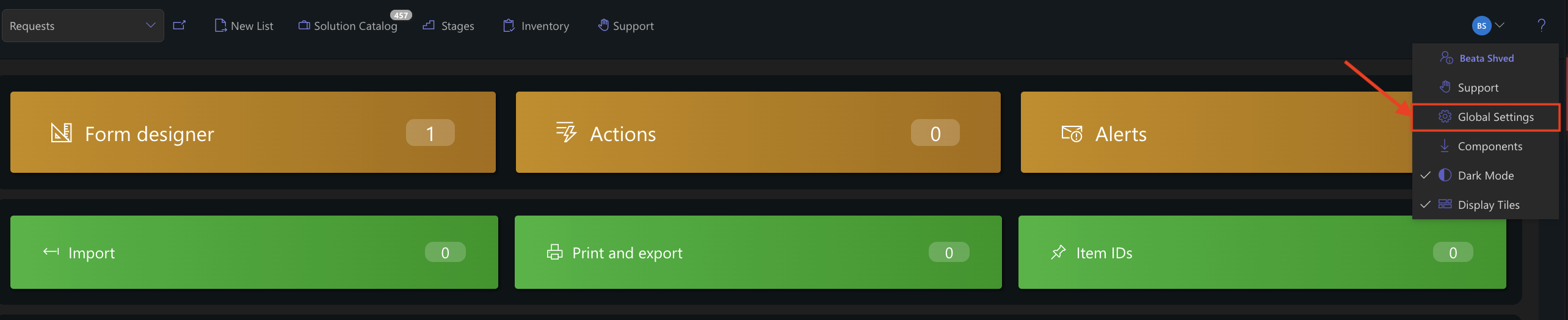
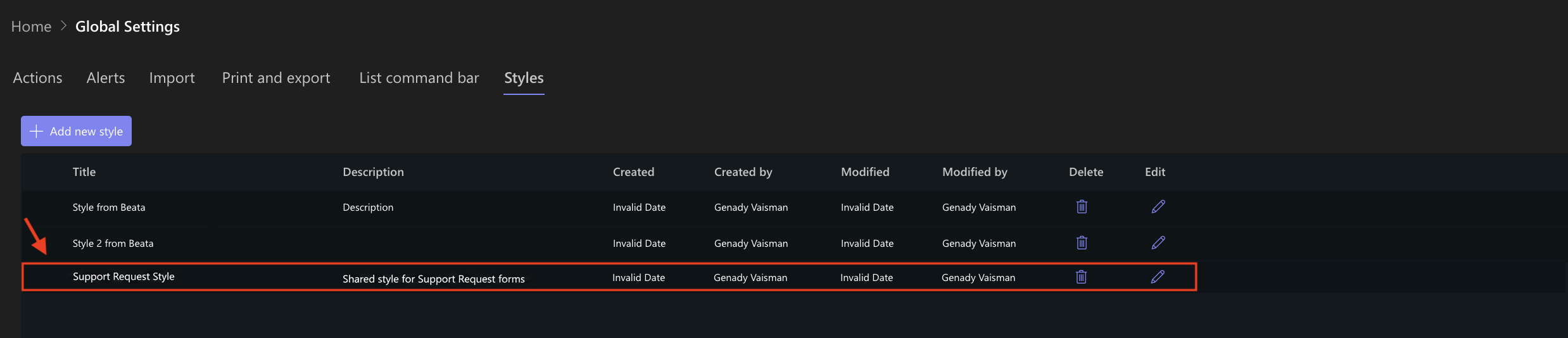
Here you can view the available shared style sets and create, edit, or delete them. Shared styles are global and can be used across the tenant. You can create as many shared style sets as needed.
- Click Add new style.
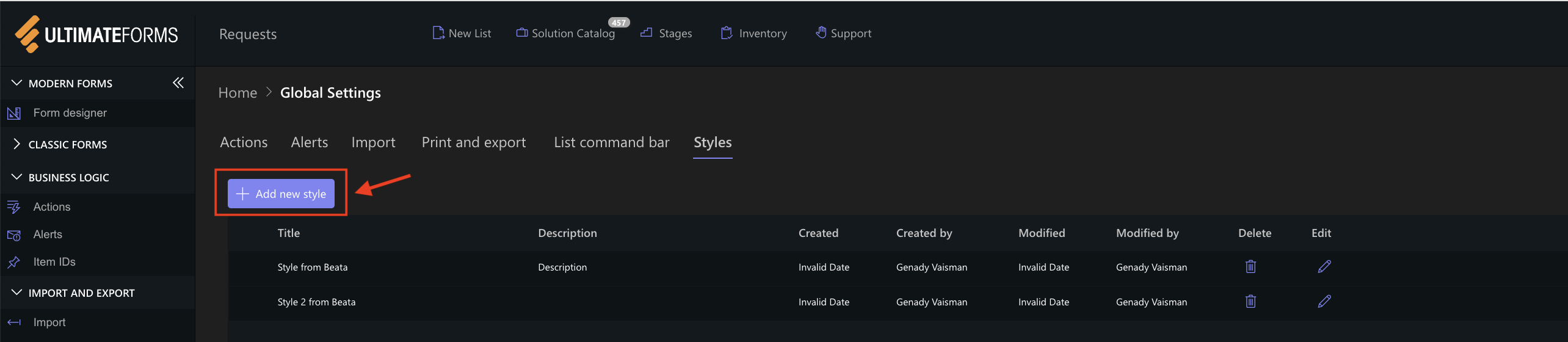
Step 2: Create a New Style
Enter a Title for the new style and, optionally, add a Description.
For example:
Title: Support Request Style
Description: Shared style for Support Request forms
The style editor contains three sections:
- Theme
- Settings
- CSS
A preview on the right shows how the selected settings affect the form while you configure the style.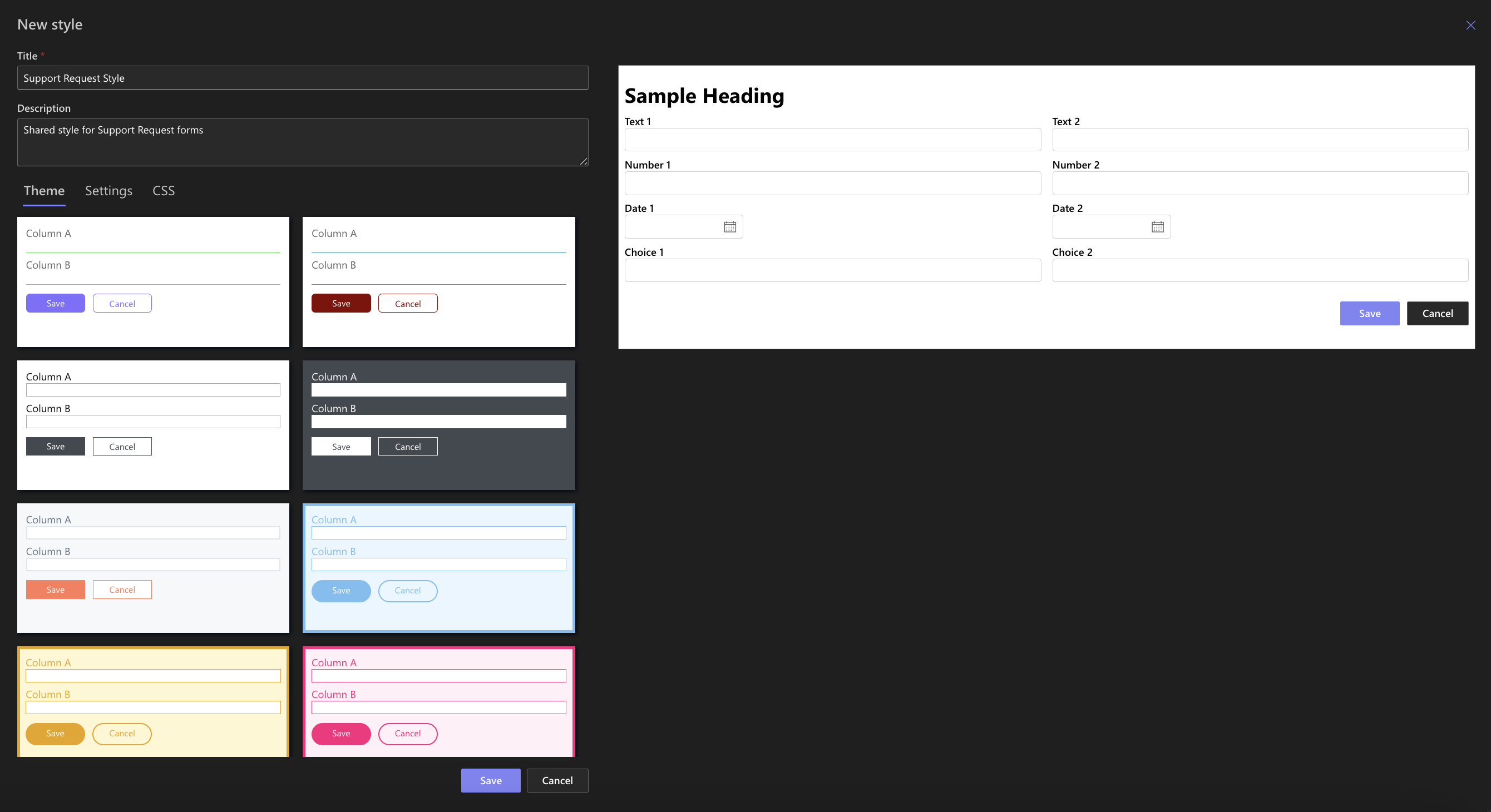
Step 3: Choose a Theme
- Open the Theme tab.
- You can select one of the available themes as a starting point for your shared style. Each theme provides a predefined combination of colors and formatting.
- Select the theme that best matches the appearance you want for your form.
- The preview on the right updates to show how the selected theme will look.
Step 4: Customize the Style Settings
- Open the Settings tab to customize the style in more detail.
- The available settings are divided into several sections.
- Under Label position, you can control the placement of column labels.
- Under Background, you can configure the form background, including:
- background image;
- background position and repeat;
- size;
- padding;
- border radius;
- form width;
- form position.
- Under Main content, you can customize properties such as font, colors, padding, borders, border radius, and box shadow.
- The Controls section provides styling options for controls used within the form.
- You can also configure the appearance of Tabs / Accordion, including the Active, Inactive, and Hover states.
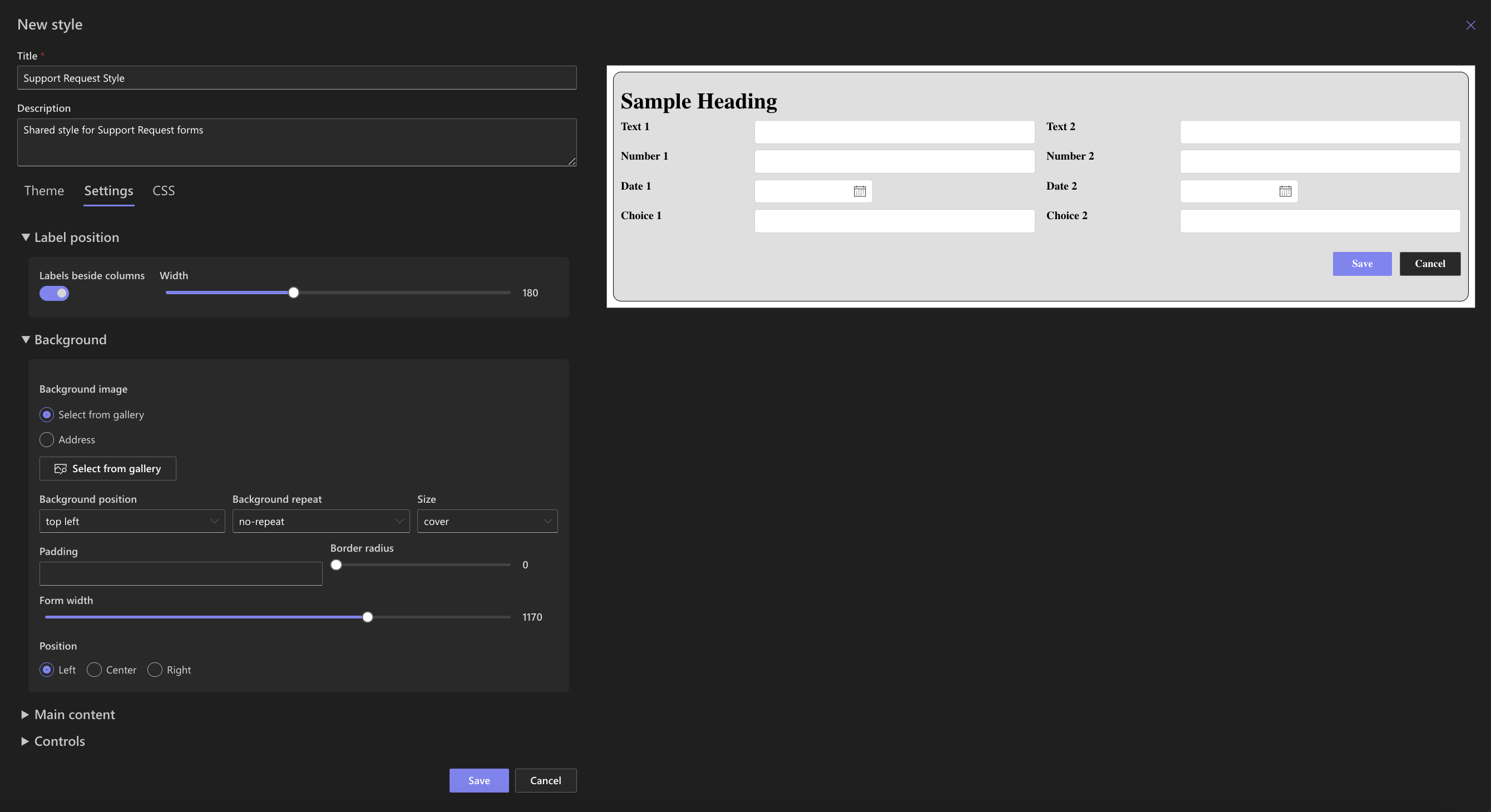
You don't need to change every setting. Configure only the properties required for the design you want to reuse.
Step 5: Add Custom CSS
For additional customization, open the CSS tab.
You can enter custom CSS directly.
Custom CSS is optional and is only needed when the standard Theme and Settings options do not provide the styling you need.
For this example, leave the CSS settings empty.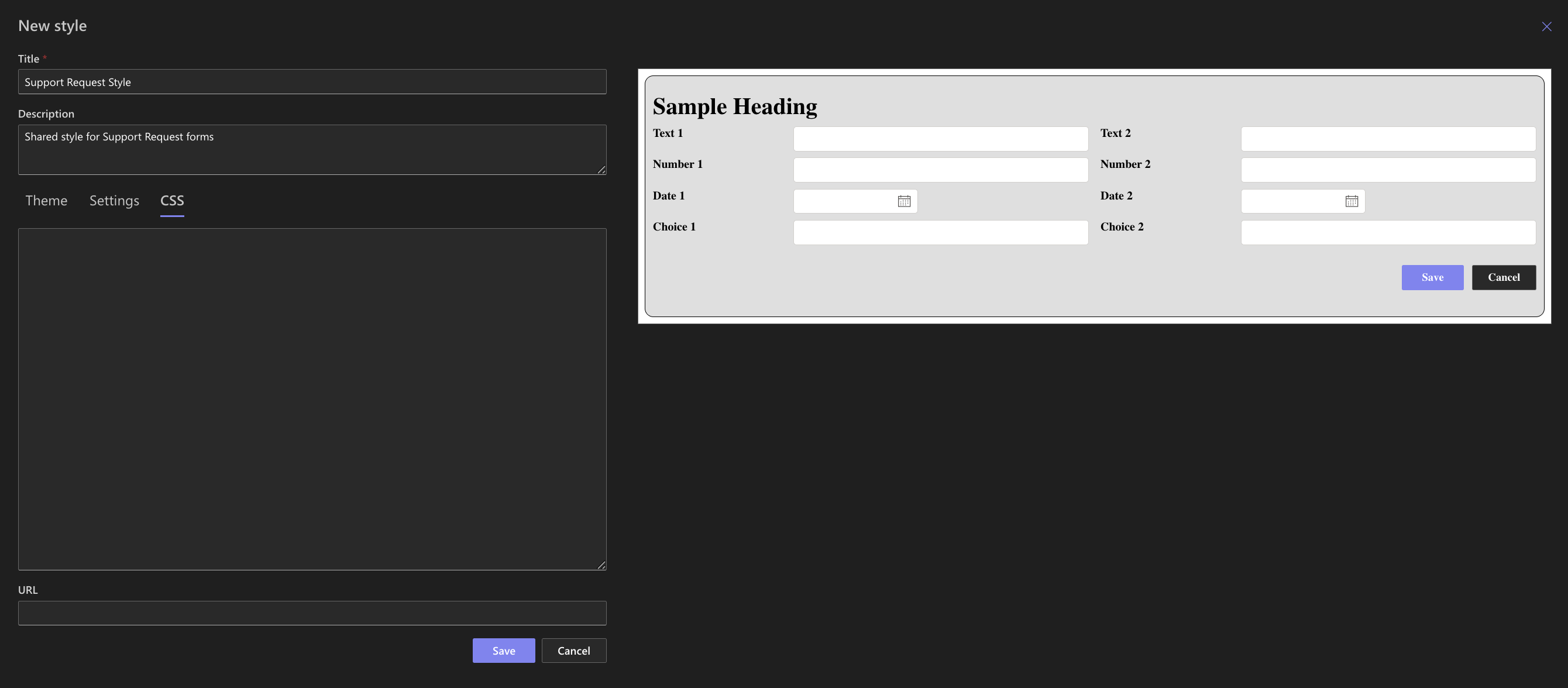
Step 6: Save the Shared Style
- When you are satisfied with the appearance of the style, click Save.
- The new style is added to the list under Global Settings → Styles and is now available for use in Form Designer.
Step 7: Apply the Shared Style to a Form
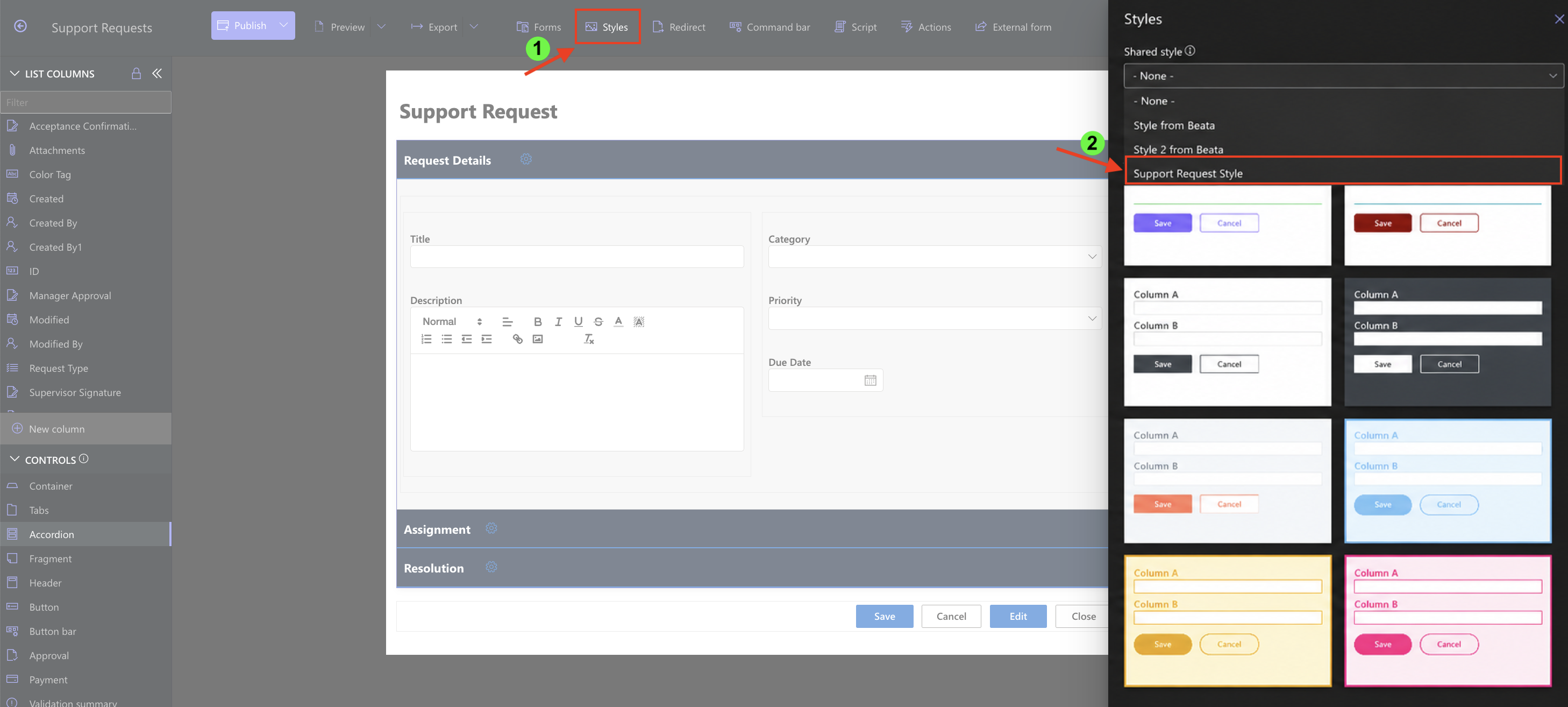
- Open a list in Form Designer and click Styles in the top toolbar.
- Open the Shared style dropdown and select the style you created.
- When a shared style is selected, the form-specific styling options are hidden and the selected shared style is used instead.
Note: Shared styles override form-specific styles configured under Styles. They do not override component-specific conditional Style Rules.
Step 8: Preview the Result
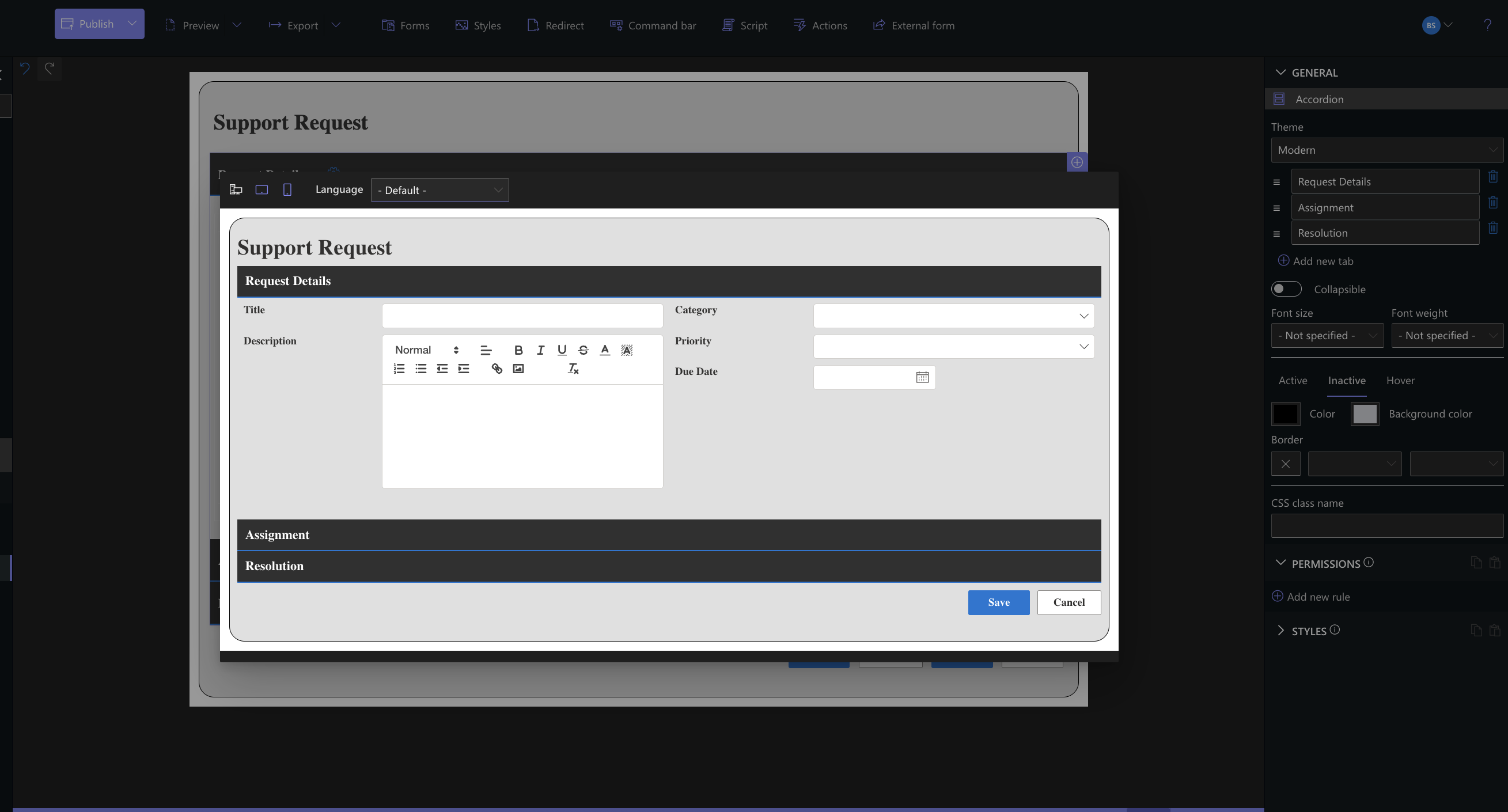
- Click Preview to see how the form appears with the shared style applied.
- Check that the form background, content, controls, and other styled elements appear as expected.
- Because the style is shared, it can also be selected in other forms where you want to use the same design.
Why Use Shared Styles?
Shared styles are especially useful when multiple forms need to follow the same visual design.
Instead of recreating the same background, fonts, colors, controls, and other styling settings for each form, you can configure the design once and select the shared style where it is needed.
If the shared design needs to be adjusted later, you can edit the style from Global Settings → Styles rather than recreating it from scratch.
Summary
You now know how to create a shared style in Global Settings, customize its appearance, and apply it to a form in Form Designer.
Shared styles provide a convenient way to reuse form styling and maintain a consistent design across multiple forms.