Completing Approval Workflows with Signature
In this tutorial, you will learn how to use the Signature column beyond the form itself.
You will see how signed data can be included in PDF documents, used to trigger email notifications, and drive automated actions such as status updates or date population.
These examples show how the Signature column becomes a key part of a complete, end-to-end business process.
Instructions
Using Signature in Print Templates
Signatures can be included in generated documents using Ultimate Forms: Print Templates.
Add Signature to a Print Template
- Open Design → Print.
- Edit an existing template or create a new one.
- Insert the Manager Signature column into the template.
- Adjust placement and size as needed.
- Save the template.
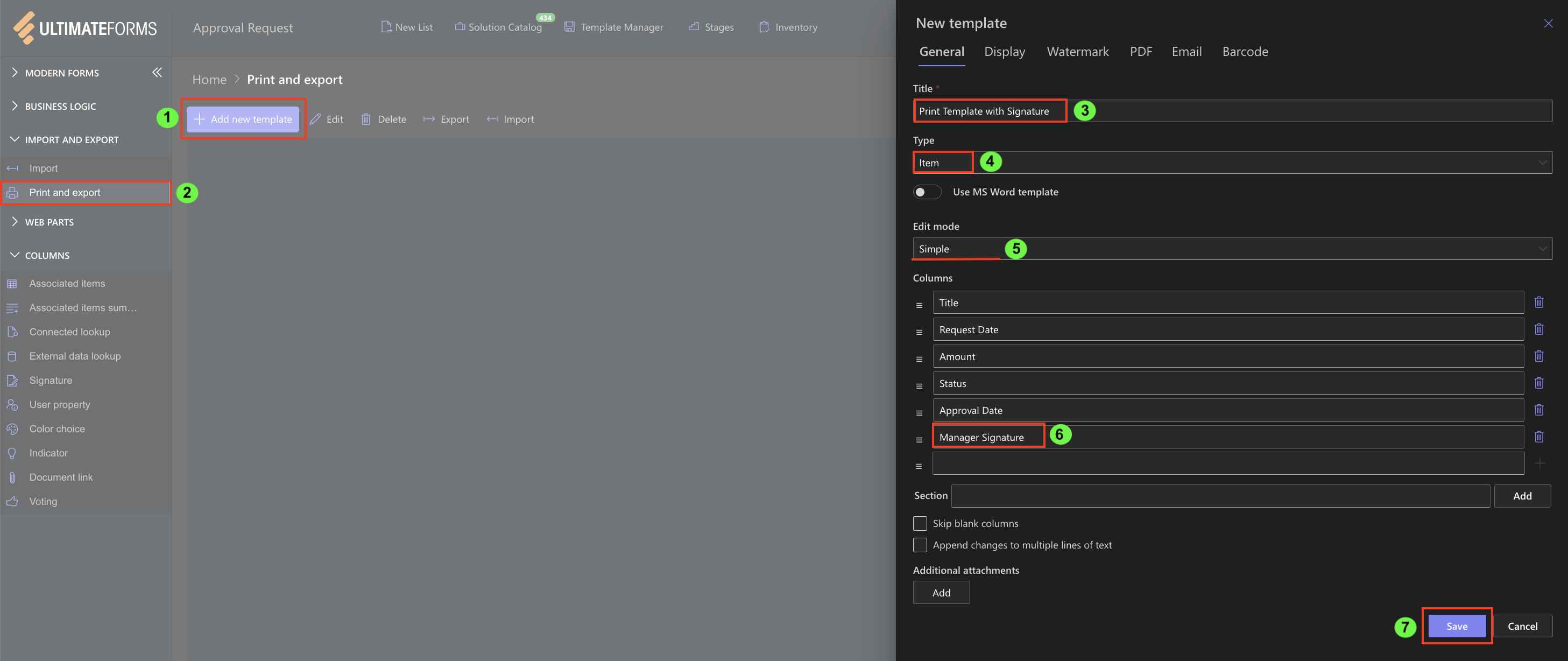
How it works
- The signature image is rendered directly in the PDF
- The signer’s name and signing date can be displayed alongside it
- If the signature becomes invalid later, the PDF still reflects the state at the time it was generated
Result:
Approved records can be exported as formal, signed PDF documents suitable for archiving or sharing.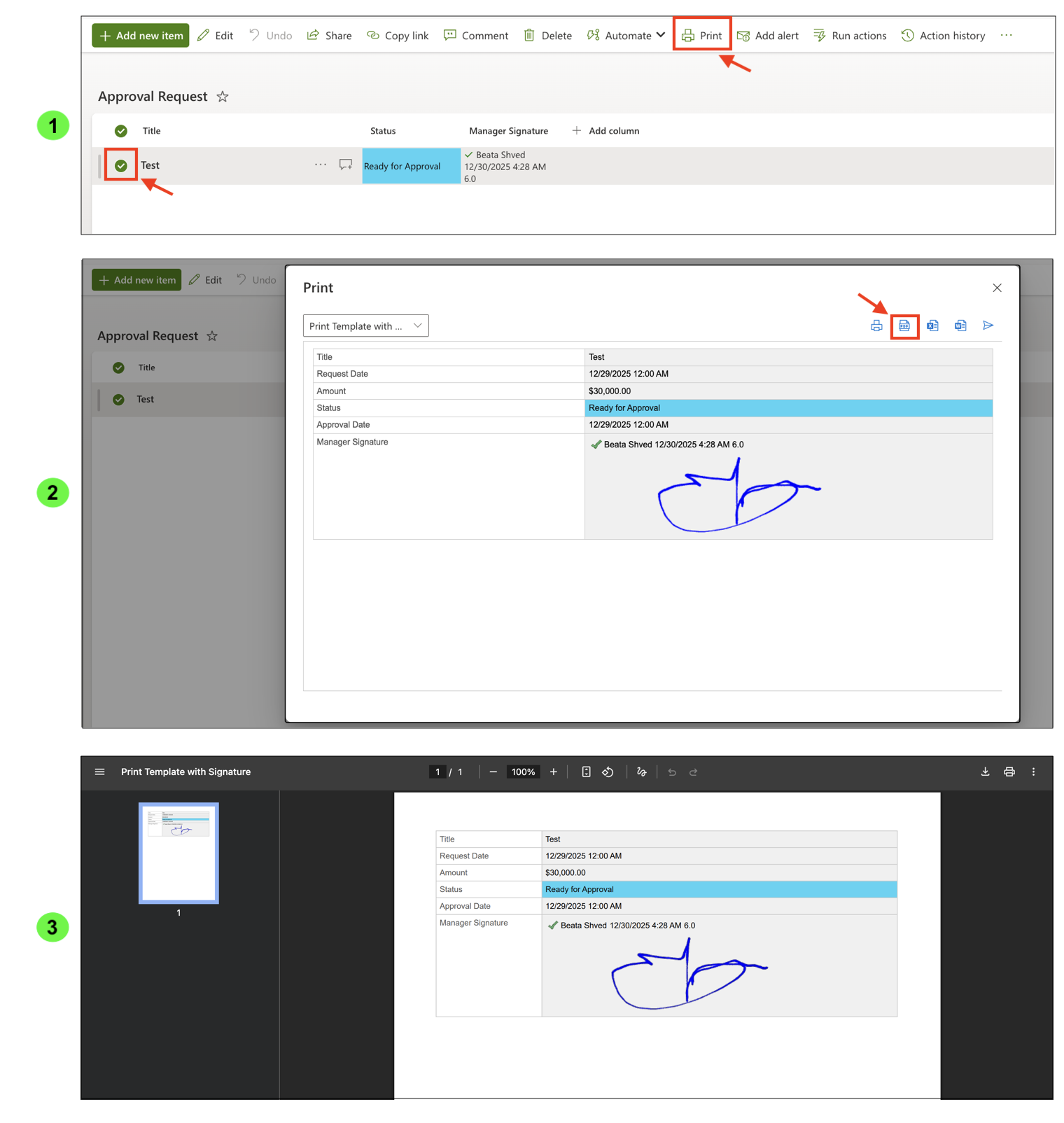
Sending Emails After a Signature Is Added
A signature can be used as a trigger for notifications.
Scenario
Send an email when a Manager Signature is provided.
Configuration
- Create an Action or Alert.
- Condition:
- Manager Signature is not empty
- Configure the email:
- Recipient: Manager
- Include columns (Title, Amount, Status)
- Optionally include a link to the item
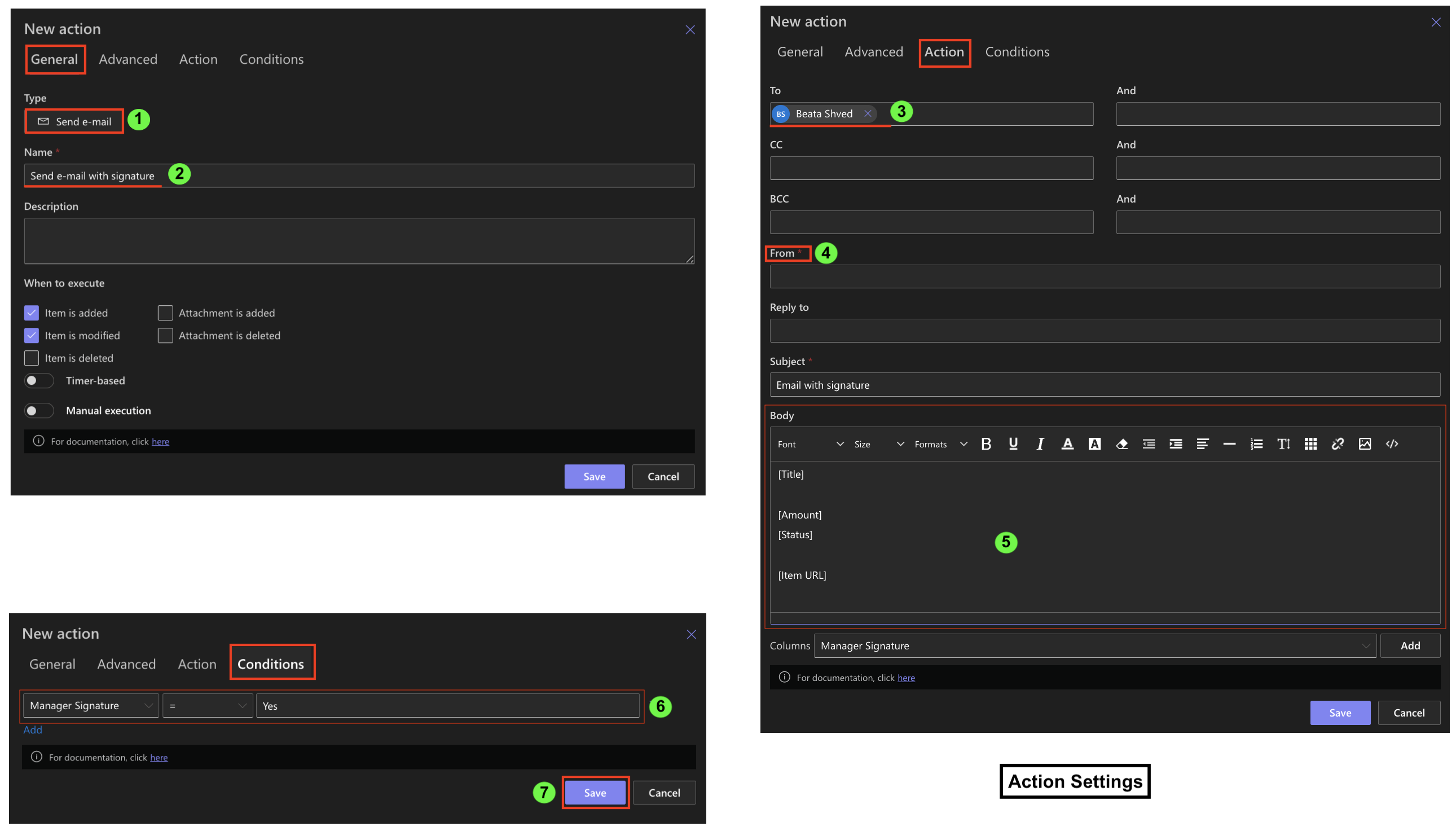
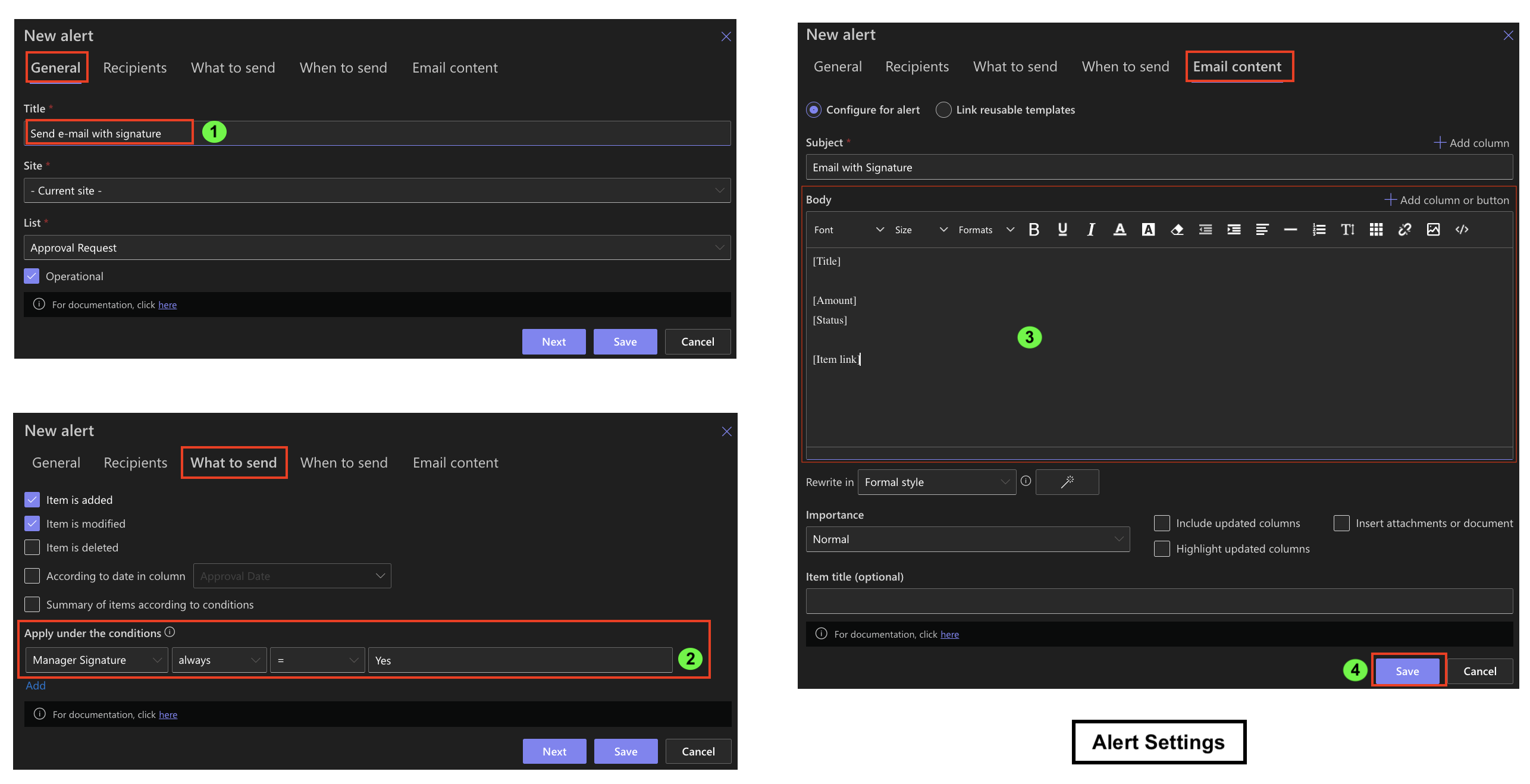
Result:
Stakeholders are notified immediately when an item is signed.
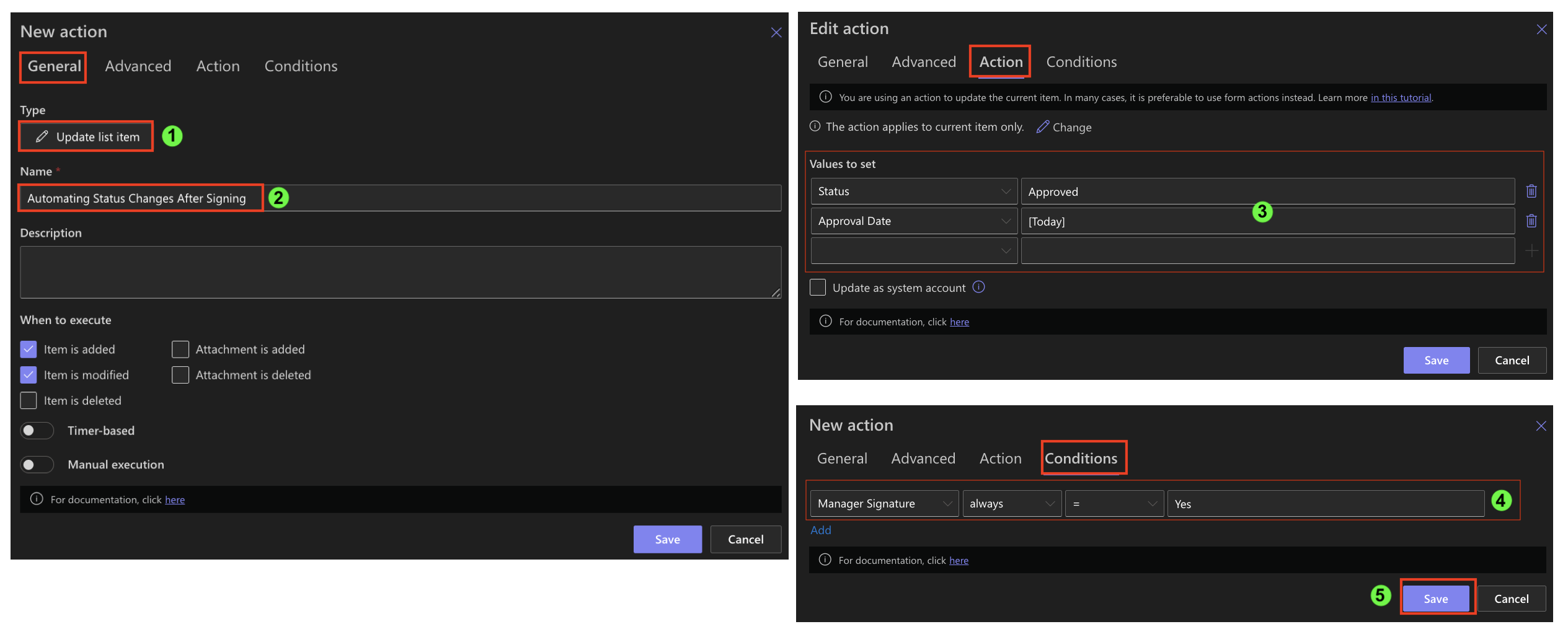
Automating Status Changes After Signing
A common pattern is to update the item automatically after a signature is completed.
Scenario
When Manager Signature is added, set Status to Approved.
Configuration
- Create an Action:
- Conditions: Manager Signature = Yes
- Update item:
- Status = Approved
Optionally:
- Fill Approval Date with the current date
- Lock columns or signatures using rules (as shown in the previous tutorial)
Result:
The approval step completes automatically without manual status and approval date changes.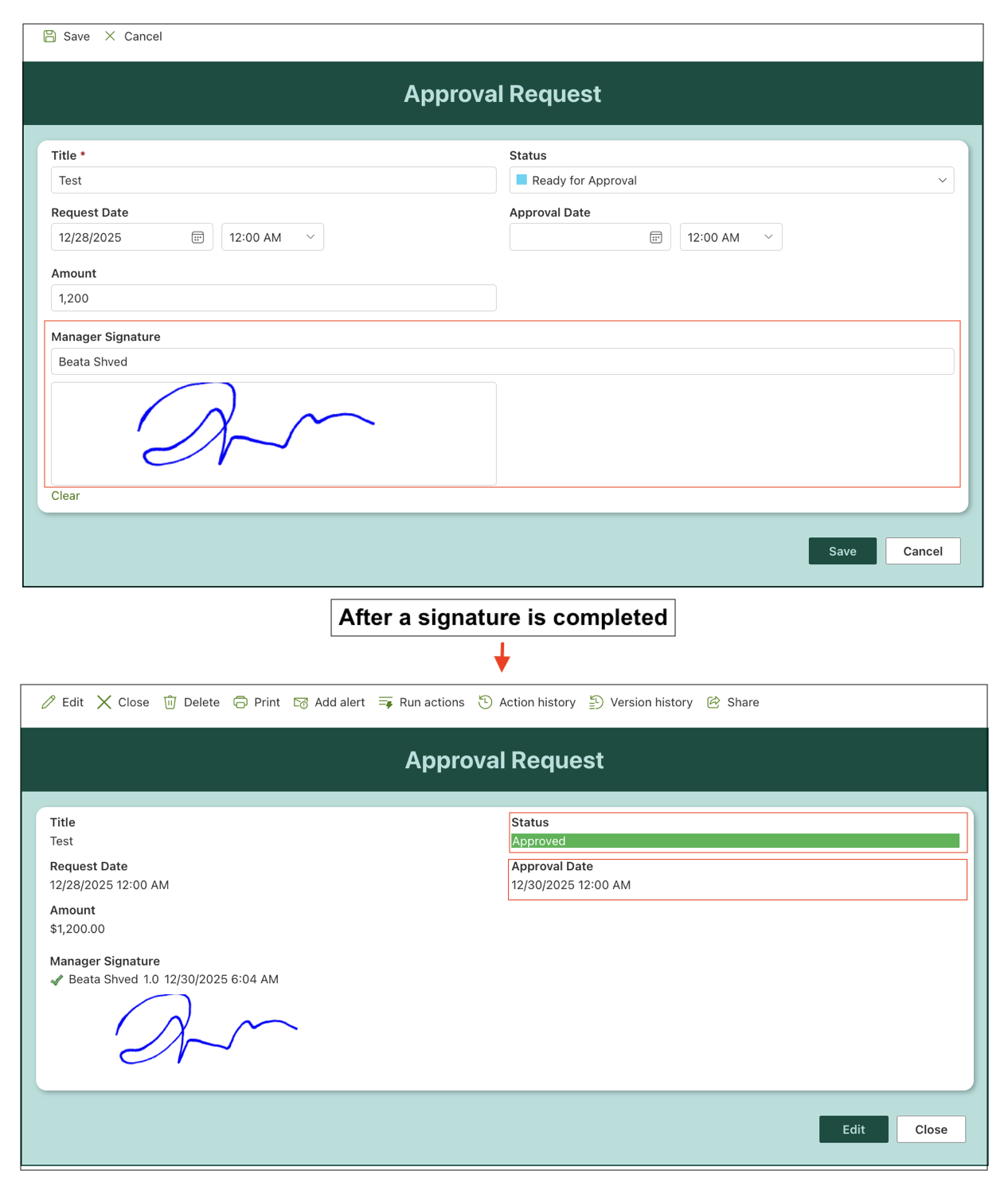
Summary
You learned how to use the Signature column together with Print Templates, Alerts, and Automated Actions to complete approval workflows. By combining signatures with printing, notifications, and automation, you can turn a signed form into a fully integrated, auditable business process.