Introduction
Form Designer allows you to create and customize advanced forms for SharePoint lists and libraries. Instead of relying on the standard SharePoint form layout, you can design forms that organize information clearly, respond dynamically to user input, and adapt to different users and business scenarios.
With Form Designer, you can arrange columns and controls using flexible layouts, organize content into tabs and accordions, customize the appearance of the form, and control how the form behaves based on user input and other conditions.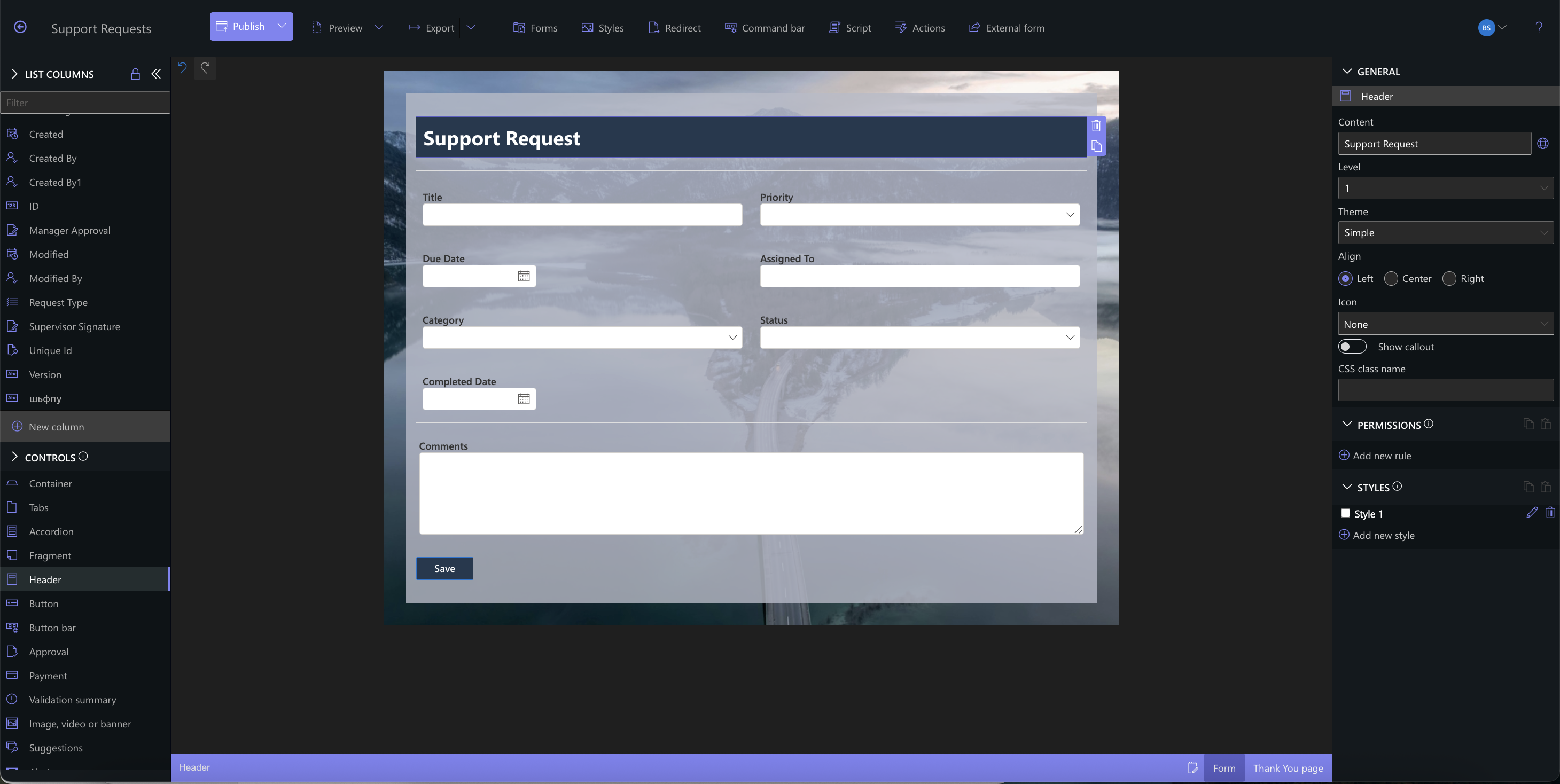
Instructions
What You Can Do with Form Designer
Using Form Designer, you can:
- add, remove, and rearrange columns;
- organize columns and controls using containers;
- create multi-column layouts;
- divide larger forms into tabs and accordions;
- add headers, images, buttons, and other controls;
- customize the appearance of forms and individual elements;
- control column values, validation, permissions, and styles using rules;
- add Actions and Approval functionality to forms;
- customize New, Edit, and Display forms;
- create forms for external users.
This gives you the flexibility to create anything from a simple data-entry form to a dynamic form that supports a complete business process.
Create Dynamic Forms
Form Designer includes several types of rules that control how the form behaves:
| Rule | Purpose |
| Default Values | Automatically populate a column when the form opens. |
| Dynamic Rules | Update column values as users work with the form. |
| Validation Rules | Verify that entered information meets your requirements |
| Permission Rules | Control whether columns are editable, read-only, or hidden. |
| Style Rules | Change the appearance of form elements based on conditions. |
These rules can be combined so that the form responds dynamically to entered information, different users, and different stages of a process.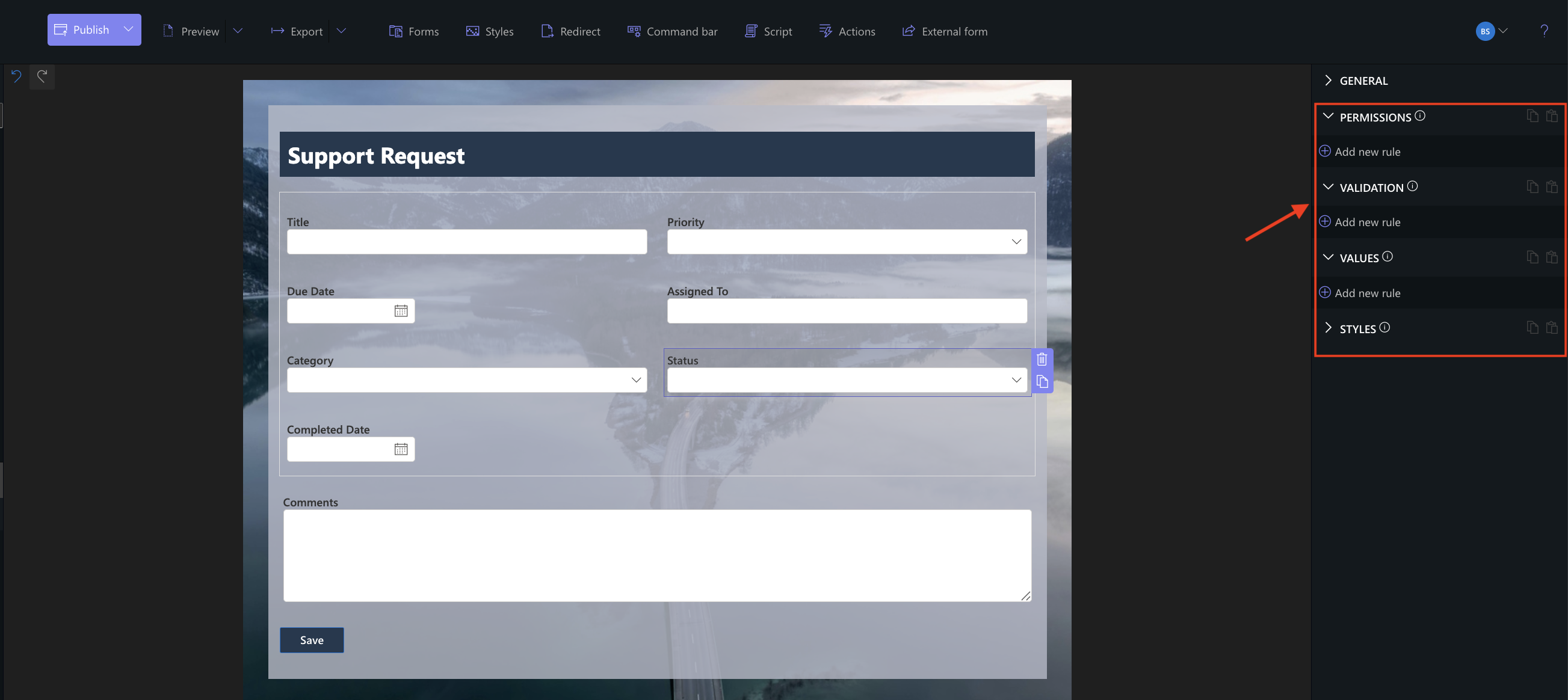
Customize Form Appearance
Form Designer provides styling options for the entire form as well as individual columns and controls.
You can customize fonts, backgrounds, borders, spacing, and other visual properties. Styles can also be applied to containers, tabs, and other elements to organize information visually and create a consistent form design.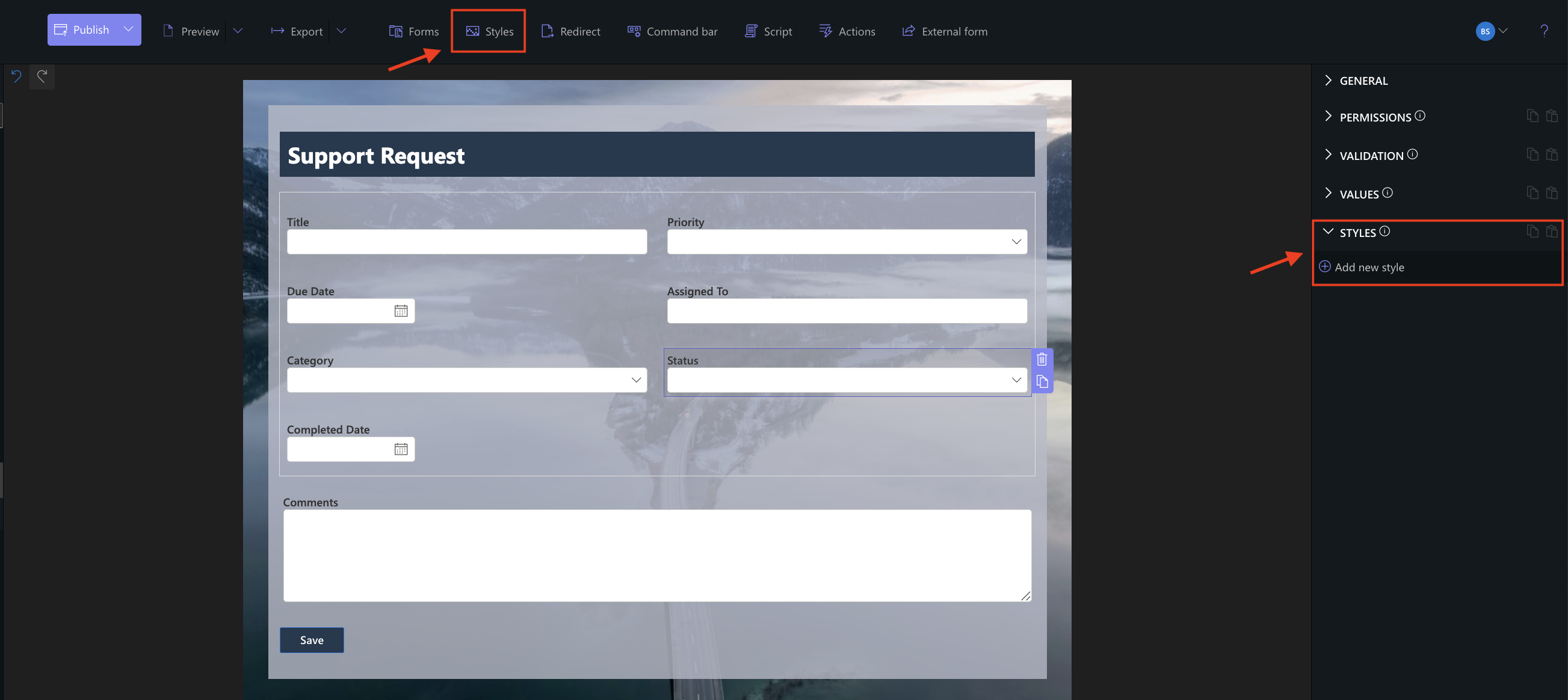
For additional customization, Form Designer supports shared styles and custom CSS.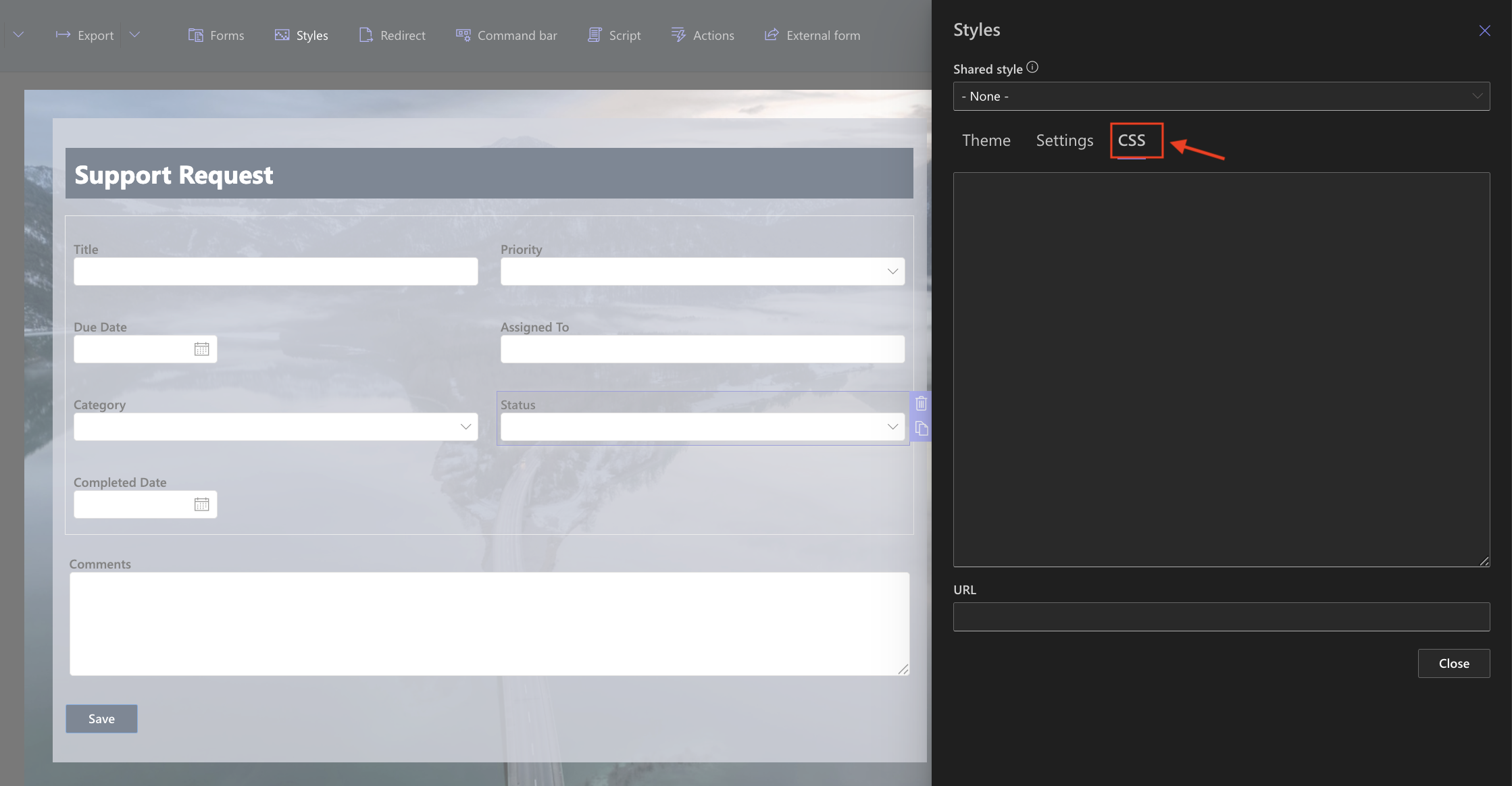
Extend Your Forms
Form Designer works with other Ultimate Forms components and features to provide additional functionality.
For example:
- Actions can be added to so users can perform operations directly from the form;
- Approval can be used to review and approve submitted information;
- specialized Ultimate Forms columns can provide additional input options;
- input masks can control how values are entered;
- rich text content can be added to forms;
- external forms can collect information from users who do not have access to your SharePoint environment.
This allows Form Designer to be used for request forms, HR processes, approvals, project management, data collection, and many other business scenarios.
Summary
Form Designer gives you the tools to control the layout, appearance, and behavior of forms without writing code.
In the following tutorials, you'll learn how to work with Form Designer layouts, styles, controls, and other options in more detail.