Importing Data from Excel into SharePoint
Excel spreadsheets are one of the most common ways to store and exchange business data. Product catalogs, employee records, inventory reports, and project information are often maintained in Excel before being moved into SharePoint.
With Import, you can connect directly to an Excel file, read worksheet data, and automatically create, update, or synchronize SharePoint items.
In this tutorial, you will configure an Import Profile that imports product data from an Excel file into a SharePoint list.
Instructions
Before You Start
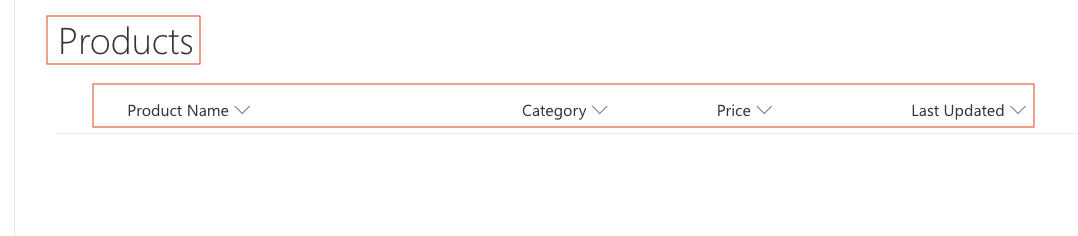
- Create a SharePoint list named: Products
- Columns:
- Product Name - Single line of text
- Category - Single line of text
- Price – Currency
- Last Updated - Date
Prepare an Excel File
- Create an Excel workbook named: Products
The worksheet should contain tabular data with headers starting in cell A1.
Example: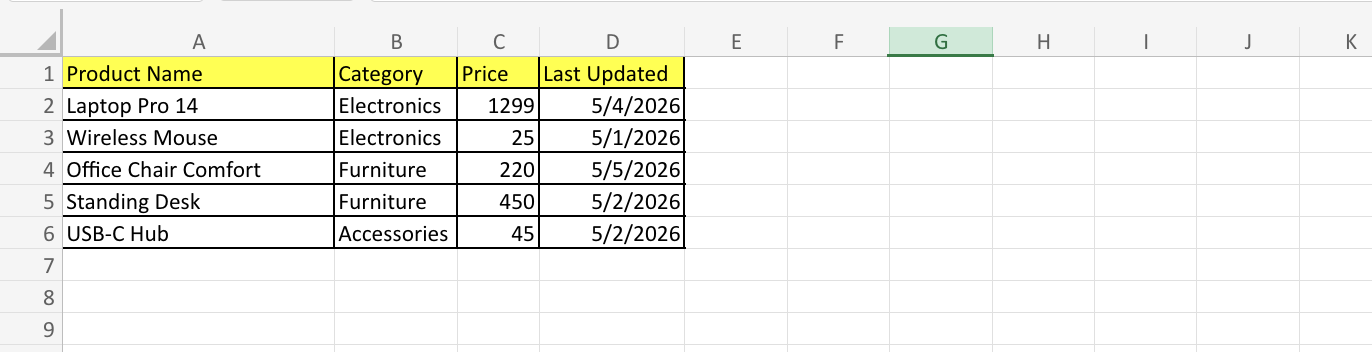
Import automatically detects the boundaries of the worksheet data. Only modern Excel files (.xlsx) are supported.
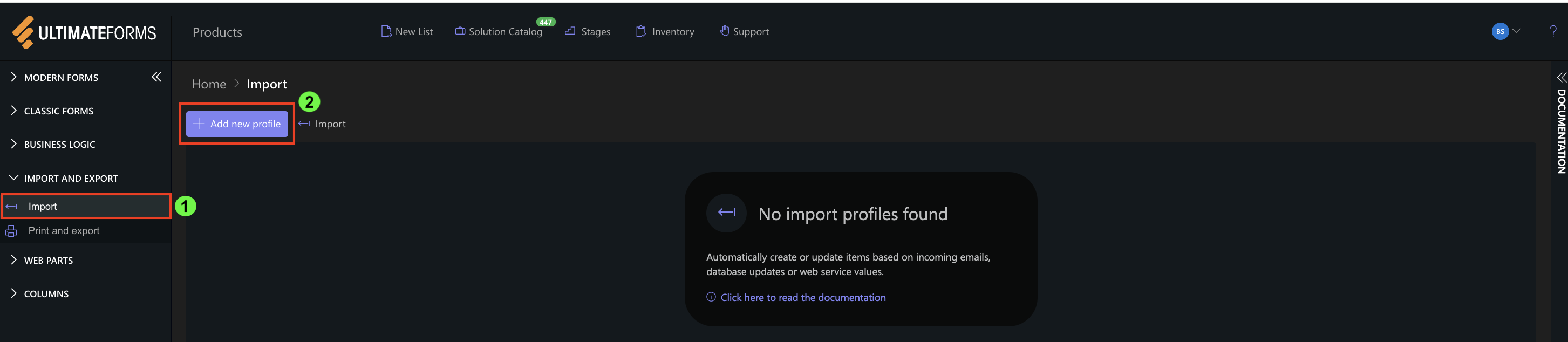
Step 1: Open Import Settings
- Open the Products list
- Click Design
- Select Import
- Click Add new profile
Step 2: Configure General Settings
Configure the profile:
- Title: Excel Product Import
- Description: Import product data from Excel
- Start date: Select the date from which the import should begin
- Polling frequency: Define how often the profile checks for updated data
- Repeat (minutes): Specify the interval between executions
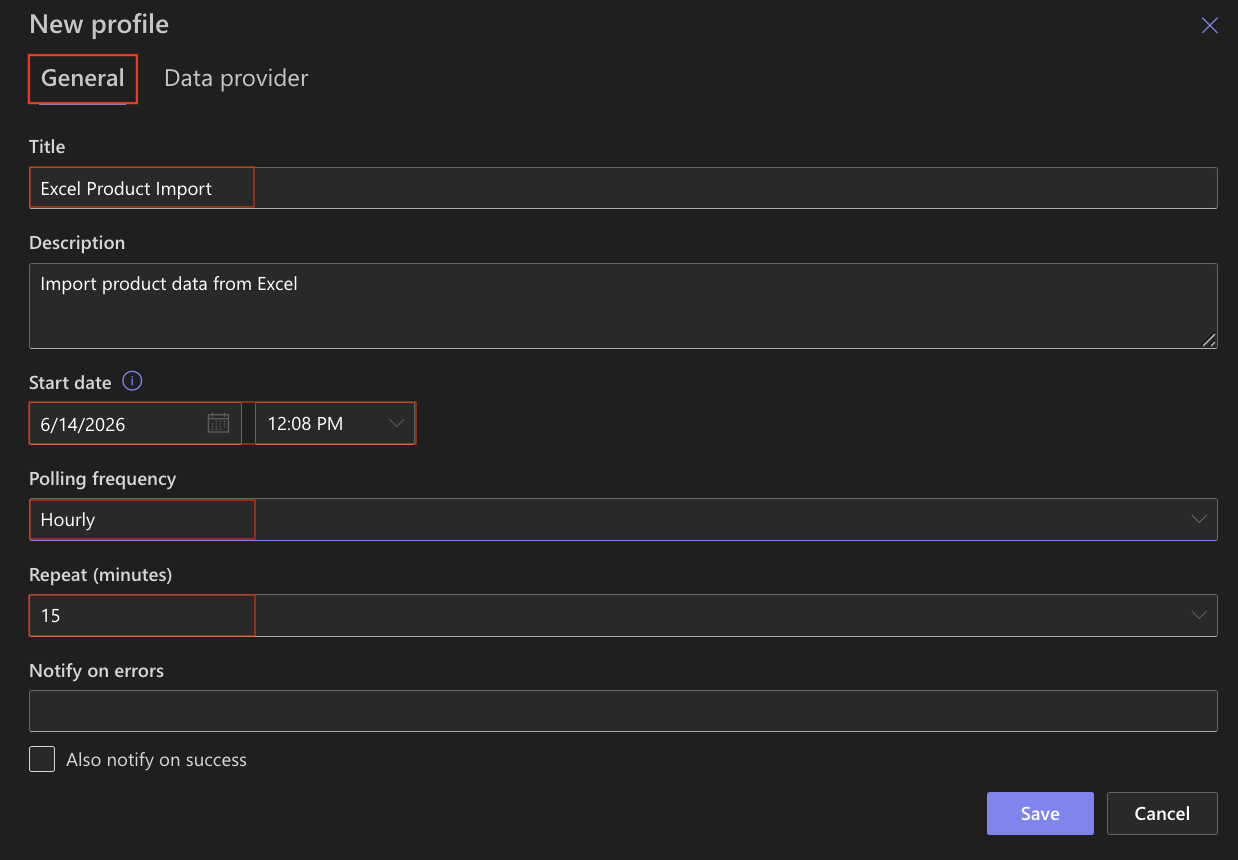
If you do not want the profile to run automatically, set the polling schedule to None and execute it manually when needed.
Step 3: Configure the Excel Provider
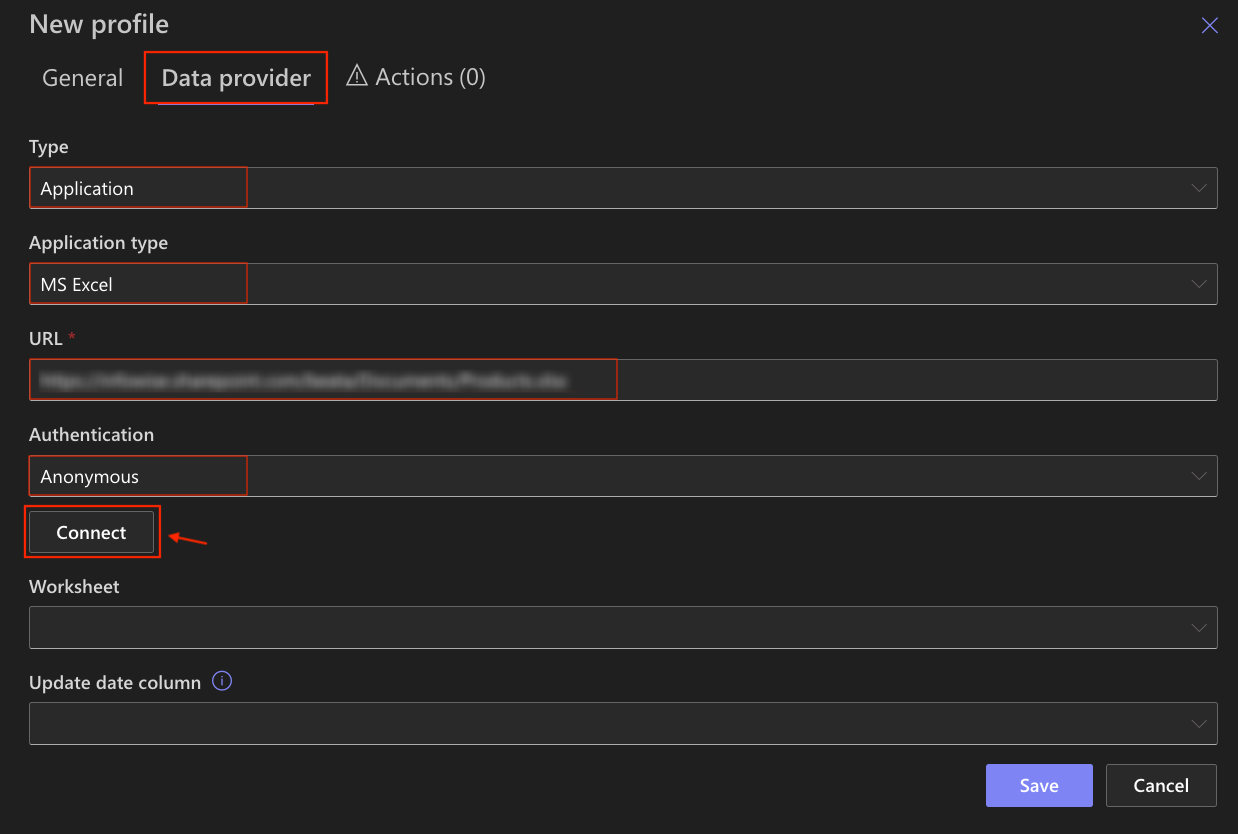
Open the Data Provider tab and configure:
- Type: Application
- Application Type: MS Excel
- Enter the Excel file URL
- Authentication: Anonymous
- Click Connect
Step 4: Select a Worksheet
After connecting successfully:
- Choose the worksheet that contains your data
- Optionally select an Update Date Column
- For this example: Last Updated
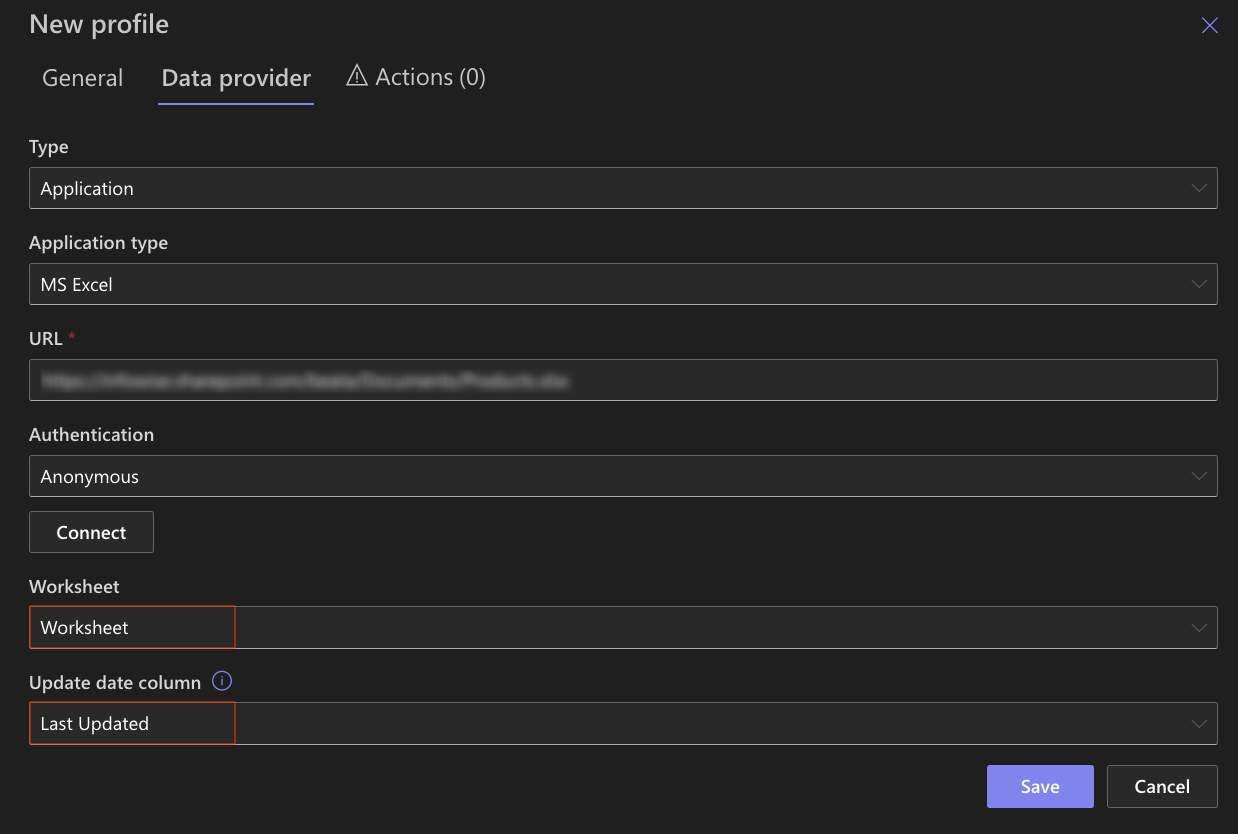
When an Update Date Column is specified, only records newer than the last imported record will be processed during future runs.
Step 5: Configure a Create Item Action
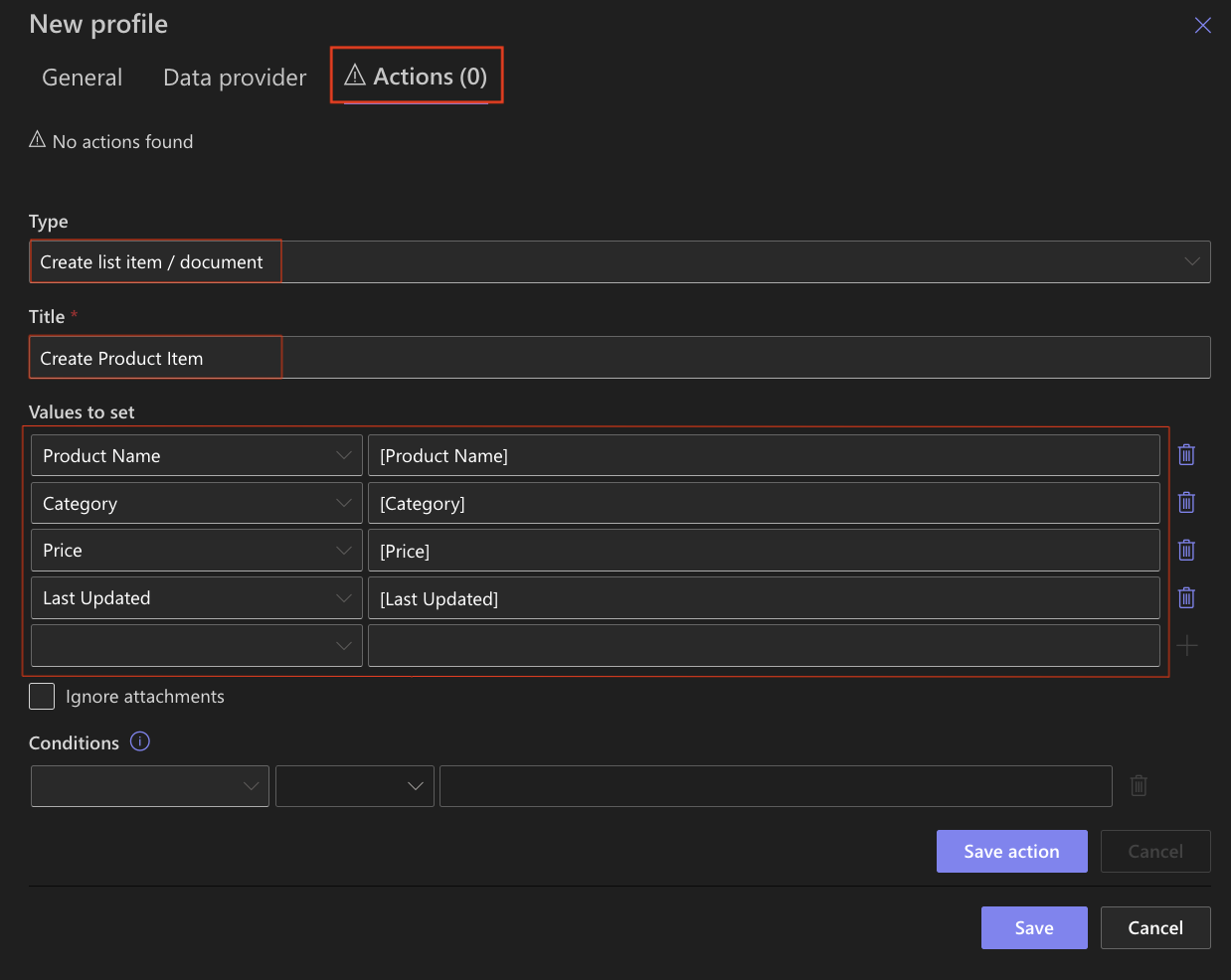
- Open the Actions tab
- Select Create list item / document
- Enter an action title: Create Product Item
- Configure column mappings using Values to set
Step 6: Save and Run the Profile
- Save the action
- Save the profile
- Click Run Now or wait for the scheduled execution

Step 7: View Import History
After the profile runs:
- Open Import
- Select the profile
- Click Import History
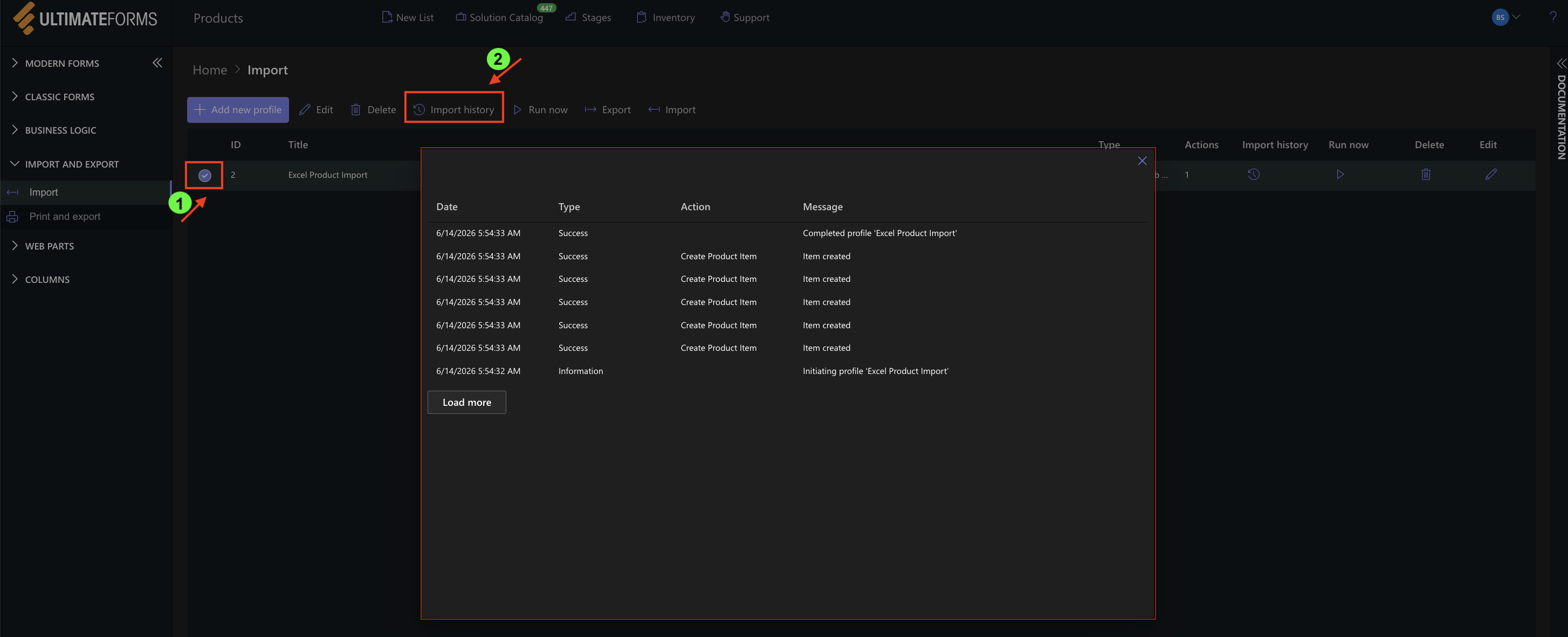
The history window displays:
- Execution date and time
- Import status
- Executed actions
- Detailed messages
Import History helps verify successful imports and troubleshoot issues.
Step 8: Verify Results
Open the Products list and verify that the worksheet data has been imported successfully.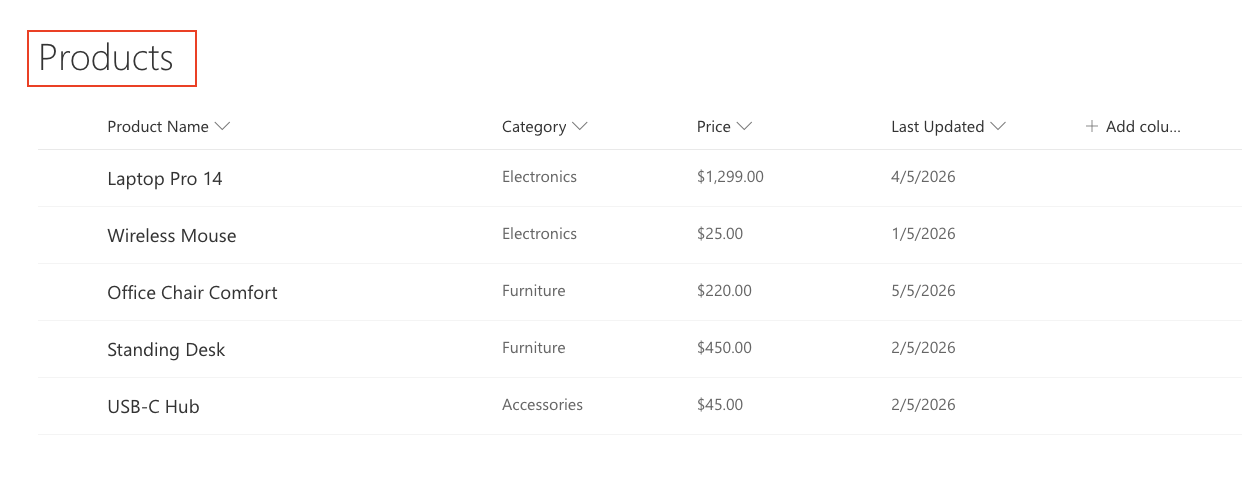
Each row in the worksheet becomes a SharePoint list item based on the mappings defined in the action.
Result
Data from the Excel workbook is automatically imported into SharePoint and converted into list items.
This approach helps eliminate manual data entry and keeps SharePoint synchronized with spreadsheet-based business data.
Additional Notes
- Only modern Excel files (.xlsx) are supported.
- Import expects tabular data with column headers starting in cell A1.
- You can use Create, Update, or Sync actions depending on your business requirements.
- Column mappings can include calculations, functions, and conditional logic.
- If your source file is in CSV format, use the dedicated CSV/TSV import provider instead of MS Excel. The CSV/TSV provider is designed specifically for comma-delimited and tab-delimited text files.
Summary
You learned how to configure Import to read data from an Excel workbook, select a worksheet, map columns, and automatically create SharePoint items.
Excel imports provide a simple and effective way to bring structured business data into SharePoint while supporting automated updates and ongoing synchronization.