Importing Data from Email into SharePoint
With Import, you can automate this flow by reading incoming emails and converting them into SharePoint list items.
In this tutorial, you will create an Import Profile that reads emails and automatically creates items in a SharePoint list.
Instructions
Before You Start
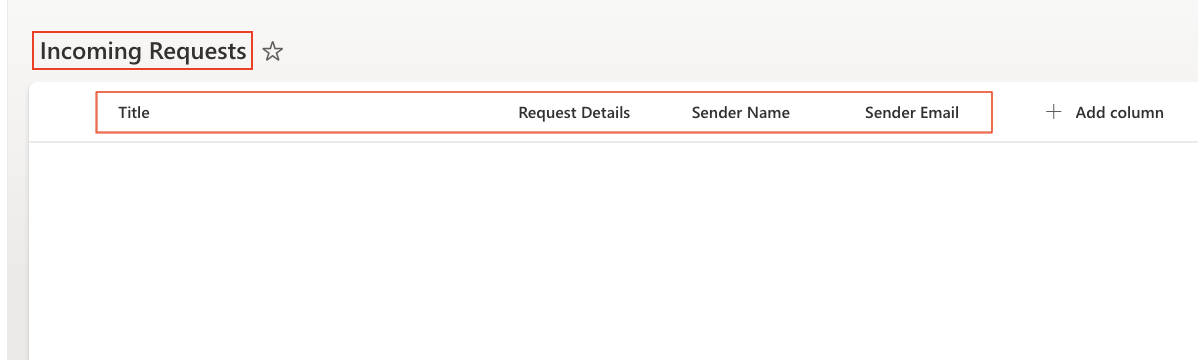
Create a SharePoint list to store incoming requests.
List name: Incoming Requests
Columns:
- Title (Single line of text)
- Request Details (Multiple lines of text)
- Sender Name (Single line of text)
- Sender Email (Single line of text)
Step 1: Open Import Settings
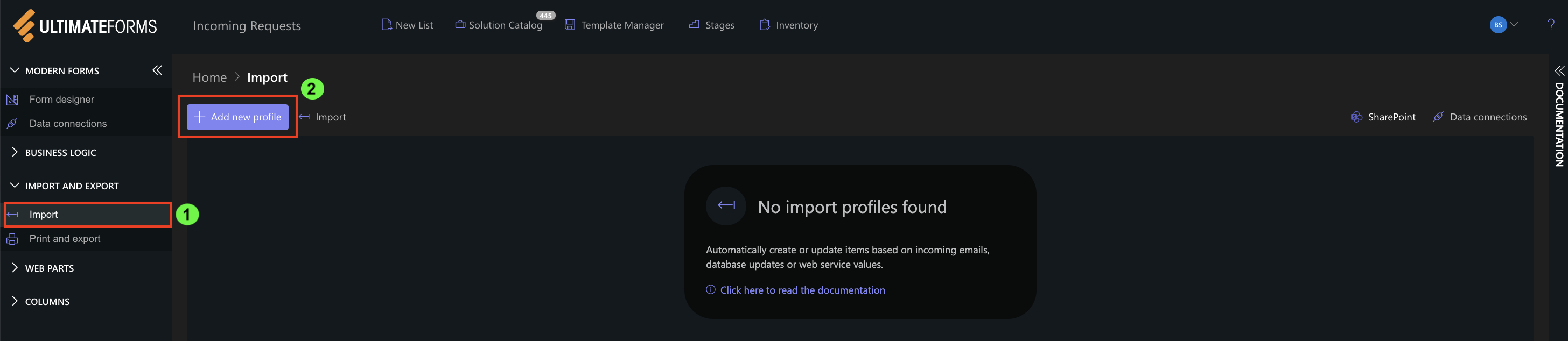
- Open your SharePoint list
- Click Design
- Select Import
- Click Add new profile
Step 2: Configure General Settings
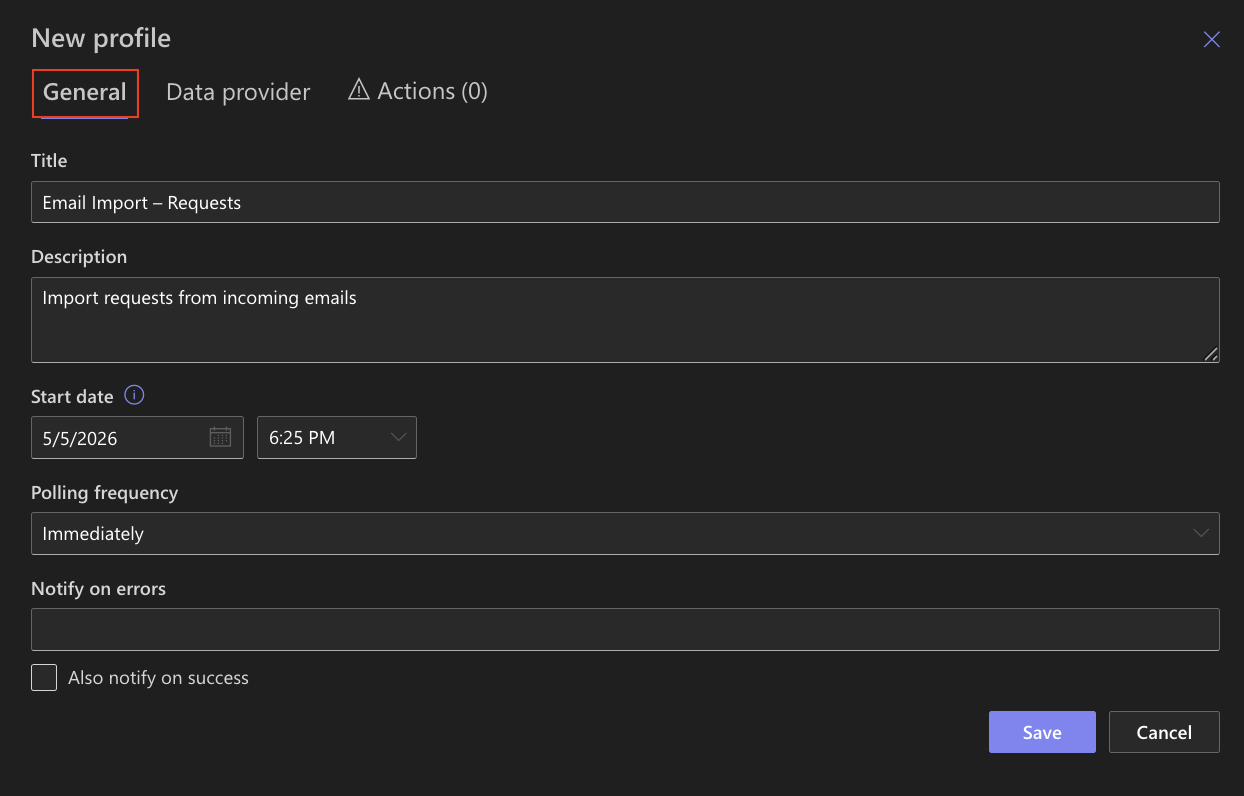
Set basic profile settings:
- Title: Email Import – Requests
- Description: Import requests from incoming emails
- Start date: Use current date to import only new emails
- Polling frequency: Set how often the system checks for new emails
- Notifications: Configure error notifications if needed
Step 3: Configure Email Provider
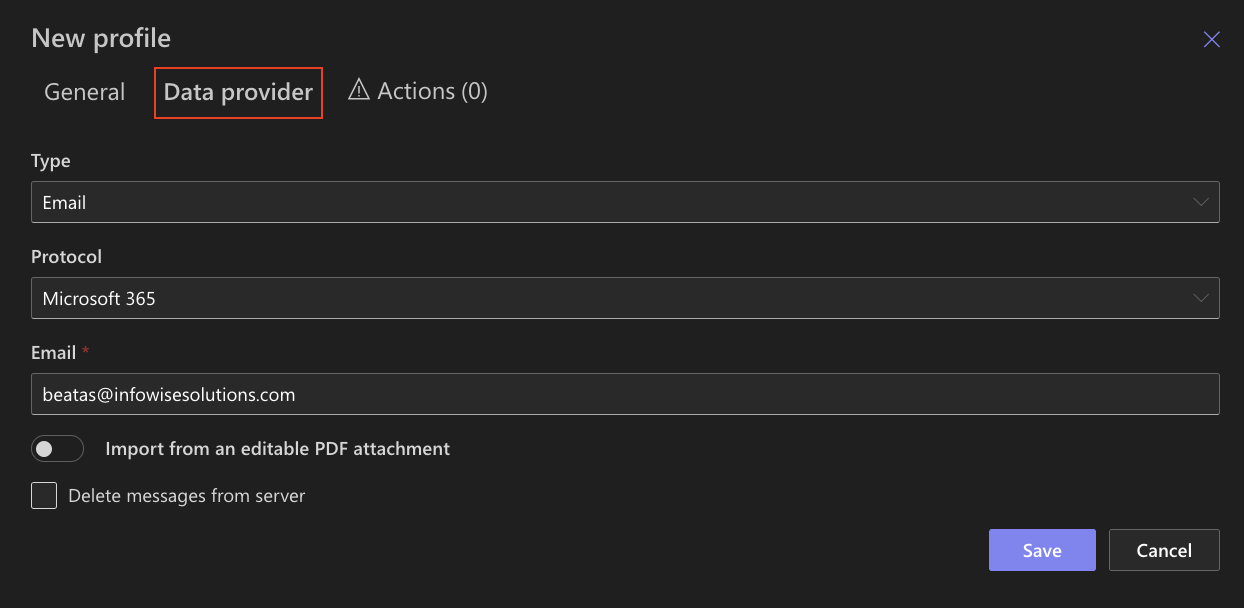
- Open the Data Provider tab
- Set:
- Type: Email
- Protocol: Microsoft 365
The system will automatically connect to your mailbox.
Optional settings:
-
- Enable Delete emails after import if you want to clean up processed emails
- Enable attachment import if needed
Step 4: Configure Action
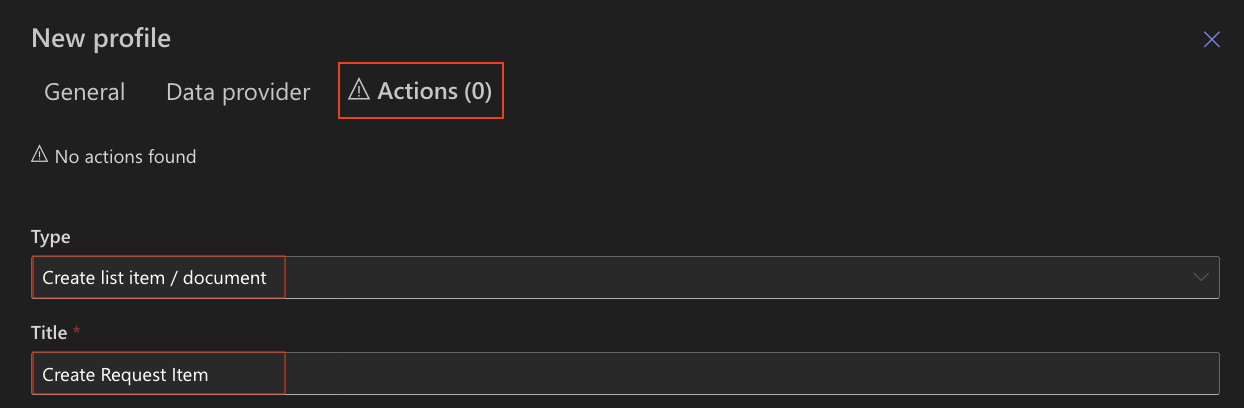
- Open the Actions tab
- Click Add new action
- Select Create list item / document
- Title: Create Request Item
Step 5: Map Email Data
Map email fields to your list columns:
- Title → Subject
- Request Details → Body
- Sender Name → Sender Name
- Sender Email → Sender Address
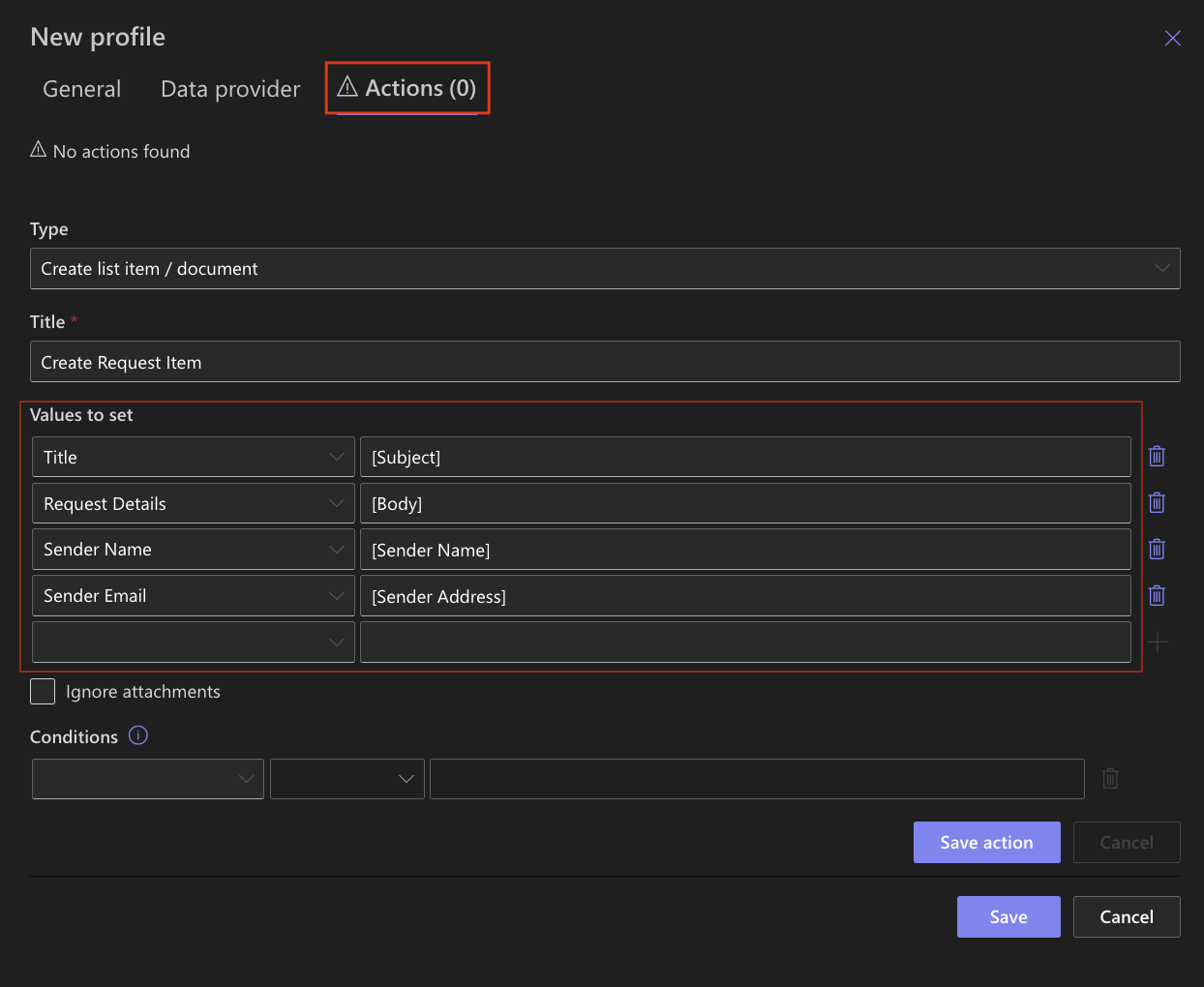
Each incoming email will now be converted into a structured SharePoint item.
Step 6: Save and Run the Profile
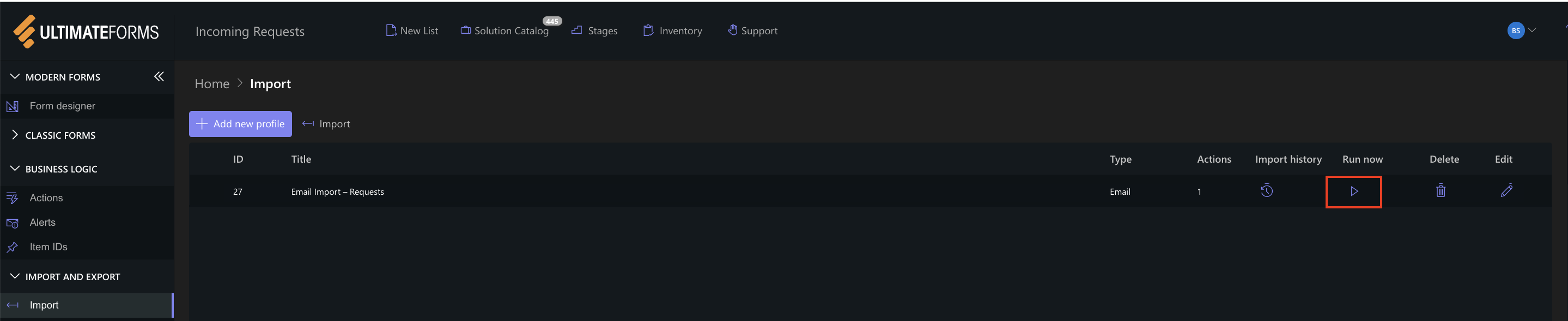
- Click Save
- Click Run now or wait for scheduled execution
Step 7: Verify Results
After the profile runs:
- Open your SharePoint list
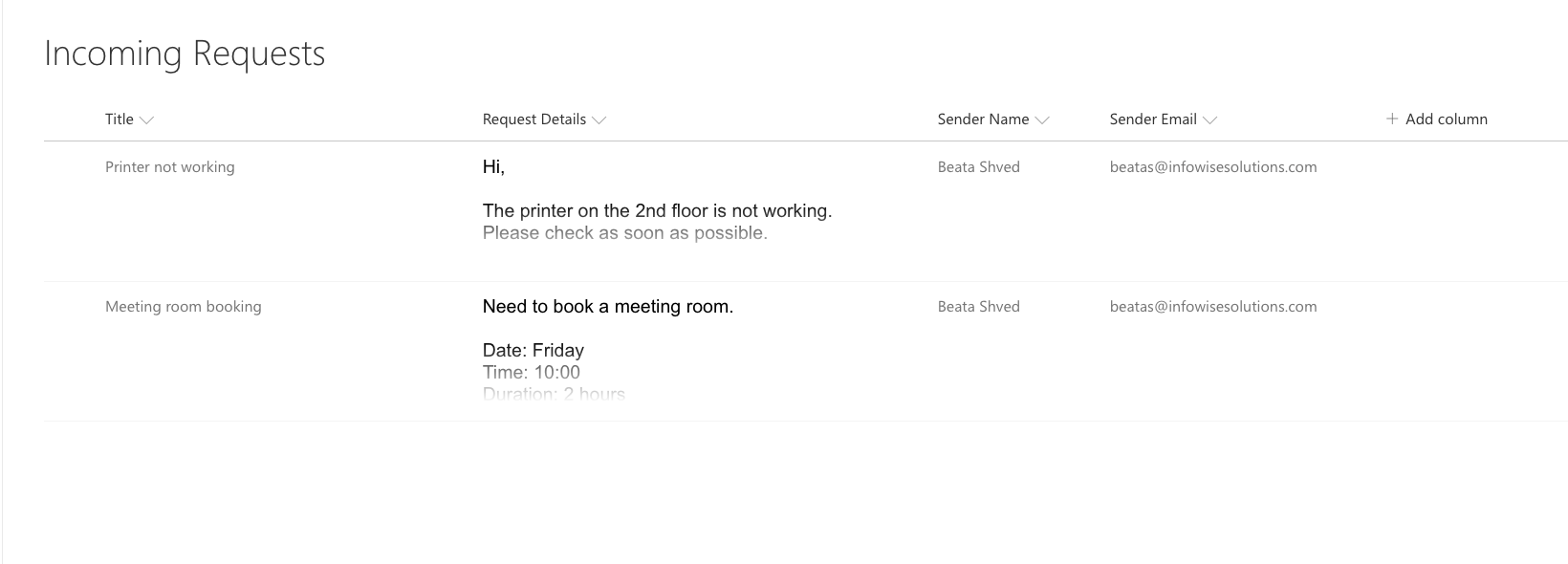
- Verify that new items were created from emails
Example
The following email: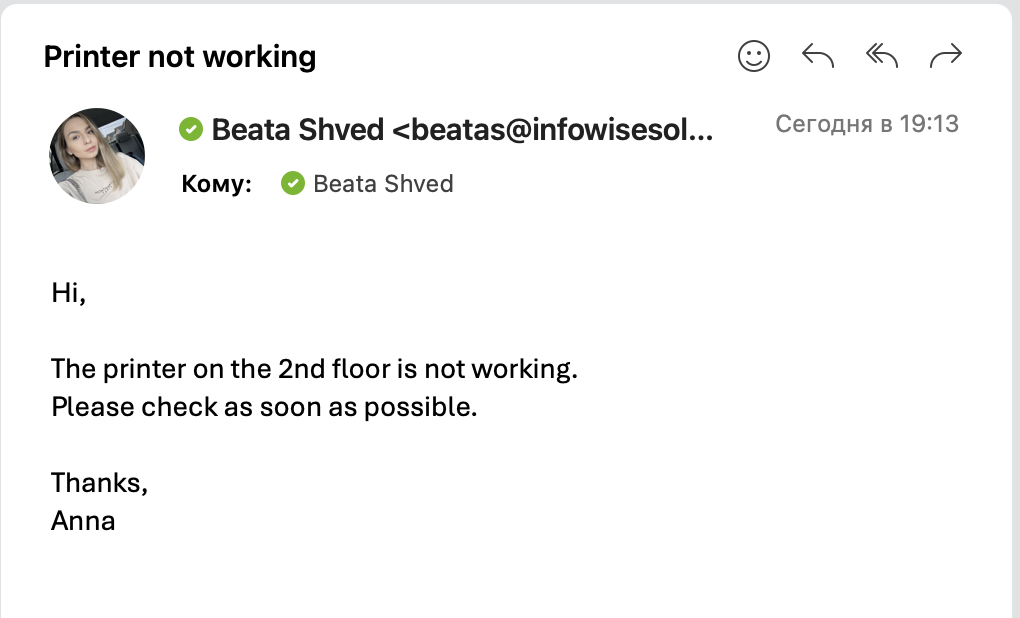
Is imported as: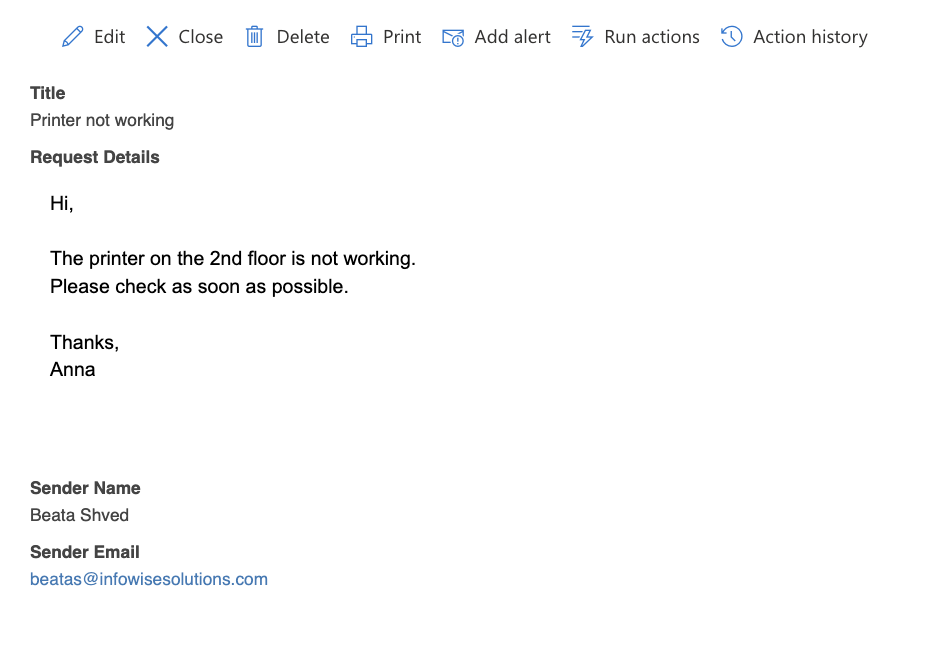
The email subject becomes the Title, and the email body is stored in the Request Details field.
Result
Incoming emails are automatically converted into SharePoint list items.
This allows you to capture and structure information without manual data entry.
Watch this quick video walkthrough from Infowise:
Summary
You learned how to import data from emails into SharePoint and automatically create list items.
This approach helps automate common processes such as request tracking, support tickets, or internal communication workflows.