Configuring Filter Behavior and Default Values
In this tutorial, you will learn how to configure filter behavior and set default values in Ultimate Forms: Filters.
While filters allow users to refine data, their behavior and initial state play a key role in usability. By adjusting settings such as default values, instant filtering, and visibility, you can create a smoother and more intuitive filtering experience.
You will extend the existing filter panel on the Sales Dashboard and improve how filters behave and interact with the charts.
Instructions
Before You Start
Make sure you already have:
- the Sales Tracking list with data
- the Sales Dashboard page with charts
- a Filters profile created
Step 1: Open the Filters profile
- Go to Ultimate Forms → Filters
- Open the profile Sales Filters
- Go to the Filters tab

Step 2: Set default values
Default values allow the page to load with filters already applied.
Example: Active items by default
- Find the Active filter
- In the Default value field, select Yes
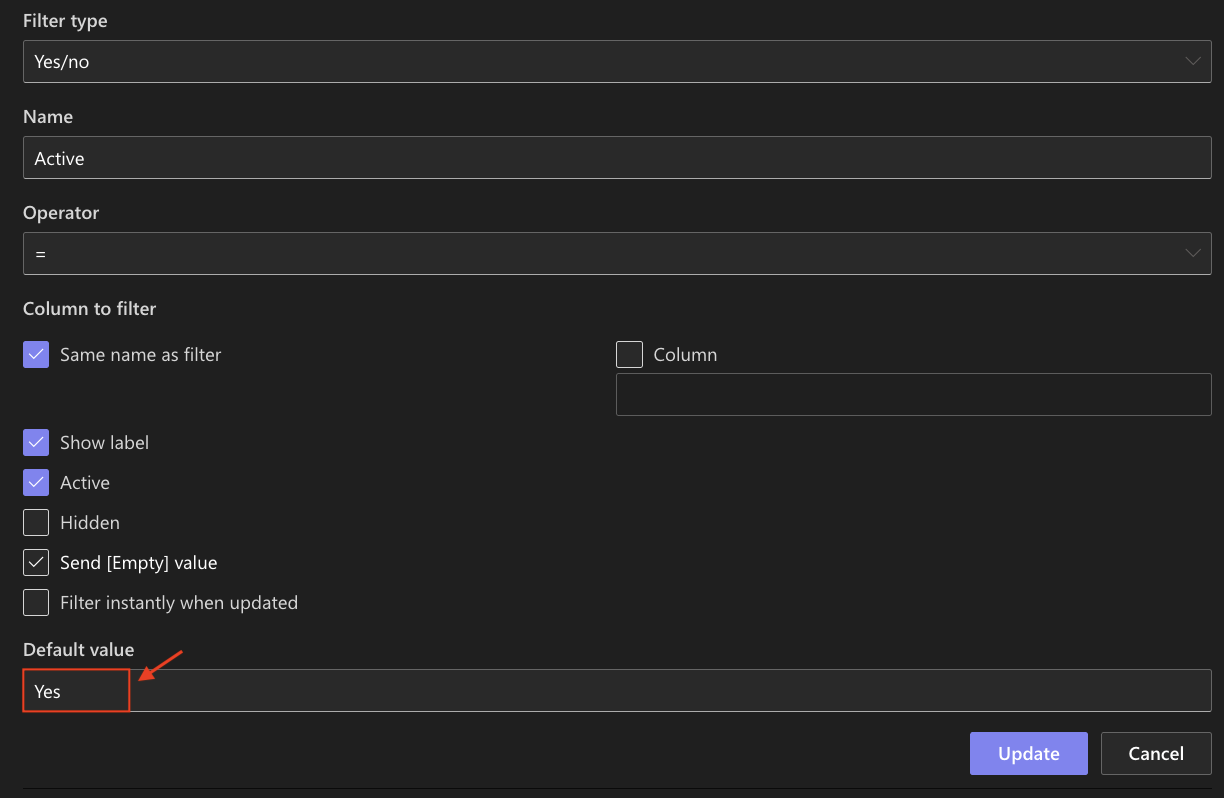
Now the page will automatically display only active items when it loads.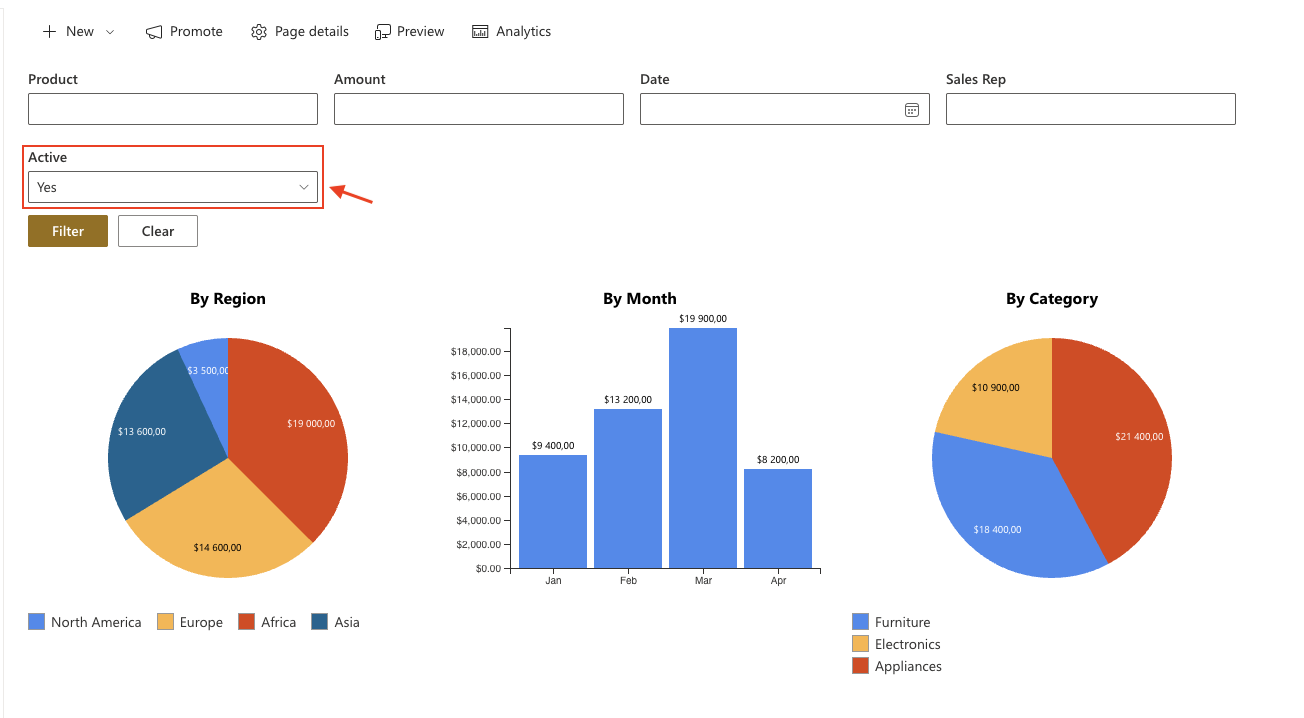
Example: Preselect a Sales Rep
- Find the Sales Rep filter
- Set a Default value (select a user)
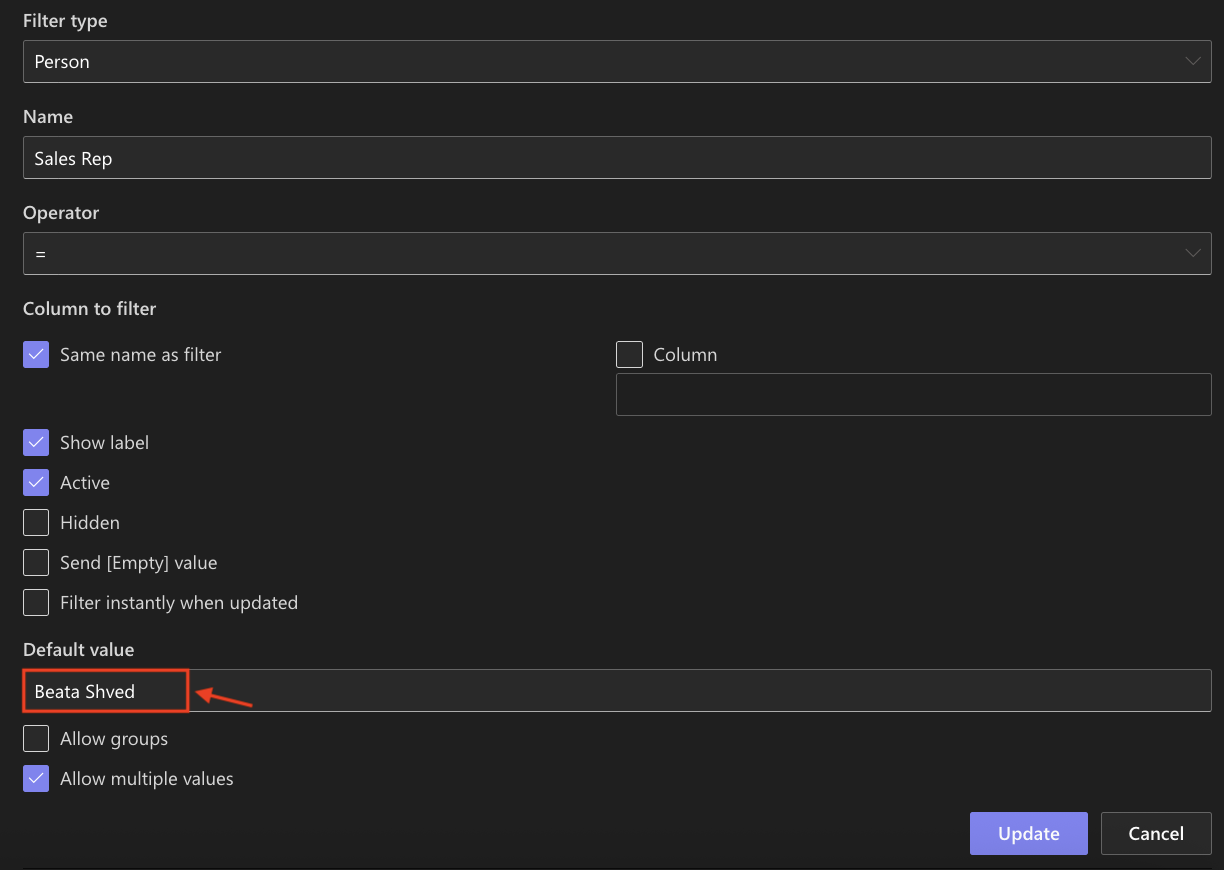
This is useful for personalized dashboards.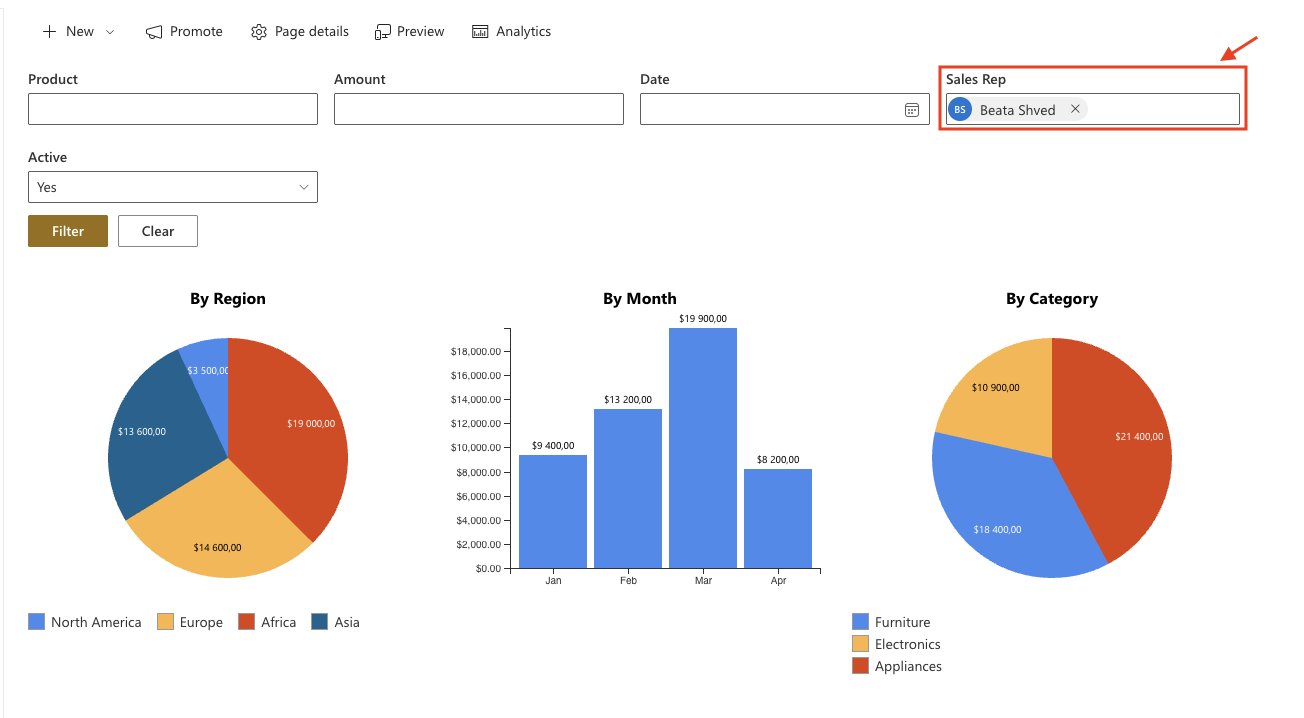
Step 3: Enable instant filtering
To improve user experience, enable automatic filtering.
- For each filter (or selected filters)
- Enable Filter instantly when updated
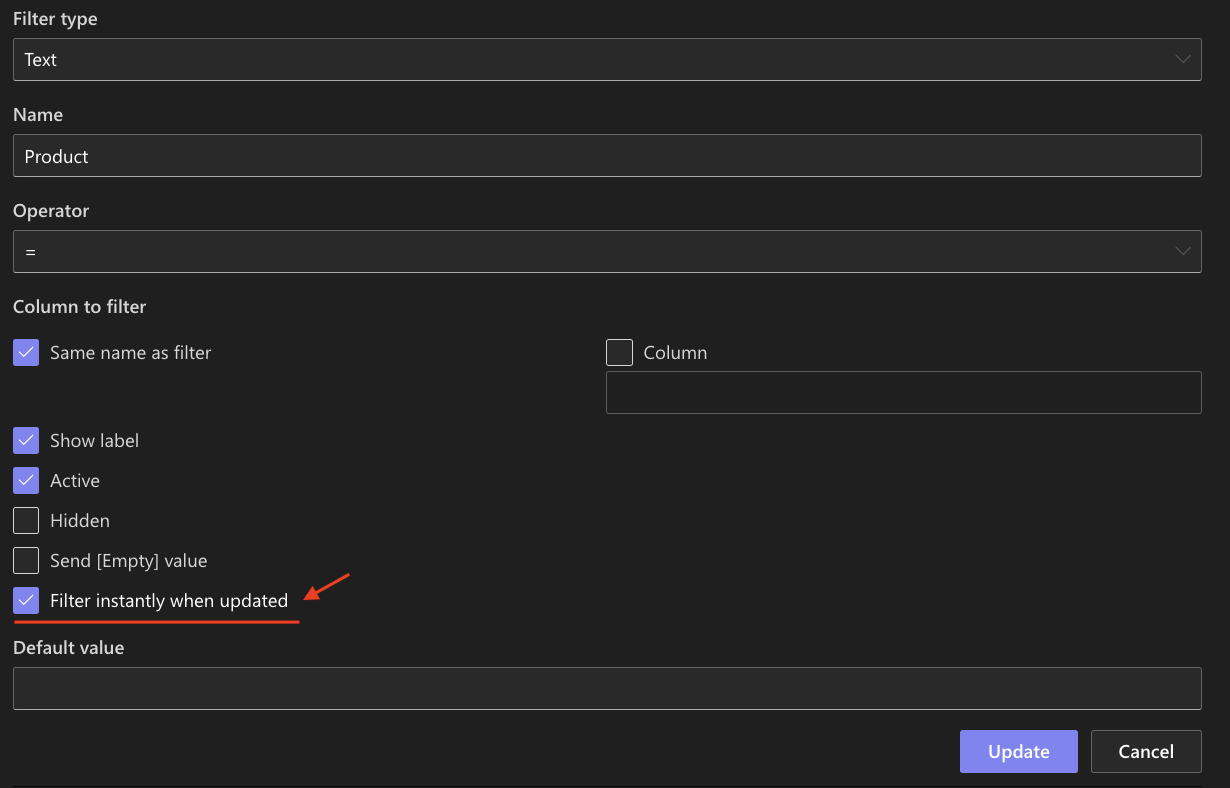
Charts will update immediately when a filter value changes, without clicking the Filter button.
Step 4: Hide filters from the panel
Sometimes you want filters to apply in the background.
Example: Hidden Active filter
- Select the Active filter
- Enable the Hidden option
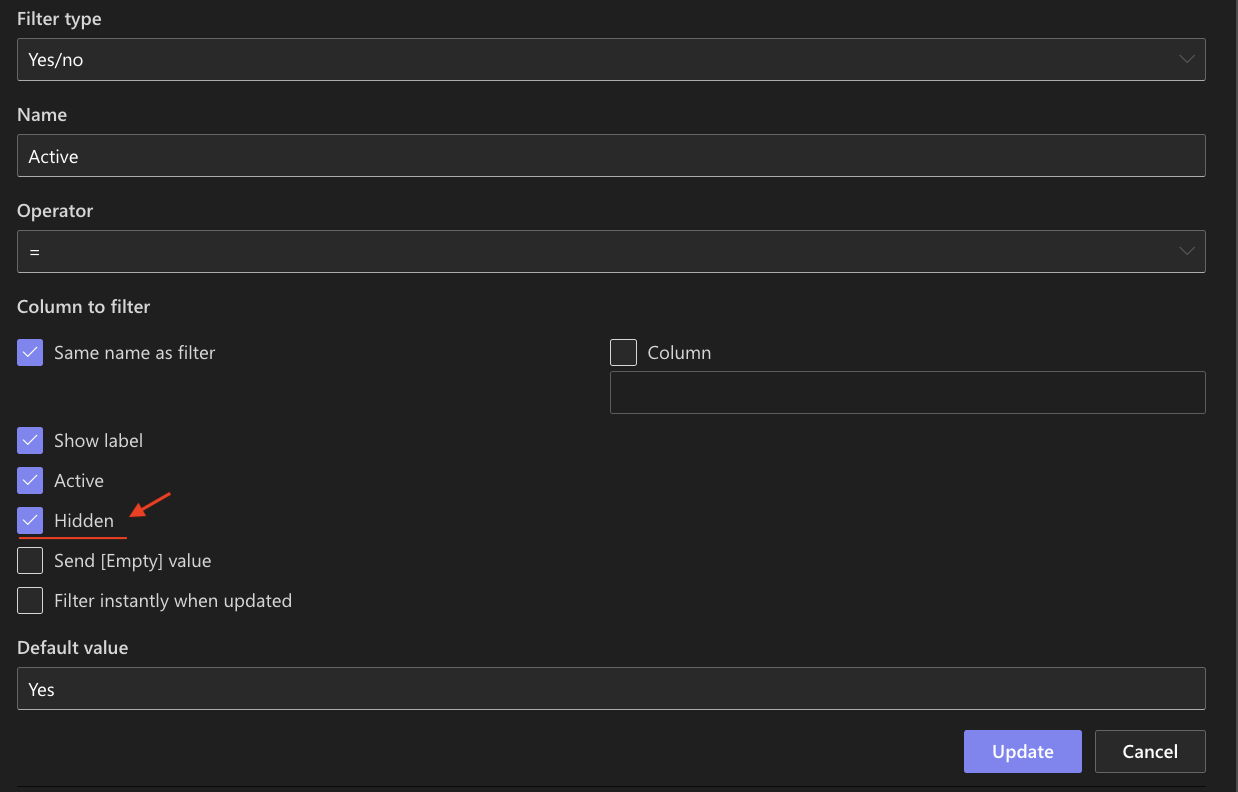
The filter will still apply, but users will not see it.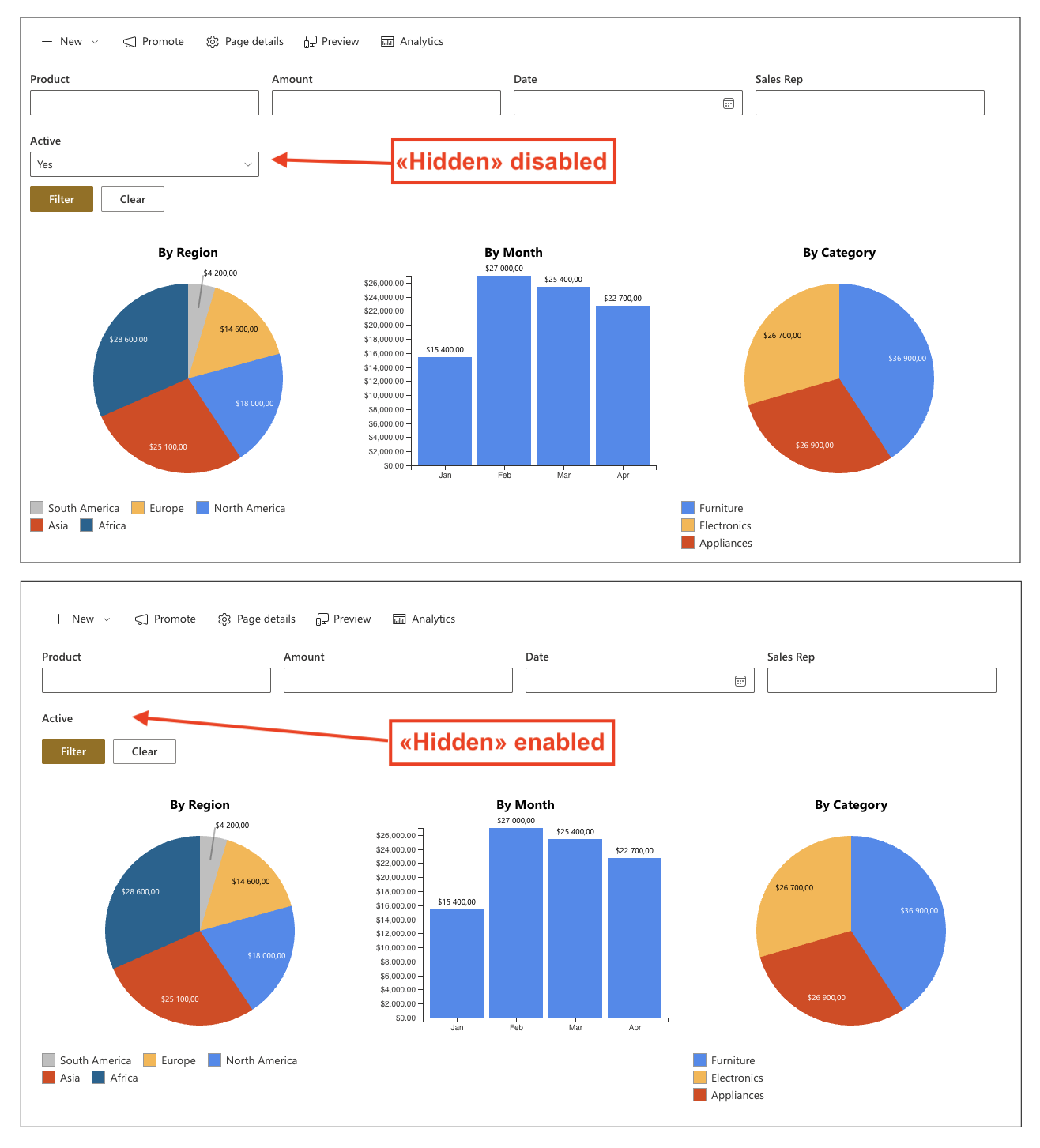
Step 5: Disable unused filters
To simplify the interface:
- Uncheck the Active option for filters you do not need
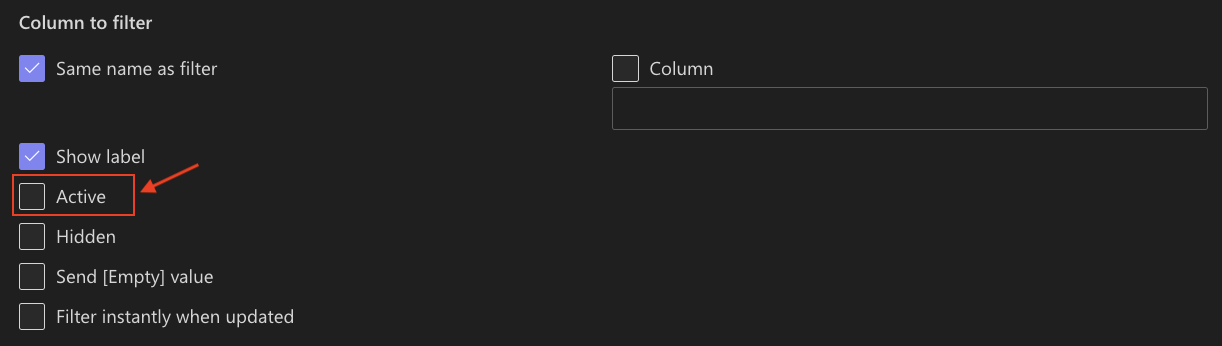
This helps reduce clutter and keeps the filter panel clean.
Result
The filter panel now behaves in a more controlled and user-friendly way.
Users see only relevant filters, while default and hidden settings ensure the data is presented in a meaningful way from the start.
Summary
In this tutorial, you learned how to:
- set default filter values
- enable instant filtering
- hide filters from the interface
- disable unused filters
These settings allow you to create a more intuitive and efficient filtering experience in Ultimate Forms: Filters.